





 Shopify
 Stripe
 Slack
Slack Notion
 Google Workspace
 Confluence

How to Set Up a Webhook in Freshdesk (2026): Plans, Placeholders, Payloads and Why Webhooks Get Dropped


A Freshdesk webhook is the Trigger Webhook action inside an automation rule, available on Growth and above, while the response-reading Trigger API action needs Pro. Webhooks share the account's API rate limit, and anything postponed for more than 24 hours is dropped with an alert email to the admin.
Key takeaways
- A Freshdesk webhook is added as the action inside an automation rule built under Admin, Workflows, Automations, using either the Trigger Webhook or Trigger API action.
- Freshdesk's Trigger Webhook action requires the Growth plan or higher, while Trigger API, which lets later actions use the response, requires Pro or higher.
- In a Freshdesk webhook's JSON payload, string placeholders such as ticket.subject must be quoted while numeric ones like ticket.group_id must not be, or the endpoint returns a 400 error.
- Freshdesk webhooks share the account's API rate limit, 100 calls a minute on Growth, 400 on Pro and 700 on Enterprise, and anything postponed more than 24 hours is dropped.
- Macha, an AI agent layer built on top of Freshdesk, prices per ticket starting at $299 a month for 750 tickets, about $0.40 a ticket, with a free trial of $50 of usage.

To set up a webhook in Freshdesk, build an automation rule under Admin > Workflows > Automations and add Trigger Webhook as its action; that action needs the Growth plan or higher, and the response-reading Trigger API action needs Pro. The callback URL and body take placeholders, string placeholders must be quoted in JSON, and every webhook call counts against the account's API rate limit (100 calls a minute on Growth). Webhook questions are the fastest-growing topic in the Freshworks community, with 16 of the forum's 29 webhook threads posted since 2024, and most are one of three things: a plan gate, an unquoted placeholder, or the drop behavior covered further down.
Which webhook action do you need, and on which plan?
Freshworks' Using webhooks in automation rules article, modified 29 January 2026, documents two actions that look similar in the rule builder and are not:
| Trigger Webhook | Trigger API | |
|---|---|---|
| What it's for | Push data out; the response is discarded | Chained logic that needs the response, or JavaScript on ticket fields |
| Response handling | None | Parsed, and usable by later actions |
| Plan | Growth and up | Pro and up |
| Typical use | Update a CRM, notify a channel, send an SMS | Parse JSON, do date math, map fields conditionally |
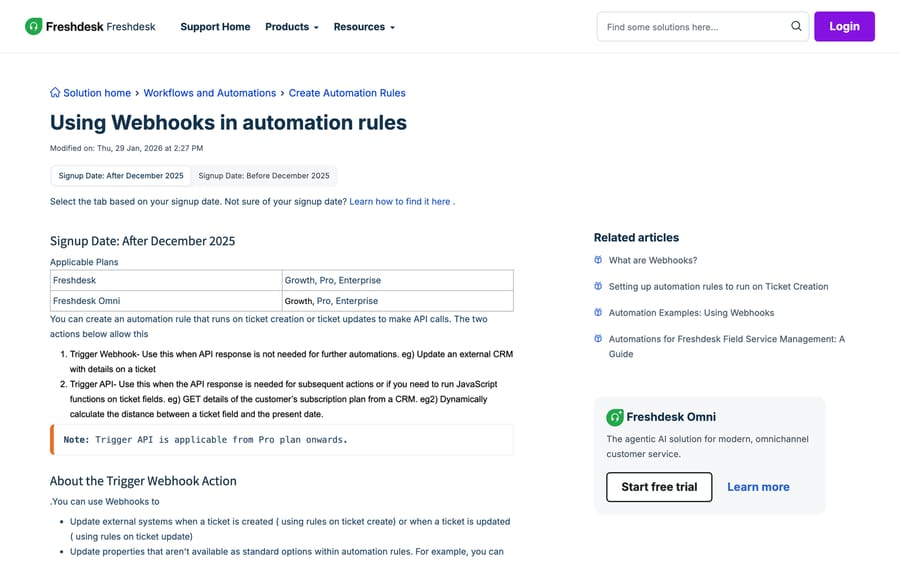
For most integration work, "when X happens, tell system Y," Trigger Webhook is correct and cheaper. The moment your design says "take the response and then decide," you're on Trigger API, and that's a Pro plan, not a Growth one. Neither action is available below Growth (Freshdesk's pricing page no longer lists a free plan, and Growth starts at $19 an agent a month billed annually), so if the action list has no webhook in it, check the plan before you check anything else. Our dedicated troubleshooting page is Freshdesk webhook not firing.
Step 1: Where do you build the rule that hosts the webhook?
- Go to Admin > Workflows > Automations. On Freshdesk Omni the path is Admin Settings > Configuration and Workflows > Ticket Automations.
- Pick the rule set that matches when you want it to fire: Ticket Creation for events at intake, Ticket Updates for events on an existing ticket. Click New Rule.
- Name it, then set the event and conditions so the webhook fires only when it should. "Status changes to Resolved" or "tag is added and tag is escalate" are the usual shapes.
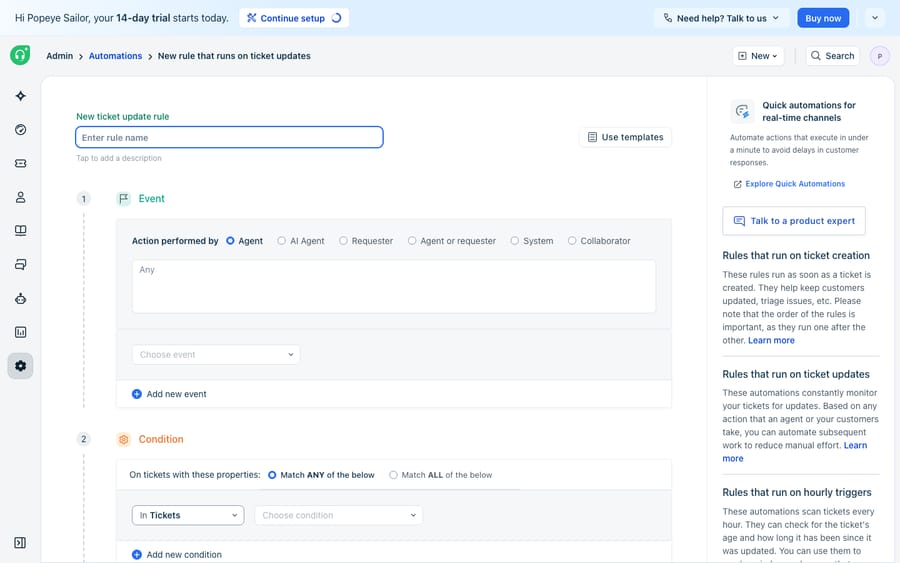
Rule order matters here. If two rules in the same set both match, the first one that fires can change the ticket so the second no longer matches. Freshdesk automation rule order explained covers the resolution rules, and Freshdesk automations explained covers the three rule sets.
Step 2: What goes in the webhook action's four fields?
Under Perform these actions, choose Trigger Webhook.
Request type. GET, POST, PUT, PATCH or DELETE. GET is documented but nearly pointless in a Trigger Webhook, because the response is discarded.
Callback URL. This field accepts placeholders, which is what makes the whole feature useful. To act on the ticket that fired the rule, interpolate its ID into the path:
https://YOURDOMAIN.freshdesk.com/api/v2/tickets/{{ticket.id}}/notesAuthentication. Toggle Requires authentication and supply an API key. If the target is Freshdesk's own API, that's the key from an agent's Profile Settings, and it inherits that agent's permissions. If the key won't display, the cause is usually plan or agent verification: how to find your Freshdesk API key covers both.
Custom headers and encoding. Headers go one per line as X-Sample-CustomHeader1: VALUE; names are case-insensitive and values are preserved as typed. Encoding is JSON, XML or XML-Encoded, and JSON is what almost every modern endpoint wants.
Step 3: How do placeholders work, and why do payloads break?
Freshdesk exposes three placeholder families inside a webhook, one each for the ticket, the contact and the company, written {{ticket.id}}, {{contact.email}}, {{company.name}} and so on, plus one that only exists here, {{Triggered event}}, which resolves to the name of the event that fired the rule. That last one is genuinely useful when several rules post to the same endpoint and your receiver needs to tell them apart. The general placeholder reference across Freshdesk is in Freshdesk placeholders and dynamic content.
The payload has two modes. Simple gives you a checklist of ticket properties to include. Advanced lets you write the body yourself, and it's the only one worth using for anything non-trivial.
Here's the rule that breaks more Freshdesk webhooks than anything else: string placeholders go inside quotes, numeric ones do not.
{
  "subject": "{{ticket.subject}}",
  "description": "Follow-up raised from ticket {{ticket.id}}",
  "email": "{{ticket.contact.email}}",
  "group_id": {{ticket.group_id}},
  "priority": {{ticket.priority}},
  "status": 2
}
group_id and priority are JSON numbers, so quoting them sends a string and the endpoint rejects it with a 400. subject is a string, so leaving the quotes off produces invalid JSON before the value is even read. Both failures look identical from the Freshdesk side, which is nothing at all.
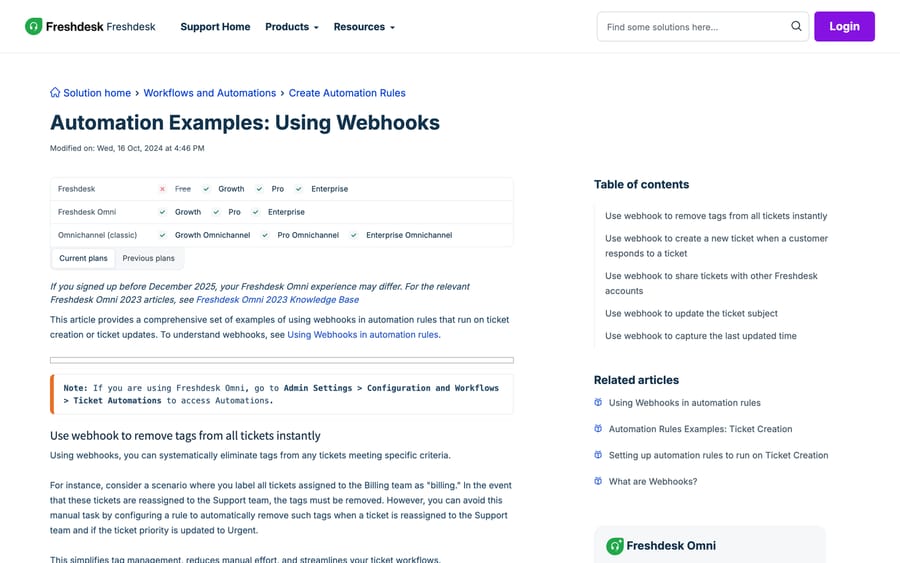
Attachments. Freshworks doesn't document sending file attachments in a webhook payload, and we wouldn't assume a capability that isn't written down. If your receiver needs the file, send the attachment URL from the ticket and have the receiver fetch it with its own credentials. Freshdesk's API sends attachments as multipart/form-data on the way in, which is a different request shape from the JSON body a webhook builds, and that's the underlying reason.
Step 4: How do you point a webhook back at Freshdesk's own API?
The most common non-obvious use of a Freshdesk webhook is calling Freshdesk. The help desk has no native "run this later" action, so teams use a webhook to update the very ticket that triggered the rule, or to create a related one.
Adding a private note to the triggering ticket, as a POST to the notes endpoint:
POST https://YOURDOMAIN.freshdesk.com/api/v2/tickets/{{ticket.id}}/notes
{
  "body": "Escalation rule fired on {{Triggered event}}",
  "private": true
}
Creating a follow-up ticket when a customer replies to something finished, which is what the community thread Using webhook to create a new ticket once a reply is sent to a ticket that's closed is building, is the same pattern pointed at /api/v2/tickets with a POST.
Two cautions on loop-back. First, every loop-back call consumes your account's API budget twice over, because the webhook itself is metered against the same limit as the call it makes. Second, a rule that fires on ticket updates and then updates the ticket can re-trigger itself. Put a condition on the rule that the write it performs will fail to match, such as adding a tag and excluding tickets that already carry it.
Step 5: How should you test a new webhook?
Never point a new webhook at production. Generate a URL from a request bin service, paste it as the callback URL, trigger the condition on a real ticket, then read what arrived: the resolved URL, the headers, and the fully rendered JSON. Confirm no {{placeholder}} text survived unsubstituted and that the JSON parses. Then swap in the real endpoint.
This one habit catches the unquoted-string bug, the quoted-number bug and the placeholder that resolves to empty, which between them are most of what goes wrong.
Why do Freshdesk webhooks stop firing?
This rate-limit behavior explains the forum's Webhook automation failure thread.
Freshworks' How to handle and prevent webhook drops article, modified 19 May 2023, states three things plainly:
- You can configure as many webhooks for event triggers as you want. There's no cap on rules.
- They execute only against your account's API rate limit. Webhooks are not a separate budget. They compete with your scripts, your BI connector and your Marketplace apps for the same per-minute ceiling, which is 100 calls a minute on Growth, 400 on Pro and 700 on Enterprise, and 50 a minute on a trial account, per the API rate-limit table.
- Anything beyond that limit is postponed to the next hour, and anything postponed for more than 24 hours is dropped, with an alert email to the help desk admin.
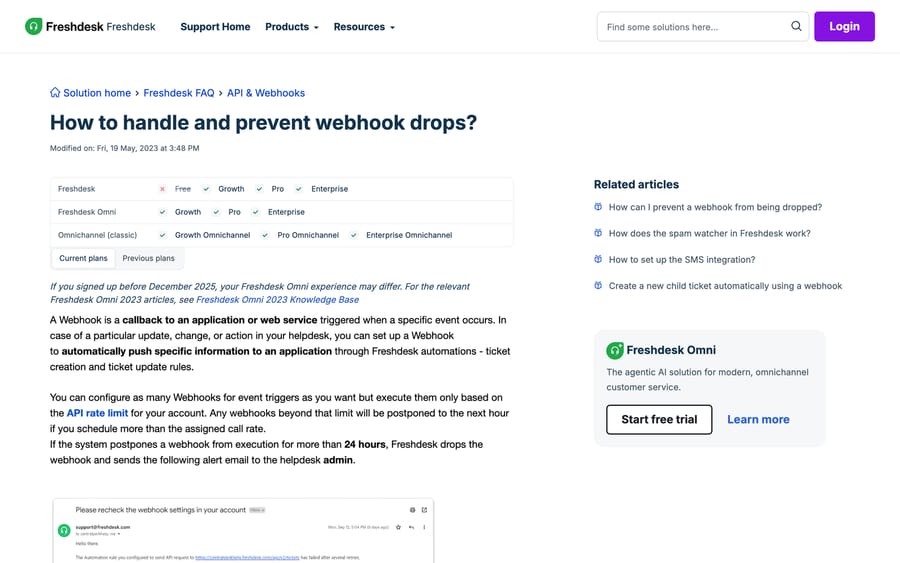
The alert arrives from [email protected] with the subject "Please recheck the webhook settings in your account" and a body naming the URL that failed. If nobody in your team recognizes that email, it goes to a shared inbox and gets archived, which is how a webhook can be silently dead for a week.
The separate documentation on the webhook action gives a 1,000-requests-per-hour figure and says failed calls retry every 30 minutes for up to 48 attempts, which is about a day of retrying. Treat both numbers as a design constraint rather than a safety net: make your receiver idempotent, because a flaky endpoint will hear the same event dozens of times.
Practical consequence. If your ticket volume spikes and a rule fires on every ticket, the webhook is competing with everything else your account does over the API. Batch where you can, put the rule's condition as tight as it will go, and if you're on Growth, know that 100 calls a minute is the whole account's budget, not the webhook's.
How we researched this
We checked every path, plan gate, cap and placeholder in this post against Freshworks' own support articles in a browser on 20 September 2026 and re-checked the plan gates, rate limits and add-on prices on 24 September 2026, and we captured three of the four screenshots in that session; the rule-builder shot is carried over from the previous version of this page. Community thread view counts come from our own crawl of community.freshworks.com, where the webhook cluster holds 29 threads and about 7,300 views. We don't run a Freshdesk account, so no rule here was built or fired in a live instance, and the payloads are written from Freshworks' documented examples. One thing we could not confirm either way: whether a webhook can carry a file attachment. Freshworks doesn't document it, so we say that instead of guessing.
When is a webhook the wrong tool?
A webhook fires on a condition you can express as a field comparison. That's the whole model, and it's why complex Freshdesk setups accumulate dozens of rules that each encode one narrow case: tag equals refund, subject contains invoice, group is Tier 2. Every rule is a guess made in advance about what a ticket will say.
Macha is an AI agent layer that runs on top of the Freshdesk you already have. It reads the actual conversation, and it calls your systems through custom API tools, the same HTTP endpoints you'd point a webhook at, except the decision to call one is made from what the customer wrote rather than from a field match. It doesn't replace Freshdesk, its automations or its rule engine, and it isn't a help desk. It suits teams whose rule count keeps growing because each new ticket shape needs its own condition; it's the wrong fit if three tidy rules already cover your traffic, since there'd be nothing to simplify.
There's an incentive worth naming while you weigh that. Freshworks meters connector-app tasks at $80 per 5,000 and MCP actions at $15 per 1,000 on its pricing page, so the native automation surface is priced per machine action. Macha's pricing is one plan on monthly ticket volume, from $299/month for 750 tickets, about $0.40 per ticket at every tier, with setup and monitoring by the Macha team, included on every plan. A ticket is one thread between Macha and one person, charged once no matter how many messages it takes, so a conversation that takes six tool calls costs the same as one that takes none. The trial is $50 of free usage (about 125 tickets), no credit card, no time limit. See Macha on Freshdesk and the pricing page.
Frequently asked questions
Which plan do I need for Freshdesk webhooks? Trigger Webhook is available on Growth, Pro and Enterprise ($19, $55 and $89 an agent a month billed annually on Freshworks' pricing page). Trigger API, the version whose response you can use in later actions, needs Pro or above. If the action isn't in your rule builder's list, that's the reason.
Where do I set up a webhook in Freshdesk? Admin > Workflows > Automations, then the Ticket Creation or Ticket Updates rule set, then New Rule, then Trigger Webhook under "Perform these actions". On Freshdesk Omni the path is Admin Settings > Configuration and Workflows > Ticket Automations. The webhook is always an action inside a rule.
What placeholders can I use in a Freshdesk webhook? The ticket, contact and company families, written {{ticket.id}}, {{contact.email}}, {{company.name}} and so on, in both the callback URL and the body, plus {{Triggered event}}, which is webhook-only and returns the name of the event that fired the rule. Quote string placeholders in JSON and leave numeric ones unquoted.
Why is my Freshdesk webhook payload rejected with a 400? Almost always the quoting. A numeric field such as group_id or priority must be sent as a JSON number, so "group_id": "{{ticket.group_id}}" fails, while a string field such as subject needs its quotes. Test against a request bin and read the rendered body before you point at a live endpoint.
How many webhooks can I configure in Freshdesk? As many rules as you want, per Freshworks' own documentation. The limit is on execution, not configuration: webhooks run against your account's API rate limit, so they share a budget with every other API caller in the account.
Why did my Freshdesk webhook stop firing? Two mechanisms. A call that comes back non-2xx retries every 30 minutes for up to 48 attempts and then stops. Separately, a webhook that exceeds your account's API rate limit is postponed to the next hour, and if it stays postponed for more than 24 hours Freshdesk drops it and emails the help desk admin with the subject "Please recheck the webhook settings in your account".
Can a Freshdesk webhook send an attachment? Freshworks doesn't document it. The practical pattern is to send the attachment's URL in the payload and let your receiver fetch the file with its own credentials, which also keeps the webhook body small.
Can a webhook update the ticket that triggered it? Yes, and it's the most common advanced use. Point the callback URL at your own Freshdesk API with {{ticket.id}} in the path, authenticate with an agent API key, and add a condition to the rule that stops it re-triggering itself after the write.
Sources:
- Using webhooks in automation rules (Freshworks support, modified 29 Jan 2026)
- How to handle and prevent webhook drops (Freshworks support)
- Examples for automations using webhooks (Freshworks support)
- Create a new child ticket automatically using a webhook
- Freshdesk API rate limits
- Freshdesk plans and pricing
- Community: Using webhook to create a new ticket once a reply is sent to a ticket that's closed
- Community: Webhook automation failure
- Community: Freshdesk automation to Discord (webhook trigger)






