





 Shopify
 Stripe
 Slack
Slack Notion
 Google Workspace
 Confluence

How Do You Set Up an Auto-Responder in Gorgias? (2026)


Gorgias has no auto-responder toggle; you build one from a Rule that fires when a ticket is created outside business hours and replies to the customer. Every automatic reply makes the ticket billable, so the conditions that prevent loops matter as much as the message.
Key takeaways
- A Gorgias auto-responder is a Rule: WHEN a ticket is created, IF the message arrived outside business hours, THEN Reply to customer, built under Settings, Ticket management, Rules.
- Gorgias Rules are available on all Helpdesk plans, can be created only by the account Owner, Admins and Leads, and are capped at 70 per account.
- Gorgias charges a ticket fee whenever a message is sent from the helpdesk, including an automatic reply from a Rule, so every auto-responder reply adds to the bill.
- Gorgias won't send the same auto-reply to one customer more than once every 5 minutes, but loops still need a first-message-only trigger and a message-from-agent-is-false condition.
- Gorgias adds an outcome-based fee when its AI Agent resolves a ticket, while Macha bills per ticket, from $299 a month for up to 750 tickets.

To set up an auto-responder in Gorgias, build a Rule under Settings → Ticket management → Rules: trigger it WHEN a ticket is created, add an IF condition that the message arrived outside business hours, and set the THEN action to Reply to customer. Rules are available on all Helpdesk plans, you can have up to 70 per account, and every auto-reply counts toward your billable tickets.
| Auto-reply type | WHEN | IF | THEN |
|---|---|---|---|
| Out-of-office | Ticket created | Message created outside business hours | Reply to customer with your return time |
| First-response acknowledgement | Ticket created | Message created during business hours (optionally email only) | Reply to customer with a short "we're on it" note |
| Loop guard (message-level variants) | New message in ticket | Message from agent is false | Reply only to customer messages |
What is a Gorgias auto-responder?
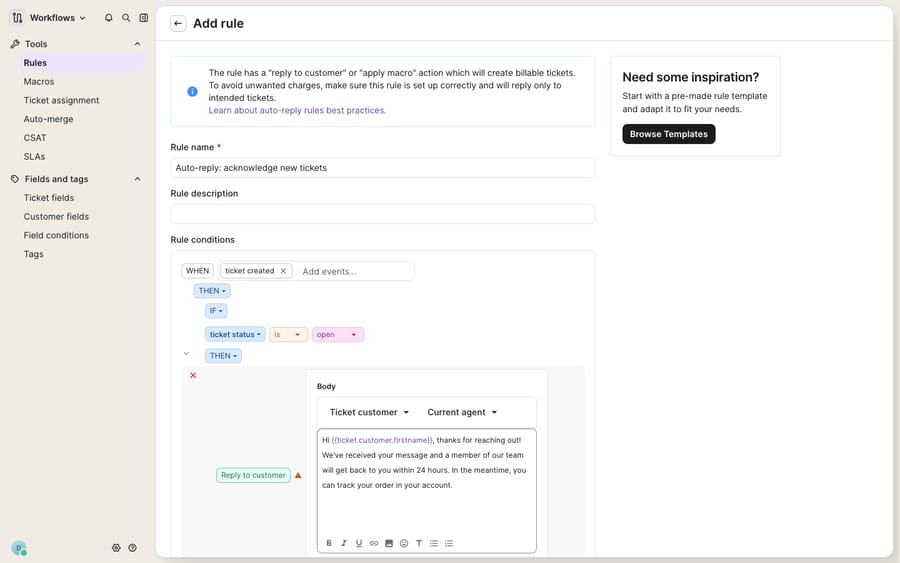
There's no single "auto-responder" toggle in modern Gorgias. You assemble one from a Rule, and a Rule, per Gorgias' rule builder documentation, is an if-this-then-that instruction in three parts. The WHEN is the trigger, the event that wakes the rule up, such as a ticket being created. The IF is a set of optional conditions that narrow when it applies, like "outside business hours." The THEN is the action, in our case Reply to customer, which sends a reply on the ticket. If Rules are new to you, our Gorgias Rules explained primer covers the full mechanism, and what Gorgias is sets the wider context.
Two facts shape everything else. First, Rules are available on all Helpdesk plans with no add-on, but only the account Owner, Admins and Leads can create and manage them, and Gorgias caps you at 70 rules per account (it warns you once you pass 65). Second, Gorgias bills a fee on any ticket with at least one message sent from your helpdesk, "whether the message is sent by a human agent, AI Agent or an automatic message from a Rule," per its billing documentation. An auto-reply turns a ticket billable even if nobody on your team ever touches it. That's why loop prevention (Step 3) matters so much.
Step 1: Why set business hours before building the rule?
An out-of-office auto-reply is only as good as the calendar it reads from. Gorgias lets you define business hours that apply across your support channels, and the rule builder uses them to decide whether a message arrived during or outside office time.
- Open Settings (the gear icon, bottom-left).
- Find Business hours and define your working days, hours and time zone, for example 9 AM to 5 PM ET, Monday to Friday.
- Save. This is the calendar the condition will check, so get it right before you build the rule.
Skip this and your "outside business hours" condition has nothing to measure against, so the rule will behave unpredictably.
Step 2: How do you build the out-of-office rule?
Gorgias documents this exact pattern in its auto-reply common Rule templates.
- Go to Settings → Ticket management → Rules and click Create rule (or start from the auto-reply template).
- Set the trigger: WHEN a ticket is created.
- Add the condition: IF the message's created date is outside business hours. This is what makes it an after-hours responder rather than an always-on one.
- Add the action: THEN → Reply to customer, and type your acknowledgement in the reply body. Be specific about timing:
> "Thanks for reaching out! Our team is offline right now, but we're back at 9 AM ET on weekdays. We've got your message and will reply as soon as we're in, usually within one business hour."
- Activate the rule.
If you sell on Shopify, you can personalize here too. The reply body accepts variables, so you can greet the customer by first name or, for a WISMO acknowledgement, pull in their order status or tracking link so the auto-reply already feels like progress.
Step 3: How do you stop an auto-reply from looping?
This is the step people skip and regret. An auto-reply that fires on every message in a ticket can end up answering your agents, or another system's autoresponder, in a ping-pong that burns billable tickets and irritates customers. Gorgias does add one safeguard of its own: per its Rules FAQ, it won't send the same auto-reply to the same customer more than once every 5 minutes. That throttles a loop; it doesn't stop one. Gorgias' auto-reply Rule best practices are blunt about tightening the conditions. Layer these in:
- Only reply to the customer's first message. Fire the rule on ticket creation, not on every new message. An OOO greeting should land once, not on every follow-up that night.
- Don't reply to your own team. If you build a variant that triggers on new messages, add IF message from agent is false so the rule never answers an agent's reply.
- Exclude the un-repliable. Auto-reply rules can't be applied to ChannelReply (marketplace) tickets or to tickets that contain only an internal note, so scope your conditions to real customer email and chat messages.
- Go easy on social. Gorgias advises against outside-business-hours auto-replies on Facebook and Instagram, because those platforms can flag repeated replies as spam.
Gorgias runs all applicable rules rather than stopping at the first match. Ticket Created rules go first, then New Message In Ticket, then Ticket Updated, and within each trigger type they run top to bottom as listed on the Rules page. A sloppy condition can compound with your other rules, so tight conditions are your loop prevention.
Step 4: How do you add a first-response acknowledgement during business hours?
The OOO rule covers nights and weekends. A lighter acknowledgement can cover busy hours, when a reply is coming but not instantly. Duplicate the rule from Step 2, invert the timing, and soften the promise:
- WHEN a ticket is created.
- IF the created date is during business hours (and, optionally, only for email so live chat isn't double-messaged).
- THEN → Reply to customer with a shorter note: "Got it. A member of our team will be with you shortly."
Keep the two rules mutually exclusive (one during hours, one outside) so a single ticket never trips both. If you want the same wording across rules and manual replies, save it as a macro and reference it consistently.
What can't a Gorgias auto-responder do?
The native auto-responder works on every plan, needs no add-on, and behaves predictably once your conditions are tight. But it's a canned message on a timer. It acknowledges; it doesn't answer. It can tell a customer "we've got your message," but it can't read that message, see they're asking where order #4471 is, look the order up and resolve it. Every real reply still waits for a human.
It's also blind to content. The same OOO greeting goes to "how do I return this?", "cancel my subscription" and "my package says delivered but it's not here", three questions with three different answers. And because a rule's reply makes the ticket billable, an over-eager auto-responder is a line item, not a free win.
That's where an AI agent layer fits, and it's worth weighing the build-versus-buy tradeoff before you reach for one. The broader category of AI agents for customer service exists to do the reasoning an auto-reply can't. Macha is one such layer: it runs on top of the Gorgias you already use as a native connector (see the Macha–Gorgias integration), so it doesn't replace your help desk or your Rules. It reads and writes the same tickets your auto-responder greets: drafting or sending grounded first replies, triaging by intent so a WISMO, a return and a subscription cancel each get the right handling, and looking up live order status through a custom tool that turns your REST API into something the agent can call.
On cost, the two models reward different things. Gorgias includes its AI Agent on every plan and adds an outcome-based automation fee when the AI Agent resolves a ticket without handing it to a human, so the vendor earns more the more tickets it closes on its own. Macha's pricing is per ticket: one conversation, charged once however many messages it takes, starting at $299 a month for up to 750 tickets. Keep Gorgias Rules for acknowledging every ticket instantly, and add an agent for the part a canned reply can't do. Our Gorgias AI Agent explained piece walks through where each approach fits.
FAQ
Where do I set up an auto-responder in Gorgias? There's no single toggle. You build it from a Rule at Settings → Ticket management → Rules, with a "ticket created" trigger, a business-hours condition and a "Reply to customer" action. Rules are available on all Helpdesk plans with no add-on, though only the Owner, Admins and Leads can create and manage them.
How do I make the auto-reply only fire outside business hours? Define your business hours in Settings first, then add the condition that the message's created date is outside business hours. Gorgias uses those hours to decide whether a message arrived during or outside office time.
How do I stop the auto-reply from looping? Scope it to the customer's first message (trigger on ticket creation, not every new message), and if you build a message-level variant add IF message from agent is false. Gorgias also won't send the same auto-reply to one customer more than once every 5 minutes, and auto-reply rules can't apply to ChannelReply or internal-note-only tickets.
Does the auto-reply cost me anything? Yes. Gorgias charges a fee on any ticket with at least one message sent from your helpdesk, and that includes an automatic message from a Rule. Ticket changes that don't include a reply to the customer aren't billable.
How many rules can I have in Gorgias? Gorgias allows 70 Rules per account and shows a warning once you've created 65 or more.
Can I add AI to Gorgias without replacing it? Yes. Macha connects to Gorgias as a native connector and runs on top of your existing help desk and Rules. It helps answer tickets, not just acknowledge them, by drafting or sending grounded replies and triaging by intent, while Gorgias stays the system of record and keeps sending the instant acknowledgement.
Ready to turn "we got your message" into an actual answer? Start a free trial of Macha and connect it to your Gorgias in minutes.






