





 Shopify
 Stripe
 Slack
Slack Notion
 Google Workspace
 Confluence

How Do You Set Up Business Hours and SLAs in Gorgias? (2026)


Gorgias business hours decide when your chat shows online and when SLA clocks run, and SLA policies turn your response promises into timers Gorgias reports on. Set the hours first, because an SLA target is only fair if the clock pauses when nobody is working.
Key takeaways
- In Gorgias, business hours are set at Settings, Workspace, Business hours, and SLA policies at Workflows, Tools, SLAs, both on all Helpdesk plans.
- Gorgias SLA targets cover first response time and resolution time and must fall between 1 minute and 14 days, in seconds, minutes, hours or days.
- Gorgias treats rules and integrations without custom hours as always outside business hours if no default business hours are set.
- Voice SLAs in Gorgias cannot share a policy with email or chat and are measured as the percentage of calls answered within a time threshold.
- The Gorgias SLA report under Analytics, Support Performance, SLAs marks a ticket Pending when first response was met but the ticket is still open.

To set up business hours and SLAs in Gorgias, set a timezone and time ranges under Settings → Workspace → Business hours, then create an SLA policy under Workflows → Tools → SLAs with first-response and resolution targets between 1 minute and 14 days, and switch on the option to pause the SLA timer outside business hours. Both features, and the SLA report, are available on all Helpdesk plans.
| Task | Where in Gorgias | Key limit |
|---|---|---|
| Default business hours | Settings → Workspace → Business hours | One timezone per schedule |
| Hours per store or region | Business hours → Custom business hours | Assigned per integration |
| Holidays | Edit the hours by hand | No holiday calendar |
| SLA policy | Workflows → Tools → SLAs | Targets from 1 minute to 14 days; Voice stands alone |
| Breach tracking | Analytics → Support Performance → SLAs | Achieved, Breached, Pending |
What do business hours and SLAs control in Gorgias?
Business hours in Gorgias define the days and times your support team is available. That single schedule quietly drives three separate things: when the chat widget on your storefront shows as online to shoppers, when phone calls route to agents, which tickets match rules that reference availability, and whether a ticket gets tagged as created inside or outside business hours. One default to know: if you never set default business hours, Gorgias treats rules and integrations without custom hours as though it is always outside business hours. Get it right and an out-of-hours shopper sees an accurate "we're offline" state instead of waiting on a widget that looks live.
An SLA policy sits on top of that. It attaches time targets to tickets on a given channel and measures two clocks. The first response time is the gap between a customer's message and your agent's first reply. The resolution time runs from the first message received to the moment the ticket is closed. Gorgias then sorts every ticket into Achieved (every target met), Breached (at least one target missed), or Pending (first response met, ticket still open) so you can see, at a glance, whether you're keeping the promise. If you want the conceptual grounding before you configure anything, Gorgias SLAs explained covers the model in depth, and what Gorgias is sets the wider context.
How do you set default business hours and a timezone? (Step 1)
Everything starts with the schedule. Per Gorgias' business hours documentation, you configure this under Settings → Workspace → Business hours.
- Click the Settings icon in the bottom-left corner, then find Business hours under Workspace in the sidebar.
- Under Default business hours, click the Pencil icon to edit.
- Choose your team's home region from the Timezone dropdown. This is the reference clock every default-hours target is measured against.
- Click + Add Time Range, pick a day or range of days, then click the Clock icon to set the start and end times.
- Click Save Changes.
If your team is genuinely round-the-clock on a given day, model it by setting the range from 12:00AM to 11:59PM — Gorgias has no separate "always on" switch, so a full-day range is how you express 24/7.
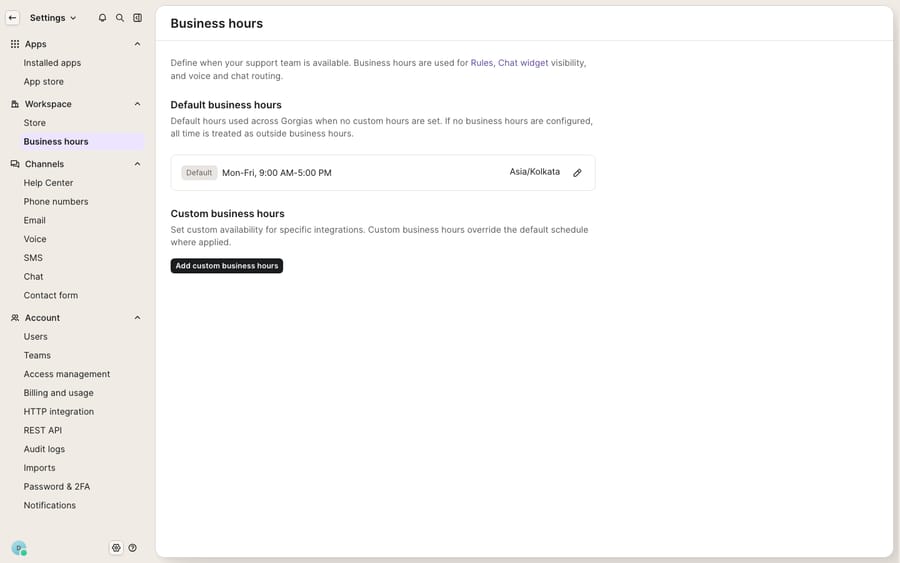
The screenshot above shows the real default state — Monday–Friday, 9:00 AM to 5:00 PM, in the Asia/Kolkata timezone — with the option to layer custom hours on top for individual integrations, which is exactly what the next step covers.
How do you run different hours for each store or timezone? (Step 2)
A single default schedule breaks the moment you run more than one region. A brand with a US store and an EU store shouldn't hold both to the same 9-to-5. Gorgias solves this with custom business hours per integration.
Under the Custom business hours section, click + Add Custom business hours, then search for and select the integrations that should follow a different schedule. You can apply one custom schedule to several integrations at once — so all your EU channels can share a Central-European clock while your default hours keep serving North America. Each custom block gets its own timezone and time ranges, set the same way as the default. This is the mechanism to reach for whenever "when are we open?" has more than one answer.
How do you handle holidays and vacation coverage? (Step 3)
Here's an honest gap worth planning around: Gorgias has no automated holiday calendar. There's no place to pre-load public holidays or a team member's PTO and have the schedule adjust itself. The documented approach is manual — you edit your business hours to reflect the temporary change, then change them back once your schedule returns to normal.
In practice, that means:
- Before a known holiday, open the relevant business-hours block and either remove that day's time range or shorten it.
- If you're offline entirely, pair it with a Gorgias rule that fires an out-of-hours auto-reply so shoppers get an honest "we're closed for the holiday, back on the 6th" instead of silence.
- Put a reminder on your own calendar to revert the change — the most common failure here is leaving holiday hours in place for a week after the holiday.
How do you create an SLA policy with response and resolution targets? (Step 4)
With hours defined, you can set targets that respect them. Per Gorgias' SLA policies documentation, SLAs live under Workflows → Tools → SLAs and are available on all Helpdesk plans.
- From the dropdown menu in the top-left, select Workflows, then under Tools choose SLAs.
- Click Create SLA and give it a descriptive name (e.g. "Email — priority tickets").
- Select the channel the SLA applies to. You can multi-select channels to share one policy — with one exception: Voice SLAs must stand alone and can't be combined with other channels, and a Voice target is set as the percentage of calls answered within a time threshold.
- Toggle on First Response time and/or Resolution time, then enter a target in seconds, minutes, hours, or days. Targets must fall between 1 minute and 14 days.
- Enable Pause SLA timer outside of business hours so the clock only counts working time — this is the setting that ties Step 1 back to your targets.
- Click Save Changes.
That pause toggle is the whole reason business hours came first. With it on, a ticket that arrives at 11pm won't start its first-response clock until your business hours next begin, and an open ticket's timer freezes overnight and resumes in the morning — so you're never judged against hours nobody was working.
What targets should priority and standard tickets get?
Here's how a mid-sized ecommerce team might translate its promises into two policies. Think priority as a VIP or urgent order issue and standard as everyday WISMO and general questions.
| Setting | Priority (VIP / urgent) | Standard (WISMO / general) |
|---|---|---|
| Channel | Email + Chat | |
| First response time | 30 minutes | 4 hours |
| Resolution time | 4 hours | 2 days |
| Pause outside business hours | On | On |
| Timezone reference | Custom EU hours | Default hours |
The pattern to copy isn't the exact numbers — it's the shape: a tight clock for the customer who can't wait, a roomier one for the routine question, and the pause toggle on both so the targets stay fair. A returns or subscription question that lands on a Friday night doesn't burn its clock over the weekend; it starts fresh Monday.
How do you track SLA breaches? (Step 5)
Setting targets is only half the job — you need to see who's meeting them. The SLA report lives under Analytics → Support Performance → SLAs (also on all Helpdesk plans; every role can view it, but only admins and leads can download tickets). It sorts every ticket into Achieved, Breached, or Pending, surfaces a "Tickets with breached SLAs" count for the period, and lets you filter by Date, SLA Policy, and Aggregation. You can drill down into individual breached tickets to spot patterns — say, one channel dragging down your average — and save filters for consistent monitoring. Pair the report with a saved view so agents can watch at-risk tickets live rather than discovering breaches after the fact.
What can't Gorgias business hours and SLAs do?
Gorgias' business-hours and SLA engine is genuinely solid: it's transparent, respects your working calendar, and reports breaches cleanly on every plan. But it's worth being clear-eyed about what it can't do.
First, there's no native near-breach alert. The SLA report tells you what already breached; it won't proactively ping an agent that a first-response deadline is ten minutes out. Teams usually cobble that together with a rule or a saved view rather than a built-in warning. Second, holidays are entirely manual — no calendar, no auto-revert, so the schedule is only as accurate as the last person who remembered to edit it. And most fundamentally, an SLA measures and enforces time — it does not produce the reply that stops the clock. It can tell you the timer is running; it can't read the ticket, look up order #4471, and draft the answer that satisfies the target.
This is the seam where an AI agent layer fits, and it's worth weighing the build-versus-buy tradeoff before you reach for one. The broader category of AI agents for customer service exists precisely to do the reasoning-heavy work a timer can't. Macha is one such layer: it runs on top of the Gorgias you already use as a native connector — it does not replace your help desk, your business hours, or your SLA policies. You connect Macha to Gorgias, and it reads and writes the same tickets your SLAs already time: drafting or posting grounded first replies (so the first-response clock is beaten with a real answer), triaging by intent so tickets land in the right SLA, and looking up order, return, or subscription status through a custom tool that turns a REST API into something the agent can call. And unlike Gorgias' AI Agent, which Gorgias' pricing page says you pay for only when it resolves a conversation, Macha bills per ticket — one conversation, charged once however many messages it takes, so the bill never hangs on an outcome definition you don't control. You can see the model on the pricing page.
The clean division of labour: keep Gorgias' business hours and SLA policies as the source of truth for when you're open and what's promised, and layer an agent on top for the part the clock can't do — actually answering fast enough to keep the promise.
FAQ
Where do I set up business hours in Gorgias? Click the Settings icon in the bottom-left corner, then select Business hours under Workspace. Edit the default schedule with the Pencil icon, pick a Timezone, and use + Add Time Range to set your working hours.
How do I support multiple timezones in Gorgias? Use Custom business hours per integration. Under the Custom business hours section, click + Add Custom business hours, select the integrations for a region, and give them their own timezone and hours — separate from your default schedule.
Does Gorgias handle holidays automatically? No. Gorgias has no automated holiday calendar. You edit your business hours manually to reflect a holiday or vacation, then change them back afterward — so set a reminder to revert.
What SLA targets can I set, and on which plans? You can set a first response time and a resolution time, in seconds, minutes, hours, or days, anywhere between 1 minute and 14 days, per channel. SLAs and the SLA report are available on all Helpdesk plans.
Can I add AI to Gorgias SLAs without replacing Gorgias? Yes. An AI agent layer like Macha connects to Gorgias as a native connector and runs on top of your existing help desk, business hours, and SLA policies — it doesn't replace them. It helps meet targets by drafting or sending grounded first replies, while Gorgias stays the system of record for what's promised and what breached. It bills per ticket — one conversation, charged once — rather than per resolution.
Ready to help your agents beat the clock instead of just watch it? Start a free trial of Macha and connect it to your Gorgias in minutes.






