





 Shopify
 Stripe
 Slack
Slack Notion
 Google Workspace
 Confluence

How Do You Set Up Rules in Front? 4 Real Examples (2026)


Front rules are built under Workspace settings, Rules and macros, as a When trigger, If conditions and Then actions, and Starter allows 10 workspace rules while Professional allows 20. Below are four working rules (auto-tag, round robin, auto-reply and an SLA time goal), plus the order to run them in and when to stop processing.
Key takeaways
- Front workspace rules are created under Workspace settings, Rules and macros, as a When trigger, If conditions and Then actions sentence.
- Front caps workspace rules at 10 on Starter and 20 on Professional, while Enterprise allows unlimited workspace and company rules; personal rules don't count.
- Front's load balancing assignment and time goal SLA rules both require the Professional plan or above, and company rules need Enterprise or the Autopilot add-on.
- In Front's own example, a message arriving at 4:00 PM with a 2-hour reply goal and 9:00 AM to 5:00 PM business hours becomes overdue at 10:00 AM the next day.
- Front company rules always run before workspace and personal rules, while delayed rules such as Unreplied after bypass the stop processing other rules switch.

To set up a rule in Front, open Workspace settings → Rules and macros, click Create rule → Create linear rule, and fill in three parts: When (the trigger), If (the conditions) and Then (the actions). Starter allows 10 workspace rules, Professional 20 and Enterprise unlimited, and load balancing and time goal (SLA) rules need Professional or above. Below are four working rules (auto-tag, round robin, auto-reply, SLA), checked against Front's help center and pricing page on 24 September 2026.
| Rule pattern | When | Then | Plan needed |
|---|---|---|---|
| Auto-tag by topic | Inbound message received | Add tag | All plans |
| Round-robin assignment | Inbound message received | Assign to teammates (round robin) | All plans; load balancing Professional+ |
| Auto-reply | Inbound message received | Reply with a template | All plans |
| SLA (time goal) | Inbound message received | Set reply time goal, escalate on breach | Professional+ |
| Company rule | Any | Runs before all other rules | Enterprise or Autopilot add-on |
Where do rules live in Front, and how do you create one?
Front rules come in three scopes, and each has its own home. Per Front's guide to understanding rules, personal (individual) rules live under Personal settings → Rules and affect only your own inbox; workspace (shared) rules live under Workspace settings → Rules and macros and drive your team's shared inboxes; and company rules live under Company settings → Rules, are for company admins only, and need the Enterprise plan or the Autopilot add-on. For everything a support, sales, or ops team does day to day, you want workspace rules. Individual rules don't count toward your plan's rule limit.
To build one, open Workspace settings → Rules and macros, click Create rule, and choose Create linear rule. Every rule you make from here is the same three-part sentence:
- When: the trigger event that wakes the rule up (an inbound message is received, a tag is added, a conversation is assigned).
- If: one or more conditions the conversation must pass, chainable with AND/OR logic (subject contains a keyword, the conversation is in a chosen inbox, the sender is from a domain).
- Then: one or more actions Front performs (add a tag, assign to a teammate, reply with a template, move inbox).
That linear shape covers the vast majority of automations. If you want the underlying model in more depth, Front rules explained breaks down the engine; here we're building.
How do you auto-tag conversations by topic?
The simplest useful rule labels conversations so the rest of your automation (and your reporting) has something to work with. Tags are the vocabulary your inbox routes and reports on, so build them first. Front tags explained covers the tag manager itself.
- Create rule → Create linear rule. Name it
Tag billing questions. - When: An inbound message is received.
- If: Conversation subject contains → add the keywords
invoice,refund,billing,charge(Front matches any one). - Then: Add tags →
Billing. - Save.
Now every inbound message mentioning a billing keyword is tagged the instant it lands. You'll lean on that Billing tag in the round-robin and SLA rules below.
How do you set up round-robin assignment?
Auto-assignment stops conversations from sitting unowned. Front offers two distribution methods, and it's worth knowing the difference. Per Front's guide to round robin vs. load balancing, round robin "automatically assigns incoming messages to available team members in a sequential order": it simply cycles through the team one by one. With load balancing, "conversations are automatically queued and assigned to the next available online teammate," so nothing lands on someone who's offline or already full. Round robin is the right default when everyone's roughly equally available; load balancing shines when workloads are uneven.
- Create rule → Create linear rule. Name it
Round-robin support. - When: An inbound message is received.
- If: Conversation is in inbox → your Support inbox (optionally AND tag is
Billingto route only billing conversations). - Then: Assign to teammates → pick your Support group, set the distribution method to round robin.
- Save.
One honesty note here: load balancing rules require the Professional plan or above, per Front's rule limits documentation. Front doesn't list a plan gate for round robin itself, but the load-balancing option sits behind a paid tier.
How do you auto-reply to a common question?
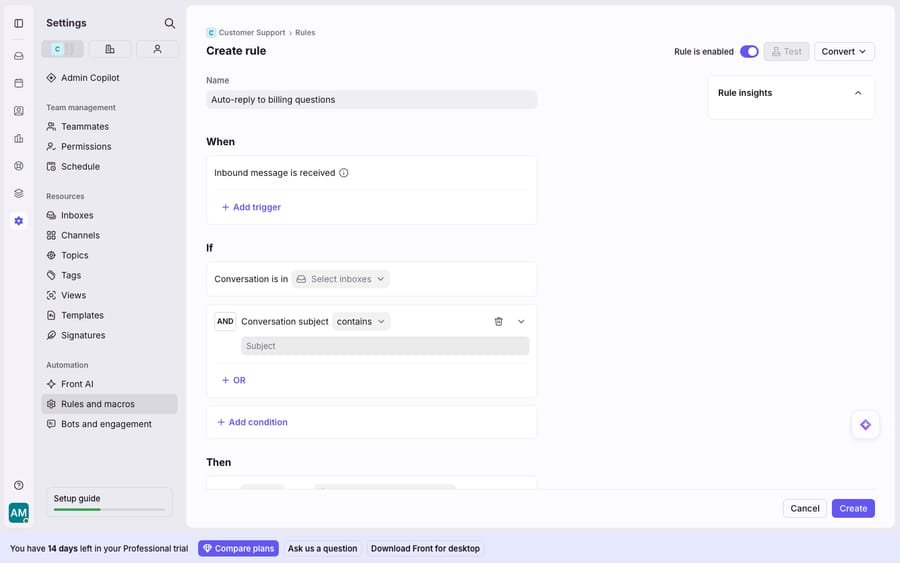
An auto-reply sets expectations instantly (an acknowledgement, hours, or a link to your help center) while a human picks up the real work. This is exactly the rule shown mid-build in the screenshot above: named Auto-reply to billing questions, triggered when an inbound message arrives, scoped to a selected inbox where the subject contains a keyword.
- Create rule → Create linear rule. Name it
Auto-reply to billing questions. - When: An inbound message is received.
- If: Conversation is in inbox → Support AND Conversation subject contains →
refund(addoutside business hoursif you only want it after-hours). - Then: Reply with a message → select or write a message template, e.g. "Thanks, we've got your billing question and a specialist will reply within one business day."
- Optionally also Add tag
Auto-repliedso you can see which conversations got the templated touch. - Save.
Keep the template genuinely useful and honest. An auto-reply that over-promises ("we'll reply in 5 minutes") does more harm than the delay it's covering for.
How do you build an SLA (time goal) rule in Front?
Front's time-goal rules turn a service-level agreement into automation: set a reply deadline, and Front tracks it and escalates on a miss. Per Front's time goal rules guide, you create these from the Set reply time goal template (a second template, Set resolution time goal, tracks time to resolve instead).
- Open Workspace settings → Rules and macros → Create rule and pick the Set reply time goal template.
- When: An inbound message is received.
- Set the reply time goal, e.g.
1 h, and choose within business hours so the timer pauses overnight (Front's example: with 9:00 AM to 5:00 PM business hours and a 2-hour goal, a message arriving at 4:00 PM becomes overdue at 10:00 AM the next day), or regardless of business hours for round-the-clock coverage. - Enable Warn when goal is at risk to get a heads-up before the breach. The at-risk threshold has to be shorter than the goal, and Front adds an SLA Warning tag.
- On breach: Front adds an SLA Breach tag automatically; add escalation actions such as notify a teammate or assign to a lead.
- Save.
Two honest caveats. Time goal rules require the Professional plan or above, per Front's documentation. And while Front Analytics includes time-goal reporting, custom reports sit on Enterprise. See Front pricing explained for exactly what unlocks where. The rule itself, though, is native and dependable once you're on a qualifying plan.
Which rules should a starter triage set include, and in what order?
Individually these rules are useful; as an ordered set they become a triage pipeline. Rules evaluate top to bottom, so put the most specific, highest-stakes rules first. A sensible starter order for a support inbox:
| # | Rule | Pattern | Stop processing? |
|---|---|---|---|
| 1 | Tag spam / auto-notifications and archive | Auto-tag + archive | Yes: nothing else should touch these |
| 2 | Tag billing questions | Auto-tag | No |
| 3 | Set reply time goal (SLA) | SLA / time goal | No |
| 4 | Auto-reply after hours | Auto-reply | No |
| 5 | Round-robin assign remaining conversations | Auto-assign | Usually last, no |
The logic: kill noise first, then label, then start the SLA clock, then acknowledge, then assign what's left. Ordering assignment last means tags and time goals are already applied before a conversation lands on someone's plate. Five rules also leaves headroom under Starter's 10-rule cap.
What does "stop processing other rules" do, and when should you use it?
The one switch that trips everyone up is Stop processing other rules. When you enable it on a rule, Front runs that rule's actions and then stops: any rules below it that would have matched are skipped. Front is explicit that "if a rule is processed, and you don't want other rules listed below to apply, check the Stop processing other rules box." It's how you say "this conversation is fully handled." Two things to remember, both from Front's understanding rules documentation:
- Company rules always run first. They "behave as if they were ordered before all other rules," so a company rule with stop-processing enabled can silently prevent every workspace and personal rule from firing.
- Delayed / time-based rules bypass stop-processing. Rules built on Unreplied after, Unassigned after, or Time since triggered are only processed if their conditions are met at the designated time, so they aren't skipped by an earlier rule's stop switch. That's why your SLA escalation still fires even when an upstream rule stopped processing.
| Situation | Enable "stop processing"? | Why |
|---|---|---|
| Spam / auto-notification archived | Yes | No downstream rule should act on it |
| Conversation fully auto-resolved by rule | Yes | Prevents double-assignment / duplicate replies |
| Tagging that later rules depend on | No | Downstream rules need to keep running |
| SLA / delayed escalation | N/A | Delayed rules bypass the setting anyway |
Where do Front rules stop, and where does an AI layer pick up?
Front's rule engine is deterministic, and that's its strength: it does exactly what you tell it, in a predictable order, every time. For tagging, routing, assignment, and templated auto-replies, that reliability is precisely what you want.
But rules match on patterns, not meaning. A condition like subject contains "refund" is a keyword test; it won't catch "I was double-charged and want my money back." A template reply is the same fixed text for everyone who trips the trigger; it can't read this customer's invoice and answer their question. And the most useful actions are plan-gated: load balancing, time goals and the send-to-webhook action need Professional+, while Smart Rules and company rules need Enterprise or the Autopilot add-on, per Front's rule documentation. A busy team on a smaller plan can hit the 10-rule (Starter) or 20-rule (Professional) workspace ceiling faster than expected; only Enterprise is unlimited, per Front's pricing page. Front prices it that way on purpose: the rule cap is one of the cheapest levers it has to move a growing team up a tier.
That seam is where an AI agent layer fits: not to replace the rule engine, but to do the reasoning a keyword match structurally can't. The broader category of AI agents for customer service exists for exactly this work. Macha is one such layer: it runs on top of Zendesk, Freshdesk, Gorgias, Front, HubSpot or Intercom, including the Front you already use through the Macha–Front connector. It doesn't replace Front, your shared inboxes, or your rules. You keep your rules doing what they're good at: getting the right conversation to the right place with the right tags and the SLA clock running. Then Macha's agent reads that routed conversation, understands intent instead of keywords, and drafts or sends a grounded reply, pulling a real order or account status through a custom tool that turns your REST API into something the agent can call. A rule tags a message "billing" in milliseconds; the agent then actually resolves the billing question. If you want the mechanics, connecting Front to Macha to route conversations to AI walks through it. Macha bills per ticket (one conversation, charged once however many messages it takes) from $299/mo for up to 750 tickets, with setup and monitoring by the Macha team included. For how rules and inboxes fit together as a system, see the wider Front shared inbox model.
FAQ
Where do I set up rules in Front? Workspace (shared) rules live under Workspace settings → Rules and macros: click Create rule → Create linear rule. Personal rules are under Personal settings → Rules, and company rules under Company settings → Rules (admin-only, Enterprise or the Autopilot add-on). Every rule is a When (trigger) → If (condition) → Then (action) sentence.
What's the difference between round robin and load balancing assignment? Round robin cycles through available teammates in sequential order, distributing conversations evenly. Load balancing queues conversations and assigns each to the next available online teammate. Load balancing rules require the Professional plan or above.
How do I create an SLA in Front? Use the Set reply time goal template in Workspace settings → Rules and macros. Set a reply deadline (e.g. 1h), choose whether it counts within business hours or around the clock, and add escalation actions on breach. Front adds an SLA Breach tag automatically on a miss. Time goal rules require the Professional plan or above.
What does "stop processing other rules" do? When enabled, Front runs that rule's actions and then skips any rules below it that would have matched. Company rules always run first, and delayed/time-based rules (Unreplied after, Unassigned after) bypass the setting.
How many rules can I create in Front? Starter allows 10 workspace rules, Professional 20, and Enterprise unlimited workspace and company rules. Personal rules don't count toward the limit.
Can I add AI to Front rules without replacing Front? Yes. An AI agent layer like Macha connects to Front on top of your existing inboxes and rules. Your rules keep routing and tagging deterministically; the agent reads the routed conversation, understands intent, and drafts or sends a grounded reply.
Ready to turn "routed and tagged" into "actually answered"? Start a free trial of Macha and connect it to your Front.






