





 Shopify
 Stripe
 Slack
Slack Notion
 Google Workspace
 Confluence

How Do You Set Up Sequences in Front? (2026 Step-by-Step)


Front sequences send up to 10 follow-up emails on a delay and stop for anyone who replies, and they need the Professional plan or above. Setup takes five steps: pick a From email channel, load recipients, build stages, add variables, and start.
Key takeaways
- Setting up a Front sequence means picking a From email channel, loading recipients, building 1 to 10 stages labelled A to J, and clicking Start sequence.
- Front sequences need the Professional plan or above, listed at $65 a seat a month billed annually or $85 billed monthly.
- Front caps each sequence CSV upload at 200 addresses, requires email as the first column, and supports up to 20 custom variable columns.
- Front stops a sequence's later stages for anyone who replies, but out-of-office auto-replies do not count as a reply.
- Front spaces sequence sends 7.5 seconds apart on Gmail and Office 365 channels, so a 200-recipient stage takes about 25 minutes to go out.
To set up a sequence in Front, open Sequences, click Create sequence, pick a From email channel, add up to 200 recipients per CSV file, build 1 to 10 stages (A through J) with a delay on each, and click Start sequence. Sequences need Front's Professional plan or above, listed at $65 a seat a month billed annually ($85 billed monthly) on front.com/pricing as of 24 September 2026.
| Setting | Limit or rule |
|---|---|
| Plan | Professional or above (Professional: $65/seat/mo annual, $85 monthly, up to 50 seats) |
| Stages | 1 to 10, labelled A to J |
| Recipients per CSV file | 200; first column must be email |
| Custom variables | Up to 20 CSV columns |
| Cc and Bcc | 1 address each |
| Send spacing | 7.5 seconds (Gmail, Office 365), 1 second (other email channels) |
| Stop on reply | On by default; out-of-office replies don't count |
What is a Front sequence?
A sequence is an automated, multi-stage outbound email flow sent to a list of people from one of your channels. Per Front's guide to understanding sequences, a sequence can run 1 to 10 stages (labelled A through J), and each later stage carries a sending delay that only fires if the recipient hasn't replied. That last clause is the whole point: a sequence keeps following up on your behalf, and the moment someone answers, it gets out of the way.
Two expectations to set before you build. First, sequences are a Professional-plan-or-above feature; they aren't on Front's Starter tier ($25 a seat a month billed annually, up to 10 seats). Second, a sequence sends from a real email channel, not from the workspace in the abstract: a personal sequence sends from an individual inbox that contains an email channel, and a workspace sequence sends from a shared inbox that is an email channel. If no such channel is connected, the sending dialog has nothing to send from, which is exactly the state the screenshot below captures.
How do you create a sequence and pick a From channel?
Start from the Sequences area, not from a conversation.
- Open Sequences in Front's main navigation menu.
- In the left sidebar, choose the scope you want: Personal (only you send and see it) or a Workspace name (shared with the team).
- Click Create sequence to open the New sequence dialog.
- Fill in the fields: a Name (internal only; recipients never see it), the From channel you'll send through, a Sender name, and optionally a Cc and Bcc (each limited to 1 address, per Front's how to create a new sequence article).
The From picker is the gate. It only lists email channels you're allowed to send from, so on a workspace with no personal sending channel connected, opening it returns No results and the dialog's confirm button stays disabled. You can't advance to the stage builder until a channel is chosen.
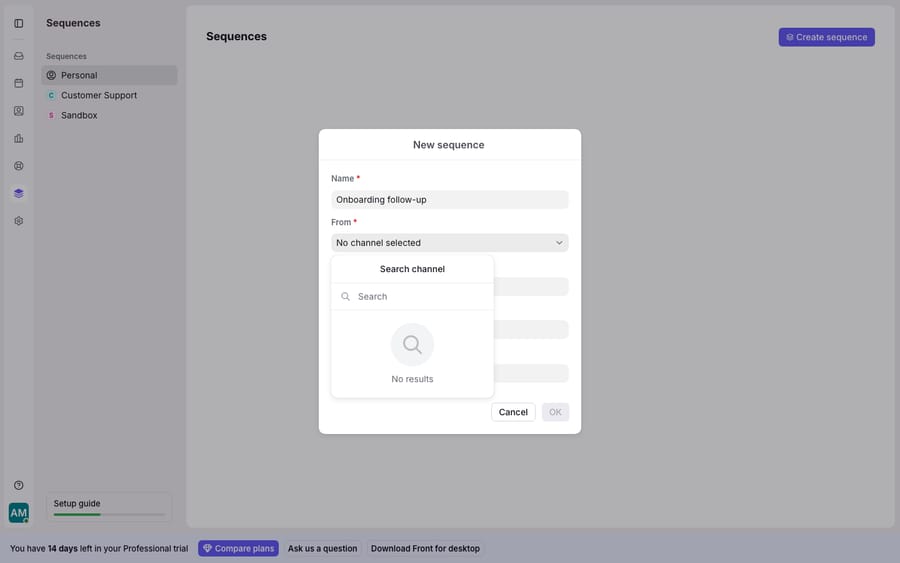
That "No results" state isn't a bug. It's Front telling you the prerequisite hasn't been met. Connect a personal email channel (or run the sequence from a shared inbox that is an email channel) and the picker fills in, unlocking everything that follows.
How do you add recipients to a Front sequence?
Once the channel is set, you load the people the sequence will reach. Front gives you two ways:
- Type them in. Enter email addresses or contact lists directly; pressing Enter/Return starts a new line.
- Upload a CSV. This is the workhorse for outbound. Front requires the first column to be
email, accepts up to 200 addresses per CSV file (larger lists go in additional files), and supports up to 20 custom variables/columns. The extra columns become the personalization tokens you'll use in the variables step.
The CSV limit is the design decision to plan around. A 200-address cap per file keeps a single sequence deliberately small and human-scaled. That's Front's collaborative-inbox lineage showing: it earns its money on seats for people working conversations, not on bulk send volume, so it has no reason to build a cold-email cannon. For a sales team running a focused prospect list or a CS team onboarding a cohort, 200 is plenty; for a marketing blast to tens of thousands, Front isn't the right tool.
How do you build stages and set delays?
Now the multi-step part. Each stage is one email in the follow-up chain, and the delay between stages is what makes the whole thing feel patient rather than pushy.
- Click Next: Stage A to open the first stage, then set its subject line and draft the body.
- Set the stage's delivery timing. Stage A typically goes out immediately (or at a scheduled time), and every later stage carries a delay measured in days.
- Click Add stage to append Stage B, C, and so on, up to the 10-stage maximum. Repeat the subject/body/delay pattern for each.
- When the chain is built, click Start sequence; Front asks you to confirm once more before anything sends.
The delay is conditional: a later stage only fires if the recipient hasn't replied yet. So a three-stage sequence with 3-day delays quietly becomes a one-email sequence for anyone who answers Stage A. Front also throttles sends to protect deliverability, spacing messages 7.5 seconds apart on Gmail or Office 365 channels and 1 second apart on other email channel types. At 7.5 seconds, a 200-person stage takes about 25 minutes to go out rather than hitting the mail server in one burst.
How do personalization variables work in sequences?
A follow-up that opens with "Hi there" is fine; one that opens with the person's first name, company, and the thing they signed up for lands better. Front handles this with variables, documented in its guide to variables in templates.
- Type
{{anywhere in the subject or body to open the variable dropdown. - For fields you uploaded in your CSV, use the
{{sequence...}}variables. These pull from your spreadsheet columns. - For data stored on a saved Front contact, use
{{recipient...}}variables (for example{{recipient.first_name}}or a custom field via{{recipient.custom.field_name}}). - Guard against blanks with a fallback:
{{recipient.first_name | 'there'}}renders "there" whenever the first name is missing, so no message ships with an empty gap where a name should be.
The {{sequence...}} versus {{recipient...}} distinction is the most common thing people get wrong, and Front's own setup article calls it out. If your data came from the CSV, the {{recipient...}} tokens will read as blank because there's no saved contact behind them. Match the token family to the data source and personalization works.
| Situation | Variable family | Example |
|---|---|---|
| Data uploaded in your CSV | {{sequence...}} | {{sequence.company}} |
| Data on a saved Front contact | {{recipient...}} | {{recipient.first_name}} |
| Value might be missing | Add a fallback | {{recipient.first_name | 'there'}} |
Does a Front sequence stop when someone replies?
Yes. Stop-on-reply is on by default, and it's the feature that keeps a sequence from embarrassing you. Per Front, once a recipient replies to a sequence stage, the later stages won't send to that address. Auto-replies such as "Out of office" do not count as a reply and won't stop the sequence, so a vacation responder won't kill your follow-up chain.
Here's where honest reporting matters. Stop-on-reply hinges on Front matching an inbound reply to the recipient's address, so your outbound metrics only stay clean if replies come back that way. Two things can inflate the numbers:
- Replies from a different address. If a prospect answers from a colleague's mailbox or a personal address, the reply isn't from the address the sequence is tracking, so the next stage can still send to someone who already responded, and your "sent" counts overstate real outreach.
- Bounces and auto-replies read as activity. OOO messages, mailer-daemon bounces, and auto-acknowledgements aren't engagement, but if you eyeball raw send/open counts without filtering them, a sequence looks busier and healthier than it is.
The fix is to judge sequences on reply rate and true positive replies, not on stages sent or opens. Front's reporting can help you separate the two (see Front analytics explained for what its metrics do and don't capture), but the discipline is yours: a sequence that "sent 600 emails" told you nothing until you know how many were real conversations.
What can't Front sequences do?
Front sequences are a good, native way to automate patient, personalized follow-up, and for a support, sales, or ops team already living in Front, not bolting on a separate outbound tool is a real win. But the ceiling is worth naming.
The gating is real: sequences need the Professional plan or above, and every sequence needs a connected personal or shared email channel to send from. Without one, you get the "No results" From picker in the screenshot above and can't reach the builder. The scale is deliberately modest, 200 addresses per CSV and 10 stages max, which is right for focused outreach and wrong for mass campaigns. And the deeper limit is what a sequence is: a pre-written script. It sends the words you wrote, in the order you wrote them, to whoever's on the list. It can personalize a first name, but it can't read the reply that comes back, understand what the person is asking, check their account or order, and answer them. The moment a recipient replies, the automation's job is done and a human's begins.
That's where an AI agent layer fits, not to replace sequences but to handle the reasoning-heavy part they can't. The category of AI agents for customer service exists for work a merge field can't do. Macha is one such layer: it runs on top of the Front you already use through the live Macha–Front connector, and it doesn't replace Front, your inboxes, or your sequences. Your sequence keeps sending personalized outbound and stopping the instant someone replies. Then a Macha agent, fired by the connector's New Message Added trigger, reads that reply, works out the intent rather than matching keywords, and drafts a response or posts one with Add Public Reply, pulling a real order, account, or renewal status through a custom tool that turns your REST API into something the agent can call. A sequence starts the conversation; the agent finishes it. For the mechanics, connecting Front to Macha to route conversations to AI walks through it. Macha bills per ticket, one conversation charged once however many replies it takes, starting at $299 a month for up to 750 tickets.
For the concepts underneath this how-to, see Front sequences explained and Front message templates explained; for what unlocks on which tier, Front pricing explained.
FAQ
How many stages can a Front sequence have? Between 1 and 10 stages, labelled A through J. Each stage after the first carries a sending delay, and that stage only sends if the recipient hasn't already replied.
What plan do I need for sequences in Front? The Professional plan or above. Professional is listed at $65 a seat a month billed annually, or $85 billed monthly. You also need a connected email channel to send from: a personal sequence sends from an individual inbox with an email channel, and a workspace sequence from a shared inbox that is an email channel. Without one, the From picker returns "No results" and you can't open the stage builder.
Why are my personalization variables showing up blank? Almost always a mismatch between the variable family and the data source. Use {{sequence...}} variables for data you uploaded in a CSV and {{recipient...}} variables for fields on a saved Front contact. Add a fallback like {{recipient.first_name | 'there'}} so a missing value never ships an empty gap.
Does a sequence stop if someone replies? Yes. When a recipient replies to a sequence stage, Front doesn't send the later stages to that address. Auto-replies such as "Out of office" messages don't count as a reply and won't stop the sequence.
How many recipients can I add to a sequence? Up to 200 addresses per CSV file, with the first column required to be email, and up to 20 custom variables/columns. Larger lists need more files, but the 200-per-file cap keeps sequences scaled for focused outreach rather than mass blasts.
How fast does Front send a sequence stage? Front spaces sends 7.5 seconds apart on Gmail and Office 365 channels and 1 second apart on other email channel types, so a full 200-recipient stage on Gmail takes about 25 minutes.
Can I add AI to Front sequences without replacing Front? Yes. An AI agent layer like Macha connects to Front as a live connector and runs on top of your existing inboxes and sequences. Your sequence keeps sending personalized outbound and stopping on reply; the agent then reads the replies that come back, works out intent, and drafts or sends a grounded response.
Ready to turn "they replied" into "it's handled"? Start a free trial of Macha with $50 of usage and no credit card, and connect it to your Front.






