





 Shopify
 Stripe
 Slack
Slack Notion
 Google Workspace
 Confluence

How Do You Set Up SAML SSO in Front with Okta or Google Workspace?


Front SAML SSO needs the Professional plan or above and is set company-wide under Company settings, Security, Single sign on, where you exchange an entry point, certificate, Entity ID and ACS URL with Okta or Google Workspace. Front offers no backup password login once SAML is on, so test with one account and keep an admin session open.
Key takeaways
- Front SAML SSO is set company-wide under the gear icon, Company settings, Security, Single sign on, and needs the Professional plan or above.
- Front's pricing page lists SSO and SCIM on Professional at $65 a seat a month billed annually and Enterprise at $105, with neither on Starter.
- Front provides no backup login URL once SAML is enabled, so if the identity provider goes down the fix is emailing [email protected] to disable SAML.
- Front SCIM provisioning with Microsoft Entra ID needs an Entra ID P1 or P2 plan, and without SCIM teammates are still added and removed in Front by hand.
- SP-initiated SAML starts at https://[subdomain].frontapp.com/signin, while IdP-initiated SAML starts from the Front tile in the Okta or Google dashboard.

To set up SAML SSO in Front, you need the Professional plan or above ($65 a seat a month billed annually): open the gear icon, go to Company settings → Security → Single sign on, choose SAML, paste your IdP's entry point and signing certificate, then copy Front's Entity ID and ACS URL back into Okta or Google Workspace. Once SAML is on there is no backup password login, so test with one account first.
| Front plan | Price per seat | SAML SSO | SCIM |
|---|---|---|---|
| Starter (up to 10 seats) | $25/month billed annually, $35 monthly | No | No |
| Professional (up to 50 seats) | $65/month billed annually, $85 monthly | Yes | Yes |
| Enterprise | $105/month, annual only | Yes | Yes |
Prices from front.com/pricing, checked 24 September 2026. Some legacy Front plans also include SSO.
Where is SSO in Front, and what does it cover?
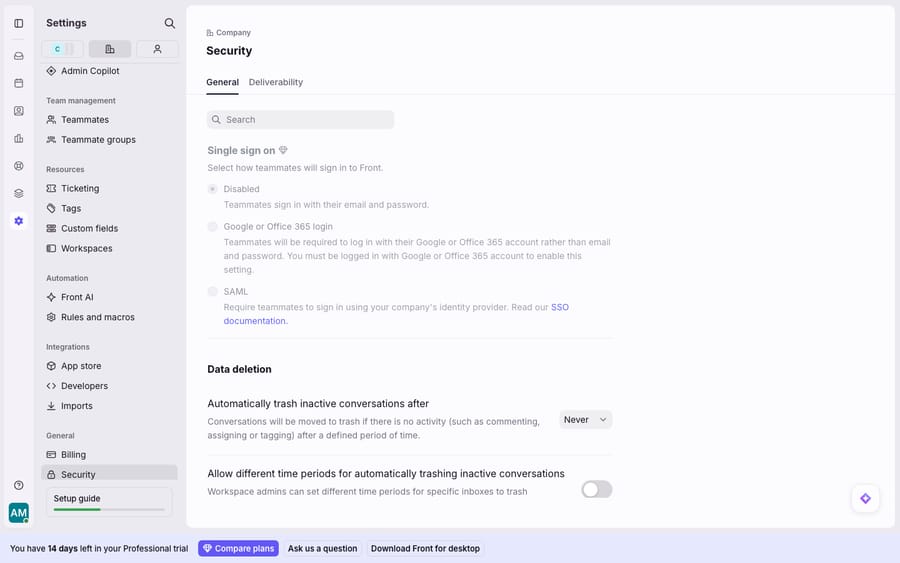
Front's SSO settings are company-wide, not per-workspace. You'll find them under the gear icon, in the Company settings tab, under Security → Single sign on. Front's single sign-on documentation says SSO "can only be enabled at the company level and will require all users to authenticate using their IdP from that point forward." The panel shows three options: Disabled, Google or Office 365 login, and SAML.
The distinction matters. Google or Office 365 login is an OAuth option: teammates click "Sign in with Google" or "Sign in with Office 365" on the login page, with no metadata to exchange. SAML is the enterprise path, and Front's docs call it the only way to enable true SSO: you wire Front to any SAML-based identity provider (Front publishes guides for Microsoft Entra ID, Okta, Google, SAASPASS and OneLogin) and control the assertion. This guide covers the SAML path, because that's what "Front SSO" usually means when Okta or Google Workspace acts as a formal IdP. You also need company admin rights in Front and admin access to your IdP.
One thing to fix in your head before you start: SSO governs teammates, not contacts. Your customers writing into a shared inbox never authenticate. They're contacts, and they email you like they always did. SSO only changes how the people on your team log in to Front. If you're new to that vocabulary, what is Front and the Front shared inbox model explain the teammate-versus-contact split that underpins everything here.
Should you use SP-initiated or IdP-initiated SAML?
Before you touch a single field, decide which direction your login flow runs, because the two behave differently for your users.
SP-initiated means the flow starts at the service provider, which is Front. A teammate goes to Front's sign-in page, https://[your-subdomain].frontapp.com/signin per the Okta SAML setup guide for Front. Front bounces them to your IdP to authenticate, and the IdP sends them back with a signed assertion. This is the flow most people expect: someone opens Front, and login "just happens."
IdP-initiated means the flow starts at the identity provider. A teammate opens their Okta or Google Workspace dashboard, clicks the Front tile, and the IdP pushes a SAML assertion straight to Front's ACS URL without visiting Front's sign-in page first. Most teams enable both and let people use whichever entry point they prefer; the IdP tile is convenient, and the direct Front URL is what deep links and bookmarks resolve to.
The reason this gets its own section: login loops almost always come from a mismatch between the two. If your IdP is configured for IdP-initiated only but a user hits Front's SP-initiated sign-in page, or the RelayState is wrong, the browser can bounce endlessly between Front and the IdP. More on that below.
How do you set up Front SAML SSO with Okta?
Here's the end-to-end shape with Okta as your IdP.
- In Okta, add the Front application. Front is in the Okta Integration Network, so search for it rather than building a generic SAML app: the pre-built integration pre-fills the endpoints for you.
- Set your Front subdomain in Okta. The Okta docs are explicit that you must enter the correct subdomain in the app's General settings, and a wrong subdomain is the single most common cause of authentication failures.
- Grab the IdP details from Okta. You need the entry point (Okta's Identity Provider Single Sign-On URL) and the signing certificate in PEM text format from the Okta admin dashboard.
- In Front, choose SAML under Security → Single sign on, and paste in the entry point, the request binding (HTTP Redirect or HTTP POST), the requested authentication context, and the signing certificate.
- Copy Front's SP values back into Okta. Front exposes an Entity ID, an ACS URL (the assertion consumer service endpoint that receives the SAML response), a Name ID Format, and an encryption certificate. Those go into Okta's SAML settings so the assertion is addressed correctly.
- Assign the app to your users/groups in Okta, then test with one account before rolling it out.
A critical caveat straight from Front's docs: Front does not provide a backup login URL. Once SAML is on, "we do not provide a backup log-in URL where users can sign-in using their normal username and password." If your IdP goes down or a cert expires, the only way out is to email Front support at [email protected] to disable SAML. Keep that email handy.
How do you set up Front SAML SSO with Google Workspace?
Google Workspace can act as your SAML IdP through a custom SAML app. The shape mirrors Okta, with Google-specific menu paths per Google's custom SAML app documentation.
- In the Google Admin console, go to Apps → Web and mobile apps → Add app → Add custom SAML app. Name it "Front" and optionally upload an icon.
- On the Google Identity Provider details page, copy the SSO URL and Entity ID and download the certificate (or download the full IdP metadata). These are Google's equivalents of Okta's entry point and signing certificate.
- In Front (Security → Single sign on → SAML), paste Google's SSO URL as the entry point and the downloaded certificate as the signing certificate.
- Back in Google's Service Provider Details window, enter Front's ACS URL (Google requires it to start with
https://) and Front's Entity ID (a globally unique name). The Start URL / RelayState is optional; set it if you want IdP-initiated clicks to land somewhere specific. - Under User access, turn the app ON for the org unit or everyone, then Save. Provisioning can take a few minutes to propagate before the tile appears.
Test with a single account first, exactly as with Okta. Google Workspace changes sometimes need a fresh browser session to take effect.
Which Front plan do you need, and does SSO provision users?
SAML SSO is not on every plan. Front's documentation lists "the latest Professional plan or above" as a prerequisite, and the pricing page shows SSO and SCIM on Professional ($65 a seat a month billed annually) and Enterprise ($105), with none on Starter. Some legacy plans also include it. Confirm your plan before you schedule an IdP project; nothing is more deflating than finishing the Okta config and finding the SAML option locked.
SCIM auto-provisioning has its own requirement. SCIM is what creates and deactivates teammate accounts when someone joins or leaves in your directory. Front's pricing page lists it alongside SSO on Professional and Enterprise, and Front's docs add that "Front SCIM user provisioning functionality is accessible on Microsoft Entra ID P1 or Microsoft Entra ID P2 plans" when Entra ID is your IdP. Without SCIM, you still add and remove teammates in Front by hand even though login runs through the IdP.
And to say it once more because it's the most common misconception: contacts don't authenticate. SSO is teammate auth. The customer emailing your team inbox never logs into anything. Customer-facing login for a help center or portal is a different mechanism entirely, not Front SSO.
Why does Front SSO get stuck in a login loop, and what else breaks?
SAML setups break in a small number of predictable ways.
| Symptom | Likely cause | Fix |
|---|---|---|
| Endless redirect between Front and IdP | RelayState mismatch, or IdP-initiated-only config hit via SP-initiated URL | Enable both flows; verify RelayState/Start URL; clear cookies and retry |
| "Invalid SAML response" | Wrong subdomain in the IdP app, or ACS URL typo | Re-check the Front subdomain in Okta/Google; confirm ACS URL matches exactly |
| Teammate can't sign in after enabling | Their Front email doesn't match the IdP email | Front's docs: email addresses must match between Front and IdP |
| Locked out after a cert update | Certificate rotated while no session was live | Front's docs: keep a copy of the old certificate and one admin session signed in while testing the new one |
| Whole team locked out, IdP down | No backup login URL exists | Email [email protected] to disable SAML |
The login loop deserves the callout it gets. Because Front supports both SP- and IdP-initiated SAML, a half-configured setup (an assertion without a valid RelayState, or a subdomain typo in the IdP) will send the browser back and forth until it gives up. The first thing to check is always the subdomain in the IdP app config; the second is whether both initiation flows are actually enabled; the third is a hard cookie clear. Getting those three right resolves the overwhelming majority of loops.
Where does an AI layer fit after login?
SSO answers one question: who is allowed into Front. It says nothing about how quickly the conversations inside Front get resolved. That's a different layer of the stack, and the two don't compete.
Once your team is signed in and working their shared inboxes, AI agents for customer service take on the reading-and-answering work that no login system touches. Macha is one such layer: it runs on top of the Front you already use, through the live Macha–Front connector, and it doesn't replace Front, your SSO, or your identity provider. Your teammates still sign in through Okta or Google Workspace exactly as configured here. On the conversations flowing into your inboxes, a Macha agent reads the message, works out the intent, and drafts or sends a grounded reply, pulling a real order or account status through a custom tool that turns your REST API into something the agent can call, much the way you'd build against the Front API yourself. Macha is one plan priced by ticket volume, from $299 a month for 750 tickets, and bills per ticket: one conversation, charged once however many messages it takes, never per resolution.
FAQ
What plan do I need for SAML SSO in Front? SAML SSO requires the latest Professional plan or above: Professional is $65 a seat a month billed annually ($85 monthly), and Enterprise is $105 a seat billed annually. Starter ($25 a seat annually) has no SSO, though teammates can still click Sign in with Google or Sign in with Office 365. SCIM is listed on Professional and Enterprise; with Microsoft Entra ID it needs an Entra ID P1 or P2 plan.
Where do I turn on SSO in Front? Open the gear icon → Company settings → Security → Single sign on. You'll see three options: Disabled, Google or Office 365 login, and SAML. SSO is company-wide; it can only be enabled at the company level and applies to all teammates once on.
What's the difference between SP-initiated and IdP-initiated SAML? SP-initiated starts at Front's sign-in page (https://[subdomain].frontapp.com/signin), which redirects to your IdP. IdP-initiated starts at your Okta or Google dashboard, where clicking the Front tile pushes an assertion straight to Front. Front supports both; enabling both avoids most login-loop issues.
How do I fix a Front SSO login loop? Check three things in order: the Front subdomain in your IdP app config (a wrong value is the top cause), whether both SP- and IdP-initiated flows are enabled, and your browser cookies (clear them and retry). Also confirm the teammate's Front email matches their IdP email.
Does Front SSO apply to customers who email us? No. SSO only changes how teammates log in to Front. Contacts writing into a shared inbox never authenticate.
Is there a backup login if we get locked out? No. Front does not provide a backup login URL for username/password sign-in once SAML is enabled. If your IdP is down or a certificate expired, email Front support at [email protected] to disable SAML. As a precaution, keep a copy of the old certificate and one admin session signed in whenever you rotate certificates.
Want the agent layer on top of your Front login? Start a free trial of Macha with $50 of free usage and no credit card.






