Intercom
 Shopify
 Stripe
 Slack
Slack Notion
 Google Workspace
 Confluence

How Do You Build Intercom Inbox Views? 10 Custom Views Worth Creating, With Their Filters


An Intercom inbox view is a saved filter set that runs against your conversations in real time and sits in the Inbox sidebar under Views. You create one from the three dots next to Views, then Create view, and any teammate can pin it once it exists.
Key takeaways
- The highest-priority Intercom inbox view is SLA about to breach, built with a single filter: SLA due in is less than 15 minutes.
- Intercom inbox views can be built from 17 filter sources, including SLA due in, Waiting for teammate reply, Fin involved and Ticket type, combined with And or Or logic.
- Creating an Intercom inbox view requires the Can manage views permission and is done from Inbox, the three dots next to Views in the sidebar, then Create view.
- Intercom inbox views cannot filter on company attributes directly, so a company-level value like plan tier must first be copied onto the conversation as a conversation data attribute.
- Intercom says views with five or more complex filters are more likely to time out, so limit contains filters and use tags for frequently filtered values.

An Intercom inbox view is a saved, shared filter set built from 17 filter sources, and you create one from Inbox, the three dots next to Views, then Create view, with the Can manage views permission. The view worth building first is an SLA breach warning: a single filter, SLA due in is less than 15 minutes.
How do you create an Intercom inbox view?
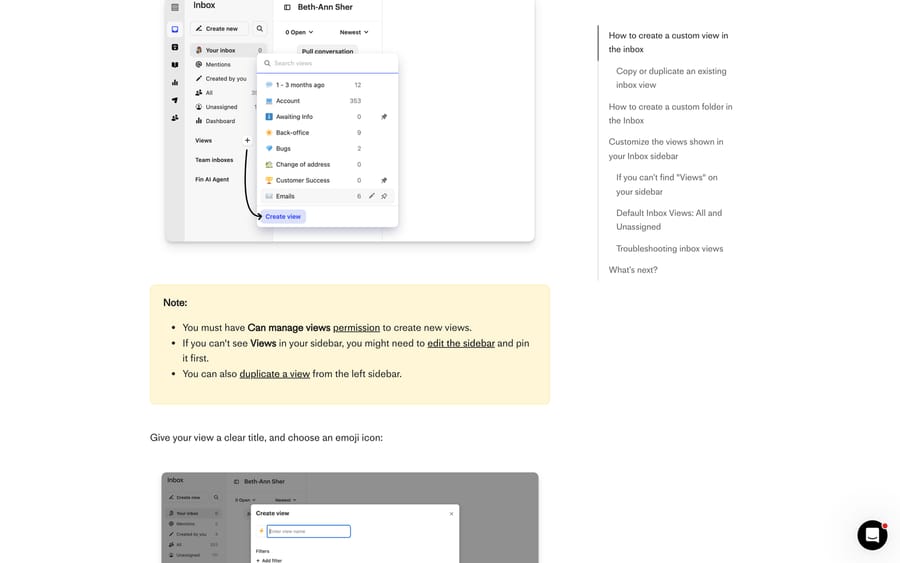
- In the Inbox, click the three dots next to Views in the sidebar, then Create view.
- Name it and pick an emoji. The name is public to your whole team, so write it as a description of the queue rather than a private shorthand.
- Add filters with + Add filter, choosing And when a conversation must match everything and Or when any one condition is enough.
- Save. The view appears in your sidebar, and other teammates can search for it and pin it to theirs.
Two prerequisites. You need the Can manage views permission to create one, and if Views isn't in your sidebar at all, pin it back from Manage › Edit sidebar at the bottom of the navigation. Duplicating is usually faster than building: hover a view in the sidebar and click the Duplicate icon to get a copy with the same filters, then adjust and save.
Which filters can an Intercom view use?
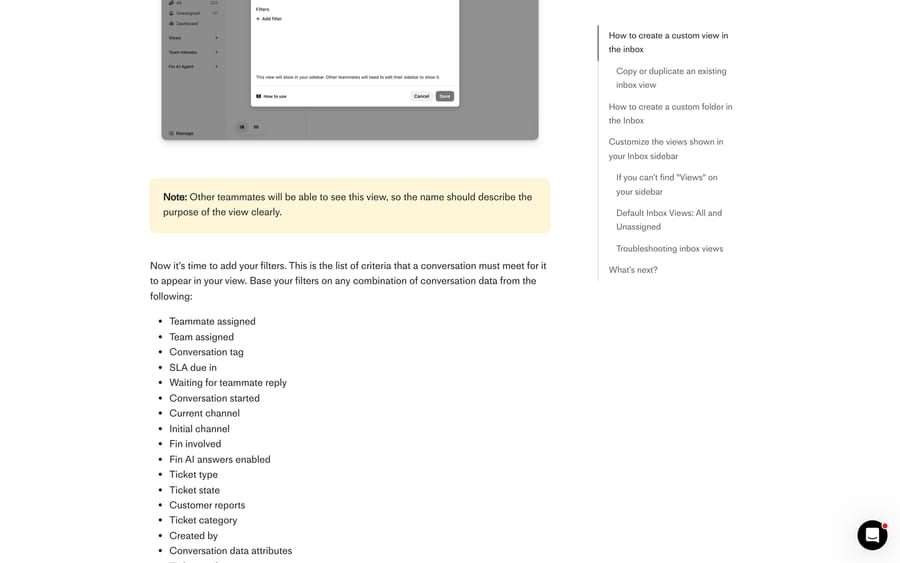
Intercom's views documentation lists 17 sources a view filter can use:
| Filter | Useful for |
|---|---|
| Teammate assigned | Per-person and per-squad queues |
| Team assigned | A team's real backlog, separate from its inbox |
| Conversation tag | Anything you've labeled, and the fastest filter to evaluate |
| SLA due in | Breach warnings |
| Waiting for teammate reply | Aging, measured from the customer's last message |
| Conversation started | Recency windows |
| Current channel | Where the conversation is now |
| Initial channel | Where it began |
| Fin involved | Whether the AI agent touched it |
| Fin AI answers enabled | Whether it was even eligible for an AI answer |
| Ticket type | Bug, refund, whatever you've defined |
| Ticket state | Your configured states |
| Customer reports | Customer-reported tickets |
| Ticket category | The ticket's category |
| Created by | Who opened it |
| Conversation data attributes | Your own conversation fields |
| Ticket attributes | Your own ticket fields |
Three limits are worth knowing before you design anything. Views can't filter on company attributes, so anything about the account has to be copied onto the conversation as a conversation data attribute first. Ticket State Category is retired and you should move any old view to the newer Ticket State filter. And views support both And and Or, while the Inbox search bar combines its filters with And only, which is a real difference between the two tools.
Which 10 views should a support team build?
Each of these uses only filters from the list above. Where a view needs something set up first, that's called out.
1. SLA about to breach. SLA due in is less than 15 minutes. One filter, fast to evaluate, and the only view that should ever be pinned at the top. Requires an SLA on the conversations you care about.
2. Aging in a team queue. Team assigned is your team And Waiting for teammate reply is more than 60 minutes. This is the view that catches the conversation nobody claimed, which the team inbox count hides because the count doesn't care how old anything is.
3. Fin handed it over and nobody picked it up. Fin involved is true And Waiting for teammate reply is more than 15 minutes. Handovers are the conversations where the customer has already waited through an AI attempt, so the tolerance should be tighter than your general one.
4. Conversations Fin was never allowed to try. Fin AI answers enabled is false. Run this weekly and you get a list of the paths where your AI coverage stops, which is a different question from where Fin failed.
5. Channel switchers. Initial channel is Messenger And Current channel is Email. Conversations that moved channel are the ones most likely to be answered twice or lost between two people, and Intercom gives you both fields precisely so you can see the move.
6. Today's new email. Initial channel is Email And Conversation started is less than 24 hours ago. Email backlogs build quietly because nobody is watching a chat widget light up.
7. Bugs parked with engineering. Ticket type is your bug type And Ticket state is the state you use for work handed to another team. Requires ticket types and a state to be configured. This is the queue that rots, because it looks handled to everyone except the customer.
8. Anything the customer reported. Customer reports And Waiting for teammate reply is more than 4 hours. Customer-reported tickets carry a different expectation from back-office work, and mixing the two in one queue is how the wrong one gets prioritized.
9. High-value accounts waiting. Conversation data attribute Plan is Enterprise And Waiting for teammate reply is more than 30 minutes. This is the view that forces the company-attribute workaround: set the plan onto the conversation with a workflow, and then you can filter on it.
10. Tagged for follow-up. Conversation tag is follow-up. Trivial to build, and the one to reach for when the filter list doesn't hold what you need. Tags are the fastest filter Intercom evaluates, and a workflow can apply them for you.
An eleventh that isn't quite a view: My direct reports. Teammate assigned is any of the people you manage. It's on the list because managers keep building it as a folder, and a folder is personal while a view is shared.
How do you build a waiting-on-customer view?
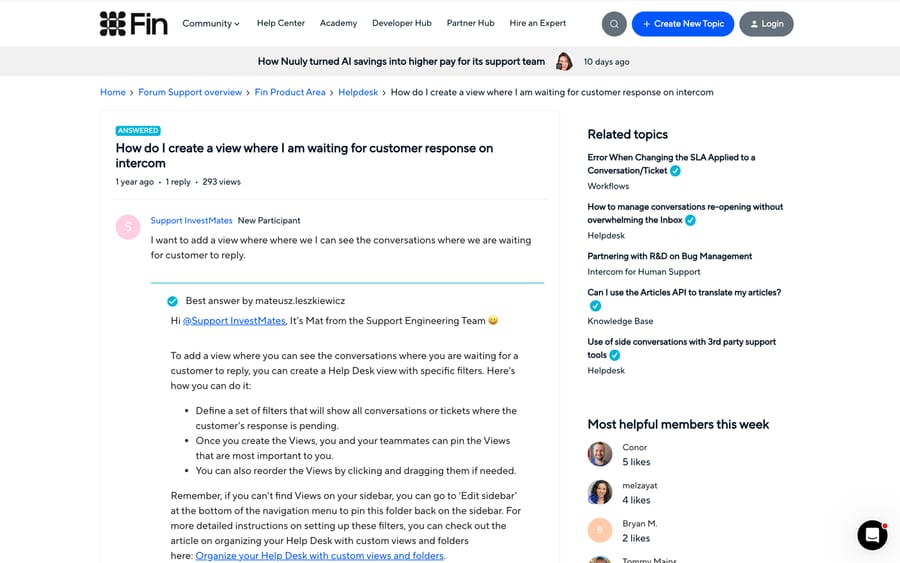
The most-requested view in the community is "conversations where we're waiting on the customer". Intercom's filter list gives you the opposite direction, Waiting for teammate reply, and a 2024 community thread with 293 views gets the generic answer to define a filter set for it.
The workable approximation is a tag plus a workflow: have a workflow apply a waiting-on-customer tag when a teammate replies, remove it when the customer does, and filter the view on the tag. It costs one workflow and it makes the queue real. This is the general pattern for anything the filter list doesn't hold, and it's why view 10 above is worth building even if you think you don't need it.
Why does an Intercom view fail to load?
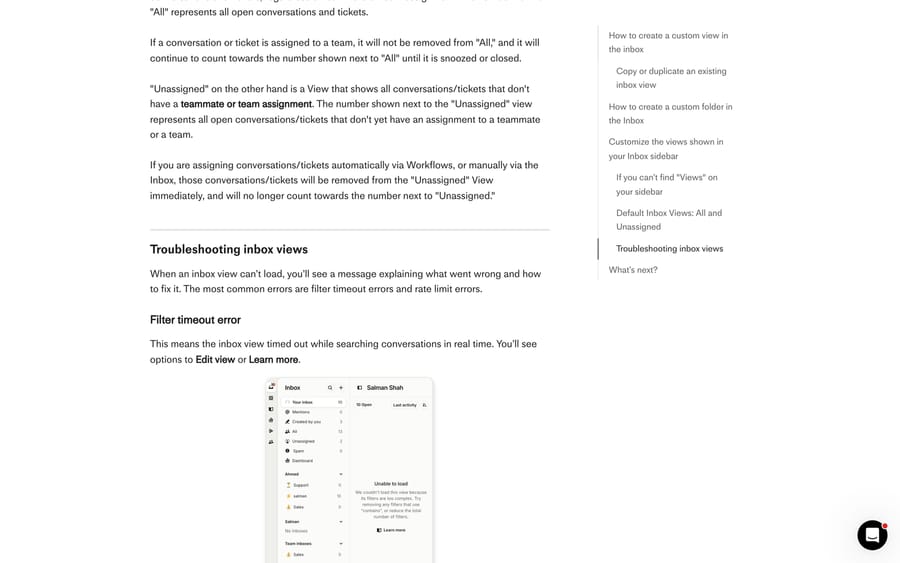
Views search your conversations live, which is what makes them current and also what makes them fragile. Intercom documents two failures.
Filter timeout. The message reads "We couldn't load this view because its filters are too complex. Try removing any filters that use 'contains', or reduce the total number of filters." Click Edit view, find the contains filters on custom data, and replace them. Intercom notes that views with five or more complex filters are more likely to time out.
Rate limit. "We couldn't load this view because we're receiving too many requests" with a countdown. This happens when a lot of teammates load complex views at once. Wait for the timer, click Try again, and if it recurs, simplify the filters.
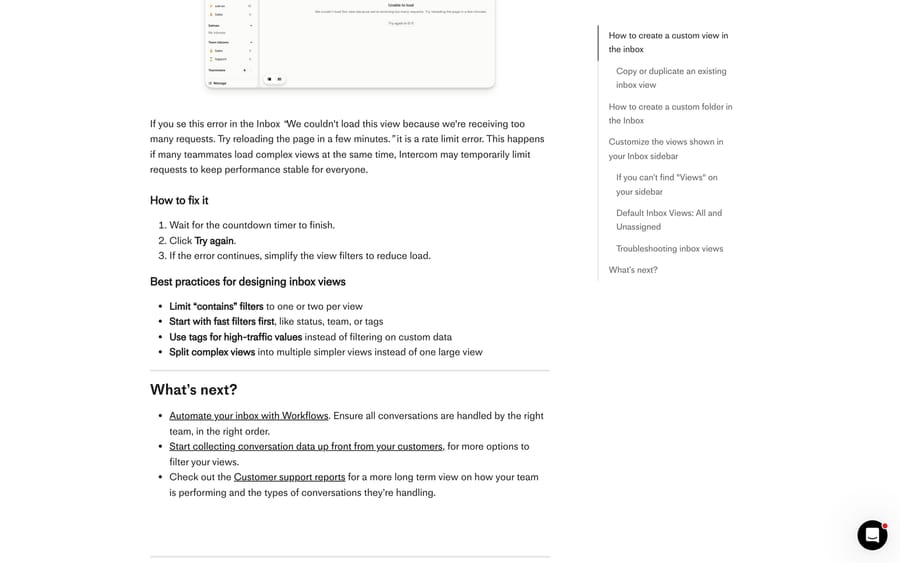
Intercom's own four rules for designing views follow from that: limit contains filters to one or two per view, put fast filters like status, team and tag first, use tags instead of filtering on custom data for high-traffic values, and split a complex view into several simple ones. The reason to take the third seriously is that a view is shared. A heavy view built by one person is loaded by everyone who pins it, so a filter set optimized for the person who wrote it becomes a cost the whole team pays at 9am.
What surprises people about Intercom views?
Views don't reassign anything. A conversation showing in your view is still in the inbox of whoever owns it. A view is a lens, and two people can be looking through it at the same conversation.
All and Unassigned are views, not inboxes. All has no filters and counts every open conversation and ticket regardless of assignment, and it keeps counting an assigned conversation until it's snoozed or closed. Unassigned means no teammate and no team, so the moment a workflow routes something to a team it leaves that view.
Sidebar order is per browser. Drag-and-drop order is saved in your browser's local storage, not on Intercom's servers, so it resets when you clear site data or move to another machine. The default order is oldest view first.
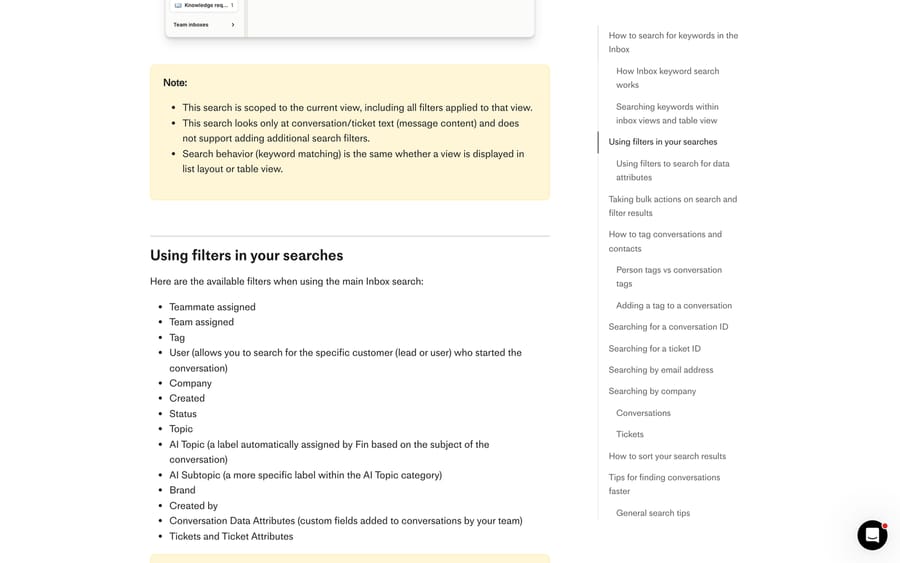
Lite seats can't search or filter. Per Intercom's search documentation, Inbox search and every search filter, including the Created date filter, are unavailable to teammates on Lite seats; they need a direct link to a conversation. If you have engineers or account managers on Lite seats, hand them a pinned view rather than telling them to search.
The search bar is also worth understanding as a separate tool. It offers filters that views don't, including Company, AI Topic and AI Subtopic, and it can search text. Views can't do a keyword search across everything, though you can search within a view, scoped to its filters, from the search icon at the top of the list.
When should you use a folder instead of a view?
Custom folders group teams, teammates and views in your sidebar, and they're personal to you. Create one from Manage › Edit sidebar › Create Custom Folder, then pin things into it. The distinction that matters: a view is shared with everyone and needs a name that makes sense to a stranger, and a folder is yours alone. If you already know a queue is only ever going to matter to you, a folder of existing views beats adding another shared view nobody else will understand.
Ten shared views is roughly the ceiling for a support team before the sidebar becomes its own navigation problem. Build the SLA view, the aging view and the Fin handover view first, watch which ones people actually open, and delete the rest.
How we researched this
We checked every filter name, path and error message on this page against Intercom's help center on September 21, 2026 (re-checked on September 24, 2026), using the views article and the Inbox search article, plus the community thread linked above. We don't have an Intercom workspace, so none of the ten views was built in a live account; each is assembled from filters Intercom documents, and the values available for Ticket type, Ticket state and Ticket category depend on how your workspace is configured.
For the wider picture of how the Inbox itself is organized, see our Intercom shared inbox guide and our overview of Intercom for customer support. If you're filtering on Fin involved a lot, our Fin explainer covers what that flag actually means.
Frequently asked questions
How do I create a view in Intercom? In the Inbox, click the three dots next to Views in the sidebar, then Create view. Name it, choose an emoji, add filters with And or Or logic, and save. You need the Can manage views permission.
What filters can an Intercom inbox view use? Seventeen sources: teammate assigned, team assigned, conversation tag, SLA due in, waiting for teammate reply, conversation started, current channel, initial channel, Fin involved, Fin AI answers enabled, ticket type, ticket state, customer reports, ticket category, created by, conversation data attributes and ticket attributes.
Can I filter an Intercom view by company? Not directly. Intercom's documentation says inbox views can't be filtered by company attributes. The workaround is to copy the value you need onto the conversation as a conversation data attribute with a workflow, then filter on that.
Are Intercom views private? No. Once you create a view, any teammate can search for it and pin it to their sidebar, which is why the name should describe the queue. Custom folders are the personal option.
Why does my Intercom view say the filters are too complex? That's the filter timeout error. Views search conversations in real time, and filters using "contains" on custom data are the slow ones. Edit the view, replace those with tags, and keep the total number of filters down; Intercom says five or more complex filters raises the risk.
What is the difference between All and Unassigned? All is a view with no filters and shows every open conversation and ticket whatever its assignment. Unassigned shows only those with no teammate and no team, so anything a workflow routes leaves it immediately.
Why did my view order reset? Because drag-and-drop order lives in your browser's local storage rather than on Intercom's servers. Clearing site data, switching browsers or using another device resets it to oldest-view-first, and you reorder in each browser separately.
Can Lite seats use views? They can open a view that's pinned for them, but Inbox search and all of its filters, including the Created date filter, are not available on Lite seats. Intercom's documentation says Lite teammates need a direct conversation or ticket link.
Sources: Organize your Inbox with custom views and folders · Inbox search and filter · How do I create a view where I am waiting for customer response (Intercom Community)
Add AI agents to your Intercom
Macha reads the conversation, drafts the reply and takes the action, inside the Intercom you already run.