Intercom
 Shopify
 Stripe
 Slack
Slack Notion
 Google Workspace
 Confluence

How Do You Create Zendesk Tickets From Intercom? Integration Setup and What Doesn't Sync (2026)


There are four ways to connect Intercom and Zendesk, and only one of them, a Data connector posting to the Zendesk Tickets API, creates tickets automatically. None of them keeps conversations in sync in both directions, so replies, status changes, attachments and conversation history need their own handling.
Key takeaways
- Intercom creates Zendesk tickets automatically only through a Data connector that posts to the Zendesk Tickets API from a Workflow, Fin, a Custom Answer or a macro.
- Intercom's support team confirmed in its community that the Zendesk integration does not automatically sync Intercom conversations with Zendesk tickets in either direction.
- The Intercom Data connector authenticates with a Base64-encoded email and Zendesk API token, and only the comment field is required in its request body.
- Intercom's CDN links for attachments and inline images usually expire in under an hour, so a Zendesk connector has to move the file rather than the URL.
- Zendesk Guide articles synced into Intercom refresh every hour and stay read-only, and Fin can only use them once the Intercom help center is live.

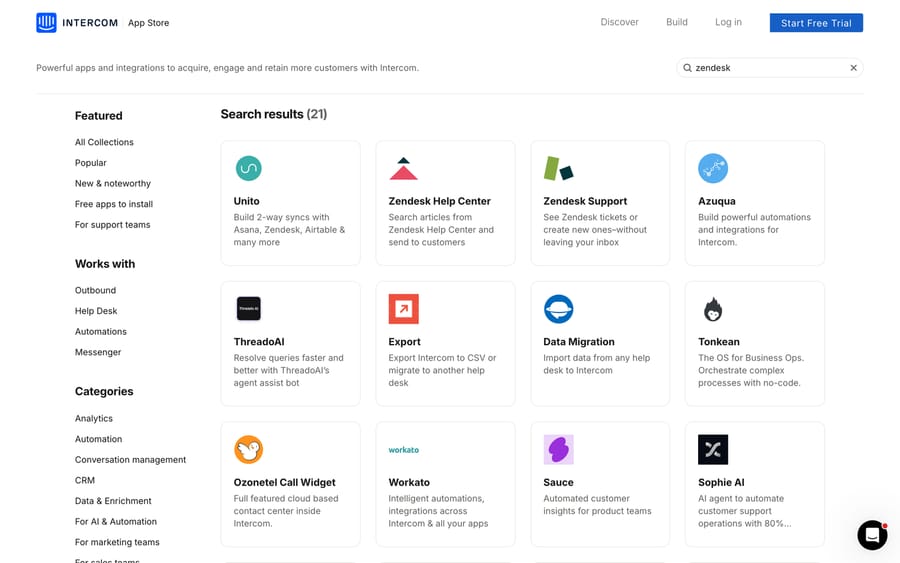
To create Zendesk tickets from Intercom conversations automatically, you build an Intercom Data connector that sends a POST to https://<workspace>.zendesk.com/api/v2/tickets from a Workflow, Fin, a Custom Answer or a macro. The two Zendesk apps in the Intercom App Store only let an agent view or create tickets by hand, and none of the options syncs replies or status changes back from Zendesk unless you build that too.
What does each Intercom-Zendesk option do?
| Option | Direction | What it does | Automatic |
|---|---|---|---|
| Zendesk Support app | Zendesk into Intercom | View a customer's Zendesk tickets in the Inbox sidebar, or create one by hand | No |
| Zendesk Help Center app | Zendesk into Intercom | Search Zendesk Help Center articles and send them to a customer | No |
| Knowledge > Sources | Zendesk into Intercom | Sync or import Zendesk Guide articles so Fin and Copilot can answer from them | Yes, hourly |
| Data connector | Intercom into Zendesk | POST to the Zendesk Tickets API from a Workflow, Fin, a Custom Answer or a macro | Yes |
| An iPaaS (Unito, Workato, Azuqua) | Both | Two-way field and record syncs you configure | Yes |
The expectation worth resetting before you build anything comes from Intercom's own support team. Asked in the community why Intercom customer data wasn't appearing in Zendesk, Intercom's Eric Fitz described the integration as letting you view Intercom customer data from within Zendesk and manually create a Zendesk ticket from an Intercom conversation, then added the sentence that decides your architecture: it doesn't automatically sync Intercom conversations with Zendesk tickets and vice versa.
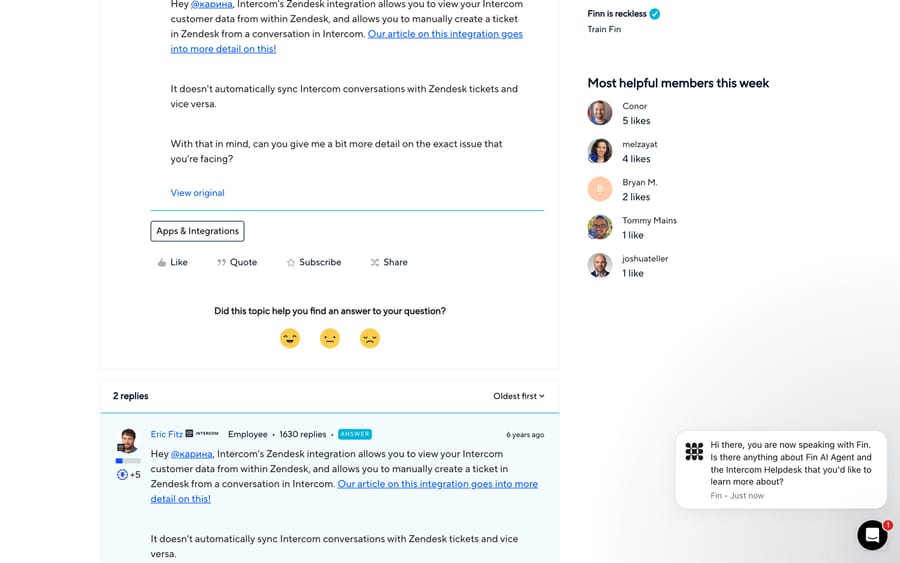
So if you want a Zendesk ticket to appear when something happens in Intercom, you build the Data connector. Everything below is that build.
How do you create the Zendesk API token for Intercom?
The Data connector authenticates with a Zendesk API token, Base64-encoded alongside your email.
- In Zendesk, go to Admin Center > Apps and integrations > APIs > Zendesk API.
- Open the API token tab and click Add API token.
- Give it a descriptive name, such as "Intercom Data connector", and copy the token. Zendesk shows it once; Intercom's own guidance is to store it securely because you lose access to it when you close the window.
- Base64-encode the string
<email_address>/token:<api_token>. That encoded value, not the raw token, is what goes into the header.
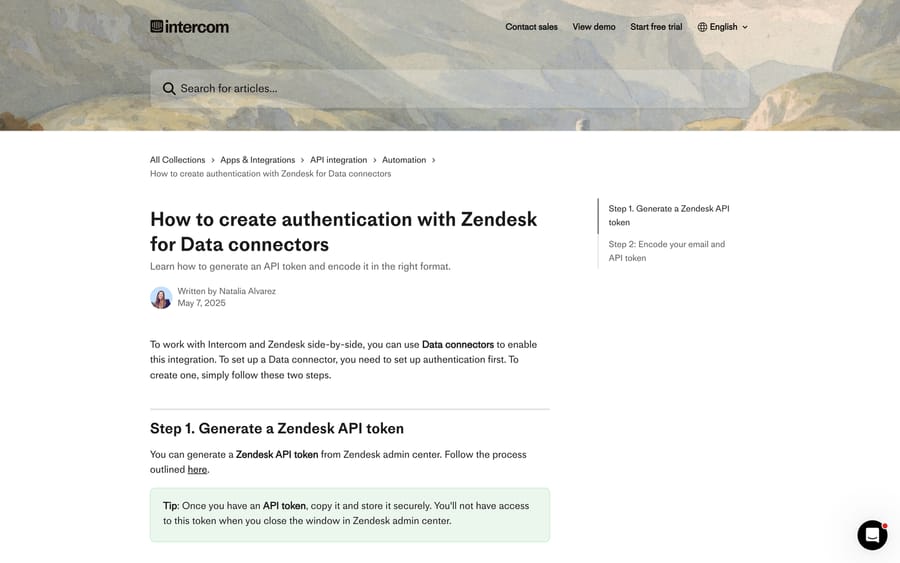
Use a dedicated Zendesk admin account for this rather than a person's login, so the connector doesn't break the day someone changes role. That's a convention rather than a documented requirement, but it's the fix for the most common failure in the next section.
How do you build the Data connector?
In Intercom, go to Settings > Integrations > Data connectors and click Create Data connector. Fill in the About section first: it's the description your teammates will read when they're trying to work out what a connector does six months from now.
API connection
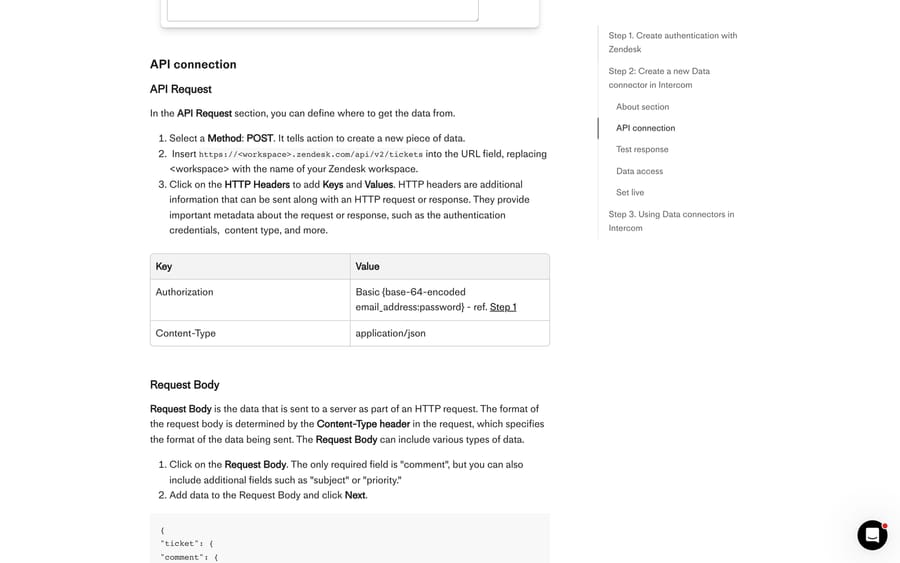
In the API Request section:
- Method: POST.
- URL:
https://<workspace>.zendesk.com/api/v2/tickets, replacing<workspace>with your Zendesk subdomain. - HTTP headers:
Authorizationset toBasic {base-64-encoded email_address:password}using the value from step 1, andContent-Typeset toapplication/json.
Request body
Intercom's default template, which you then edit:
{
  "ticket": {
    "comment": { "body": "<insert message.body attribute>" },
    "requester": {
      "email": "<insert Email attribute>",
      "name": "<insert Name attribute>"
    },
    "external_id": "<insert Conversation ID attribute>",
    "status": "new",
    "subject": "Intercom Conversation: <insert Conversation ID attribute>"
  }
}
The only required field is comment. Everything else is yours to shape, and three of those fields earn their place. requester creates or matches the Zendesk end user, so the ticket belongs to the customer instead of to your API account. external_id carries the Intercom conversation ID, which is what makes the two records findable from each other later. subject is what your Zendesk agents see in a view, so put something searchable in it.
Custom fields
Sending a custom field to Zendesk takes three pieces, in this order:
- Get the Zendesk field ID from the Zendesk Field settings page.
- Create a matching Intercom Conversation data attribute in the same format. Intercom supports Text, Number and Boolean for this; other formats can't be sent to Zendesk.
- Make sure the attribute is collected before the connector fires, either manually in the Inbox or automatically through a Collect data block in a Workflow. A connector that fires before the attribute exists sends an empty value.
Then extend the body with a custom_fields array of { "id": <zendesk field id>, "value": "<intercom attribute>" } objects.
Test, map, set live
Use the Test response step with a real-looking Message Body, Email, Full_name and Conversation ID, and click Test request. A ticket should appear in Zendesk.
In Data access, click New object mapping, select Conversation as the Intercom object and Ticket as the API object, then map Intercom's existing External ID attribute to the id in the API response. This writes the Zendesk ticket ID back onto the Intercom conversation, which is the difference between a connector you can audit and one you can't.
Click Set live, then trigger it from Fin, a Workflow, a Custom Answer or a macro. If Workflows are new to you, our guide to Intercom for customer support covers where they sit alongside the Inbox and Fin.
One scoping note from Intercom's own guide, because it catches people out: this build creates tickets. Updating a Zendesk ticket from Intercom needs a second Data connector.
What doesn't sync between Intercom and Zendesk?
Replies and status changes don't come back
The connector is a one-way POST. When a Zendesk agent replies or solves the ticket, nothing changes in Intercom unless you build for it: a second Data connector that reads the ticket, or a Zendesk webhook into an Intercom endpoint, or an iPaaS like Unito that maintains a two-way sync. Budget for that before you promise anyone a shared view of a conversation.
Attachments expire
This one bites weeks later. Intercom serves attachments and inline images from time-limited CDN links. In a 2025 community thread, Neil Ugerio reported that Intercom images synced into Zendesk stopped working within an hour, and Intercom's Paul Byrne confirmed the behavior: the CDN links are time-limited, usually under an hour, for security reasons, and there's currently no way to extend or disable the expiration. His recommendation was to download the files before they expire or fetch them through the Intercom API as needed.
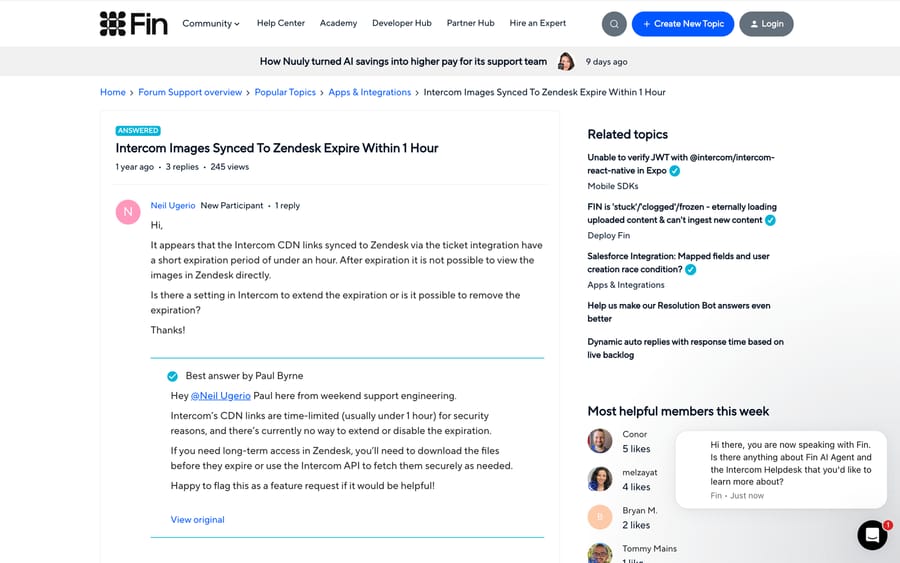
If screenshots matter to your Zendesk agents, your connector has to move the bytes, not the URL.
Conversation history doesn't come with the ticket
The template sends one message body. A Zendesk agent picking up the ticket sees that one comment, not the thread that led to it. Two practical fixes: send a concatenated transcript in comment.body instead of the last message, or collect a summary into a conversation attribute with a Workflow and send that. Decide which before your first escalation lands.
The live path can fail where the test passed
Worth knowing because it's a real pattern rather than a documented feature. In an August 2025 thread with 555 views, a customer described a connector that created a Zendesk ticket during testing, then always took the failure branch in a live Workflow, with no logs in Intercom to debug from. Intercom's Ebenezer Laleye from Engineering Support asked about recent changes to Zendesk account permissions, API credentials or authentication settings, and whether any status codes appeared outside the standard logs. A Super User suggested re-testing the connector with sample data in the Intercom UI.
The debugging order that follows from that: re-run the connector's own test, then check the Zendesk API token is still active and its owning agent still has permission to create tickets, then check the Workflow is actually reaching the connector step, and only then suspect the request body. The Zendesk Tickets API returns the real error; Intercom's Workflow branch only tells you something failed.
How do Zendesk Guide articles get into Intercom?
If your knowledge lives in Zendesk Guide and you want Fin answering from it, that's a separate connection at Knowledge > Sources, under Public articles. Find Zendesk and click Sync or Import.
Sync keeps Zendesk as the source of truth. Articles are read-only in Intercom, re-sync every hour, and can power Fin, Copilot and the Inbox. Three consequences: your customer-facing help center stays on Zendesk, Intercom suppresses search-engine indexing of its own help center while a sync is active to avoid duplicate content, and PUT and DELETE on /articles/<id> are blocked for synced articles. Only published articles that are public or visible to signed-in users are eligible (signed-in articles need the Sync articles for signed-in users toggle), and one Zendesk Help Center can be connected at a time. Zendesk labels, categories and content tags become Intercom tags, which you can use to limit which articles Fin gives to which audience. One catch from Intercom's own article, updated 25 August 2026: synced articles are unlisted in Intercom, so your Intercom help center must be live for Fin to use them.
Import makes Intercom the source of truth and the articles editable, with Zendesk labels and categories carried over as Intercom tags.
How did we research this?
Every path, header and payload above was read on September 20, 2026 from Intercom's help center, the Intercom App Store opened in a browser, and three public threads on community.intercom.com, with Zendesk's own documentation for the API token and the Tickets endpoint. We rechecked the Data connector template and the article sync behavior against Intercom's help center on 24 September 2026. We checked the App Store result set ourselves rather than trusting a listing page, and we read the POST /api/v2/tickets payload from Intercom's own template instead of reconstructing it. We did not build this connector in a live workspace for this post, so there are no timings or error codes of our own; the screenshots are documentation pages, the public App Store, and public forum threads.
Which Intercom-Zendesk option fits which job?
- Agents need Zendesk context while working in Intercom: the Zendesk Support app, no build required.
- Agents need to send Zendesk Help Center articles: the Zendesk Help Center app.
- Fin should answer from Zendesk Guide content: Knowledge > Sources, sync mode.
- Tier 1 in Intercom escalates to tier 2 in Zendesk: the Data connector, triggered from a Workflow.
- Closed Intercom conversations should land in Zendesk for reporting: the Data connector, triggered on close.
- You need genuine two-way sync: an iPaaS, and accept the per-operation cost. Worth naming the incentive there: Unito, Workato and Azuqua bill per operation or per synced record, so a two-way sync wired to every reply gets expensive exactly when your volume grows. Sync the fields you act on, not the whole object.
Our roundup of the best Intercom integrations covers the wider App Store, and building custom Intercom integrations goes deeper on Data connectors and Custom Tools generally.
Where should the AI sit if Zendesk is your system of record?
A common shape for this pair: Intercom Messenger in front for chat, Zendesk behind it as the system of record. If that's you, the AI decision belongs on the Zendesk side, where the tickets actually live.
Macha is an AI agent layer that runs on top of the help desk you already use. It isn't a help desk and it doesn't replace Zendesk. It connects to Zendesk, Freshdesk, Gorgias, Front, HubSpot or Intercom, and it fits teams who want agents resolving inside the ticket, reading their Guide articles and past tickets, and escalating with context when they aren't confident. On cost, the pricing is published: one plan priced on monthly ticket volume, from $299 a month for 750 tickets, about $0.40 a ticket at every tier, billed monthly, with setup and monitoring by the Macha team included. One thread with one person is one charge however many replies it takes, so the billing unit doesn't reward long conversations. A trial is $50 of free usage with no credit card, and how it works on Zendesk is on its own page. If you're still choosing between the two platforms, Zendesk vs Intercom is the comparison.
Frequently asked questions
Does Intercom have a Zendesk integration? Yes, and it's several things rather than one. The App Store has a Zendesk Support app for viewing and creating Zendesk tickets from the Intercom Inbox and a Zendesk Help Center app for searching and sending articles. Knowledge > Sources connects Zendesk Guide content for Fin and Copilot. Data connectors post to the Zendesk API automatically from a Workflow, Fin, a Custom Answer or a macro.
Do Intercom conversations sync to Zendesk tickets automatically? Not on their own. Intercom's support team has stated in its community that the Zendesk integration doesn't automatically sync Intercom conversations with Zendesk tickets or the other way round. Automatic ticket creation is something you build with a Data connector, and it's one-way: replies and status changes in Zendesk don't flow back unless you build a second connector or use an iPaaS.
How do I create a Zendesk ticket from an Intercom conversation? Build a Data connector at Settings > Integrations > Data connectors. Set the method to POST and the URL to https://<workspace>.zendesk.com/api/v2/tickets, add an Authorization: Basic header with your Base64-encoded email and Zendesk API token plus Content-Type: application/json, and send a body containing at minimum a comment. Test it, map the response id to Intercom's External ID attribute, then set it live and trigger it from a Workflow, Fin, a Custom Answer or a macro.
Why do images from Intercom break in Zendesk? Because Intercom's CDN links are time-limited. Intercom support engineering confirmed in its community that those links usually expire in under an hour and that there's currently no setting to extend or disable the expiry. If your Zendesk agents need the screenshots later, your integration has to download the file through the Intercom API and attach the bytes to the Zendesk ticket instead of passing a URL.
My Data connector works in testing but fails in a live Workflow. What now? Check in this order. Re-run the connector's own test with sample data. Confirm the Zendesk API token is still active and its owning agent still has permission to create tickets, since a permission or credential change is the first thing Intercom's engineering support asks about. Confirm the Workflow is reaching the connector step at all. Then check the request body. Zendesk's API returns the real error; the Workflow branch only tells you something failed.
Can I send Intercom custom fields to Zendesk? Yes, with three pieces in place. Get the Zendesk field ID from Zendesk's Field settings, create an Intercom Conversation data attribute in a matching format (Text, Number and Boolean are supported for sending to Zendesk), and make sure the attribute is collected before the connector fires, either manually in the Inbox or through a Collect data block in a Workflow. Then add a custom_fields array to the request body.
How do I get Zendesk Help Center articles into Intercom? Go to Knowledge > Sources, find Zendesk under Public articles, and choose Sync or Import. Sync keeps Zendesk as the source of truth with read-only articles refreshed hourly, and needs your Intercom help center live for Fin to use them; Import makes Intercom the source of truth and the articles editable. Only published articles that are public or visible to signed-in users are eligible, and one Zendesk Help Center can be connected at a time.
Sources: Intercom: create tickets in Zendesk with Data connectors · Intercom: create authentication with Zendesk for Data connectors · Intercom: sync public articles with Zendesk · Intercom App Store · Zendesk Tickets API · Zendesk: managing API token access · Community: Intercom customer data not showing in Zendesk · Community: Intercom images synced to Zendesk expire within 1 hour · Community: creating Zendesk tickets at the end of a conversation
Add AI agents to your Zendesk
Macha reads the ticket, drafts the reply and takes the action, inside the Zendesk you already run.