





 Shopify
 Stripe
 Slack
Slack Notion
 Google Workspace
 Confluence

How Do Zendesk Custom Object Placeholders and Object Triggers Work?


Zendesk object triggers run when a custom object record changes, while ticket triggers run when a ticket changes and can only read a record through a lookup field. Picking the wrong one produces a rule that saves cleanly and never fires.
Key takeaways
- Zendesk object triggers fire when a custom object record is created or updated, while ticket triggers fire on ticket events and can read a custom object only through a lookup field.
- Zendesk object triggers are capped at 100 active and 500 total per object, with a maximum of 50 conditions and 25 actions per trigger.
- When two Zendesk object triggers set the same field on a record, one update is applied and the last write wins, so the Edit order control on the Object tab decides the result.
- Reaching a custom object field from a ticket placeholder needs the numeric ID of the lookup field on the ticket, such as ticket_field_2698798899085, not the field's name or the object's key.
- Object triggers are available on every Zendesk Suite plan and on Support Enterprise, and a custom object cannot be deleted while a Support ticket trigger references it.

To reach custom object data in Zendesk, use {{custom_objects.<object_key>.custom_fields.<field_key>}} inside an object trigger, and {{ticket.ticket_field_<lookup_field_id>.custom_fields.<field_key>}} from a ticket, where the ID is the numeric ID of the lookup field. Object triggers fire when a record is created or updated, allow 100 active triggers per object, and can write to the record. Ticket triggers fire on ticket events and can read a record but only use the lookup field in notification actions. The object itself should already exist; if not, start with the practical introduction.
| Object trigger | Ticket trigger | |
|---|---|---|
| Fires when | A custom object record is created or updated | A ticket is created or updated |
| Placeholder form | custom_objects.<object_key>.custom_fields.<field_key> | ticket.ticket_field_<id>.custom_fields.<field_key> |
| Can write to the record | Yes | No (lookup fields only in notification actions) |
| Limits | 100 active, 500 total per object | Account-wide ticket trigger limits |
| Plans | All Suite plans, Support Enterprise | All Suite plans, Support Enterprise (for object data) |
What is the placeholder syntax for custom object fields?
Placeholders are where most of the time gets lost, because a wrong one renders as nothing instead of erroring. Zendesk's placeholder documentation gives two forms.
Inside an object trigger, referencing a field on the record that fired it:
{{custom_objects.<object_key>.custom_fields.<field_key>}}
{{custom_objects.<object_key>.custom_fields.<field_key>.title}}
Use the second form for a drop-down: .title returns the label an agent picked. One nuance that costs people an afternoon, because the syntax is not uniform across object types: custom drop-down fields on tickets use an option_title_ form rather than a .title suffix. Check which object you are addressing before assuming the suffix carries over.
From a ticket, reaching through a lookup relationship field into the related record:
{{ticket.ticket_field_2698798899085.custom_fields.order_status.title}}Three things are happening in that second one, and each of them breaks it independently.
The path goes through the numeric ID of the lookup field. Its name won't work, and neither will the object's key. 2698798899085 is the ticket field. You get that ID from the field's admin URL or from GET /api/v2/ticket_fields, and there's no way to guess it:

Filtering the list to lookup fields gives you the id, the field's title and the object it points at in one line, which is everything the placeholder path needs.
custom_fields.order_status is the field key on the related object, which is the machine key, visible on the field in Admin Center.
.title returns the human-readable label of the selected option. Zendesk documents .title as the way to display that value on drop-downs across object types, and documents the tag-returning form specifically for multi-select ticket fields. The practical rule is narrower than "omit it and you get tags": on a drop-down, reach for .title when you want what the agent read on screen, and test the bare form before assuming what it returns. It is the same value-versus-label split that catches people in lookup filters, covered in our lookup relationship fields guide.
Test a placeholder before you build a workflow around it. A typo in the field ID produces an email with a blank where the order status should be, and the trigger reports success.
What can a Zendesk object trigger do?
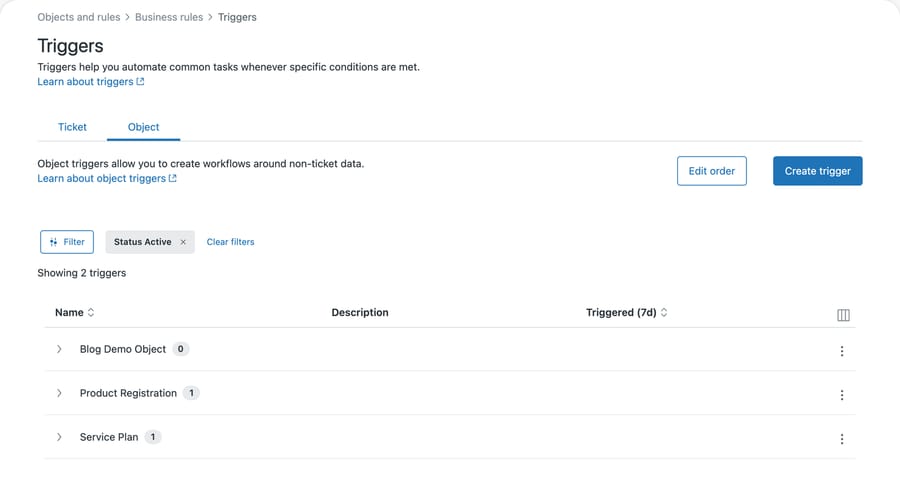
Object triggers take a moment to find, because they don't have their own nav item. The list lives under Business rules, Triggers, on an Object tab beside the ticket triggers, and it groups every object trigger under the object it belongs to:
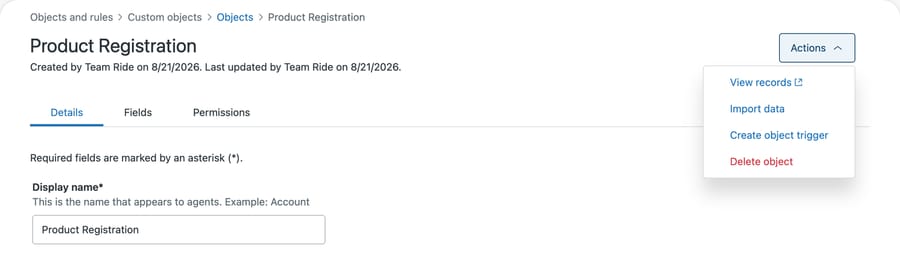
There's a second route in from the object itself, which is the one most people find first:
That grouping matters more than it looks, because the limits below are per object rather than per account, and this page is where you see how close each one is.
An object trigger runs any time one of that object's records is created or updated. Per Zendesk's object trigger documentation, all applicable triggers for the object are evaluated and then "one update is made to the record with all applicable changes."
That batching has a consequence you should design around: "If there are two applicable actions that set a value for the same field, the last write will be the one you see." Two triggers both setting a status field don't conflict loudly. One of them just wins.
Which one is not a mystery, and it is not left to chance either. The Object tab carries an Edit order control beside Create trigger, so the sequence is yours to set. If two of your rules touch the same field, ordering them deliberately is the fix, and leaving the order alone is the decision that produces the surprise.
Conditions cover the field types you'd expect, per Zendesk's object trigger conditions and actions reference. Checkbox takes is, true or false. Date supports is, is not, present, not present, before, before or on, after, after or on, within previous X days and within next X days. Numeric types support the comparison operators. Text, multi-line and regex support includes and doesn't include as well as equality. Lookup relationships support is, is not, present and not present. Two special conditions matter: Current user, which lets you branch on who made the change, and Update, which distinguishes a record being created from one being updated.
Actions set field values on the record, act on lookup relationships, and send notifications. The notification set is active webhook, group email, text group, text user and user email.
Object triggers are available on every Suite plan (Team, Growth, Professional, Enterprise and Enterprise Plus) and on Support Enterprise.
What can a ticket trigger do with custom object data?
A ticket trigger fires on ticket events and can read a custom object through a lookup relationship field on the ticket. Conditions can reference the lookup field itself or a field on the related record, which is what makes "if this ticket's product is out of warranty" expressible.
The limitation catches people out. Per Zendesk's documentation on using custom objects in ticket triggers, "Lookup relationship fields can only be used in notification actions." Concretely: where the lookup lives on the ticket and points at a custom object related to a user, you can email that user and assign the ticket to them. You can't read a value off the related record and write it into a ticket field from a ticket trigger.
So the split is this. Reading object data to decide something or to say something works in a ticket trigger. Writing object data, or writing ticket data derived from object data, needs something else. That second case is the one that sends people to the API or to a webhook.
How many object triggers can you create?
Object triggers have real ceilings, and they apply per object:
| Limit | Value |
|---|---|
| Active triggers per object | 100 |
| Total triggers per object (active and inactive) | 500 |
| Conditions per trigger | 50 |
| Values in a multi-select condition | 50 |
| Actions per trigger | 25 |
| Trigger size | 64 KB |
A hundred active triggers on a single object is generous, and the shape of that allowance encourages something. Per-object ceilings this high mean the constraint you hit first is comprehension. Nobody audits 80 object triggers successfully, and the last-write-wins behavior above means overlapping rules degrade quietly. Zendesk isn't optimizing for your ability to reason about the set; it's removing quota as a reason not to build. Treat the number you can maintain as your real limit.
Why can't you delete a custom object?
One operational constraint that surprises people during cleanup: a custom object can't be deleted while a Support ticket trigger references it. Tearing down an experiment means finding those triggers first, unpicking the references, then deleting the object.
Combine that with the object key rule covered in creating your first custom object, where a deleted key can never be reused, and the cost of a throwaway object is higher than it looks. Name things as though you'll keep them. Whether the thing needed to be an object at all is a separate question, worked through in custom objects versus custom fields.
Should you use an object trigger or a ticket trigger?
Three questions settle it in most cases.
What changed? If a record changed, that's an object trigger. If a ticket changed, that's a ticket trigger. This is the question that resolves the majority of confusion, because people reach for object triggers to react to ticket events, and the rule then never fires.
What needs to change? Object triggers write to the record. Ticket triggers write to the ticket but can't write a looked-up value into it.
Who needs telling? Both types send notifications, so the notification is rarely the deciding factor. Pick based on the first two questions and the notification follows.
Anything that crosses the boundary, reading a record and writing a ticket field, needs a webhook or an API call. Recognizing that early saves rebuilding a rule three times.
Common questions
What fires an object trigger? Creating or updating a record of that object. Object triggers don't respond to ticket events at all, which is the most common reason a new one appears to do nothing.
What's the placeholder for a custom object field in a ticket? {{ticket.ticket_field_<lookup_field_id>.custom_fields.<field_key>.title}}, where the ID is the numeric ID of the lookup relationship field on the ticket, not its name and not the object's key. The .title suffix returns the selected option's label.
Can a ticket trigger update a custom object record? No. In ticket triggers, lookup relationship fields are usable only in notification actions, so writing to the related record requires the API or a webhook.
How many object triggers can I have? Up to 100 active per object and 500 total per object, with a maximum of 50 conditions and 25 actions per trigger.
What happens if two object triggers set the same field? The last write wins. All applicable triggers are evaluated and a single update is applied, so overlapping rules resolve silently rather than erroring. Use the Edit order control on the Object tab to set which rule runs last.
Why can't I delete my custom object? Almost certainly a Support ticket trigger still references it. Zendesk blocks the deletion until the reference is removed.
What can't triggers do on their own?
Triggers are deterministic, and that's their strength and their ceiling. A trigger fires when a field equals a value. It stays quiet when a customer describes a problem in a way that implies the field should have been set.
The gap shows up in a specific place. Object data is usually maintained well and the ticket's connection to it is usually maintained badly, because setting the lookup field is manual work an agent does under time pressure. So the record is right, the relationship is missing, and every rule downstream of the relationship silently doesn't apply. Adding more triggers doesn't fix that, since the trigger's condition depends on the field somebody didn't fill in.
The part to automate is the linking itself. Read the ticket, work out which record it's about, and set the relationship so the deterministic rules you already wrote start firing.
Macha reads tickets in your Zendesk, follows lookup relationships to the records behind them, and can act inside the ticket itself. It fits teams who've built the object model and the triggers and keep finding that the rules don't fire because the link was never set. It fits poorly if your workflow is genuinely deterministic end to end, because a trigger that already works is cheaper and more predictable than any agent. Our Zendesk integration page covers what it reads, and our triggers guide covers the ticket side in full.
Get the placeholder right first. Start a free trial when the deterministic rules have gone as far as they go.






