





 Shopify
 Stripe
 Slack
Slack Notion
 Google Workspace
 Confluence

How Do You Attach Zendesk Custom Objects to Users and Organizations?


A subscription, device or contract belongs to a customer for years, so linking a Zendesk custom object to a user or organization lasts longer than linking it to a ticket. The choice that matters is which side holds the lookup field, because it decides what agents see without changing what the data means.
Key takeaways
- To attach a Zendesk custom object to a user, put the lookup relationship field on the many side, so a customer with several subscriptions gets the field on the subscription object.
- When a Zendesk lookup field points at a user or organization, that profile gains a Related tab listing every record pointing at it, grouped by object and field name.
- Zendesk allows 5 lookup relationship fields per object on Suite Team and Growth and 10 on Suite Professional and above, and lookups on users all draw from one allowance.
- Zendesk Explore always reports custom field information from a user's default organization, so a customer belonging to three organizations reports under only one of them.
- Zendesk's bulk import guidance is to remove lookup data from the spreadsheet before the first import, then seed the lookup fields in a separate upload afterward.

To attach a Zendesk custom object to a user or organization, add a lookup relationship field on the "many" side of the relationship, which is usually the custom object, with User or Organization as its related object. That profile then gains a Related tab listing every record pointing at it, with no field on the user at all. If you need a refresher on what a custom object is, start there.
| Question | Answer (Zendesk docs, checked 24 September 2026) |
|---|---|
| Where the lookup field goes | On the "many" side of a many-to-one relationship |
| What agents see | A Related tab on the user or organization profile, grouped by object and field name |
| Lookup fields per object | 5 on Suite Team and Growth, 10 on Suite Professional and above |
| Ticket lookups | Limit counts per ticket form, 40 across all forms |
| Parent-child fields | Deleting the parent deletes its child records |
| Import order | Targets first, sources without lookup data, then lookups |
| Explore reporting | No custom object dataset; multi-org users report under the default organization |
Which side of the relationship should hold the lookup field?
A lookup relationship field lives on one record and points at another. The relationship is the same either way, and the ergonomics are not.
Put the lookup on the custom object, pointing at the user. A subscription record carries an owner field naming the customer. One customer can have many subscriptions, and each subscription names exactly one owner.
Put the lookup on the user, pointing at the custom object. The user record carries a current_plan field naming one plan record. Many users can share a plan, and each user has exactly one.
Zendesk's planning guidance recommends putting lookup fields on the "many" side of a many-to-one relationship, and the reasoning is worth stating: a lookup field holds one value. If a customer can have three subscriptions, a subscriptions field on the user can't hold them, so the field belongs on the subscription. Getting this backwards produces a model that works during testing with one record per customer and breaks the first time somebody buys a second thing.
The practical test, once the object itself is built and its permissions set: say the relationship out loud with "many" in it. "A customer has many subscriptions" puts the field on the subscription. "Many users share a plan" puts the field on the user.
Here is the first shape on our instance, an owner field defined on the product object with User as its related object:
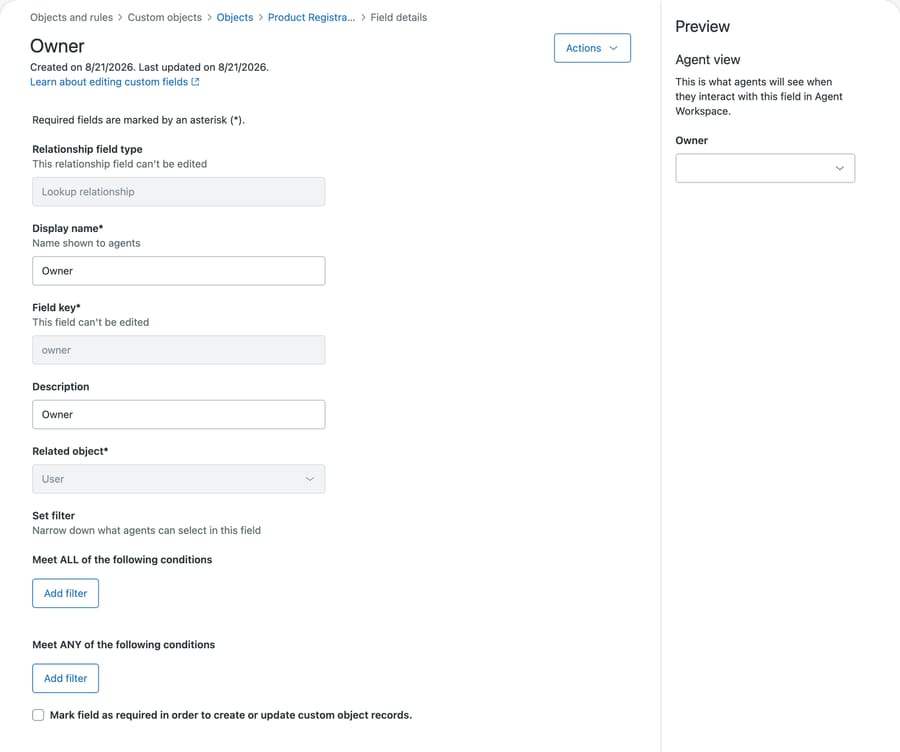
Note what's greyed out. The relationship field type and the field key can't be edited once saved, so the direction you pick is as permanent as the object key itself.
How does the Related tab show a customer's records?
The user and organization side earns its place through a feature that works in the opposite direction to the one you build.
When a lookup field points at a user or an organization, that person's profile grows a Related tab listing everything pointing at them. Per Zendesk's documentation on relationship fields, the tab groups what it finds by source object type, tickets, organizations, users or custom objects, and then by the name of the lookup field itself.
So the reverse direction comes free. You put an owner field on the product object, and you get a Related tab on the customer listing their products. You never build a field on the user at all.
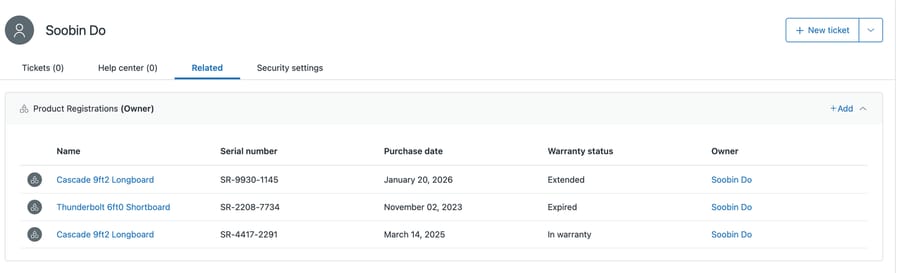
Read the panel heading on our instance: Product Registrations (Owner). That's the object's plural display name followed by the name of the lookup field that points here, which is how the tab groups everything it finds.
That grouping is why naming matters more than it looks. The field name lands in parentheses in a heading an agent reads while a customer waits, so owner produces "Product Registrations (Owner)" and lookup_1 produces something nobody can interpret. Rename before you populate, since the field name is editable and the object key is not.
Two notes on the tab. It doesn't appear on user profiles in the help center, so this is an agent-side feature only. And what happens when an agent clicks a value depends on what the field points at: Zendesk documents that lookups pointing at organizations, users or other tickets "open the record in a new tab in Support", while for a custom object "you can view the record's details within the context panel without navigating away from the ticket you're working on". The custom object case is the better one, and it is the case this post is about.
Does the same model work for organizations?
Yes. Everything above applies to organizations as well as users. A lookup field can point at an organization, an organization profile carries the same Related tab, and the same cardinality test decides which side holds the field. Modeling a contract or a site or an account plan against an organization rather than a user is usually the better choice, because the thing belongs to the company and survives the individual leaving.
Organizations carry one extra trap, and it lands in reporting. Zendesk supports users belonging to more than one organization, and the reporting documentation is direct about what Explore does with that: "Explore will always report custom field information from the default organization." So a customer who belongs to three organizations reports under one of them, and any custom field value you were slicing by is the default organization's. On a desk where multi-org membership is common, that quietly makes a whole class of report wrong rather than empty, which is harder to notice.
How many lookup fields can users and organizations have?
The per-object ceiling in Zendesk's lookup field documentation applies here the same way it does everywhere: 5 lookup relationship fields per object on Suite Team and Growth, 10 on Suite Professional and above. For tickets specifically those numbers count per ticket form, with an account-wide ceiling of 40 lookup fields.
One more relationship type is worth knowing before you settle on a lookup. Parent-child fields are added to the child object and support tickets, users, organizations and custom objects as parents, and they change the ownership model rather than just the pointer: "child objects can't exist outside of the context of the parent record", so "deleting a parent record also permanently deletes all associated child records". That cascade is either exactly what you want for something like line items on an order, or a trap for anything with an independent life. Decide early, too: Zendesk won't let you add a parent-child field if either object already has records, and an object can be the child in at most two parent relationships. Roll-up summary fields, which aggregate child records onto the parent, are supported only where the parent is a custom object, and cap at 10,000 child records per field. Our lookup relationship fields guide covers the lookup side in full.
Worth noticing which side of the relationship spends that budget. Fields on your custom object count against the custom object's allowance. Fields on users count against the user object's allowance. Modeling three different things that all point at users spends three of the user object's slots, which is the ceiling teams hit without expecting to, because nobody thinks of the user object as something with a field budget.
The user object is the scarcest real estate in the model, and the doubling from 5 to 10 at Suite Professional lands exactly where that scarcity starts to bite. Everything wants to point at customers, so the fifth slot arrives at about the point a data model stops being a pilot. That's what the tier boundary is optimizing for: not the first relationship, which works on any plan, but the fourth and fifth, which are the ones that mean somebody committed. The pricing follows the commitment rather than the capability.
Filters work here too, with a narrower set: a lookup pointing at users can be filtered by role. On our own sandbox, which carries 209 users, that's the difference between a picker listing all of them and one listing the handful of agents who could plausibly own an account.
You can check what a relationship actually points at without opening the interface. We read ours back with GET /api/v2/custom_objects/product_registration/fields, which returns each field with its type, so a lookup shows up as a relationship rather than as a text field somebody named hopefully. One trap: that endpoint hides Zendesk's predefined name and external_id unless you pass include_standard_fields=true, and we tested it the wrong way first and read an object as emptier than it was.
What order should you import records in?
If you're loading records in bulk, sequence matters and getting it wrong means importing twice.
Zendesk's planning guidance is explicit: remove lookup field data from the spreadsheet before the initial import, then seed the lookups separately afterward. The reason is ordinary referential integrity. A subscription record pointing at a customer who hasn't been imported yet has nothing to point at, and the value is dropped rather than queued.
So the working order is import the target records, import the source records without their lookup values, then update the source records with the lookups now that both sides exist. That third pass is an API job for anything beyond a few hundred rows, and our Zendesk API guide covers the update calls.
The same guidance flags the ongoing version of this problem: records maintained in an external system go stale in Zendesk unless something re-imports them periodically. A subscription object populated once during a project and never refreshed becomes actively misleading about six months later, when agents still trust it and it's describing plans customers left.
Can you report on user and organization custom objects?
Barely, and it's better to know now than after building the model. We cover this in full in reporting on custom objects in Explore, and the short version is that custom objects have no Explore dataset, while lookup relationship fields present on custom objects can't be reported on at all.
One trap is specific to the user direction. For lookup fields whose related object is a user, Zendesk documents that a user with no tickets as either requester or submitter isn't returned in Explore. If your lookup points at an account manager, the managers with quiet months are missing from the report entirely, which reads as though they own nothing.
That constraint is a real argument for keeping reporting-relevant attributes as custom fields on the user, where they report normally, and using the object for the operational detail agents read in the moment. It's the same split covered in our comparison of custom objects and custom fields, and it applies with more force on the user side because user fields are well supported in Explore.
Common questions
Should the lookup field go on the user or on the custom object? On the "many" side. If one customer can have several records, the field belongs on the record and points at the user. A lookup field holds a single value, so putting it on the user caps that customer at one.
Do I need a field on the user to see their records? No. A lookup on the custom object pointing at the user produces a Related tab on that user's profile listing everything that points at them, grouped by the lookup field's name.
Can end users see the Related tab? No. It doesn't appear on user profiles in the help center, so it's agent-facing only.
How many lookup fields can users and organizations have? Five per object on Suite Team and Growth and 10 on Suite Professional and above. That budget is per object, so lookups on the user object all draw from the same allowance.
What order should I import in? Import the target records first, then the source records with the lookup columns removed, then update the source records to set the lookups. Zendesk's guidance is to strip lookup data from the initial import and seed it separately, because a reference to a record that doesn't exist yet is dropped.
Can I report on organization custom objects? Not directly. Custom objects have no Explore dataset, and lookup fields on custom objects can't be reported on. Attributes you need to chart should live as custom fields on the organization.
How does an AI agent read customer-level objects?
A customer-level object is the closest thing Zendesk has to account context, which makes it the most useful data an automation can read and the easiest to read wrongly.
The useful part is obvious: knowing a customer's plan tier, contract end date or device model before answering changes what the correct answer is. The failure is less obvious. A lookup that returns nothing is indistinguishable from a customer who genuinely has no subscription, and both produce an empty result the automation has to interpret. One means answer generically. The other means the record exists and permissions or a missing link hid it, in which case answering generically is wrong.
The fix is dull. Confirm the role your integration authenticates as has view access to the object, and test with a customer you know has records. An agent that reports absence confidently is worse than one that fails loudly.
Macha reads your Zendesk under the permissions you grant it, follows lookup relationships from the requester into their records, and answers inside the ticket. It fits teams whose customer context lives in a custom object and who want it read and used in the reply rather than looked up and retyped. It fits poorly if the object is refreshed rarely, because the confident wrong answer comes from stale data more often than from a bad model. Our Zendesk integration page covers what it reads.
Model the relationship in the direction that matches the cardinality. Start a free trial once the records are attached to the right people.






