Intercom
 Shopify
 Stripe
 Slack
Slack Notion
 Google Workspace
 Confluence

Zendesk Explore Recipes: How to Build the 12 Custom Metrics Admins Ask For


The Explore reports support leads ask for most are built from standard calculated metrics and attributes, short formulas you write once in the Calculations menu and then use like any built-in field. Every formula here comes from Zendesk's own recipe library, and nearly all need Explore Professional or Enterprise plus Editor or Admin permissions.
Key takeaways
- Zendesk Explore's 12 most-requested custom reports, including SLA breach status and business-hours resolution, are built with standard calculated metrics and attributes in the Calculations menu.
- Building a standard calculated metric or attribute in Zendesk Explore requires Explore Professional or Enterprise plus Editor or Admin permissions, so Suite Team accounts cannot use these recipes.
- To list tickets that consumed a Zendesk automated resolution, filter the Support - Tickets dataset by the ai_agent_automated_resolution tag; messaging is excluded and tickets solved within 72 hours may lack the tag.
- Zendesk's SLA breach recipe subtracts SLA metric target time from completion time, then labels the result Breached when zero or greater and Achieved when negative.
- Zendesk's recipe for tickets solved within business hours wraps the median full resolution time in ATTRIBUTE_FIX pinned to Ticket ID, with a threshold from 1 to 24 hours.

The 12 Explore reports admins ask for most, from SLA breach status to the tickets that consumed an automated resolution, are built as standard calculated metrics and attributes in the report builder's Calculations menu, and nearly all need Explore Professional or Enterprise plus Editor or Admin permissions. Several need no formula at all, because the metric already exists. We checked every formula and path against Zendesk's documentation on September 20, 2026, and rechecked the plan requirements on September 24, 2026.
| # | Report | What you build |
|---|---|---|
| 1 | SLA breached or achieved | Calculated metric plus calculated attribute, Support - SLAs dataset |
| 2 | SLA lateness in buckets | Calculated attribute against the SLA Tickets metric |
| 3 | Solved within N business hours | Calculated metric using ATTRIBUTE_FIX |
| 4 | First reply time (and business-hours version) | Built-in metric; pick the business-hours field |
| 5 | Resolution time without pending or on-hold | Zendesk's published recipe |
| 6 | First assignee or first group | Two calculated attributes, Updates history dataset |
| 7 | One-touch tickets | Built-in metric |
| 8 | Reopened tickets per day | Built-in metric |
| 9 | Agent reply brackets | Updates history dataset |
| 10 | Tickets by agent by channel | Built-in tickets metric |
| 11 | Tickets that used an automated resolution | Tag filter on ai_agent_automated_resolution |
| 12 | Custom objects | Their own dataset |
If you have never built a report at all, start with how to build reports in Zendesk Explore and come back. If you want to know what Explore is and how it is packaged, Zendesk Explore explained covers that.
What is the difference between a calculated metric and a calculated attribute?
Two objects, one distinction that decides which one you need:
- A calculated metric produces a number you can aggregate. Count of tickets meeting a condition, a duration, a difference between two durations.
- A calculated attribute produces a label you can slice by. "Breached" versus "Achieved", a time bucket, a name.
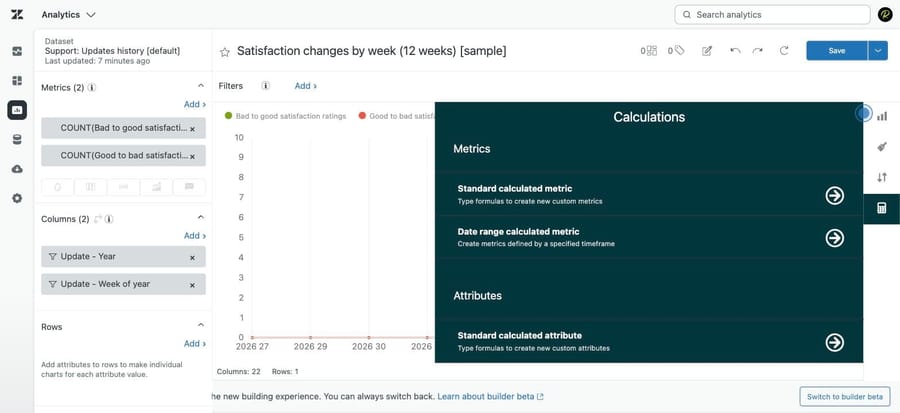
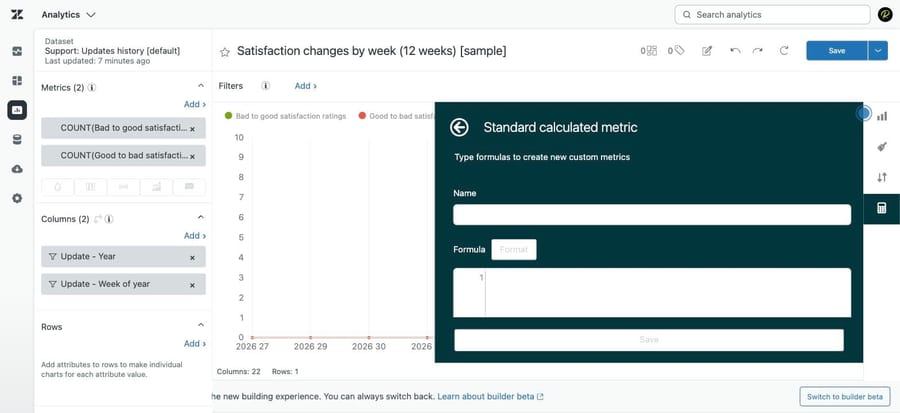
Both live in the report builder's Calculations menu, as Standard calculated metric and Standard calculated attribute. One warning before you paste anything: if your Zendesk interface is in a language other than English, formula keywords and field names change with it, and Zendesk publishes a conversion guide for that.
How do you report on SLA breaches?
1. Breached or achieved, calculated from durations
The most-requested report in the whole cluster, and the native SLA status is not always the answer. Zendesk's own recipe exists precisely because tickets saved in the wrong status produce wrong SLA data.
First a calculated metric for the gap between completion and target:
VALUE(SLA metric completion time (min)) - VALUE(SLA metric target time (min))Then a calculated attribute that labels it:
IF VALUE(SLA metric completion time (min))
 - VALUE(SLA metric target time (min))>=0
THEN "Breached" ELIF VALUE(SLA metric completion time (min))
 - VALUE(SLA metric target time (min))<0
THEN "Achieved" ELSE "Unknown"
ENDIF
Use the Support - SLAs dataset. Zendesk labels this recipe Advanced and 30 to 40 minutes, and says the alternate metrics should be needed only in rare cases, so check your native SLA reporting first.
2. How late, in buckets
Averages hide the shape of a breach. This attribute buckets completion time so you can see whether you missed by ten minutes or a day:
IF (VALUE(SLA metric completion time (min))<120) THEN "0-2 hours"
ELSE IF (VALUE(SLA metric completion time (min))<240) THEN "2-4 hours"
ELSE IF (VALUE(SLA metric completion time (min))<480) THEN "4-8 hours"
ELSE "Over 8 hours" ENDIF ENDIF ENDIF
Add it as a column against the SLA Tickets metric, then filter Ticket SLA > SLA metric to First Reply Time, or to whichever metric you are reporting on. Change the minute thresholds to match your targets.
How do you report on business hours and resolution time?
3. Tickets solved within N business hours
Calendar hours punish you for nights and weekends. This metric counts tickets resolved inside your configured business hours:
IF(ATTRIBUTE_FIX(MED(Full resolution time - Business hours (hrs)), [Ticket ID]) <=4)
THEN [Ticket ID] ENDIF
Change <=4 to any whole number of hours from 1 to 24. Then add it from Metrics > Add > Calculated metrics > Tickets solved within 4 business hours > Count. The ATTRIBUTE_FIX wrapper is what pins the median to a single ticket instead of the whole result set, which is the part people get wrong when they write this themselves.
4. First reply time, and first reply time within business hours
First reply time has a built-in metric, so the recipe is a report build with no formula in it: Support - Tickets dataset, the first reply time metric, sliced by whatever you care about. Slicing by Group answers the question people actually ask, which is which team is slow, before which person.
For the business-hours version, Zendesk maintains a separate article, because the business-hours variants of the reply and resolution metrics are distinct fields, and there is no setting that switches the calendar-hours ones over. Pick the field.
5. Full resolution time without pending or on-hold time
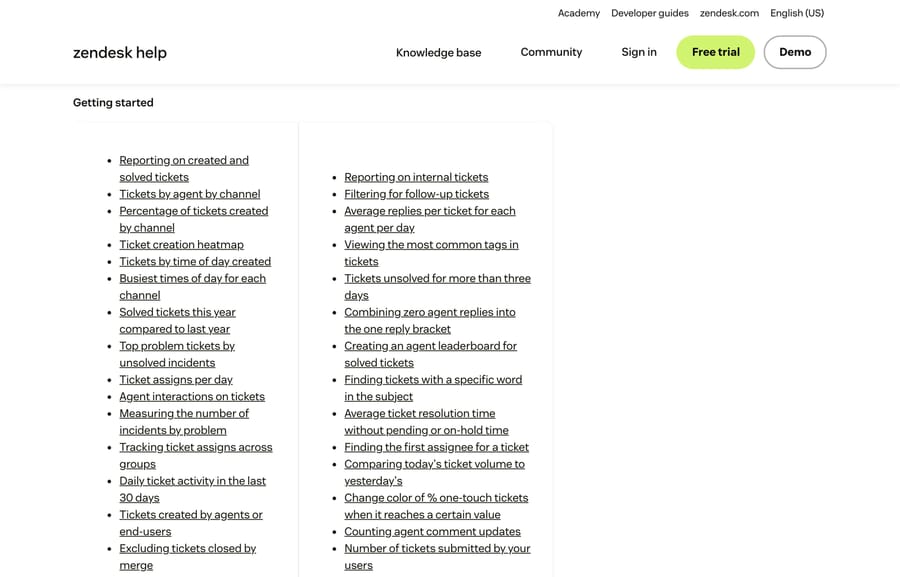
The complaint behind this one is that resolution time counts hours when the ticket was waiting on the customer. Zendesk publishes a recipe for average resolution time excluding pending and on-hold time; it is in the recipes reference under Getting started, and it is the honest version of the metric to put in front of a leadership team.
How do you report on agent and ticket behavior?
6. First assignee (and first assigned group)
"Who touched this first" needs the Updates history dataset and two calculated attributes. The first finds the assignment event:
IF ([Changes - Field name]="assignee_id" AND [Changes - Previous value]=NULL
AND [Changes - New value]!="0" AND [Changes - New value]!=NULL)
THEN [Update ticket assignee]
ENDIF
Set Computed from to Ticket ID. The second compares it to the current assignee, which is how you filter for tickets that changed hands:
IF [Update ticket assignee] = [Assignee name] THEN "true"
ELSE "false"
ENDIF
Zendesk's article also gives the group variant, substituting the group field in the first formula.
7. One-touch tickets
Solved with a single agent reply, which is the closest thing Explore has to a "this could have been an article" metric. Support - Tickets dataset, and the metric already exists: Agent replies distribution > One-touch tickets. Slice by Ticket solved - Date.
One correction worth applying: exclude merged tickets with a calculated attribute filter on the closed_by_merge tag, or a merge wave inflates the number.
8. Reopened tickets per day
No formula needed, and it is the quickest genuinely useful report on this list. Support - Tickets, the Reopened tickets metric, Ticket solved - Date in Rows. Zendesk's own advice is to filter Ticket created - Date to a short window while you build it, because the unfiltered query times out.
9. Agent reply brackets
How many tickets took 1 reply, 2 replies, 3 or more. It uses the Updates history dataset instead of Support - Tickets, which is why people fail to find it: the reply count lives in the update stream.
10. Tickets by agent by channel
The basic staffing report, and it belongs on this list because teams keep rebuilding it by hand. Support - Tickets, tickets metric, agent in rows, channel in columns. Zendesk's recipes reference has it under Getting started.
How do you report on automated resolutions and custom objects?
11. Which tickets consumed an automated resolution
This is the report to build before you argue with a bill. Support - Tickets dataset, Tickets metric, Ticket ID in rows, then filter Ticket > Ticket tags to ai_agent_automated_resolution.
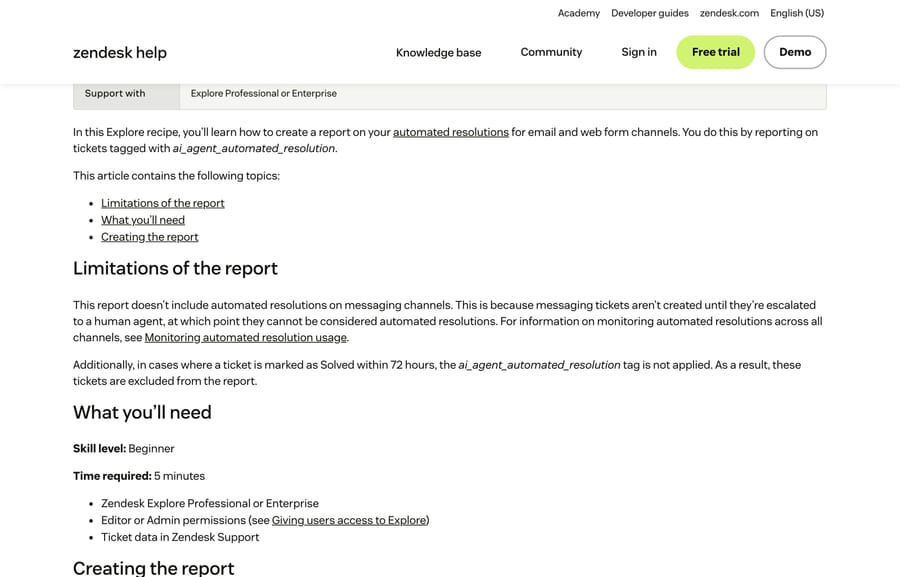
Two limitations Zendesk states plainly, and both matter if you are reconciling numbers:
- Messaging is not included. Messaging tickets are not created until they escalate to a human, at which point they are not automated resolutions.
- Tickets solved within 72 hours may be missing. Zendesk says that in those cases the tag is not applied, so those tickets drop out of the report.
So this report is a per-ticket audit trail for email and web form. It is not a billing total. For the account-wide number, use the resolution usage dashboard in Admin Center instead.
Adding Intent or Ticket brand as attributes slices it further, though Intent requires the Copilot add-on.
12. Custom objects
Custom object records report through their own dataset instead of appearing as ticket fields, which is why they seem missing when you look for them in the Support - Tickets attribute list. Our guide to custom objects and Explore reporting covers the modeling side.
How do you stop Explore reports breaking?
Filter dates while you build. Zendesk's own instruction on the reopened-tickets recipe is to filter to a week or a month so the query does not time out mid-build. Widen it when the report works.
Name the calculation for what it measures, including the threshold. "Tickets solved within 4 business hours" survives somebody else editing your dashboard in a year. "Custom metric 3" does not.
Check whether the metric already exists before writing a formula. One-touch tickets, reopened tickets and first reply time are all built in. Half the formulas people write are re-implementations of a field that was already there, usually with a subtle difference that makes two dashboards disagree.
What can't Zendesk Explore tell you?
Explore is retrospective by design. It is very good at "what happened", and it has nothing to say about what is about to happen or what a ticket is about beyond the fields somebody already filled in. That second gap is the one that quietly limits every report on this page: slicing by a Type field that agents set inconsistently produces a confident, wrong chart.
Macha on Zendesk sits on the ticket, upstream of the dashboard. It reads the incoming request, classifies it against your own history, writes fields back, and answers what it can, so the fields your Explore reports depend on are populated consistently instead of whenever somebody remembers. It suits teams already running Zendesk whose reporting is limited by inconsistent tagging and not by Explore itself, and it is the wrong fit if your data is clean and you simply need a better chart, in which case the recipes above are what you want.
Worth naming the incentive while the subject is measurement: an AI vendor billing per resolution has no reason to help you find the questions that should not be tickets at all. Macha bills per ticket, one thread with one person as one charge however many replies it takes, from $299 a month for 750 tickets on published pricing, with setup and monitoring by our team included and $50 of free usage to start.
How we researched this
Every formula on this page is quoted from a Zendesk Explore recipe article, read on September 20, 2026 through the Zendesk help center API: the alternate SLA metrics recipe (edited September 15, 2026), the SLA performance recipe, the business-hours resolution recipe, the first assignee recipe (June 11, 2026), the one-touch tickets recipe (July 1, 2026), the reopened tickets recipe, the automated resolutions recipe and the recipes reference (June 9, 2026). None were written by us. Two of the four screenshots are of those pages. The other two come from our own Zendesk sandbox, d3v-macha, captured on September 20, 2026: the Calculations menu in the report builder and the Standard calculated metric editor it opens. We opened that editor and left it empty. None of these formulas were run against our own data, so treat every one as documented, and not as tested by us.
Frequently asked questions
What is a standard calculated metric in Zendesk Explore? A formula you save in the report builder's Calculations menu that behaves like a built-in metric afterwards. It returns a number you can aggregate. A standard calculated attribute is the sibling that returns a label you can group or filter by, such as "Breached" or a time bucket.
How do I report on SLA breaches in Zendesk Explore? The native SLA status works for most accounts. If tickets were saved in the wrong status, Zendesk publishes an alternate recipe: build a metric for completion time minus target time, then an attribute that labels the result Breached when it is zero or more and Achieved when it is negative. Use the Support - SLAs dataset.
How do I report on business hours in Explore? Use the business-hours variants of the duration fields; filtering the calendar-hours fields won't do it. For a count of tickets solved inside a threshold, Zendesk's recipe wraps the median full resolution time in ATTRIBUTE_FIX pinned to Ticket ID and compares it to your hour limit.
Which Explore plan do I need for custom metrics? Explore Professional or Enterprise, plus Editor or Admin permissions. Almost every recipe in Zendesk's library states those two requirements, so a Suite Team account will not have the Calculations menu to work with.
How do I find who was first assigned to a ticket? Use the Updates history dataset and two calculated attributes: one that captures the assignment event where the previous assignee value was null, computed from Ticket ID, and one that compares it to the current assignee so you can filter for tickets that changed hands.
How do I see which tickets used an automated resolution? Filter the Support - Tickets dataset on the ai_agent_automated_resolution ticket tag. Two documented limitations apply: messaging is excluded, because messaging tickets are only created on escalation, and tickets marked Solved within 72 hours may never receive the tag.
Why does my Explore report time out while I am building it? Usually an unfiltered date range over a large dataset. Zendesk's own recipes tell you to filter Ticket created - Date to a week or a month while building, then widen the range once the report is working.
Can I report on custom objects in Explore? Yes, through their own dataset; they don't appear as attributes on the Support - Tickets dataset, which is why they appear to be missing when you look for them alongside ticket fields.
Sources: Explore recipe: Creating alternate SLA metrics for tickets with incorrect statuses · Explore recipe: Reviewing SLA performance · Explore recipe: Reporting on tickets solved within business hours using a custom metric · Explore recipe: Finding the first assignee for a ticket · Explore recipe: One-touch tickets · Explore recipe: Reporting on the number of reopened tickets per day · Explore recipe: Reporting on automated resolutions for email and web form channels · Explore recipe: Reporting on agent reply brackets using the Updates history dataset · Creating standard calculated metrics and attributes · Explore recipes reference · How can I convert formulas from English into another language?
Add AI agents to your Zendesk
Macha reads the ticket, drafts the reply and takes the action, inside the Zendesk you already run.