






 Shopify
 Stripe
 Slack
 Notion
 Google Workspace
 Confluence


Common HubSpot Service Hub Problems and How to Fix Them (2026)


The HubSpot Service Hub problems support teams hit most are emails that never turn into tickets, customer replies stuck in the Spam view, replies to closed tickets that reopen the wrong thing or spawn a new ticket, tickets left unassigned, SLA timers that look wrong, and ticket workflows that don't enroll. Nearly every one traces back to a setting HubSpot documents: how the team email is connected, the default spam rules, the ticket reopening window, the "Assign to available users only" box, or the workflow's enrollment triggers. This guide takes each problem in turn, with the menu path to the fix, and starts with the checks that rule out the common causes in a few minutes.
Key takeaways
- HubSpot's help desk, channel routing, ticket reopening settings and SLA goals are all documented as Service Hub Professional or Enterprise features, so a Starter account won't see most of the fixes below.
- HubSpot marks emails sent from your own HubSpot account, including workflow emails, as spam by default, and the Allow list can't override those default rules.
- HubSpot's ticket reopening setting has three options, Always reopen, Set a time frame and Never reopen, and customer portal replies ignore it and always reopen the ticket.
- By default HubSpot routes tickets only to available users with a Service seat, and if no agent is available the ticket stays unassigned.
- An SLA rule in HubSpot is chosen when the SLA is applied, so changing a ticket's priority afterward does not move it to a different SLA rule.

| Problem | Most common cause | Fix | Where to change it |
|---|---|---|---|
| Emails don't become tickets | Address connected to the inbox, not help desk; IMAP; a personal mailbox | Reconnect as a team email in help desk, or forward with Other | Settings > Inbox & Help Desk > Channels |
| Real customer emails in Spam | Default rules: role-based senders, HubSpot-sent mail, workflow replies | Mark as not spam; clear the Role Based Emails box | Settings > Inbox & Help Desk > Allow & Deny List |
| Reply reopens an old ticket (or doesn't) | Ticket reopening option, or a portal reply | Pick Always reopen, a time frame, or Never reopen | Help Desk > Ticket sources and routing > Ticket reopening |
| Tickets sit unassigned | No Service seat, nobody available, capacity limits | Assign seats, check availability, or clear "Assign to available users only" | Channel > Routing tab |
| SLA clock looks wrong | Rule set at apply time, wrong schedule, pause conditions | Check the rule order, schedule and pause conditions | Help Desk > Help desk automation > SLAs |
| Ticket workflow didn't fire | Re-enrollment off, or the ticket met the trigger before the workflow was on | Run Troubleshoot enrollment | Workflow editor > Help |
| Customer agent stops answering | HubSpot Credits ran out, or a visitor asked for a human | Check credit settings and handoff rules | Customer agent settings |
Four checks to run before changing any HubSpot setting
These four checks clear up a good share of "HubSpot is broken" reports before anyone edits a rule.
- Is the feature on your plan? HubSpot's help desk articles list Service Hub Professional or Enterprise for the help desk workspace, channel routing, ticket reopening and SLAs. If your team is on Starter or a free account, some of the settings in this guide won't appear. Our Service Hub pricing guide covers what each tier unlocks.
- Is it help desk or the conversations inbox? HubSpot has two places a support email can land. A channel connected to the help desk creates a ticket for every incoming conversation. The same address can't be in both places, and several features (SLAs among them) apply only to help desk tickets.
- Does the user have a Service seat? Routing, SLA warning labels and several help desk features depend on an assigned Service seat, not just a user login.
- What does the record say? The ticket's activity timeline and the workflow's enrollment history usually say what happened. Read them before guessing.
If the problem started right after someone changed a channel, a routing rule or a workflow, that change is your first suspect.
Why aren't emails turning into tickets in HubSpot?
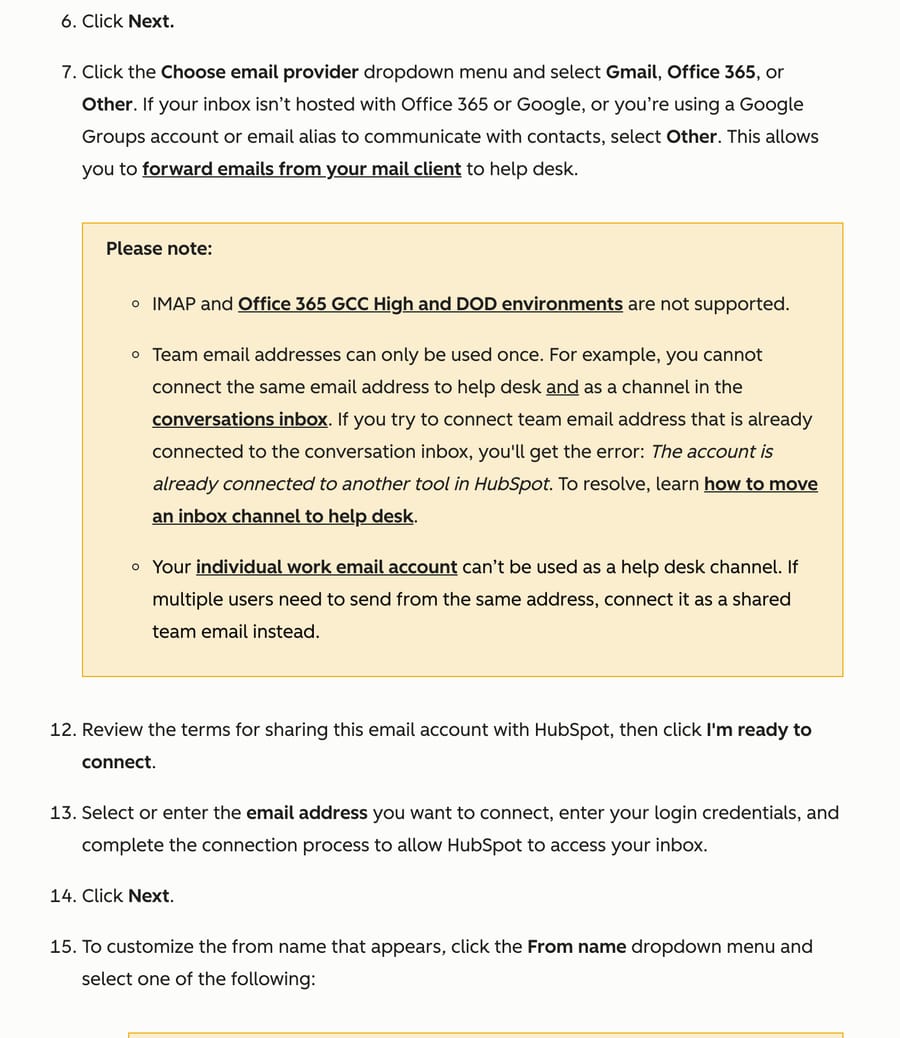
This is the most common HubSpot help desk complaint, and HubSpot's own team email channel article (updated October 27, 2026) explains most of it. The setup path is Settings > Inbox & Help Desk > Channels > Team Email > Connect email address, with incoming conversations set to help desk. Four rules on that page catch people out:
- IMAP isn't supported. Neither are Office 365 GCC High and DoD environments. The supported providers are Gmail, Office 365 and Other.
- Aliases and Google Groups need Other. If the address is a Google Group, an alias or hosted somewhere besides Google or Microsoft, choose Other and forward mail from your mail client into help desk.
- One address, one channel. A team address connected to the conversations inbox can't also be a help desk channel. Trying it gives the error "The account is already connected to another tool in HubSpot," and the fix is to move the inbox channel to help desk.
- A personal mailbox can't be a help desk channel. HubSpot says an individual work email account can't be used. Shared sending needs a team address.
There's one more cause the article doesn't cover. A thread on HubSpot's community forum ("Ticket not created after sales rep was CC'd in the connected mailbox") describes a customer email to the help desk address, with the contact owner CC'd, that created no ticket. The leading theory in the thread is that HubSpot logged it through the owner's connected personal mailbox as a one-to-one email on the contact timeline. The suggested test is two emails: one only to the help desk address, one to the owner with the help desk address CC'd. If only the first creates a ticket, record the message details and send them to HubSpot Support.
Also check the channel's ticket settings. When you connect a team email you choose the pipeline, the starting status and the priority for new tickets. A ticket created in a pipeline your view filters out looks exactly like a ticket that was never created.
Why are real customer emails landing in HubSpot's Spam view?
HubSpot applies default spam rules on top of whatever your email provider flags, and the Allow list can't override them. The allow and deny list article (updated October 19, 2026) lists them:
- Emails from an existing contact aren't marked as spam unless they're automated responses.
- Emails from your connected team address to itself are marked as spam, to prevent loops.
- Emails sent from your HubSpot account, such as workflow emails, are marked as spam.
- Replies to a workflow email that start a new thread in the inbox or help desk are marked as spam.
- Emails from [email protected] and [email protected] are marked as spam.
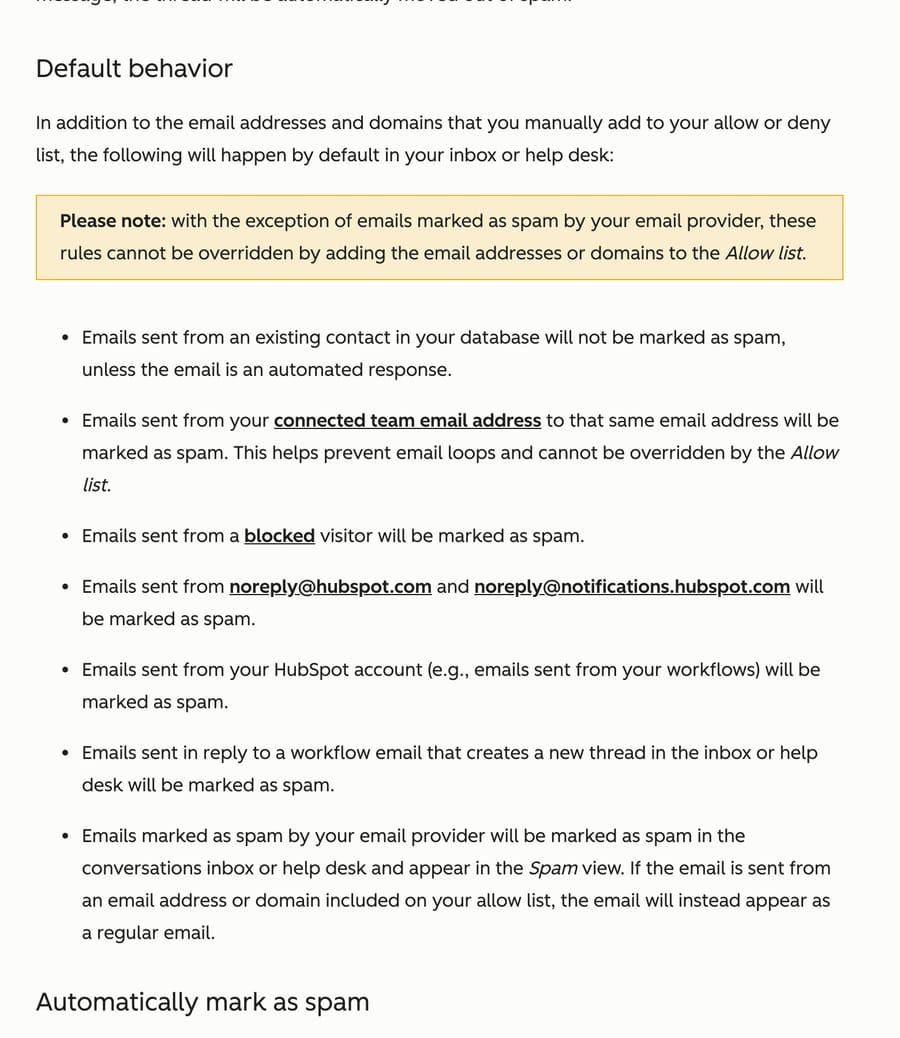
The last two rules explain a pattern that confuses teams. Say a workflow emails customers a survey or a renewal reminder from HubSpot, and a customer hits reply. If that reply starts a new thread, HubSpot files it as spam. Replies to HubSpot marketing emails can be caught the same way by the Marketing Emails setting below.
The fixes, in order:
- Rescue the thread. Open the Spam view in the help desk's left sidebar, open the email and click Mark as not spam. If automatic ticket creation is on, HubSpot then creates the ticket, dated when the email first arrived.
- Turn off the rule that's catching good mail. Under Settings > Inbox & Help Desk > Allow & Deny List you can clear four automatic checkboxes: Automated Response Email, Marketing Emails, Role Based Emails (info@, support@, noreply@) and Subscription Link Emails. Role Based Emails is the one that tends to bite B2B teams, because customers often write from a shared address.
- Allow-list the domains you trust. Allow-listed addresses and domains are never marked as spam by HubSpot's automatic settings, though the default rules above still apply.
Check the Spam view weekly. HubSpot permanently deletes conversations there after 90 days.
Why does a customer's reply reopen a closed ticket, or create a new one?
HubSpot decides with one setting. The reopened tickets article (updated November 9, 2026) puts it at Settings > Inbox & Help Desk > Help Desk > Ticket sources and routing > Ticket reopening, with three options:
- Always reopen. Any email reply reopens the original ticket, however late it arrives.
- Set a time frame. Replies within the window reopen the original ticket. The window counts from the last message in the conversation, not the date the ticket closed. Later replies create a new ticket linked to the original. The settings screen offers 3 days, 7 days, 30 days or Custom.
- Never reopen. Every reply starts a new conversation and a new ticket linked to the original.
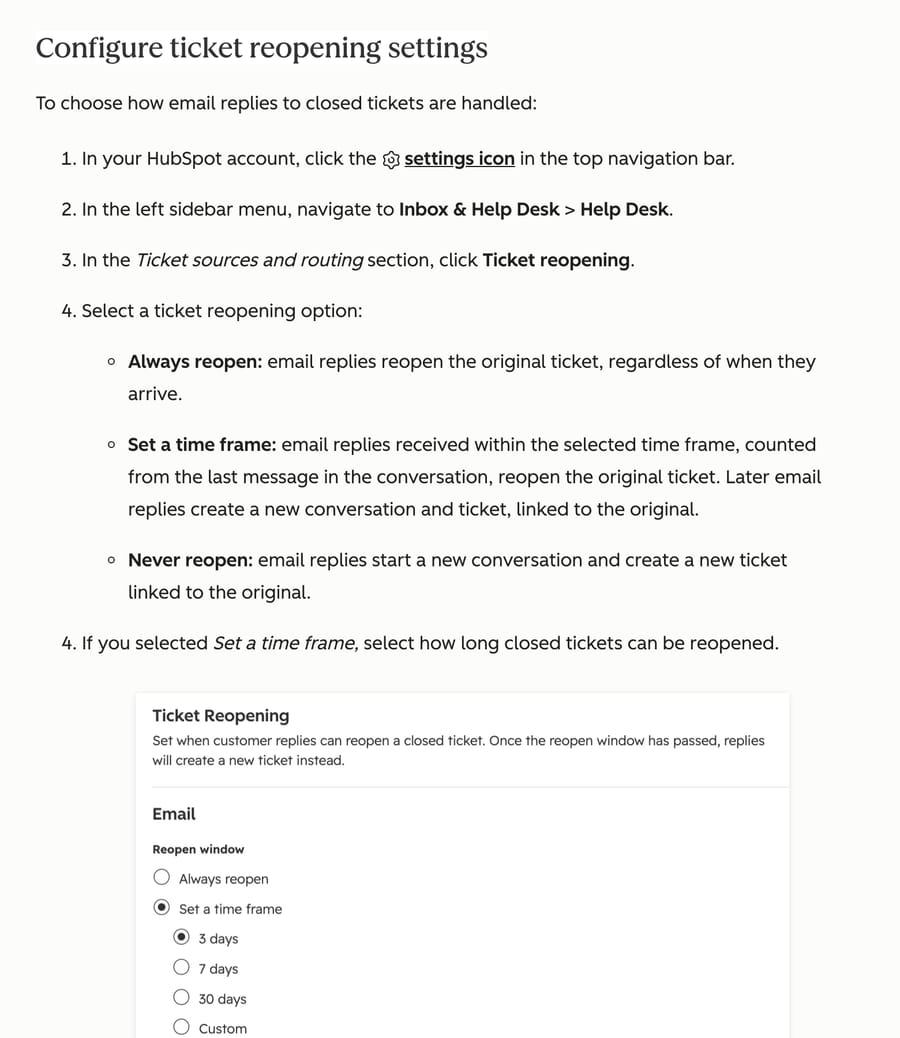
Three details explain most surprises. A reopened ticket moves to the first open status in its pipeline (for example, New) and its Ticket reopen date updates, and HubSpot warns that ticket dates may be recalculated, which shifts reporting. Out-of-office replies are logged but never reopen or create a ticket. And customer portal replies ignore the setting entirely: they always reopen the ticket, however long ago it closed. To stop that, turn off replies on closed tickets in the portal settings.
The time-frame option is usually the right one. "Always reopen" lets a thank-you note sent three weeks later drag a solved ticket back into the queue and wreck your time-to-close numbers. "Never reopen" splits one problem across two tickets when a customer replies an hour later to say the fix didn't work. In an r/hubspot thread a Service Hub Pro team asked how to send an automatic email when someone replies to a ticket that's already closed, which is a common follow-on question once reopening is set to Never.
Why are HubSpot tickets sitting unassigned?
HubSpot's routing article (updated October 27, 2026) gives four reasons a ticket can arrive and go nowhere:
- The user has no Service seat. Users without one can't be included in routing rules at all.
- Nobody is available. By default, tickets go only to available users, and availability comes from working hours, out-of-office hours or a manual status. HubSpot's wording is plain: if no agents are available, the ticket will be unassigned. You can clear the Assign to available users only checkbox, but then tickets land on people who are off shift.
- The routing rule says No owner. With contact owner routing, the fallback can be No owner, which sends the ticket to the Unassigned view for triage.
- Everyone is at capacity. If you've set ticket capacity limits, users at their limit stop receiving tickets, and if every target user is at capacity the ticket waits until someone assigns it by hand.
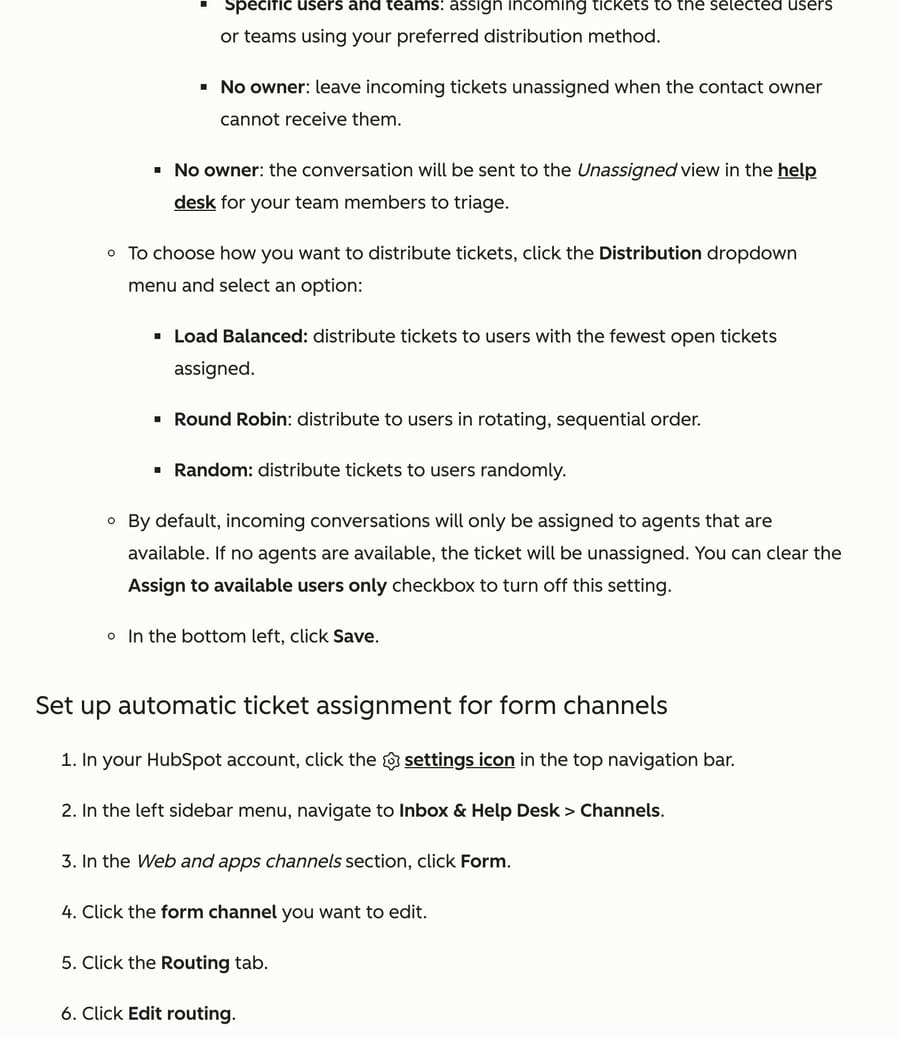
The distribution method also explains "why does one agent get everything." Load Balanced sends tickets to whoever has the fewest open tickets, and HubSpot only counts open tickets assigned in the last 30 days. Round Robin rotates through users in order, and Random picks at random. A team that set Load Balanced and has one agent who closes tickets fast will see that agent get more work, which is the method working as designed. Round robin and its edge cases get their own walkthrough in our guide to automating HubSpot ticket routing.
Why does a HubSpot SLA timer show the wrong time?
HubSpot's SLA article (updated June 30, 2026) covers time to first reply, time to next reply and time to close, set at Settings > Inbox & Help Desk > Help Desk > Help desk automation > SLAs. The timer is usually right and the expectation is wrong, for one of five reasons:
- The rule was chosen when the SLA was applied. If a ticket's priority changes from Low to High afterward, the SLA rule isn't re-evaluated.
- The schedule is 24/7. Each goal has a Schedule section. Unless you pick During specific time with a time zone and hours, the clock runs overnight and on weekends.
- A pause condition is on. If you set pause conditions, such as a waiting-on-customer status, the timer stops while they apply.
- Combination rules are order-sensitive. The first matching rule wins, and a ticket that matches none uses the fallback rule.
- Merged tickets keep the primary ticket's SLA. The create date can look earlier than the SLA start.
SLAs apply only to help desk tickets, not conversations inbox threads, and setting goals on a combination of ticket properties needs Enterprise. Agents without a Service seat won't see the warning labels.
Why isn't my HubSpot ticket workflow firing?
Workflows are a Professional and Enterprise feature, which is the first thing to check when someone in an r/hubspot thread can't find a "ticket is created" trigger. After that, HubSpot's enrollment troubleshooting article (updated November 13, 2026) lists nine causes. The ones that hit ticket workflows most:
- Re-enrollment is off. A ticket that went through the workflow once won't go through again, even when it meets the trigger a second time. Add re-enrollment triggers.
- The ticket met the trigger before the workflow was turned on, and existing records weren't set to enroll. Check the version history and enroll them by hand.
- The trigger logic doesn't match. An AND where you meant OR is the classic.
- Date filters run once a day. Filters like "is more than 3 days ago" are checked at the start of the day, so enrollment can lag.
- The workflow is off.
The diagnostic tool is in the workflow editor under Help > Troubleshoot enrollment: pick the ticket and HubSpot tells you which condition failed. It needs Super Admin or Workflows permissions.
Two related annoyances come up in the same threads. Emails sent by a ticket workflow show on the contact but not in the ticket's Emails section (r/hubspot). And a ticket opened by an email to two people only associates one of them unless you add the others (r/hubspot). HubSpot also warns that a workflow that creates a ticket from a channel not connected to help desk produces a ticket without its subject and thread in help desk, which is why its channels article recommends connecting every support channel.
Why did HubSpot's customer agent stop answering?
HubSpot's AI agent for support, the customer agent, runs on HubSpot Credits, and its overview article (updated September 16, 2026) explains the two behaviors behind most "it stopped working" reports:
- Credits ran out. When they do, the agent stops being assigned to new conversations on every connected channel until your next reset date or until you buy more. New conversations follow your handoff process instead.
- Resolution status lags. A conversation counts as resolved if the agent shared a content source or performed an action and the visitor didn't ask for a human. That status is set 72 hours after the visitor's last response, so this week's resolution numbers will move.
Only visitor-initiated handoffs stop a conversation counting as resolved. If a workflow reassigns the conversation to a person, it can still count, and still use credits. Credit usage can be switched off in the customer agent's credit settings, though HubSpot says it can take a few hours to stop.
Quality is the other complaint. The most-upvoted Breeze thread in our sweep of r/hubspot, from October 2026, was a user saying Breeze struggled with straightforward tasks even after careful prompts and guardrails (r/hubspot). Credit rates, setup and the workarounds are in our Breeze customer agent guide, and the options teams switch to are in best HubSpot Breeze alternatives.
Where an AI layer helps once the settings are right
Every problem above has a settings fix. What settings can't do is read the ticket. A routing rule can send a ticket to the billing team, but it can't see that the customer has an open renewal deal, check whether their last invoice failed, and answer the question. That's the work that piles up in a HubSpot queue once the plumbing is right, and HubSpot's incentive with the customer agent is to bill it per resolution through credits, so you pay more as it handles more.
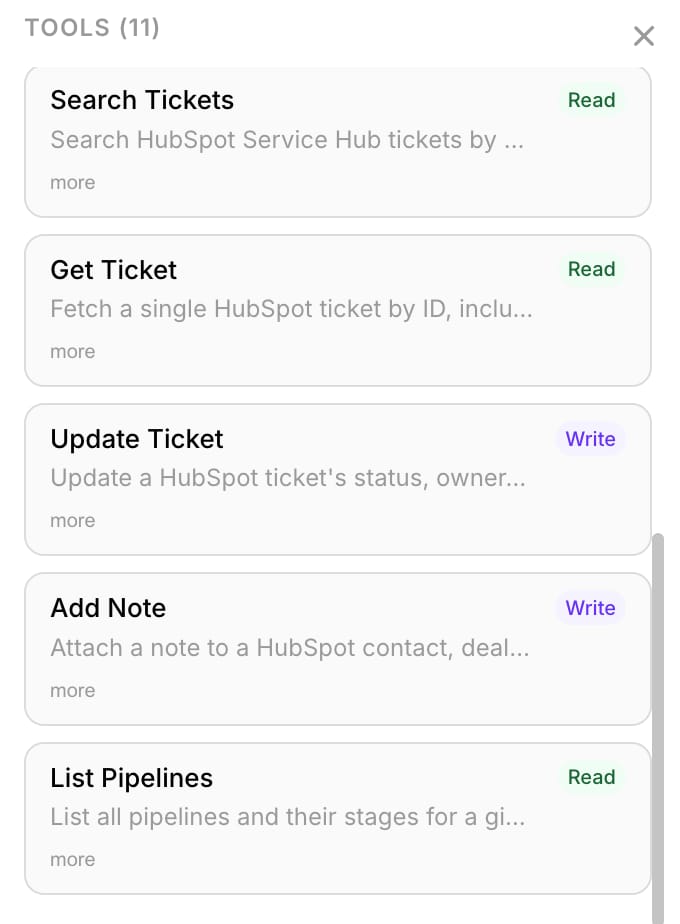
Macha runs AI agents inside HubSpot Service Hub. The connector uses HubSpot's own objects: Search Tickets, Get Ticket, Update Ticket (status, owner, priority or any custom property), Add Note and List Pipelines, plus contact and deal lookups, and it starts on a New Ticket Created trigger. So an agent can read a new ticket, pull the contact's deals, then reply to the customer or leave a note on the ticket for an agent to approve, and move the ticket to the right pipeline stage and owner. The HubSpot context use case shows that flow step by step.
Macha suits teams on HubSpot whose tickets are tied to deals and renewals and who would rather not build and tune the AI themselves. The Macha team does that part: it analyzes your past tickets, builds the agent and its knowledge, and runs it in safe mode, with drafts as notes, until the answers are right. That's included on the trial and every plan at about $0.40 per ticket, along with a dedicated success manager who handles your changes. Pricing is on the pricing page, and the done-for-you page explains the setup.
How we researched this
Every fix comes from HubSpot's public knowledge base, read on November 21, 2026; each article is linked where it's used, and the update dates are the ones shown on HubSpot's pages. We captured the four article screenshots the same day with headless Chrome and checked each fix against its article. The complaint themes come from r/hubspot threads found in our November 2026 Reddit archive sweep (reddit.com itself blocks our fetch tool, so we cite the thread URLs and paraphrase) and one HubSpot community thread; we don't name posters. G2, Capterra and TrustRadius blocked automated access that day, so we didn't use them. We didn't reproduce these problems in a HubSpot account, so treat the behavior described as HubSpot's documented behavior. The Macha details come from Macha's HubSpot connector screen in our demo workspace and its integration listing.
Common questions
Why are my HubSpot emails not creating tickets?
Usually the address is connected to the conversations inbox rather than help desk, it's an IMAP or personal mailbox, or it's an alias that needs the Other option and forwarding. Check Settings > Inbox & Help Desk > Channels > Team Email, and check the Spam view.
How do I stop HubSpot marking customer emails as spam?
Open the Spam view, click Mark as not spam to rescue the thread, then clear the Role Based Emails or Marketing Emails checkbox under Settings > Inbox & Help Desk > Allow & Deny List. HubSpot's default rules, such as marking workflow emails as spam, can't be overridden by the Allow list.
Can I stop closed HubSpot tickets from reopening?
Yes, for email. Under Ticket reopening, choose Never reopen or Set a time frame (3, 7 or 30 days, or custom). Customer portal replies always reopen the ticket, so turn off replies on closed tickets in the portal settings as well.
Why is HubSpot not assigning tickets to my team?
Check that each user has a Service seat and is marked available, that the routing rule doesn't fall back to No owner, and that capacity limits aren't full. By default HubSpot leaves a ticket unassigned when nobody is available.
Do I need Service Hub Professional to fix these?
For most of them, yes. HubSpot documents the help desk workspace, channel routing, ticket reopening, SLAs and workflows as Professional or Enterprise features. Allow and deny lists work on every plan.
Why did HubSpot's customer agent stop replying?
The most common reason is that HubSpot Credits ran out, which stops the agent being assigned new conversations until the reset date or a credit purchase. Also check whether credit usage was switched off in the customer agent's credit settings.
If your HubSpot queue is mostly the same renewal, billing and account questions, start a trial with $50 of free usage (about 125 tickets), no credit card, no time limit; the Macha team sets up the first category with you.