Intercom
 Shopify
 Stripe
 Slack
Slack Notion
 Google Workspace
 Confluence

How Do You Export Intercom Conversations? 6 Methods Compared (2026)


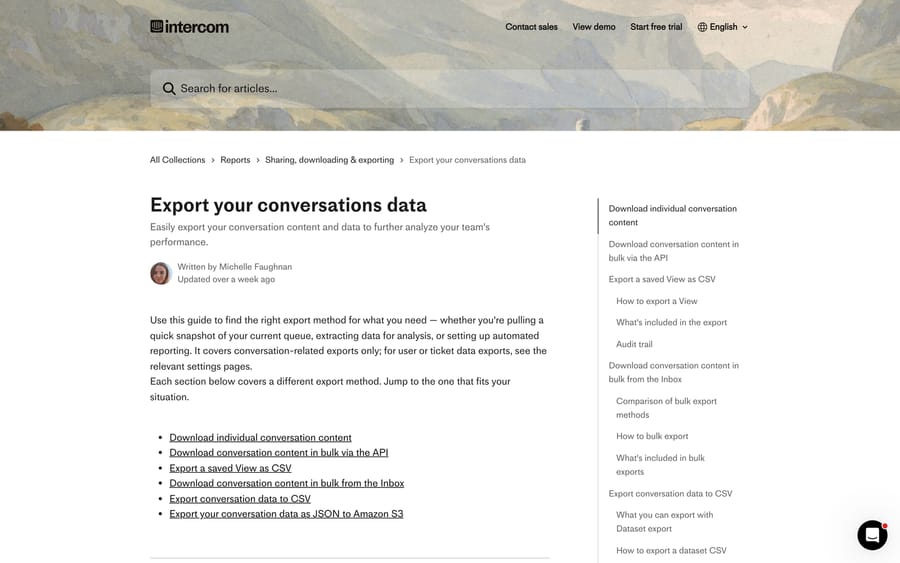
Intercom has six ways to export conversations, and the first question is whether you need message content or only metadata, because the CSV exports contain no customer sentences at all. Transcripts come from the Inbox export, the Conversations API or a cloud-storage export to S3 or Google Cloud Storage.
Key takeaways
- Intercom offers six conversation export routes, and only the Inbox export, the Conversations API and the S3 or Google Cloud Storage export carry message text.
- Exporting a saved Intercom View as CSV downloads instantly up to 25,000 cells, runs in the background above that, and is refused outright above 100,000 rows.
- Bulk export from the Intercom Inbox handles 200 to 300 conversations per operation, while Dataset export under Reports downloads up to 10,000 rows in the browser across 13 reporting datasets.
- Intercom keeps exportable data generally available for up to two years, and exported conversation data cannot be imported back into a new Intercom workspace.
- Intercom's cloud storage export writes at most 200 conversations per file, and Intercom's own export article still contradicts itself on whether those files include transcripts.

Intercom gives you six ways to export conversations, and only three of them carry the message text: the Inbox export (one conversation, or 200 to 300 in bulk), the Conversations API, and the cloud-storage export to S3 or Google Cloud Storage. The two CSV routes, a saved View and Reports › Dataset export, give you metadata and metrics with no customer sentences in them.
Which Intercom export route should you use?
| You want | Use | Content? | Hard limit |
|---|---|---|---|
| One conversation for a customer or a lawyer | Three-dot menu, Export as text or PDF | Yes | One at a time |
| A snapshot of a queue to divide up | Export a saved View as CSV | No | 25,000 cells instantly, 100,000 rows total |
| A few hundred transcripts | Bulk export from the Inbox | Yes | 200 to 300 per operation |
| Reporting metadata, repeatedly | Reports, Dataset export | No | 10,000 rows in-browser, 2 years of history |
| Everything, programmatically | Conversations API | Yes | Rate limits and cursor pagination |
| Everything, continuously | S3 or Google Cloud Storage export | See the caveat below | 200 conversations per file |
Two constraints cut across all of them. Intercom keeps data generally available for up to two years, for both CSV and JSON exports. And exported conversation data cannot be imported into a new Intercom workspace, so an export is a backup or an analysis input, not a migration path back into the product.
Those two together are worth reading as a pair. A two-year window is optimized for the reporting the product itself does, and it isn't a retention policy for your archive; if your compliance answer is longer than two years, the standing cloud-storage export is the only route here that builds one, and it has to be running before you need it.
How do you export one Intercom conversation as text or PDF?
Open the conversation or ticket, click the three dots at the top right, and choose Export conversation as text or Export conversation as PDF. Tickets get their own equivalents.
What comes out: the full message chronology with timestamps, all participants, all visible content, AI summaries and metadata where available, and payment data redacted at the point of entry. Internal notes are excluded from conversation transcripts with no option to include them.
Tickets behave differently, and it's the one asymmetry worth remembering. Export ticket as text offers a checkbox to include the internal status label, notes and non-customer-visible attributes. The PDF export doesn't. If you need notes, take the text file.
How do you export a saved Intercom View as CSV?
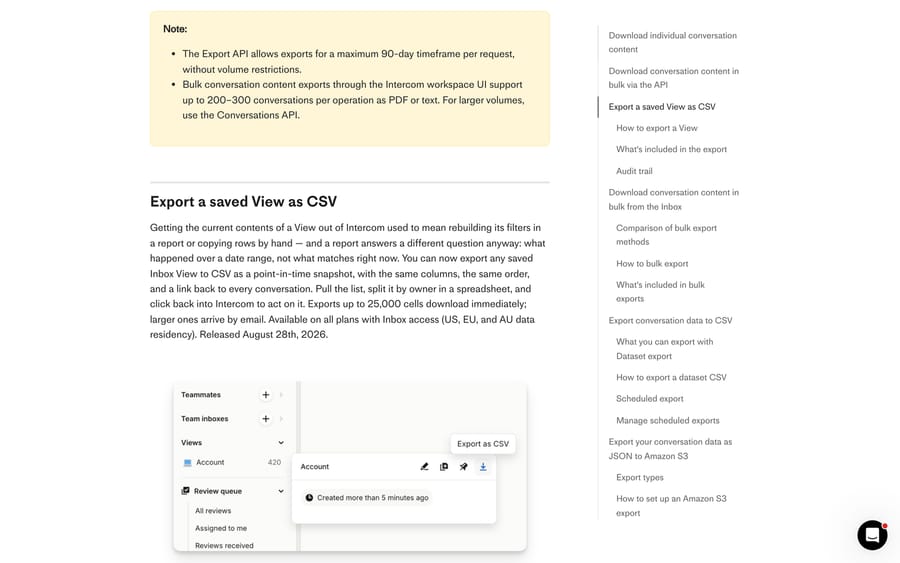
This one is new, released August 28, 2026, and it fills the gap between "what matches right now" and "what happened last month". Hover a saved View in the Inbox sidebar, open its details, and click the download icon tooltipped Export as CSV.
You get a point-in-time snapshot of everything matching the View's filters at the moment you click: your visible columns only, in screen order, with labels rather than IDs for priority, state, channel, assignees, teams, tags and companies, plus a direct Intercom link to every row.
The limits are specific enough to plan around:
- Up to 25,000 cells (say 1,000 rows by 25 columns) downloads in the browser immediately.
- Above that it runs in the background and arrives by email.
- Above 100,000 rows it's refused upfront and tells you to narrow the filters.
- Two exports per workspace can run at once, and it's a workspace limit, so a colleague's export blocks yours.
- Saved Views only. System Views such as Inbox can't be exported.
- No scheduling and no canceling once a background job starts.
You need the Can export conversation data permission and an Inbox seat. Every export is written to the Team Activity Log before the job starts, naming the View, and conversations you can't see are excluded from the file with contact PII masked unless you have permission to reveal it. If the icon is dimmed and says "Nothing to export", the View currently matches zero conversations.
Our guide to Intercom inbox views covers building the View you'd export.
How do you bulk export a few hundred transcripts from the Inbox?
Filter the Inbox down to what you want, tick the conversations (or use the bulk-select control), open More actions in the bulk bar, type "export", and choose Export as text or Export as PDF. Files download individually.
The ceiling is 200 to 300 conversations per operation, which Intercom states plainly, and above that its own advice is to use the Conversations API. Same content rules as the single export: full chronology, participants, AI summaries, redacted payment data, no internal notes.
What does Dataset export include, and what does it leave out?
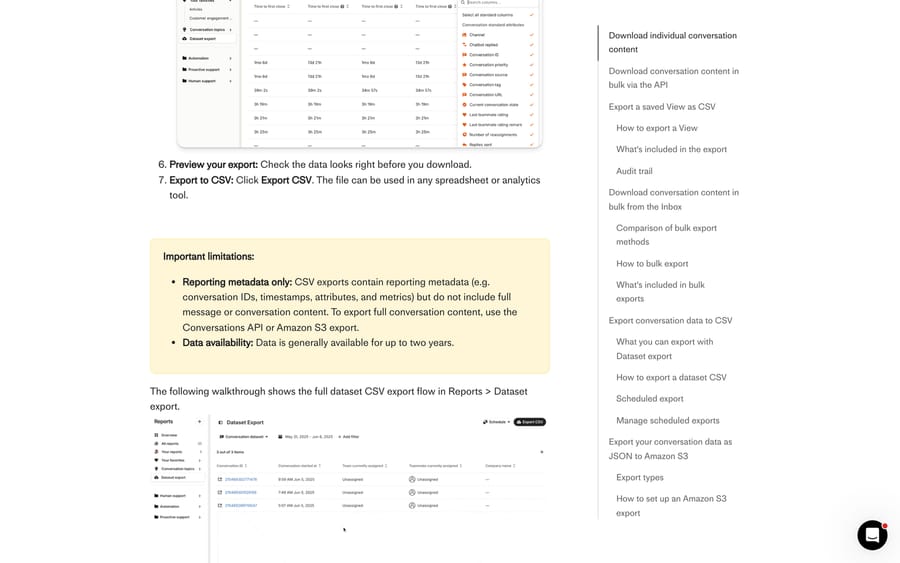
Reports › Dataset export is the modern CSV path, and it replaced the old conversation data export, which Intercom has deprecated. It reaches all 13 reporting datasets with full attribute coverage, custom column selection and attribute filtering.
- Go to Reports › Dataset export.
- Choose the dataset.
- Set the time period.
- Filter by attribute if you need to. Multiple filters are combined with And.
- Select your columns.
- Preview.
- Click Export CSV.
Two permissions gate this, and missing either shows you an empty page rather than an error: Can access Chart drill-in to reach the page, and Can export CSV to get the file.
The row limit is 10,000 in the browser. Larger exports are emailed instead, which Intercom says can take up to an hour. Scheduling lives behind the same screen: build the export, open the schedule dropdown, choose New schedule, name it and pick a frequency. You can only edit a schedule's name and frequency afterwards; changing the columns means creating a new one.
Two attributes in the Conversations dataset are worth knowing because they answer questions people usually export raw data to answer: Has user reply (did the customer ever reply) and First contacted by (Customer, Teammate, Fin AI Agent or Workflow). Both work as filters and as columns.
The limitation that catches people: this is metadata. Conversation IDs, timestamps, attributes and metrics, with no message content. Ticket exports have their own wrinkle, too. A conversation created on January 1 and converted to a ticket on January 2 exports with a January 1 created date, because the export keys off the day the conversation started.
When should you use the Conversations API?
For volume with content, the API is the route. List or search conversations to get IDs, then GET each conversation for the parts. Intercom's own guidance points here for anything above the UI's few hundred.
Two things to plan for, both covered in our Intercom API guide: the cursor is stateless, so a long walk can repeat or miss records that change mid-export and you should de-duplicate on id, and the per-minute rate limit is split into 10-second windows, so a backfill script has a real ceiling well below the headline number.
One separate endpoint family is easy to confuse with this. The Export API (/export/content/data) caps each request at a 90-day window and covers message and content engagement statistics, not conversation transcripts.
How do you set up a continuous export to S3, Google Cloud Storage or Azure?
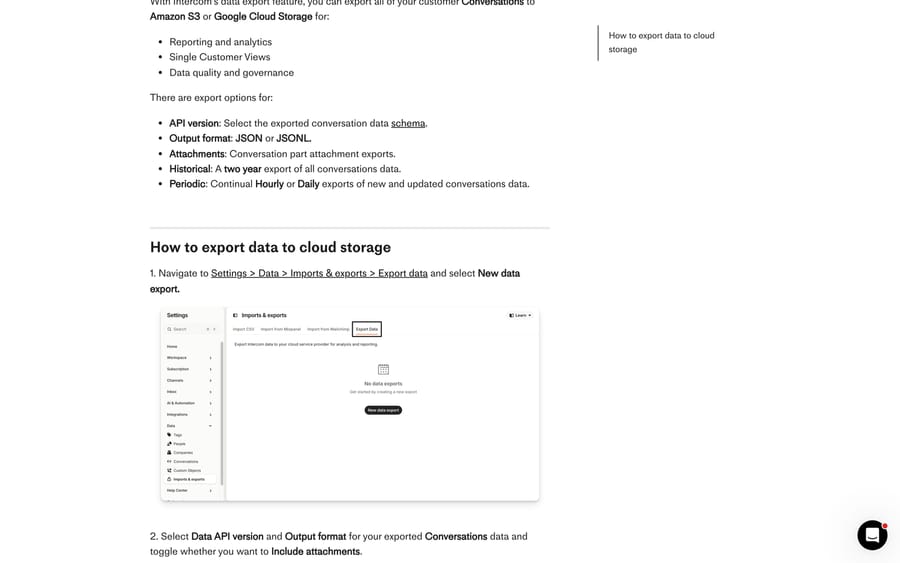
For a standing pipeline, Intercom writes JSON into a bucket you own. The main cloud storage article covers Amazon S3 and Google Cloud Storage, and there's a separate article for Azure Blob Storage.
Setup runs from Settings › Data › Imports & exports › Export data › New data export:
- Pick the Data API version (this is the conversation schema, so pin it deliberately), the output format (JSON or JSONL), and whether to include attachments.
- Optionally set a folder name, date-named folders (
2025-07-13,2025-07-14), and skip-empty-exports. - Choose the destination bucket and click Test. A successful test writes
intercom-data-export-test-file.jsonto the bucket root. - Enable the historical two-year export if you want backfill, then pick Hourly or Daily.
- Click Start data export and confirm the verification email Intercom sends to prove you're an administrator.
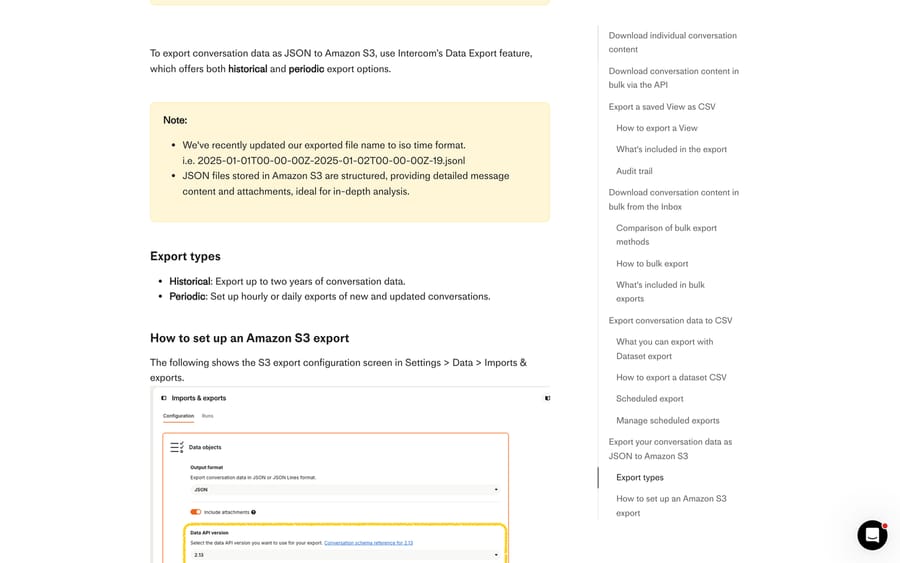
The operational details that matter once it's running:
- Each file holds a maximum of 200 conversations, named with a start and end timestamp in UTC.
- Periodic files contain the entire conversation with all parts, not a delta from the last run, so downstream loads need to be upserts.
- Attachments land at
<folder_name>/attachments/<conversation_id>/<conversation_part_id>/<attachment_name>and are referenced from the JSON. - Intercom can write to your bucket and cannot read or delete from it.
- One workspace per bucket.
- After setup, only the API version, output format and attachments toggle are editable. Changing anything else means deleting the export and recreating it, which leaves already-exported files in place.
About BigQuery. Intercom's documented destinations are object storage, so the route to BigQuery is to export to a Google Cloud Storage bucket and load from there, with an external table or a scheduled load job. That keeps Intercom's side to the part it supports and puts the schema handling in the warehouse, where the Data API version you pinned in step 1 is the thing that determines your column set.
One contradiction in Intercom's docs, unresolved
Worth knowing before you build on this. Intercom's conversations export article says in one place that CSV exports exclude message content and that you should "use the Conversations API or Amazon S3 export" to get full content, and describes the S3 JSON as "providing detailed message content and attachments". A few paragraphs later the same article says "Conversation and ticket data exported to S3 will not contain a transcript" and directs you to the UI export or the REST API for one.
We can't test which is current, because we don't have a workspace. Configure a single historical batch, open one JSON file, and confirm what's in it before you design a pipeline around either sentence.
How do you export tickets, contacts and Help Center articles?
Tickets use the same Dataset export screen and the same 10,000-row rule, or the Tickets API: list ticket types, then GET by ticket type ID or ticket ID.
Contacts and leads export as CSV from the people settings, and as JSON through the API. Intercom's GDPR article is the useful index for a data-portability request: user and lead data and message and campaign data as CSV from the UI; teammate, visitor, lead and user data plus conversations and the last 90 days of event history as JSON through the API; conversations as JSON to S3.
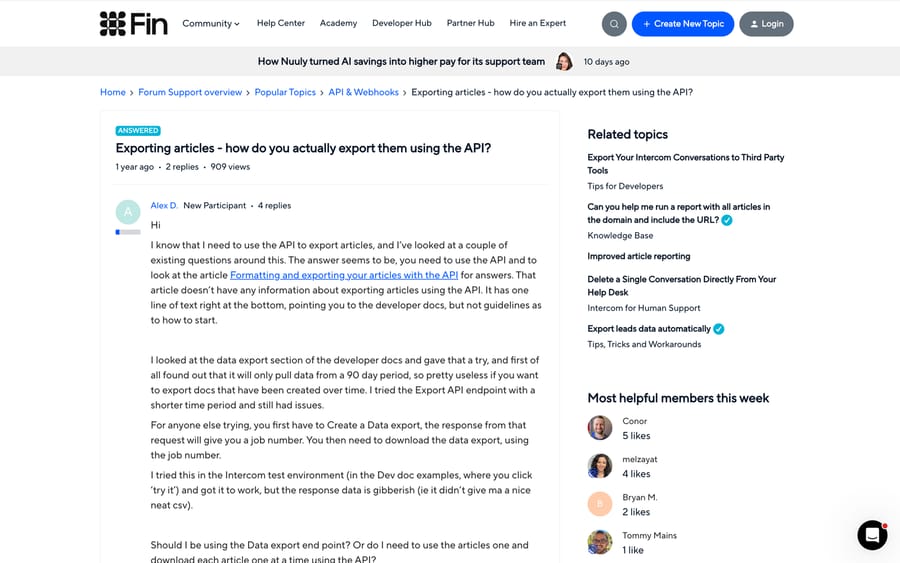
Articles are the trap. A community thread with 909 views walks straight into it: the poster tries the Data Export endpoints, hits the 90-day window, works through create-job then download-by-job-number, and gets back something that isn't the article content. Intercom's support engineering answer is to use the Articles API instead: create an admin access token in Developer Hub, call List all articles, then fetch each one. The Data Export API is for content engagement statistics, and Help Center articles are not what it exports.
Which export fits which job?
- A customer asks for their conversation. Three-dot menu, Export as text.
- A manager wants to divide today's backlog. Export the View as CSV, split it in a spreadsheet, click back through the links.
- Monthly reporting into a spreadsheet. Dataset export with a schedule.
- An analyst wants to read what customers actually said. Conversations API, or the cloud-storage export once you've confirmed the transcripts are in it.
- A warehouse. Google Cloud Storage plus a load job into BigQuery, or S3 plus whatever you already run.
- Leaving Intercom. Different job, different constraints, and our guide to migrating away from Intercom and the Intercom to Zendesk migration guide cover the mapping decisions this page doesn't.
If you already have a warehouse and a nightly job, the cloud-storage export suits teams who want the raw objects rather than a modeled table; if you don't, the scheduled Dataset export gets a useful CSV into someone's inbox for a fraction of the setup.
How we researched this
We checked every path, limit and permission on this page against Intercom's help center on September 21, 2026 (and rechecked the View, Dataset and S3 limits on September 24, 2026), across the conversations export article, the cloud storage article, the tickets export article and the GDPR article, plus one public community thread on articles. We don't have an Intercom workspace, so no export was run, no bucket was configured, and no limit was reproduced first-hand. Where Intercom's documentation contradicts itself, on whether S3 exports carry transcripts, we've printed both statements rather than picking one.
Frequently asked questions
How do I export all my Intercom conversations? For content at volume, use the Conversations API or set up a cloud-storage export to S3 or Google Cloud Storage, which can backfill two years and then run hourly or daily. For metadata, use Reports, Dataset export. The Inbox bulk export handles 200 to 300 conversations per operation.
Can I export an Intercom conversation as a PDF? Yes. Open the conversation, click the three dots at the top right, and choose Export conversation as PDF or Export conversation as text. Internal notes are excluded from conversation transcripts. Ticket text exports can include notes if you tick the box; ticket PDFs cannot.
Does an Intercom CSV export include the message text? No. Dataset exports carry reporting metadata: conversation IDs, timestamps, attributes and metrics. For message content Intercom points you to the Conversations API or a cloud-storage export.
How far back does Intercom data go for exports? Generally two years, for both CSV and JSON exports, and the historical cloud-storage export covers the same two years.
How do I export an Intercom View to CSV? Hover the saved View in the Inbox sidebar, open it, and click the download icon labeled Export as CSV. Up to 25,000 cells downloads instantly, larger exports arrive by email, and anything over 100,000 rows is refused. You need the Can export conversation data permission and an Inbox seat.
Can I schedule an Intercom export? Dataset exports can be scheduled from Reports, Dataset export, and cloud-storage exports run hourly or daily. View CSV exports cannot be scheduled, and each has to be triggered by hand.
How do I export Intercom data to BigQuery? Export to a Google Cloud Storage bucket from Settings, Data, Imports and exports, then load into BigQuery from that bucket. Intercom's documented destinations are object storage rather than a warehouse, so the warehouse-side load is yours to build.
How do I export Help Center articles from Intercom? Use the Articles API, not the Data Export API. Create an admin access token in Developer Hub, call List all articles, and fetch each article. The Data Export endpoints cover content engagement statistics and cap each request at 90 days.
Sources: Export your conversations data · Export conversations data to cloud storage · Export your tickets data · How to export your Intercom data for GDPR · Exporting articles, how do you actually export them using the API? (Intercom Community)
Add AI agents to your Intercom
Macha reads the conversation, drafts the reply and takes the action, inside the Intercom you already run.