





 Shopify
 Stripe
 Slack
Slack Notion
 Google Workspace
 Confluence

Why Do Front Emails Say "Reopened in Office 365 Inbox"? 5 Causes and Fixes


An archived Front conversation marked "Reopened in Office 365 Inbox" means Front saw new activity on the connected mailbox, either a real reply or an outside tool touching old mail. Five causes explain almost every case, and each one has a settings or sync fix.
Key takeaways
- Front reopens an archived conversation when the connected Office 365 mailbox shows new activity, and a single reopened thread is usually the channel's default Close conversations behavior.
- Front lists five actions that break its Office 365 sync: moving a conversation to another inbox, replying from another account, changing threading mode, splitting, and merging.
- Mass reopenings of old Front emails usually trace to an Office 365 backup app or retention policy re-touching mail, which the legacy two-way sync reads as new activity.
- Front's newer Office 365 sync only syncs new messages, sent emails and spam status, so archive, read, tag, trash and snooze changes in the mailbox no longer reopen conversations.
- Moving an Office 365 channel to Front's newer sync can include an optional import of the 50,000 most recent messages, which can take up to 72 hours.
Front emails show "Reopened in Office 365 Inbox" because new activity on the connected mailbox reopens an archived conversation, and the fix is usually one of five settings or sync changes. A single thread reopening is Front's default Close conversations behavior. Thousands reopening at once almost always means something outside Front, such as an Office 365 backup app or retention policy, is re-touching old mail. Front's newer Office 365 sync stops mirroring archive and read actions, which ends the bulk case (Front help center, checked 24 September 2026).
Which cause matches what you're seeing?
Match your symptom to a row, then jump to that section.
| What you're seeing | Most likely cause |
|---|---|
| A single archived thread reopens when someone replies | "Close conversations" set to reopen on new message (the default) |
| Conversations reopen but the reply lives in a different inbox/account | Sync-breaking action (moved inbox, replied from another account) |
| New replies land as brand-new conversations, or old ones re-thread oddly | Threading mode changed or mismatched with the provider |
| Hundreds or thousands of old emails reopen at once | External change to the O365 mailbox — backup app, retention policy, or bulk re-sync |
| Emails reappear as archived rather than open | Messages sent/changed outside Front syncing back in |
Why does one archived thread reopen when a customer replies?
This is the default behavior, not a bug (cause 1, and the most common). An archived Front conversation is closed, not deleted. When a new inbound message arrives on that thread, Front reopens it so nobody misses a customer's follow-up. That's usually what you want in a shared inbox. It becomes a problem when your channel's Close conversations setting is configured so that any new activity resurfaces old threads you considered done.
You control this on the channel itself. As the caption below notes, this is the exact settings surface where reopening is governed.
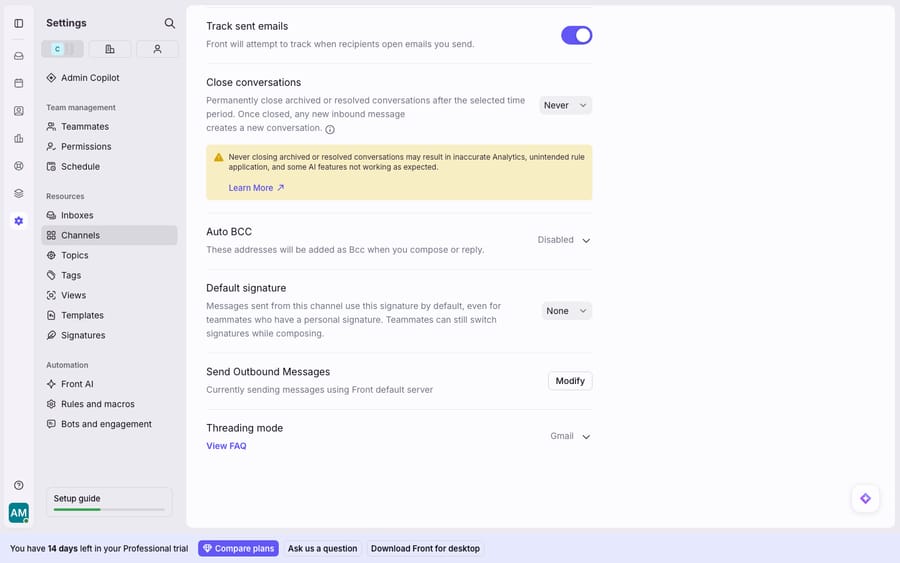
Notice Front's own inline warning: setting Close conversations to Never means new inbound messages will reopen threads. The fix:
- Open the Settings gear → Channels, pick the affected channel (your Office 365 or Gmail inbox), and open the Settings tab.
- Find Close conversations and read the warning. If it's on Never, that's why replies keep reopening old threads.
- Choose a policy that matches how your team works, so threads close on your terms instead of every one staying eligible to spring back.
- Save. Changes govern behavior going forward, so you may still need to re-archive the batch that already reopened.
If you're new to how archiving and reopening fit the wider model, Front's shared inbox explained covers the open/closed lifecycle, and Front channels explained covers where these per-channel settings live.
Which Front actions break the Office 365 sync?
Front keeps a two-way sync with Office 365, but five actions quietly break it (cause 2). Per Front's list of actions that break the sync between Front and Gmail/Office 365, the sync is severed when you move a conversation to an inbox where the first message wasn't received, reply from a different Gmail or Office 365 account than the original, change the threading mode to Front logic, split a conversation, or merge conversations (automatically or manually). Once the link is broken, a later reply can surface as a reopened or duplicated thread because the two systems no longer agree on what state the conversation is in.
The single most important rule Front gives is blunt: "You should not have the same account open in Gmail/Office 365 and in Front." Front adds that navigating in Gmail or Office 365 "may trigger actions you do not intend to within Front." If a teammate is also working the mailbox directly in Outlook or Outlook Web, their archive/read/move actions there can race against Front's and manifest as reopenings.
Fix steps:
- Audit who touches the mailbox. Make Front the single front-end for that inbox and have the team stop working it directly in Outlook/OWA.
- When routing, avoid moving conversations across inboxes mid-thread where you can; route at intake instead. Front rules can assign and tag without physically relocating a conversation after replies exist.
- If replies must go out from a specific address, confirm you're replying from the same account the message arrived on.
Does the threading mode cause conversations to reopen?
It can (cause 3). When you connect Office 365, Front defaults to "Office 365 threading", and switching away from it loosens the sync. Per Front's guide to email threading and how to change your threading mode, Office 365 channels offer four modes: Office 365 threading (the default), Subject-Recipient threading, Office 365 + Subject-Recipient threading, and No threading. If you change away from the default, Front warns that you'll keep the inbound/outbound sync but lose spam-status sync. More importantly, altering threading is itself one of the sync-breaking actions from Cause 2. A mismatch here shows up as replies threading oddly, re-splitting, or old conversations resurfacing when the two systems reconcile.
To inspect or change it safely:
- Settings gear → Channels → pick the channel → Settings tab → Threading mode.
- For an Office 365 channel that must keep two-way sync intact, leave it on Office 365 threading — that's the mode designed to co-operate with the provider.
- If you do change it, know two things: the change applies only to new conversations going forward, and you've now broken the tight O365 sync for that channel by design. Use manual split/merge for existing threads rather than expecting a mode change to retro-fix them.
Honest note: threading mode is a per-channel setting on a connected email channel. If you're on a Front trial without a real Office 365 or Gmail channel connected, you won't see the O365-specific options at all — this cause only exists once a live provider is attached. Connecting Gmail to Front walks the equivalent setup on the Gmail side.
Why do thousands of old Front emails reopen at once?
If old emails reopen in bulk, hundreds or thousands overnight, the trigger is almost always an external change to the Office 365 mailbox, not a click inside Front (cause 4). In the Front community thread Old Email suddenly showing up, affected teams traced mass "Reopened in Office 365 Inbox" events to a third-party application used to back up Office 365 mail that was touching messages in the mailbox, as well as to data retention policies rewriting mail. Because Front's legacy two-way sync watches the mailbox for new activity, a backup or archiving tool that re-touches thousands of old messages looks, to Front, like thousands of new arrivals — so they reopen.
Fix steps, in order:
- Find the external actor. Check for O365/Exchange backup or archiving apps, journaling, and retention/compliance policies that modify or re-stamp messages. Pause or reconfigure the tool that's re-touching old mail.
- Move to Front's newer sync experience. Front's recommended fix in that thread is to migrate off the legacy two-way sync to the newer sync, which — per Front's Office 365 history import and sync — only syncs new messages, sent emails, and spam status, and deliberately does not sync read/unread, archived/unarchived, tag, trash, or snooze actions. Because it stops mirroring archive/read state, an external mailbox tool can no longer force reopenings through those actions.
- Weigh the trade-off honestly. In the same thread, a user pushed back that the newer sync "does not sync read/unread," which some teams rely on. So this fix trades reopening-immunity for a looser two-way mirror. It's the right call when reopenings are the bigger pain, but go in knowing what you give up.
- Clear the backlog. After the underlying cause is stopped, re-archive the batch that reopened. New arrivals won't drag them back once the external actor and sync mode are settled.
Migration between sync experiences is an account-level change and can involve an optional history import: Front brings in the 50,000 most recent messages, and an import can take up to 72 hours. Coordinate it with Front support rather than flipping it mid-shift.
Why do some emails come back archived instead of open?
If threads resurface already archived rather than reopened, that's expected sync behavior (cause 5). Per Front's O365 sync documentation, emails sent or changed outside Front after the account is connected sync back into Front as archived. That's not a reopening at all — it's Front recording an external action without dragging the conversation to the top of your open queue. No fix needed; it's the system working as intended. It only becomes noise if you're scanning "all" views, in which case tightening what you look at (open vs. all) makes it disappear.
Can an AI agent cut the cost of a reopening wave?
None of the above requires AI to fix — they're settings and sync hygiene, and Front's own controls handle them. But there's a second-order cost to reopening problems that tooling can soften: every resurfaced thread is a conversation a human has to re-read to decide whether it's genuinely open again or just a ghost, and that re-reading is where the time goes when hundreds reopen at once.
That's the seam an AI agent layer fits into. The broader category of AI agents for customer service exists to do the reading and drafting a human would otherwise repeat. Macha is one such layer: it runs on top of the Front you already use through the Macha–Front connector — it doesn't replace Front, your inboxes, or your sync settings, and it won't stop a backup app from reopening mail (that's still a settings fix). What it does is triage the aftermath: when a conversation reopens, the agent reads the full thread, understands whether the new message actually needs a reply, and drafts or sends a grounded one — pulling live order or account context through a custom tool that turns your API into something the agent can call. A reopened thread becomes a few seconds of review instead of a cold re-read. Macha bills per ticket — one thread with one person, charged once however many times it reopens — never per resolution, so a quiet reopening it correctly ignores doesn't add to the bill.
FAQ
Why do my Front emails keep reopening? Most often because the channel's Close conversations setting lets new inbound messages reopen archived threads — that's Front's default, so a customer's reply resurfaces the conversation on purpose. If reopenings come in bulk (hundreds at once), the cause is usually external: a third-party Office 365 backup app or a retention policy re-touching old mail, which the legacy sync reads as new activity.
What does "Reopened in Office 365 Inbox" mean? It's Front telling you a conversation was reopened because of activity detected on the connected Office 365 mailbox — either a genuine new reply, or an external tool/action that Front's two-way sync interpreted as new activity on that thread.
How do I stop old archived emails from reappearing in bulk? Identify and pause the external actor (backup/archiving app or retention policy) rewriting the O365 mailbox, then migrate to Front's newer sync experience, which stops mirroring read/archive/tag actions and only syncs new messages, sent emails, and spam status. Then re-archive the reopened batch.
Does changing my threading mode fix reopening? Not directly, and it can make things worse. On Office 365, changing away from the default "Office 365 threading" is itself a sync-breaking action and applies only to new conversations. Keep Office 365 channels on Office 365 threading if you want the two-way sync intact.
Can I add AI to Front without changing my sync settings? Yes. An AI layer like Macha connects to Front as a connector on top of your existing inboxes and settings — it doesn't touch threading or O365 sync. It reads and drafts replies on the conversations Front surfaces, which reduces the manual re-reading a wave of reopenings creates.
Tired of re-reading resurfaced threads to figure out what's still open? Start a free trial of Macha and connect it to your Front in minutes.






