





 Shopify
 Stripe
 Slack
Slack Notion
 Google Workspace
 Confluence

Why Is the Front Mobile App Not Working? Android Freezing, Missing Send & Archive and SSO Fixes (2026)


Front's mobile app is built for triage, and most of its problems trace to three documented causes: post-update freezing on Android, a quick-reply composer that hides Send & Archive, and SSO that fails across Android work profiles. Each has a fix you can apply in a minute, and a few tasks simply belong on desktop.
Key takeaways
- The Front mobile app's quick-reply composer only fires the default send option, so Send & Archive disappears whenever Send & Snooze is set as the default.
- On Android work-profile devices, Office 365 or Google SSO in the Front app fails unless the browser is installed in the same work profile as Front.
- On 24 September 2026 the Front app's US Google Play listing showed 2.6 stars from 545 reviews and 100K+ downloads, down from 3.7 stars at an earlier capture.
- The Front mobile app can download open conversations from the past 30 days for offline use but has no analytics, sequences or template settings.
- Expanding a draft to the full composer in the Front mobile app reveals four send options: Send, Send & Archive, Send Later and Send & Snooze.

Most Front mobile app problems come from three documented causes: Android freezing after an update (fix: update the app, clear its cache, restart), a missing Send & Archive button because the quick-reply composer only uses your default send option (fix: expand to the full composer), and an Office 365 or Google SSO error on Android because the browser sits in a different work profile from Front. The rest are features the mobile app doesn't carry, which live on desktop and web.
Which Front mobile problem do you have?
| Symptom | Most likely cause | Where to fix it |
|---|---|---|
| App freezes / lags after an OS or app update | Post-update rebuild, stale cache, or an outdated app build | On device: update app, clear cache, restart |
| No "Send & Archive" when composing on mobile | Quick-reply composer only uses your default send option | In-app: expand the composer, or disable quick-reply |
| Office 365 / Google SSO login error on Android | Browser and Front installed in different Android profiles | Android system: install the browser in the same work profile |
| A feature is just missing on mobile | It isn't supported in the mobile app at all | Switch to desktop / web |
| Everything is broken for everyone | A wider Front incident, not your phone | Check Front status |
Why does the Front Android app freeze or slow down after an update?
Most common cause: your device is still settling after a recent Android or app update, or the app build and cache are stale. When a major OS update lands, Android rebuilds system files, re-optimizes apps and re-syncs accounts in the background, which can make every app, Front included, feel sluggish for a day or two. An app version built against an older Android release can also freeze or crash until it's updated, and a bloated local cache makes it worse. Google's guidance on a device that freezes or won't respond and on how to speed up a slow Android device points at the same levers.
Work through these in order. The first two fix most cases:
- Update the Front app. Open the Play Store, search Front, and install any pending update. Front shipped an Android update on 18 September 2026, so check you're on it. A build made for your current Android version resolves most post-update freezing outright.
- Clear the app cache. Android Settings → Apps → Front → Storage → Clear cache. This drops stale temporary data without touching your account or conversations. (Avoid Clear storage unless you're ready to sign in again.)
- Restart the phone. A reboot clears the background processes left over from the update's re-optimization pass.
- Free up storage. Front's offline cache and general performance both suffer when the device is nearly full, so keep some headroom.
- Isolate a bad actor with Safe Mode. If it's still bad, boot into Safe Mode (only system apps run). If Front behaves there, another third-party app or background service is the real culprit.
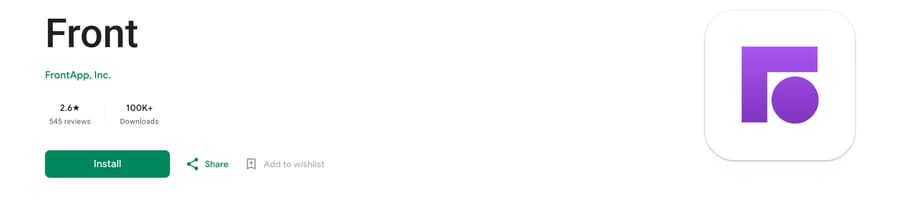
The rating is worth reading as a signal: on 24 September 2026 the US Play Store listing showed 2.6 stars from 545 reviews, down from 3.7 when we first captured it, so other Android users are hitting rough edges too. If the freeze coincides with everyone on your team losing access at once, it's probably not your handset. Check whether Front is down before you keep troubleshooting a phone that's fine.
Why is Send & Archive missing when Send & Snooze is enabled?
Most common cause: you're replying in the quick-reply composer, which only ever fires your default send option. This trips up a lot of teams and it isn't a bug in your setup. Front's mobile app has two composers: a lightweight quick-reply box for fast text replies, and the full composer. In the Front community thread on no Send & Archive option on mobile when Send & Snooze is enabled, the answer is that the quick-reply box doesn't show the send menu; it uses your default send action. When Send & Snooze is the default, Send & Archive has nowhere to appear. (On desktop you'd reach it with a keyboard shortcut; mobile has no equivalent.)
There are two fixes, both native:
- Expand to the full composer for a one-off. Tap the expand button on your draft to open the full mobile composer, then press Send. The full send menu appears (Send, Send & Archive, Send Later and Send & Snooze) and you can pick Send & Archive per message.
- Turn off quick-reply so the full composer is always used. Open the settings icon in the mobile app and disable the quick-reply composer. Every reply then opens the full composer, so the send options are always one tap away.
If you mostly triage on your phone, option 1 is enough; if archiving on send is your normal workflow, option 2 saves the extra step every time. Either way this is composer behavior, not an account setting, and nothing in your shared inbox configuration needs changing.
Why does Office 365 or Google SSO fail on Android?
Most common cause on Android: your browser app and the Front app live in different Android profiles. Front's mobile app supports Sign in with Google, Office 365 and SSO on Android and iOS, but there's a platform quirk. Front's mobile app documentation tells Android users with a work profile to "install your web browser app using the same work profile you used to install the Front app." Android's profile security stops apps in different profiles from talking to each other, so the sign-in handoff between Front and the browser fails. It's a device constraint, not a Front account problem.
Fixes, most likely first:
- Match the profiles (work-profile devices). If Front sits in your Android work profile, install or enable a browser (Chrome or your managed browser) in that same work profile, then retry the sign-in. This resolves the most common corporate-device SSO failure.
- Clear the SSO redirect cache. For Office 365 sign-ins, clearing the browser or Outlook app cache clears half-finished auth tokens. Microsoft's guidance for when you can't sign in to the Outlook mobile app covers the token-refresh path.
- Confirm the sign-in method is enabled in Front first. Mobile SSO only works if that identity provider is turned on for your Front company. That's an admin, desktop-side setting: if Office 365 SSO was never enabled in Company settings → Security on the web app, nothing you do on the phone will fix it.
- Reinstall as a last resort. If the app itself is in a bad state after an update, uninstalling and reinstalling from the Play Store gives you a clean auth flow.
A caveat: steps that touch Company settings → Security or a managed work profile need admin rights and a company account. On a personal trial device you may not have the SSO option to configure at all.
Which Front features only work on desktop or web?
Some "problems" are features the mobile app was never meant to carry. Front's mobile app documentation describes a triage-focused app: reading and composing messages, attachments, discussions, adding tags, multi-select actions, calendar, and push notifications with quick actions. Offline, it can download open conversations from the past 30 days. It does not support onboarding, the full set of personal settings, settings for message templates, signatures, inboxes or rules, the full contact manager, creating or editing tags, analytics, or sequences. Two things are iOS-only: customizing the badge counter and setting Front as your default email client.
So if you're on Android trying to edit a template, restructure your tags or build a sequence and the option isn't there, nothing is broken. Those live on the desktop and web apps. Notifications and calendar have their own gotchas: see Front notifications not working and Front calendar issues and fixes.
How do you reach for the phone less often?
Most mobile frustration is really about volume. You open the app on the move because replies are piling up and someone has to acknowledge, answer or archive them. Shrink that backlog and the small mobile papercuts matter less. That's where an AI agent layer fits: not replacing Front, but handling routine tickets before they queue. The category of AI agents for customer service exists for this.
Macha is one such layer. It runs on top of the Front you already use through the live Macha–Front connector, reading incoming conversations, working out intent, and drafting or sending grounded replies, pulling a real order or account status through a custom tool that turns your API into something the agent can call. Fewer unanswered conversations means fewer moments you feel you have to fix them one-handed on a train. Macha bills per ticket, one conversation charged once however many messages it takes, never per resolution: $299 a month covers up to 750 tickets. It doesn't replace your Front mobile app, your inboxes or your team; it shrinks the pile they're working through.
FAQ
Why does the Front Android app freeze or lag after an update? Usually because your device is still re-optimizing after an OS update (which can take a day or two), the app build is outdated, or the local cache is stale. Update the Front app from the Play Store, clear its cache under Settings → Apps → Front → Storage, restart the phone, and free up storage. If it persists, Safe Mode helps show whether another app is the cause.
Where is Send & Archive on the Front mobile app? The quick-reply composer only uses your default send option, so when Send & Snooze is your default, Send & Archive isn't shown. Tap the expand button on your draft to open the full composer, then press Send to see Send, Send & Archive, Send Later and Send & Snooze. Or disable the quick-reply composer from the mobile settings icon so the full composer is always used.
Why do I get an Office 365 SSO error signing in to Front on Android? On Android work-profile devices, your browser must be installed in the same work profile as the Front app, or the SSO handoff fails. Match the profiles, clear the Outlook or browser cache to reset stale auth tokens, and confirm the identity provider is enabled in Company settings → Security on the desktop app.
What can't the Front mobile app do compared to desktop? It's built for triage. It doesn't support onboarding, the full personal settings, settings for templates, signatures, inboxes or rules, the full contact manager, creating or editing tags, analytics, or sequences. Badge-counter customization and setting Front as your default email client are iOS-only. Use the desktop or web app for those.
Is it me or is Front down? If several teammates lose access at once, or web and desktop are affected too, it's likely a wider incident rather than your phone. Check whether Front is down before troubleshooting the device further.
Ready to shrink the pile you're triaging on your phone? Start a free trial of Macha and connect it to your Front in minutes.






