





 Shopify
 Stripe
 Slack
Slack Notion
 Google Workspace
 Confluence

How Do You Connect Outlook / Microsoft 365 to Front? (2026 Setup and Sync Guide)


Connecting Office 365 or Outlook to Front takes a few minutes in the channel wizard and turns a Microsoft mailbox into a shared inbox your team works together. Only new messages, sent messages and spam actions sync back to Office 365, which is why archived conversations can reopen.
Key takeaways
- Connecting Outlook to Front runs through workspace settings, Channels, Connect a channel, Microsoft, then Office 365 (Exchange Online) and a Microsoft sign-in.
- Connecting an Office 365 shared mailbox requires a Front administrator and a Microsoft user with Read and manage, Send as, and Send on behalf of permissions.
- Only three actions sync two-way between Front and Office 365: new inbound messages, sent messages and spam actions, so archive, trash, read status, tags and snooze stay in Front.
- Front's optional Office 365 history import pulls the 50,000 most recent messages, newest to oldest, and can take up to 72 hours to finish.
- An archived Front conversation reopens when new activity touches the thread, such as a late reply or an Outlook rule, because archiving never syncs back to Office 365.
To connect Outlook or Microsoft 365 to Front, open workspace settings → Channels → Connect a channel → Microsoft, choose Office 365 (Exchange Online), pick an individual or shared mailbox, and Sign in with Microsoft. After that, only three things sync both ways (new messages, sent messages and spam actions), and Front can optionally import your 50,000 most recent messages, which can take up to 72 hours.
What does "connecting Outlook to Front" actually mean?
Front doesn't replace your Microsoft mailbox; it sits on top of it as a channel. Per Front's model of channels, a channel is the pipe that brings a communication source (an Office 365 mailbox, a Gmail account, an SMS number) into a Front inbox where teammates can collaborate. Once connected, mail keeps living in Office 365, but your team works it in Front: assigning conversations, commenting internally, drafting together, and replying from a single shared inbox instead of forwarding threads around.
Front supports two Microsoft connection types, and the wizard makes you pick one first:
| Connection type | Choose when | Notes |
|---|---|---|
| Office 365 (Exchange Online) | Your mail is hosted in Microsoft 365 / Exchange Online (the common case) | OAuth sign-in with Microsoft; supports individual and shared mailboxes |
| On-premise Exchange server | You run Exchange on your own servers | Requires server details and credentials rather than the Microsoft OAuth handoff |
Most teams on modern Microsoft 365 want Office 365 (Exchange Online). Choose the on-premise path only if IT actually runs Exchange in-house.
How do you connect an Office 365 individual mailbox?
An individual mailbox connection is the fastest way to try Front. It brings one person's Outlook mailbox in.
- Click the gear icon to open workspace settings, then go to Channels.
- Click Connect a channel, then choose Microsoft.
- On the Account type step, pick Office 365 (Exchange Online) (or On-premise Exchange server if that's your setup).
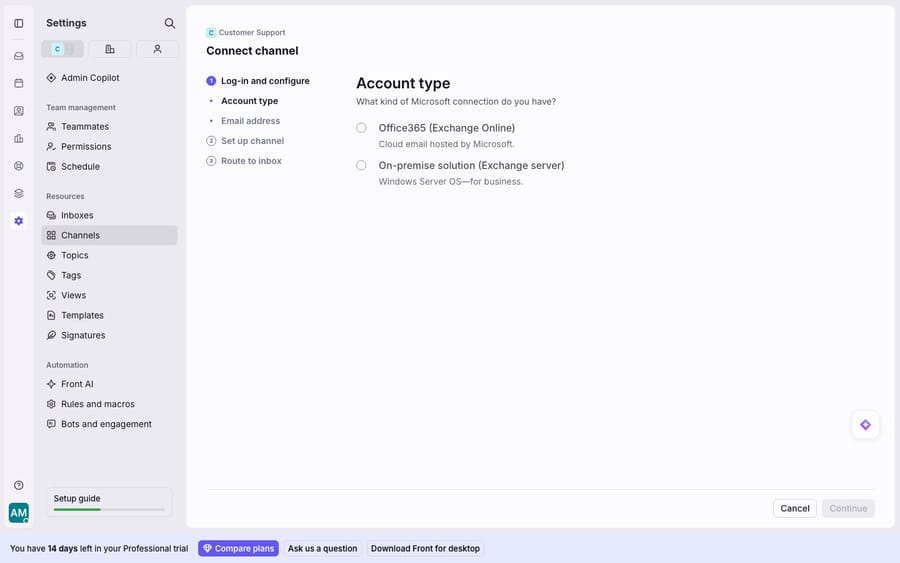
- Choose Individual inbox, then click Sign in with Microsoft and complete the Microsoft OAuth consent. This is where you leave Front briefly and authorize access on Microsoft's own page.
- Choose your import preferences (whether to pull in history; more on that below).
- Select the destination Front inbox and click Continue.
Inbound mail starts landing in Front shortly after, and the optional history import runs in the background.
How do you connect an Office 365 shared mailbox?
Shared mailboxes (support@, sales@, billing@) are where Front earns its keep, because that's what a team collaborates in. The setup is similar but has admin prerequisites. Per Front's guide to adding an Exchange Online shared mailbox:
- From workspace settings → Inboxes, create (or open) the shared inbox that will hold the channel.
- Go to Channels → Connect a channel → Microsoft.
- Choose Office 365 (Exchange Online) → Shared mailbox → Continue.
- Enter the shared mailbox address.
- Click Sign in with Microsoft and authenticate.
- Choose your import preferences.
- Update mailbox delegation in the Exchange admin center to include the authenticating user, so Front can send and receive on the shared mailbox's behalf.
- Select the destination inbox and click Continue.
Two prerequisites are non-negotiable, both from Front's documentation. The person adding the shared mailbox must be a Front administrator. And the authenticating Microsoft user must hold "Read and manage" (Full Access), "Send as," and "Send on behalf of" permissions on that shared mailbox. Miss either and the channel won't connect or won't be able to reply as the shared address.
How much email history does Front import from Office 365?
When you connect an Office 365 channel, Front offers a one-time history import. Per Front's Office 365 history import and sync documentation, Front can optionally import the 50,000 most recent messages, pulled newest to oldest, and the import can take up to 72 hours, depending on message count, contents and attachments. It's a snapshot, not a continuous backfill. Once it completes, ongoing sync takes over for new activity.
One caveat: in-place archive mailboxes don't sync. Front's docs state that "conversations located in in-place archive mailboxes (different from the Archive folder) will not sync to Front" because Front only syncs from primary inboxes. Anything already in Microsoft's in-place archive stays out of Front.
What actually syncs two-way between Front and Office 365?
This is the section to read twice. Front's Office 365 sync is selective. Per Front's history import and sync documentation, only three things move in both directions:
- New inbound messages: mail landing in your Office 365 Inbox appears in Front.
- Sent messages: replies sent from Front land in your Office 365 Sent folder.
- Spam actions: marking or unmarking as spam moves the email between the Spam and Inbox folders on both sides.
Everything else stays on its own side. Front is explicit: "read/unread status, archived/unarchived status, folder/tag changes, trash and snooze actions, etc. will not be synced." That means:
| Action in Front | Syncs back to Office 365? |
|---|---|
| Receive a new email | Yes |
| Send / reply | Yes (to Sent) |
| Mark as spam / not spam | Yes |
| Archive / unarchive | No |
| Trash / delete | No |
| Read / unread | No |
| Add / remove tags or move folders | No |
| Snooze | No |
So if a teammate archives a conversation in Front, it clears out of the Front inbox but stays in your Office 365 Inbox, and vice versa. This is by design, not a bug, but it's the most common source of "why is my Outlook inbox still full?" confusion.
Why do conversations get "reopened in your Office 365 Inbox," and how do you avoid it?
Front archives conversations to get them out of the way; the catch is what counts as new activity. Per Front's how to archive a conversation guidance, if there's new activity on an archived conversation, it automatically reopens, moving from the Archived tab back into the Open tab. Combine that with the sync rules above and you get the classic Outlook surprise.
Here's the sequence that trips teams up:
- Front archives a conversation. Because archive doesn't sync, the message still sits in your Office 365 Inbox.
- Something touches that thread in Office 365: a late reply, an auto-forward, a rule moving it back to the Inbox.
- Front sees new inbound activity and reopens the conversation, pulling it back into the Open tab.
To Outlook users it looks like Front "reopened it in the Office 365 Inbox." Front already handles one case: per its sync documentation, "when an email is sent from outside of Front after your account is connected, it will sync into your Front inbox as archived," so a normal send from Outlook doesn't reopen a thread you'd closed. To avoid the rest:
- Do your archiving inside Front, not Outlook. Front is the source of truth for conversation state; moving threads around in Outlook is what generates the "new activity" that reopens them.
- Turn off Outlook-side rules that shuffle mail between folders on a mailbox you've connected to Front. They can look like new activity.
- Don't run a personal Outlook client against a shared mailbox you've moved into Front; let Front be the one place the team works it.
What are the limits of Front's Microsoft integration, and where does an AI layer fit?
Front's Microsoft integration is native and far sturdier than forwarding-based setups. The edges, from Front's documentation:
- Most actions stay on one side. Archive, delete, read/unread, folders, tags, and snooze stay in Front. If you need Outlook and Front to mirror each other exactly, they won't.
- Authorization dependency. If the channel's Office 365 authorization is denied, sync stops until someone re-authorizes it. Front then imports the messages missed while it was offline.
- Reauthorization gaps. For those re-imported messages, Front notes that "tags and statuses for these imported messages will not sync," so they can come back missing their labels.
- The integration itself is plumbing. It moves mail; it doesn't understand it.
That last point is the real ceiling. Getting email into a shared inbox is table stakes; the work is answering it. That's where an AI agent layer fits, and the broader category of AI agents for customer service exists for exactly this. Macha is one such layer: it runs on top of the Front you already use through the live Macha–Front connector. It doesn't replace Front, Outlook, your shared inboxes, or the Microsoft channel you just connected. Front keeps handling the mail; Macha's agent reads each conversation, works out intent, and drafts or sends a grounded reply, pulling a real order or account record through a custom tool that turns your REST API into something the agent can call. For the mechanics, connecting Front to Macha to route conversations to AI walks through it. Macha bills per ticket, one conversation charged once however many messages it takes, starting at $299 a month for up to 750 tickets. For the wider view of what plugs into Front, see the best Front integrations.
FAQ
How do I connect Office 365 to Front? Open workspace settings → Channels → Connect a channel → Microsoft, choose Office 365 (Exchange Online), pick individual or shared mailbox, then Sign in with Microsoft to complete OAuth consent. Choose your import preferences and destination inbox. For shared mailboxes you must be a Front administrator, the authenticating user needs Read-and-manage, Send-as and Send-on-behalf permissions, and you update mailbox delegation in the Exchange admin center.
Does Front two-way sync with Outlook / Office 365? Partially. New inbound messages, sent messages, and spam actions sync both ways. Read/unread status, archive/unarchive, folder and tag changes, trash, and snooze do not sync back to Office 365, per Front's documentation.
Why does Front keep reopening conversations in my Office 365 Inbox? Because archive doesn't sync, an archived conversation still sits in your Outlook Inbox, and any new activity on it (a late reply or an Outlook rule) reopens it in Front. Do your archiving inside Front and disable Outlook-side folder rules on the connected mailbox to avoid it.
How much email history does Front import? Front can optionally import the 50,000 most recent messages, newest to oldest, and the import can take up to 72 hours. Messages already in an in-place archive mailbox won't sync.
Do emails I send from Outlook show up in Front? Yes. An email sent from outside Front after the account is connected syncs into the Front inbox as archived, so it doesn't reopen the conversation.
Can I add AI to my Front + Outlook inbox without replacing Front? Yes. An AI agent layer like Macha connects to Front as a live connector on top of your existing Microsoft channel and inboxes. Front keeps syncing mail; the agent reads the conversation, works out intent, and drafts or sends a grounded reply.
Ready to turn a connected mailbox into an inbox that answers itself? Start a free trial of Macha and connect it to your Front in minutes.






