





 Shopify
 Stripe
 Slack
Slack Notion
 Google Workspace
 Confluence

How Do You Connect WhatsApp, Instagram and SMS to Front?


Front connects WhatsApp, Instagram DMs and Twilio SMS through one Connect channel wizard, and each channel then shares your email inbox's tags, rules and assignments. The limits differ by channel: WhatsApp needs the Professional plan and replies within 24 hours, Instagram allows 7 days, and SMS needs the right Twilio webhook setting.
Key takeaways
- Front connects WhatsApp, Instagram and SMS through the same Settings → Channels → Connect channel wizard, and each channel then shares the tags, rules and assignments used for email.
- Front's native WhatsApp channel needs a Meta Business Account, a Front company admin and the Professional plan or above, and is billed at Meta's cost plus a 20% administrative fee.
- Front gives agents 24 hours to reply to an inbound WhatsApp message before a Meta-approved template is required, while Instagram and Facebook replies work for 7 days.
- Front's Starter plan at $25 a seat a month allows a single channel type, so combining SMS with Instagram or WhatsApp requires Professional at $65 or Enterprise at $105.
- SMS connects to Front through Twilio using an Account SID and Auth token, and US senders on A2P 10DLC must set their Messaging Service to Defer to Sender's Webhook.

You connect WhatsApp, Instagram and SMS to Front from the same place: Settings → Channels → Connect channel, then pick the channel, sign in to Meta (WhatsApp, Instagram) or paste your Twilio Account SID and Auth token (SMS), and route it to an inbox. The native WhatsApp channel is a paid add-on on the Professional plan ($65 a seat a month) or above, billed at Meta's message cost plus a 20% fee. WhatsApp allows replies for 24 hours after a customer's last message, while Instagram and Facebook allow 7 days.
| Channel | Connects via | Admin / plan | Reply window | Key gotcha |
|---|---|---|---|---|
| WhatsApp (native) | Meta Business Account | Company admin + Professional or above; add-on billed at Meta cost + 20% | 24 hours; templates outside it | No history import, no calls or groups |
| WhatsApp (Twilio) | Twilio WhatsApp sender | Twilio number approval (days) | 24 hours; templates outside it | Webhook must be pasted in Twilio |
| Instagram DMs | Meta / Facebook Page | Business account (not creator) | 7 days | Must link Facebook Page + allow messages |
| Meta / Facebook Page | Page admin | 7 days | Reply errors after 7 days of silence | |
| SMS | Twilio | Twilio account | None (SMS has no window) | A2P 10DLC + Defer to Sender's Webhook |
How do channels work in Front?
Every messaging channel in Front connects the same way and ends up in the same place. From Settings → Channels, you click Connect channel, pick the channel type, and route it into a shared inbox (for a support, sales or ops team) or an individual inbox. Once connected, that channel's conversations sit alongside email: the same tags, rules, assignments, comments and analytics apply, whether a message arrived by SMS or Gmail. If you want the conceptual model of how channels, inboxes and workspaces relate, Front channels explained covers it; here we're connecting.
Settle three things before you start. First, decide which inbox each channel belongs to; a shared WhatsApp inbox for support is very different from a personal SMS line for one account manager. Second, most social channels need a Meta or Twilio account on the other side, and WhatsApp needs a Front admin. Third, check your plan. Per front.com/pricing (checked 24 September 2026), Starter ($25 a seat a month billed monthly) allows a single channel type (email, Front Chat or SMS), while Professional ($65) and Enterprise ($105) are omnichannel, with email, SMS, social and WhatsApp. So a Starter team can add SMS but not Instagram and WhatsApp as well.
How do you connect WhatsApp Business to Front?
WhatsApp is the highest-value and most rule-bound of the three, so start here. Per Front's guide to setting up a WhatsApp channel, the native integration is an add-on that a Front company admin must enable, it's available on the latest Professional plan or above (some legacy plans qualify too), and you'll need a Meta Business Account ready before you begin. Front bills the add-on at your monthly Meta WhatsApp cost plus a 20% administrative fee, invoiced monthly in arrears, so this channel carries a usage-based line item the others don't.
- In Settings → Channels, click Connect channel and select WhatsApp, then Connect.
- Authenticate via Meta/Facebook login and grant the requested permissions.
- Provide your business information, then create or select an existing WhatsApp Business Account.
- Verify the phone number for the account (Meta sends a code by text or call).
- Route conversations to the inbox you want them in, and save.
The 24-hour window is the rule that defines WhatsApp. Front is explicit: "WhatsApp gives you 24 hours to respond to an inbound message." Reply to an inbound message older than that and you'll see an error. Inside the window your agents reply freely. Outside it, or to start a brand-new outbound conversation, you must use a Meta-approved template, sent to one recipient at a time. Templates are created and approved in Meta Business Manager and sync into Front automatically. You can map Front variables into them but can't edit the wording in Front, which is deliberate: it keeps you inside Meta's rules.
A few limits to know up front: new messages, replies and read status sync two-way, but historical WhatsApp messages don't import, only new conversations. The platform doesn't support WhatsApp voice calls, group chats aren't supported by the WhatsApp API, and each message carries either text or a single attachment, not both.
If you'd rather run WhatsApp through Twilio than Meta directly, Front supports that too. Per its Twilio WhatsApp guide, you first get a WhatsApp-enabled Twilio number approved (Twilio processes this over several business days), then in Connect channel choose Twilio/WhatsApp, enter your Twilio Account SID and Auth token, pick the number, click Verify account, and finish by pasting Front's webhook URL into the number's settings in the Twilio console. The same 24-hour window applies.
How do you connect Instagram DMs to Front?
Instagram DMs connect through Meta as well, with lighter requirements than WhatsApp. Per Front's Instagram inbox setup, the account you connect must be a business account, not a creator account, it must be linked to your business's Facebook Page, and the Allow Access to Messages setting must be enabled in your Instagram account. Miss any of those and the connection fails or messages won't flow.
- In Settings → Channels, click Connect channel, and under Messaging select Instagram.
- Click Connect to Instagram and complete the Meta authentication.
- Grant Front access to the linked Facebook Page and Instagram Business account.
- Route Instagram DMs into your chosen inbox and save.
Instagram has its own clock. Front can reply to an Instagram DM only if the person messaged you within the last 7 days. After that the conversation stays visible, but a reply from Front returns a draft error and you'd have to answer inside Instagram itself.
If your team also fields Facebook messages, comments and post replies, that's a sibling channel: Connect channel → Facebook → Connect to Facebook lets you manage direct messages and Page posts and comments from Front, per its Facebook inbox guide. The same 7-day limit applies, which Front attributes to Facebook's API, and Front can't start a new Messenger conversation; the customer has to message first.
How do you connect SMS through Twilio?
SMS is the workhorse channel for transactional and account teams, and Front connects it through Twilio. You'll need a Twilio account with a messaging-capable number and your API credentials from the Twilio Console.
- In Settings → Channels, click Connect channel and select SMS (under SMS and telephony).
- Give the channel a Name, then paste your Twilio Account SID and Auth token (both on your Twilio Console dashboard).
- Select the phone number from the dropdown, or type it in if you use a short code.
- Route conversations into the target inbox and save. Front validates the credentials and adds its webhook to your Twilio messaging configuration.
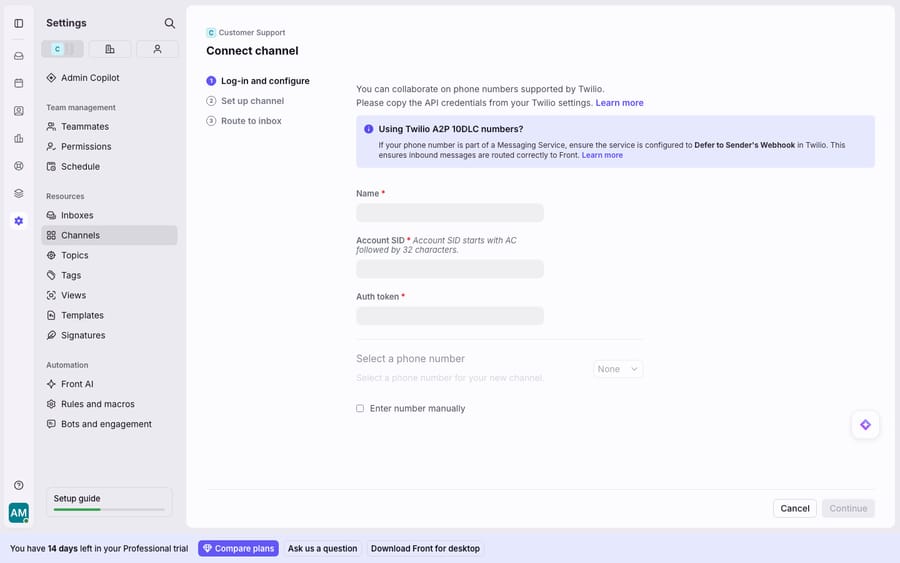
If you're sending business SMS in the US, you're almost certainly on A2P 10DLC (application-to-person 10-digit long codes), the carrier registration scheme that governs deliverability. Front supports A2P 10DLC numbers, but per Front's Twilio SMS setup guide two configuration steps are easy to miss: copy your registered campaign's sample messages into Front message templates to stay compliant, and set your campaign's Messaging Service to "Defer to Sender's Webhook" so inbound texts reach Front instead of stopping at Twilio. Skip the webhook setting and you'll send fine but never receive.
Which channel path should you pick?
The channels share a wizard but not their constraints. The table at the top of this page has the full comparison; the short version:
- WhatsApp native if you're on Professional or above and want Meta billing through Front. Budget for the 20% fee.
- WhatsApp via Twilio if you already run SMS on Twilio and want one vendor for both. Allow several business days for number approval.
- Instagram and Facebook if your customers find you through social; plan staffing around the 7-day reply limit.
- SMS if you need a channel with no reply clock, and you're ready to handle A2P 10DLC registration.
For a broader tour of what plugs into Front and how the native channels compare to third-party apps, the best Front integrations is a good companion read.
What don't Front's channel connectors do, and where does an AI layer help?
Front's channel connectors are good at what they do: they bring every conversation into one shared inbox so a support agent, a salesperson and an ops teammate all work the same thread with the same context. That consolidation is the whole point of Front, and no bolt-on replaces it.
But the connectors move messages, not meaning, and each channel adds a clock. WhatsApp's 24-hour window and the 7-day limit on Instagram and Facebook mean a slow reply doesn't just annoy a customer. On WhatsApp it forces a stiff pre-approved template instead of a real answer; on Instagram it pushes the reply out of Front altogether. SMS has no window but no context either: a "where's my order?" text arrives with a phone number and nothing else. And the richest WhatsApp features sit behind a paid plan and a usage-metered add-on. These are the platforms' rules more than Front's failings, and they're exactly where an AI agent layer earns its keep.
That's what Macha does. It runs on top of the Front you already use through the live Macha–Front connector; it doesn't replace Front, your channels or your inboxes. When a WhatsApp or SMS message lands, Macha's agent reads the intent, pulls the real order or account record through a custom tool that turns your REST API into something the agent can call, and drafts or sends a grounded reply inside the 24-hour window, before a template is your only option. The broader category of AI agents for customer service exists for this reasoning-over-channels work, and connecting Front to Macha to route conversations to AI walks through the wiring. Macha bills per ticket, from $299 a month for 750 tickets: one conversation, charged once however many messages it takes, never per resolution.
FAQ
How do I connect WhatsApp to Front? Go to Settings → Channels → Connect channel, select WhatsApp, authenticate via Meta, select or create your WhatsApp Business Account, verify the phone number, and route conversations to an inbox. The native WhatsApp channel requires a Meta Business Account, a Front company admin to enable the add-on, and the Professional plan or above.
What is the WhatsApp 24-hour window in Front? WhatsApp gives you 24 hours to reply to an inbound message with normal text. Reply to a message older than 24 hours and Front shows an error; to message outside the window, or to start a new outbound conversation, you must use a Meta-approved template, one recipient at a time.
How do I connect Instagram DMs to Front? Use Connect channel → Messaging → Instagram → Connect to Instagram. The Instagram account must be a business account (not creator), linked to your business's Facebook Page, with Allow Access to Messages enabled. Replies from Front work for 7 days after the customer's last message.
Do WhatsApp and Instagram conversations import my message history? Front's WhatsApp guide says historical messages are not imported, only new conversations. Plan on your existing threads staying in the native app.
Which Front plan do I need for WhatsApp and Instagram? Professional or Enterprise. Starter supports a single channel type (email, Front Chat or SMS), so it can't combine SMS with social and WhatsApp.
Why aren't my Twilio SMS messages arriving in Front? Almost always the A2P 10DLC webhook. Set your campaign's Messaging Service to "Defer to Sender's Webhook" in Twilio so inbound texts route to Front, and copy your registered campaign's sample messages into Front templates for compliance.
Ready to turn every channel from "acknowledged" into "answered"? Start a free trial of Macha and connect it to your Front in minutes.






