





 Shopify
 Stripe
 Slack
Slack Notion
 Google Workspace
 Confluence

Where Is the Gorgias API Key? Find, Create and Reset It (2026)


Your Gorgias API key sits under Settings, Account, REST API, next to your Base API URL and account email, and only the account owner and admins can see or create it. The key grants full access to your account's data, so how you create, scope and reset it matters as much as where it lives.
Key takeaways
- The Gorgias API key lives under Settings, then Account, then REST API, in the API Access and Credentials section, viewable only by the account owner and administrators.
- Gorgias authenticates API requests with HTTP Basic Auth, base64-encoding the account email and API key together, and since February 3, 2022 it no longer accepts login passwords.
- Each Gorgias API key inherits the permission level of the user who created it, so a key generated by an Observer Agent can only perform Observer-level actions.
- Resetting a Gorgias API key on the REST API settings page invalidates the old key immediately with no overlap window, so every dependent integration must be updated right away.
- Gorgias allows 40 requests in a 20-second window with API-key auth and 80 with OAuth2, and Enterprise accounts get the same caps over a 10-second window.

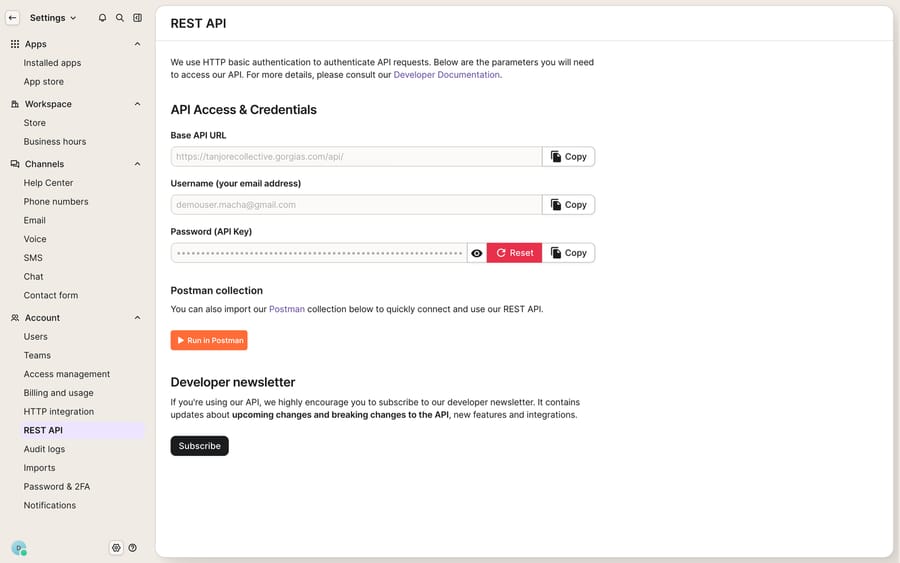
Your Gorgias API key is under Settings → Account → REST API, in the Password (API Key) field next to your Base API URL and Username, and only the account owner and admins can see it or create one.
| Field on the REST API page | What it is | Example |
|---|---|---|
| Base API URL | Root address for every request | https://northwind.gorgias.com/api/ |
| Username | The email address on your Gorgias account | [email protected] |
| Password (API Key) | The generated secret, masked after creation | Create API Key / Reset |
Where is the API key in Gorgias?
Everything you need sits on one page. Per Gorgias's Access your Gorgias REST API credentials documentation, the path is:
- Click the Settings icon in the bottom-left corner of your Gorgias helpdesk.
- In the settings menu, find Account and select REST API.
- Under the API Access & Credentials heading, you'll see three things: the Base API URL, your Username, and the Password (API Key) field.
That single screen is the whole credential set. There's no separate developer console to hunt through: if you can reach Settings, you can reach your key. One access caveat worth knowing up front: only the account owner and administrators can view these credentials or create a key. If the REST API page looks empty or read-only for you, your role is the reason, not a bug.
What do the three credential fields mean?
The credentials page gives you everything an API request needs, but each field plays a distinct role.
- Base API URL: the root address every request hits, in the form
https://{your-domain}.gorgias.com/api/. Your{your-domain}is the subdomain you log in with, so a store onnorthwind.gorgias.comcallshttps://northwind.gorgias.com/api/. - Username: the email address on your account. It is not a separate API identity; it's the login email, used as the username half of the credential pair.
- Password (API Key): the generated secret. Gorgias masks it in-product (you'll see dots, not the raw value), so treat the moment you first create it as your one clean chance to copy it somewhere safe.
If you want the full picture of what you can do once you're authenticated (endpoints, pagination, examples), the companion walkthrough on how to use the Gorgias API picks up where this page leaves off. And if you're newer to the platform overall, what is Gorgias sets the context for how tickets, rules, and integrations fit together.
How do I create a Gorgias API key?
If you've never generated one, the Password (API Key) field will offer to make it for you.
- Go to Settings → Account → REST API.
- Under Password (API Key), click Create API Key.
- The key is generated immediately and displayed alongside your Base URL and username.
- Copy it now and store it in a password manager or your integration's secrets store. Because the value stays masked afterward, you don't want to be hunting for it later.
There's no approval flow and no waiting. The key is live the instant it's created.
How does Gorgias API authentication work?
Gorgias uses HTTP Basic Authentication. You take your USERNAME:API_KEY pair (your email, a colon, then the key) and base64-encode the whole string into the Authorization header. Per the Access Tokens (API Keys) developer docs, "the USERNAME:API_KEY pair has to be a base64 encoded string."
A minimal request to list tickets looks like this:
curl https://northwind.gorgias.com/api/tickets \
  -H "Authorization: Basic $(printf '[email protected]:YOUR_API_KEY' | base64)" \
  -H "Content-Type: application/json"
Most HTTP libraries do the base64 step for you if you pass the username and key as basic-auth credentials:
import requests

resp = requests.get(
    "https://northwind.gorgias.com/api/tickets",
    auth=("[email protected]", "YOUR_API_KEY"),  # library base64-encodes the pair
    headers={"Content-Type": "application/json"},
)
print(resp.status_code, resp.json())
One historical note: on February 3, 2022, Gorgias stopped accepting user passwords for API authentication. Per the changelog, only requests authenticated with an API key (or OAuth2) are accepted. So even though the field is labelled "Password (API Key)," you must use the generated key, never your login password.
Does a Gorgias API key have the same permissions as its creator?
Yes, and teams often miss it. Per the developer docs, a key is "tied to a specific user" and has the same permissions as that user. A key generated by an admin can do admin things; a key generated by an Observer Agent can only perform actions an Observer is allowed to perform. Nothing you build via the API escalates past the role of the person whose key it uses.
That has two practical consequences worth planning for:
- Scope keys deliberately. For a read-only reporting sync, generate the key under a user with a narrower role rather than the account owner, so a leaked key can't rewrite tickets.
- Offboarding matters. If the user a key belongs to is deactivated or changes roles, the key's effective permissions change with them. Tie integration keys to a stable, purpose-built account where you can.
A last distinction: API-key auth is for private apps only, the internal integrations you build for your account. If you're building a public app to distribute to other Gorgias merchants, you use OAuth2 instead.
How do I rotate or revoke the key safely?
Gorgias is blunt about the stakes: "Your API key grants full access to your account's data. Once you've copied it, store it somewhere secure and don't share it with anyone." Treat it like a production password, because functionally it is one.
To rotate the key:
- Go to Settings → Account → REST API.
- Next to Password (API Key), click Reset, then confirm with OK.
- Immediately update every integration that used the old key.
The catch: resetting invalidates the old key immediately. There's no grace window where both keys work, so a careless reset will break a live Shopify app or reporting job the moment you confirm it. Plan rotations for a quiet window and have the new key ready to paste into each dependent system. A good baseline routine: rotate on any suspected exposure, rotate when a team member with key access leaves, and never paste a key into a Slack thread, a shared doc, or a git commit.
What are the Gorgias API rate limits?
The REST API and its key are capable: authenticated, permission-aware, and stable. But knowing where the raw API stops saves a lot of wasted effort.
First, rate limits are real. Per the developer Rate Limits reference, Gorgias uses a leaky-bucket algorithm. API-key auth allows 40 requests in a 20-second window; OAuth2 allows 80 requests in a 20-second window. Enterprise accounts get the same caps over a 10-second window. Go over and you get an HTTP 429. Watch the X-Gorgias-Account-Api-Call-Limit header for live usage (it reads like 10/80) and respect Retry-After when you're throttled, or a bulk backfill will grind to a halt.
What can't the API key do on its own?
A key gets you access, not judgment. The API can hand your integration a ticket's contents, but it won't read that ticket, work out what the shopper is asking, check the order status, and write the reply. Building that yourself means standing up auth, retries, ticket parsing, retrieval over your help-center content, and the reasoning logic. Be clear-eyed about that build-versus-buy tradeoff before you commit engineering time to it.
This is where an AI agent layer fits. Macha is one such layer: it runs on top of the Gorgias you already use as a native connector and does not replace your help desk. You connect Macha with the credentials from this page, and it reads and writes the same tickets your team does, drafting grounded first replies, triaging by intent rather than keyword, and looking up order or account status through a custom tool that turns a REST endpoint into something the agent can call. Because it authenticates through the standard connector, you keep Gorgias's own rules and customer sidebar exactly as they are; the Macha–Gorgias integration sits alongside them. Macha bills per ticket, one conversation charged once however many messages it takes, starting at $299 a month for up to 750 tickets, with setup and monitoring by the Macha team included; see pricing.
The clean division of labour: let the Gorgias API and its key be the secure pipe into your ticket data, and layer an agent on top for the reasoning the raw pipe can't do.
FAQ
Where is the API key in Gorgias? Click the Settings icon in the bottom-left corner, then go to Account → REST API. Under API Access & Credentials you'll find the Base API URL, your Username (account email), and the Password (API Key) field. Only the account owner and admins can see or create it.
What is my Gorgias API username? It's the email address on your account. Gorgias uses HTTP Basic Auth, pairing that email with your API key as USERNAME:API_KEY, base64-encoded into the Authorization header.
How do I reset or regenerate my Gorgias API key? On the REST API page, click Reset next to Password (API Key) and confirm. This invalidates the old key immediately, so update every integration that relied on it right away. There's no overlap period where both keys work.
Can I use my login password instead of an API key? No. Since February 3, 2022, Gorgias no longer accepts user passwords for API authentication. You must use a generated API key.
Does the API key have the same permissions as me? Yes. Each key inherits the permission level of the user who created it. A key made by an Observer Agent can only perform Observer-level actions, so scope keys to the narrowest role that gets the job done.
How many requests can I make with a Gorgias API key? 40 requests in a 20-second window with API-key auth, versus 80 with OAuth2. Enterprise accounts get the same caps over a 10-second window. Requests over the limit return HTTP 429.
Ready to put your Gorgias key to work on real automation? Start a free trial of Macha and connect it to your Gorgias help desk in minutes.






