





 Shopify
 Stripe
 Slack
Slack Notion
 Google Workspace
 Confluence

How Do You Integrate Salesforce with Front? Setup, Sync and Limits (2026)


Connecting Salesforce to Front puts accounts, contacts, opportunities and cases in a sidebar next to each conversation, and lets Front rules route on CRM data. The sync runs one way into Front, needs the Professional plan, and stops working when Salesforce rejects the credentials or the org hits its API request limit.
Key takeaways
- Enabling Salesforce in Front takes company admin permissions: open Settings, Company settings, App store, select Salesforce, click Enable, then authenticate with Salesforce credentials.
- The Front Salesforce sidebar plugin works on all plans, while the one-way Contacts and Accounts sync needs Front's Professional plan at $65 a seat a month billed annually.
- Front supports syncing a maximum of 500k accounts from Salesforce, and the accounts sync only copies data one way, from Salesforce into Front.
- Front's Salesforce rules fail when Salesforce rejects the integration credentials or the org hits its daily API request limit, which Salesforce measures over a rolling 24 hours.
- Front offers three Salesforce rule actions: Create lead in Salesforce, Send Task to Salesforce, and Send Email to Salesforce, which logs the message as a completed activity.

To integrate Salesforce with Front, a Front company admin opens Settings → Company settings → App store, selects Salesforce, clicks Enable and authenticates with Salesforce credentials. The sidebar plugin then works on every Front plan; the Contacts and Accounts sync that feeds Front's rules, analytics and search needs the Professional plan ($65 a seat a month billed annually) or above, and it runs one way, from Salesforce into Front.
| Part of the integration | What it does | Front plan |
|---|---|---|
| Sidebar plugin | View and update Contacts, Leads, Accounts, Opportunities, Tasks, Cases and Notes next to the conversation | All plans (Starter is $25 a seat a month billed annually) |
| Contacts and Accounts sync | Copies CRM fields into Front for rules, analytics and search, one way | Professional and above |
| Salesforce rule actions | Create lead, send task, send email to Salesforce as an activity | Rules on your plan |
What does the Front Salesforce integration actually do?
Front's Salesforce integration has two distinct halves, and it's worth separating them before you touch a setting.
The first half is the sidebar plugin. Once enabled, a Salesforce icon appears in Front's app switcher on the right of any conversation. From there, per Front's guide to enabling and using the integration, teammates can work with "Contact, Lead, Account, Opportunity, Task, Case, and Note records, as well as custom objects linked to these standard types." That includes viewing and creating customer support cases tied to the contact. This half works for the whole team the moment an admin turns it on, with no per-agent setup, and Front lists it as available on all plans.
The second half is the optional data sync: Contacts sync and Accounts sync. These pull Salesforce records into Front's own contact and account layer so CRM fields become usable in rules, analytics and search. Both are one-way, Salesforce → Front. Front's accounts sync documentation says plainly that "Accounts are synced one-way from Salesforce to Front." The sync, along with Front's Salesforce Connector, is gated to the Professional plan and above.
What do you need before you start?
Front company admin permissions. Per Front's documentation, "You must have Front company admin permissions to set up the integration." For the accounts sync specifically, Front asks for a workspace or company admin, and the Salesforce user doing the connecting needs administrator permissions in Salesforce too. You'll also need a Salesforce org with API access, because the sidebar, the sync and every rule action consume Salesforce API calls (more on that limit below). On Front's Starter plan you can still install the sidebar plugin, but the Contacts and Accounts sync that powers rules and analytics won't be available.
How do you enable Salesforce in Front, step by step?
- Open the App Store. Click the Settings gear, go to Company settings, and select App store from the left menu.
- Find Salesforce. Search or scroll to the Salesforce app (it sits in the CRM & Ecommerce category, built by Front) and open its overview page.
- Click Enable. This is the connect/overview screen shown below: the starting point, not a finished sync.
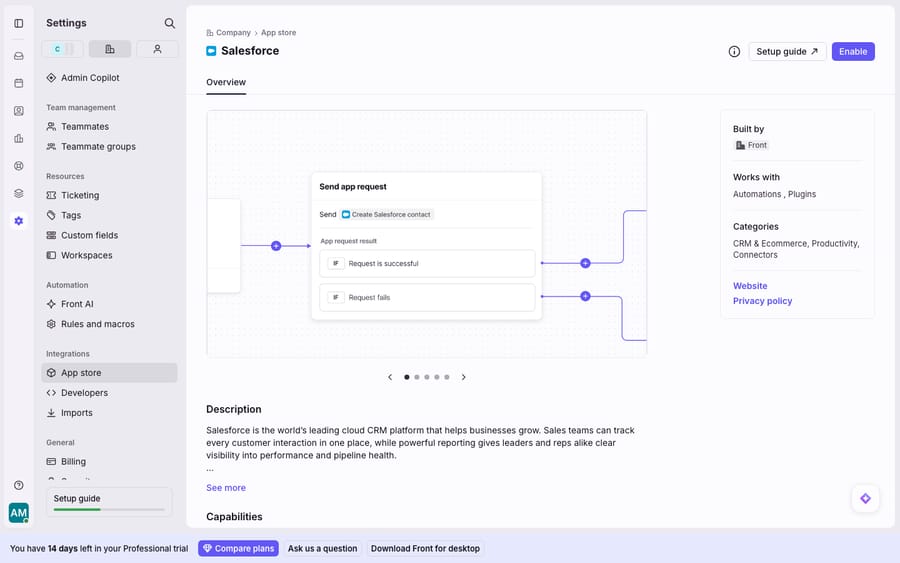
- Authenticate with Salesforce. After Enable, Front hands off to Salesforce to authorize the connection with your Salesforce credentials. The field and data configuration happens on the Salesforce side of the handshake, not on the Front overview page above.
- Choose what to sync. During setup you can turn on Contacts sync and/or Accounts sync (Professional and above). Only enable what you'll use, since every synced object costs Salesforce API calls.
- Confirm the sidebar. Open any conversation, click the Salesforce icon in the right-hand app switcher, and check that contact, account and case data resolves.
That's the whole install. The sidebar is live immediately. A first-time account sync can take a while to backfill, since Front supports "syncing a maximum of 500k accounts," per its accounts documentation.
Is the Front Salesforce sync one-way or two-way?
The most common misunderstanding is expecting a two-way sync. It isn't one:
| Data | Direction | Where it shows up | Plan |
|---|---|---|---|
| Accounts | One-way, Salesforce → Front | Sidebar + rules/analytics/search | Professional+ |
| Contacts | One-way, Salesforce → Front | Sidebar + rules/analytics/search | Professional+ |
| Opportunities, Cases, Leads, Tasks, Notes | Viewed live in sidebar | Salesforce sidebar plugin | All plans |
| Edits made in the Front sidebar | Written back to Salesforce | Salesforce records | All plans |
The nuance: the bulk sync (Accounts, Contacts) flows one way into Front's data layer so rules can read it, but the sidebar plugin lets a teammate update a record or create a case, and those specific edits push back to Salesforce. So it's one-way sync plus interactive write-back through the sidebar, not mirrored two-way replication. If you need field-level syncing of custom fields, Front's own guide to leveraging CRM data via rules says the workflow "will require some technical development resources": pulling data from the Salesforce API and writing it through Front's contact endpoints. It's a build, not a checkbox.
How do you use Salesforce data in Front rules?
This is where the integration earns its keep. Once accounts and contacts are synced, their fields become conditions in Front's rule engine, so your shared inbox can route by CRM value instead of guesswork.
Route by account value. Front's accounts documentation notes you can "automatically assign and route conversations in Front using account data from Salesforce." A practical rule: When an inbound message is received, If the contact's account tier is Enterprise, Then assign to the strategic-accounts group and add a VIP tag. Your highest-value customers skip the general queue.
Push activity back to Salesforce. Front exposes three rule actions that write to the CRM: Create lead in Salesforce, Send Task to Salesforce, and Send Email to Salesforce, which logs the message as a completed activity. A support conversation from an unknown sender can auto-create a lead; a sales reply can log itself against the record without anyone opening Salesforce. When the sending teammate has a matching Salesforce user, they become the activity owner; if not, ownership falls to the admin who enabled the integration.
Segment analytics and search. Because synced fields land in Front's search and analytics, you can filter conversations by account or contact attributes: response times for your top accounts, volume by region, and so on.
Why does the Front Salesforce integration break?
For surfacing CRM context in the inbox, the native integration is the right tool. But there are three seams to know about before you rely on it.
Rejected credentials break your rules. Front's documentation is direct: "If your integration credentials are rejected by Salesforce, or if your company hits the API request limit you have for Salesforce, your rules will fail." When the connected user's password rotates, MFA changes, or the Salesforce user is deactivated, the token dies, and any rule that reads or writes Salesforce data stops working. The fix is admin-only: a Front company admin has to update the credentials in the Salesforce integration settings. Guard against it by connecting through a dedicated Salesforce integration user rather than a personal login.
The Salesforce API request limit is a real ceiling. Per Front, "Every time Front surfaces information from Salesforce or performs an action on your behalf, it makes API requests to Salesforce." Your Salesforce org has a daily API quota tied to your edition and license count, measured over a rolling 24 hours. A busy inbox with chatty rules can exhaust it: Salesforce returns the REQUEST_LIMIT_EXCEEDED error and your automations go dark until usage drops back under the limit. Your options are to raise the Salesforce limit or wait. In practice, sync only the objects you need and keep rule actions lean.
It's one-way for bulk data. The sync reflects Salesforce into Front; it doesn't turn Front into a CRM. Changes made in Front outside the sidebar's supported write-backs don't flow to Salesforce, and custom-field two-way sync is a development project. For a wider view of what plays well with the inbox, see the best Front integrations roundup and how they slot alongside your Front channels.
Where does an AI agent fit on top of Front and Salesforce?
The integration puts Salesforce data next to the conversation. It still takes a human to read the account, understand the question and write the answer. That's the gap an AI agent layer closes, and it's the kind of work AI agents for customer service exist for.
Macha is one such layer. It runs on top of the Front you already use through the live Macha–Front connector; it never replaces Front, your shared inboxes, or this Salesforce integration. Instead of a teammate reading the synced account panel and typing a reply, Macha's agent reads the routed conversation, works out intent, and reaches into your systems through a custom tool that turns a REST API (Salesforce's included) into something the agent can call: fetch the live account status, look up the open case, and draft or send a grounded reply. Front's rules get the conversation to the right place with CRM context attached; the agent resolves it. Connecting Front to Macha to route conversations to AI walks through the mechanics. Macha bills per ticket, one conversation charged once however many messages it takes, starting at $299 a month for 750 tickets. For how inboxes fit together as a system, the Front shared inbox model is the wider picture.
FAQ
How do I enable the Salesforce integration in Front? Open Settings → Company settings → App store, select Salesforce, click Enable, then authenticate with your Salesforce credentials. You must have Front company admin permissions. The sidebar plugin works for everyone immediately; the Contacts and Accounts sync is a Professional-plan-and-above option you turn on during setup.
Is the Front–Salesforce sync one-way or two-way? The bulk Accounts and Contacts sync is one-way, Salesforce → Front. It reflects CRM data into Front so rules, search and analytics can use it. The sidebar plugin lets teammates update records and create cases, and those edits write back to Salesforce. Custom-field two-way syncing requires development work with Front's contact APIs.
Why did my Salesforce rules suddenly stop working in Front? Almost always one of two causes: your integration credentials were rejected (a company admin must update them in the Salesforce integration settings), or you hit your Salesforce API request limit. For the quota, raise your Salesforce request limit or wait for usage over the rolling 24-hour window to fall.
What Salesforce data appears in the Front sidebar? Contact, Lead, Account, Opportunity, Task, Case and Note records, plus custom objects linked to those standard types, all inside the Salesforce plugin in Front's right-hand app switcher. You can also create cases against the contact.
Which Front plan do I need for the Salesforce sync? Professional or above. Front lists Professional at $65 a seat a month billed annually. Starter ($25) gets the sidebar plugin only.
Can I add AI on top of the Front–Salesforce integration? Yes. An AI agent layer like Macha connects to Front as a live connector alongside your existing integrations. Your rules keep routing and surfacing Salesforce context; the agent reads the conversation, pulls live CRM data through a custom tool, and drafts or sends a grounded reply.
To turn CRM context in the sidebar into answered conversations, start a free trial of Macha ($50 of usage, no credit card) and connect it to your Front.






