





 Shopify
 Stripe
 Slack
Slack Notion
 Google Workspace
 Confluence

How Do You Integrate Shopify with Front? Setup Steps and Sidebar Limits (2026)


Front's native Shopify integration puts a customer's orders, refunds and addresses in a sidebar next to the conversation, and it works on every Front plan. Setup takes two parts: a custom app built in Shopify's Dev Dashboard, then three fields in Front's App store.
Key takeaways
- Integrating Shopify with Front takes a custom app built in Shopify's Dev Dashboard with 12 API scopes, whose Client ID and Client Secret go into Front's App store.
- Shopify stopped allowing new legacy custom apps from the store admin on January 1, 2026, so Front's setup guide now routes through the Dev Dashboard.
- Front's Shopify sidebar shows customer information, order details, refunds and addresses, matched to the conversation by the contact's email or phone number.
- Front's Shopify integration is available on all plans, from Starter at $25 a seat per month billed annually up to Enterprise.
- A "No record in Shopify" message in Front usually means a wrong Client ID or Secret; a mismatched customer email is the next thing to check.

To integrate Shopify with Front, you create a custom app in Shopify's Dev Dashboard with 12 API scopes, install it on your store, then paste its Client ID, Client Secret and store subdomain into Settings → Company settings → App store → Shopify in Front. The integration is available on every Front plan, and once saved it shows each customer's orders, refunds and addresses in a sidebar next to the conversation.
| Question | Answer |
|---|---|
| Front plans that include it | All: Starter ($25/seat/mo annual), Professional ($65), Enterprise ($105) |
| Shopify side | Custom app created in the Dev Dashboard, 12 scopes, installed on the store |
| Front side | App store → Shopify → Enable app → Configure app |
| What you see | Customer info, order details, refunds, addresses |
| Direction | Shopify → Front; you read the data in Front and act in Shopify |
| Multiple stores | Yes, via "Add new store" |
What does the Front–Shopify integration actually do?
Per Front's Shopify integration page, the connector lets your team "access customer information, order details, and more" from the Front inbox. In practice, the sidebar surfaces four kinds of Shopify data tied to the person you're talking to: customer information, order details, refund information, and customer addresses.
Front matches that data to the conversation automatically. Per Front's guide to enabling the Shopify integration, the match happens on the contact's email or phone number, so when a customer emails support, Front looks them up in Shopify and pulls their record without anyone typing an order number. For a shared-inbox team, the context arrives with the conversation, not after a hunt.
One expectation to set early: this is a read integration. Shopify is the source of truth, and Front reads from it, with links that jump into the matching Shopify page. You view Shopify data inside Front; you don't edit your store from the inbox. We'll come back to what that means in practice.
What do you need before you start?
The setup is a two-part handshake between Shopify and Front, so gather these first:
- Admin access to your Shopify store: you'll be creating a custom app and installing it on the store.
- Admin access in Front: the integration is enabled under Company settings, so you need the right permission level.
- Your store subdomain: the part of your admin URL before
.myshopify.com(just the subdomain, withouthttps://or the.myshopify.comsuffix).
Plan isn't a blocker. Per Front's help center, the Shopify integration "is available on all plans": Starter, Professional, and Enterprise. That's unusually generous for a native ecommerce connector.
How do you create the custom app in Shopify?
Front connects through a Shopify custom app that you create and authorize. The path changed this year: Shopify's changelog says legacy custom apps can't be created after January 1, 2026, so new apps are built in the Dev Dashboard rather than directly in the store admin. Existing legacy apps keep working. Front's guide now follows the Dev Dashboard route:
- In the Shopify admin, open settings and select Develop apps, then click Develop apps in Dev Dashboard.
- Click Create app, give it a clear name like
Front Integrationso it's easy to find later, and create it. - Add the API scopes Front requires. The full set of 12 is:
read_customers,read_orders,write_orders,write_draft_orders,read_fulfillments,write_fulfillments,read_assigned_fulfillment_orders,write_assigned_fulfillment_orders,read_merchant_managed_fulfillment_orders,write_merchant_managed_fulfillment_orders,read_third_party_fulfillment_orders, andwrite_third_party_fulfillment_orders. - Release the version with those scopes so they take effect.
- Install the app on your store.
- From the app's Configuration tab, copy the Client ID and Client Secret. You'll paste both into Front in the next step.
Keep that tab open. Those two values plus your subdomain are all Front needs. If you skip the release step, the app installs without the scopes and Front can't read orders.
How do you enable Shopify in Front?
Now cross over to Front. Per Front's enablement guide, the integration lives in the App Store:
- Go to Settings → Company settings → App store.
- Find Shopify and click Enable app. This is the Overview/connect page shown below.
- Click Configure app and fill in the three fields:
- Store subdomain: the part before
.myshopify.com. - Client ID: from the Shopify custom app.
- Client Secret: from the Shopify custom app.
- Click Save.
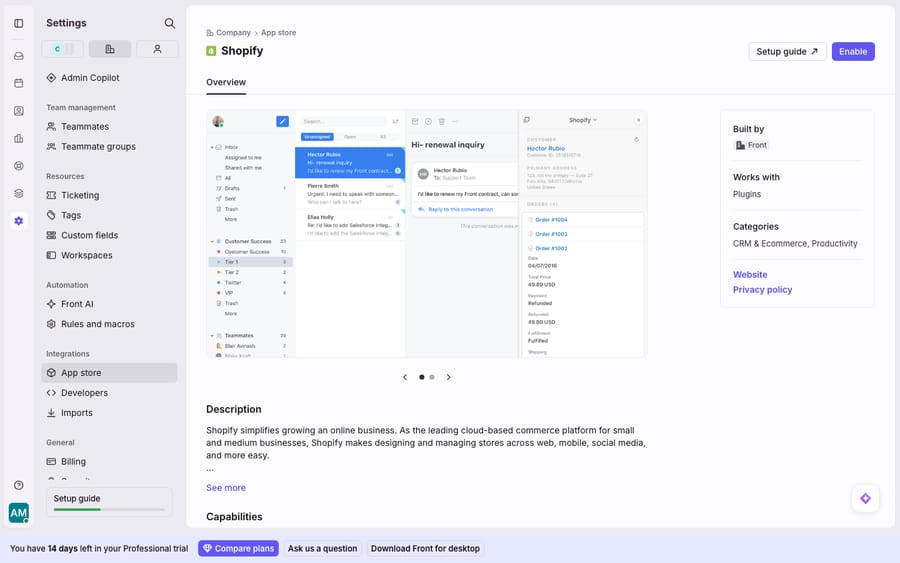
The screen above is Front's App Store connect page for Shopify, not a populated live sync: the Overview tab, the sidebar preview, and the Enable button. Store data only starts flowing once you finish the Shopify-side custom app and paste those credentials in.
Managing more than one storefront? Use Add new store to connect as many Shopify stores as you need, which is common for brands running regional or wholesale stores side by side. Agents can switch between connected stores inside the plugin.
Where does the order data show up in a conversation?
With the connection saved, the payoff shows up inside conversations. Per Front's help center, you select Shopify from the app switcher in your inbox and Front displays the customer and order information tied to the current message. For a support agent handling a WISMO ("where is my order") email, that means the customer's recent orders, fulfillment status, refunds, and shipping address are one click away, with no tab-switching and no asking the customer for an order number they don't have handy.
Because the Shopify context renders in the sidebar of the conversation itself, anyone on the team who picks up the thread sees the same order data: support, sales, or ops. If your inbox routing and channels are still a work in progress, Front channels explained covers how conversations land in the right place first, which is what makes the sidebar context land on the right agent.
What syncs, and in which direction?
| Aspect | How it works |
|---|---|
| What syncs | Customer info, order details, refunds, addresses |
| Direction | Shopify → Front (read in Front) |
| How it matches | By the contact's email or phone number |
| Where it appears | Shopify tab in the inbox app switcher / sidebar |
| Plan requirement | All plans (Starter, Professional, Enterprise) |
| Multiple stores | Supported via "Add new store" |
The row that matters is direction. You are reading Shopify inside Front; you are not running your store from the inbox. That's the right default for support context, but it shapes what the integration can and can't do on its own.
Where does the native integration stop, and where does an AI layer pick up?
Front's native Shopify integration does one job well: it puts the customer's Shopify record beside their conversation. For an ecommerce team, that alone removes a lot of tab-switching. Here's where it stops.
It's a viewer, not an agent. The sidebar surfaces the order; a human still reads the question, works out what the customer is asking, and types the reply. On a busy Black Friday queue, "the agent can see the order faster" is a real gain but not the same as "the order status question got answered without an agent."
Matching depends on clean contact data. Because Front ties the Shopify record to the conversation by email or phone, a customer who emails from a different address than the one on their order won't match. Front's troubleshooting notes say a "No record in Shopify" message usually means the Client ID or Secret is wrong, so check those first. If the credentials are right and one customer still shows no record, compare the email on the conversation with the one on the order; guest checkouts and shared household inboxes are the usual mismatch.
Actions happen in Shopify. Refunds, order edits, and fulfillment changes are still done in the Shopify admin. The write scopes exist in the app setup, but the day-to-day agent experience is look, then click through.
The customer still asks. Even with order data one click away, the WISMO question lands as a fresh conversation every time, and someone has to answer it.
That last gap is where an AI agent layer fits: not replacing Front or its Shopify integration, but doing the reasoning and the reply the native connector doesn't. The broader category of AI agents for customer service exists for this work. Macha is one such layer: it runs on top of the Front you already use through the live Macha–Front connector, and it doesn't replace Front, your shared inboxes, or your Shopify integration. You keep Front's sidebar showing the order at a glance. Macha's agent reads the incoming WISMO email, works out that the customer wants a tracking status, and pulls the live fulfillment state through Macha's own Shopify connector (Get Order, Search Orders by customer email), or through a custom tool when the tracking lives in a 3PL's API. Then it drafts or sends the tracking update itself. The native integration shows the order; the agent answers about it. If you want the mechanics, connecting Front to Macha to route conversations to AI walks through it. Macha bills per ticket, one conversation charged once however many messages it takes, starting at $299 a month for 750 tickets, with setup and monitoring by the Macha team included. For how Shopify fits alongside your other connectors, the best Front integrations rounds up the ecosystem, and Front shared inbox explained covers the collaborative model the whole thing rides on.
FAQ
How do I connect Shopify to Front? Create a custom app in Shopify's Dev Dashboard (Develop apps → Develop apps in Dev Dashboard → Create app → add the 12 required scopes → release → install → copy Client ID and Secret). Then in Front go to Settings → Company settings → App store → Shopify → Enable app → Configure app, enter your store subdomain, Client ID, and Client Secret, and Save.
What Shopify data shows up in Front? Customer information, order details, refund information, and customer addresses, matched to the conversation by the contact's email or phone number and shown by selecting Shopify from the app switcher in your inbox.
Is the Front Shopify sync two-way? No. Shopify is the source of truth and Front reads from it. You view Shopify data inside Front and follow links into Shopify to make changes there.
Which Front plan do I need for the Shopify integration? Any of them. Per Front's help center, the Shopify integration is available on Starter, Professional, and Enterprise.
Why does Front show "No record in Shopify" for a customer? Front's help center points to incorrect credentials first, so re-check the Client ID and Secret. If they're right, the customer's email or phone in Front probably doesn't match their Shopify record, which is common with guest checkouts and alternate addresses.
Can I still create a custom app from the Shopify admin? Not a new legacy one. Shopify stopped allowing new legacy custom apps from January 1, 2026, so you create the app in the Dev Dashboard. A legacy app you already set up for Front keeps working.
Can I answer WISMO questions automatically with Front and Shopify? Not with the native integration alone, which surfaces the order for an agent to read. An AI agent layer like Macha connects on top of Front, reads the WISMO email, pulls live order and fulfillment status through its Shopify connector or a custom tool, and drafts or sends the tracking reply itself.
Ready to turn "the agent can see the order" into "the order question answered itself"? Start a free trial of Macha with $50 of free usage and no credit card, and connect it to your Front.






