





 Shopify
 Stripe
 Slack
Slack Notion
 Google Workspace
 Confluence

How Do You Integrate Slack with Front? Setup, Slack Inbox and Limits


A Front company admin connects Slack once under Company settings, App store, Slack, Enable app; after that you can push conversations into Slack by hand or by rule, act on them from Slack, and even run a Slack channel as a Front inbox. Front says both halves are available on all plans, but private channels, one-way edits and a missing backlog trip teams up.
Key takeaways
- Front's Slack integration has two separate halves: Send to Slack for pushing conversations into a channel, and a connected Slack channel that becomes a two-way Front inbox.
- Enabling the Slack app in Front requires company admin permissions and is done once under Company settings, App store, Slack, Enable app, on any Front plan.
- With Front's Enable interactive message menus toggle on, Slack users in the channel a conversation was sent to can assign, move or archive it using message buttons.
- Front's Group consecutive top-level messages threading mode merges messages from the same Slack user within 5 minutes of each other into one Front conversation.
- Connecting a Slack channel to Front imports no history, and message edits and deletions only sync from Slack to Front, never the other way.

To integrate Slack with Front, a Front company admin opens Company settings → App store → Slack → Enable app, signs in to Slack, and saves; after that you can send conversations to Slack by hand or by rule, and optionally connect a Slack channel as a Front inbox. Front says the integration is available on all plans.
| Part of the integration | What it does | Who can set it up |
|---|---|---|
| Send to Slack | Posts a Front conversation into a Slack channel or DM, manually or from a rule | Front company admin enables the app once |
| Interactive message menus | Lets Slack users assign, move or archive the Front conversation from Slack | Company-level toggle |
| Slack inbox | Turns a Slack channel into a Front channel your team triages and replies from | Front company or workspace admin who is a member of the Slack channel |
What does the Front + Slack integration actually do?
There are really two distinct integrations sharing the name, and it helps to separate them before you touch a setting.
The first is Send to Slack: a way to take a Front conversation (an email, a ticket, a chat) and post it into a Slack channel or DM for internal collaboration, with buttons in Slack that let people assign, move or archive it. This is the escalation and notification half.
The second is a Slack inbox (a Slack channel connected as a channel in Front), where messages posted in Slack become Front conversations your team triages, replies to, tags, and closes like any other inbox. This is the two-way messaging half.
Most teams start with the first and adopt the second later. If you're still mapping how inboxes and channels fit together in Front generally, Front channels explained and the wider Front shared inbox model are good primers. Below we set up both.
How do I enable the Slack app in Front?
The integration is enabled once for the whole company, and you need Front company admin permissions to do it. Your Slack admins also need to allow the Front app to be installed in the workspace. Per Front's guide to enabling and using the Slack integration:
- Click the gear icon and navigate to Company settings.
- Select App store from the left menu, find Slack in the list, and click See details.
- Click Enable app.
- Click Sign in to Slack and authorize the integration against your workspace.
- Optionally toggle on Enable interactive message menus (more on this below).
- Click Save.
That's the connect step: it authorizes Front to talk to your Slack workspace. The screenshot below is this App Store page for Slack, where the Enable button lives.
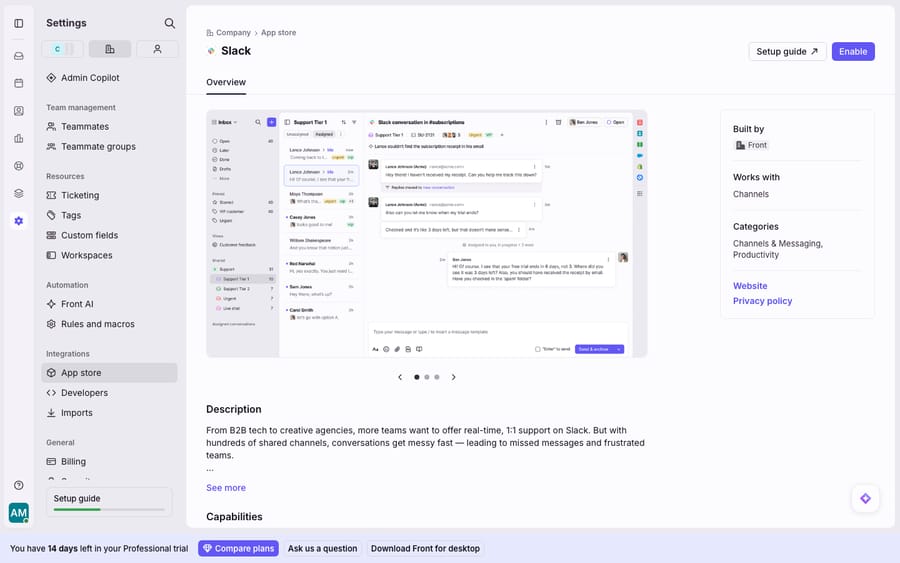
Note what this page is: the connect/overview screen. Enabling the app authorizes the link; the channels you post to, the rules that fire, and the inbox you build all get configured afterward. The overview page itself never shows a live, two-way synced channel.
How do I send a Front conversation to Slack?
Once enabled, there are two ways to get a Front conversation into Slack.
Manually, open the conversation, click the three-dot menu on a message, and select Send to Slack. Front's bot posts it into the channel or user you choose. Good for one-off "can someone look at this?" moments.
Automatically, by rule, add a Send to Slack action to a Front rule. Per Front's documentation, you enter either a channel name with the hash sign (#support) or a user's Slack display name, with the @ optional (sophia or @sophia). This is how you build escalation channels: a rule that watches for, say, a VIP tag or an SLA-at-risk condition and posts the conversation straight into #escalations where a lead can jump in fast. A rule like When an inbound message is received → If tag is urgent → Then Send to Slack #support-escalations turns a quiet inbox item into a visible ping the moment it matters.
Two Front concepts pair naturally here: internal collaboration and mentions. When you need a teammate's input without sending anything to the customer, you use Front's internal comments and @mention a teammate inside the composer. Front notifies them the same way an @mention would in Slack, keeping the discussion attached to the conversation rather than scattered across DMs.
Can my team act on Front conversations from inside Slack?
Yes, with the Enable interactive message menus toggle from the setup steps. With it on, Slack users in the channel where a conversation was sent can use message buttons to assign, move, or archive that Front conversation directly from Slack, and the actions sync back to Front. Your on-call lead can claim and archive an escalation without leaving the channel they're already watching. It is a company-level setting that admins control.
Because anyone in the channel can act, an escalation posted into a broad channel gives everyone in it the ability to reassign or archive the underlying Front conversation. Scope your escalation channels deliberately.
How do I connect a Slack channel as a Front inbox?
If you want your team to handle Slack messages inside Front, treating each post like a ticket with an assignee and status, you connect a Slack channel as a Front channel. Per Front's guide to setting up a Slack inbox, you'll need to be a company or workspace admin and a member of the Slack channel you're connecting; for a private channel the Front bot must be added as a member, and connecting channels from several Slack workspaces requires you to be a Slack admin in each.
- Go to Workspace settings (or Personal settings) → Inboxes → create or open a shared inbox.
- Select Channels → Connect channel → Slack, then Sign in with Slack.
- Select the Slack channel(s) you want and continue (rename and acknowledge access for private channels).
- Choose a threading mode (see the table below).
- Set the auto-close timing (Never or 1 day) and route the channel(s) to the right inbox(es).
The threading mode is the decision that shapes everything downstream, because it decides what becomes a "conversation":
| Threading mode | What it does | Best for |
|---|---|---|
| Group consecutive top-level messages | Messages from the same user within 5 minutes of each other merge into one Front conversation; Front replies appear inline under the latest top-level message | Running chat you casually monitor |
| Create multiple conversations in Front | Each top-level message becomes its own conversation; inline thread replies stay grouped | When every post is essentially a ticket needing its own status/assignee/SLA |
| Create a single conversation in Front | All top-level messages without threads merge into one conversation; Front replies appear as top-level messages in Slack | Top-level-reply workflows |
For a request queue you want the middle option so each ask gets an owner and an SLA; for a monitored buzz channel the first keeps the noise collapsed. Front recommends auto-close Never for the first two modes and 1 day for the single-conversation mode in support use, so new questions split into new conversations.
What syncs between Slack and Front, and what doesn't?
For a connected Slack inbox, Front syncs both ways: messages, attachments, rich text, standard emoji and emoji reactions. Two things are one-way, Slack to Front: message edits, and deletions. A message deleted in Slack is removed from Front, but one deleted in Front stays in Slack.
What is not synced, per Front's documentation: historical messages (only new activity after connecting flows in), bot messages, and custom emoji. So the moment you connect a channel, you're starting fresh; don't expect the backlog to appear.
Where does Front's Slack integration fall short?
Front's native Slack integration is well built and covers real collaboration needs. But it has edges worth knowing before you rely on it:
- Private-channel gotcha. A Send to Slack rule targeting a private channel won't post unless Front is added as an integration to that channel (from the channel's Integrations tab). This is the most common reason "my rule isn't posting": the channel is private and Front was never invited in.
- Private-message gotcha. If a rule triggers on a private Front message, teammates who click the Slack link hit an error because they don't have access to it. Front's own fix is to @mention those teammates into the conversation before the Send-to-Slack action runs.
- Inbox limits. For a connected Slack inbox, you can only @mention members already in the channel, there's no auto-suggestion dropdown once a channel passes 500 members, and direct messages aren't supported as a connected channel.
- No history, one-way edits and deletions. As above: no backlog import, and edits and deletions only propagate Slack to Front.
None of that is a knock on Front; it's the shape of a notifications-and-collaboration bridge rather than a reasoning engine. The integration is excellent at moving a conversation to where a human will see it. What it can't do is understand the conversation and answer it: a Send-to-Slack rule posts the same way whether the customer asked "where's my order" or "cancel my account."
That gap is where an AI agent layer fits. The broader category of AI agents for customer service exists for exactly this reasoning work, and Macha is one such layer that runs on top of the Front you already use through the live Macha–Front connector. It doesn't replace Front, your shared inboxes, or your Slack integration. Your Slack rules keep escalating and notifying; Macha's agent reads the routed conversation, works out intent instead of matching a keyword, and pulls a real order or account status through a custom tool that turns your REST API into something the agent can call. Macha also has its own Slack connector, so an agent can post to a channel itself. A Send-to-Slack rule raises a hand; the agent then resolves the request. Macha bills per ticket, one conversation charged once however many messages it takes, starting at $299 a month for up to 750 tickets. For the mechanics, connecting Front to Macha to route conversations to AI walks it through end to end, and if you're weighing other add-ons, the best Front integrations puts Slack in context.
FAQ
Do I need admin rights to connect Slack to Front? Yes. Enabling the Slack app requires Front company admin permissions, and it's a one-time setup for the whole company. Connecting a Slack channel as a Front inbox requires company or workspace admin rights plus membership of that Slack channel, and for private channels the Front bot must be added as a member.
How do I send a Front conversation to a Slack channel automatically? Add a Send to Slack action to a Front rule, specifying a channel (#support) or user (sophia/@sophia). A common escalation pattern is When inbound message is received → If tag is urgent → Then Send to Slack #escalations.
Can my team act on a Front conversation from inside Slack? Yes, if you turn on Enable interactive message menus. Slack users in the channel the conversation was sent to can assign, move, or archive the Front conversation using message buttons, and it syncs back to Front. Scope those channels carefully.
Why isn't my Send to Slack rule posting? The most common cause is a private Slack channel: the rule won't post unless Front is added as an integration to that channel. If the rule triggers on private Front messages, teammates also can't open the link unless you @mention them into the conversation first.
Does connecting a Slack channel import old messages? No. The Slack inbox sync is forward-only: historical messages, bot messages, and custom emoji don't sync. Only activity after you connect the channel flows into Front.
Which Front plans include the Slack integration? Front's help center says both the Slack integration and the Slack inbox are available on all plans.
Ready to turn "escalated to Slack" into "actually answered"? Start a free trial of Macha and connect it to your Front in minutes.






