





 Shopify
 Stripe
 Slack
Slack Notion
 Google Workspace
 Confluence

How to Set Up CSAT Surveys in Gorgias (2026)


Gorgias CSAT surveys are switched on from Workflows, Tools, CSAT, where you choose channels, write the message and set the send delay, which defaults to 2 hours after close. Surveys only go to tickets that pass Gorgias's eligibility checks, and a rule can exclude the rest.
Key takeaways
- Gorgias CSAT surveys are set up under Workflows, Tools, CSAT, where the channel toggles, message editor and send delay sit on one screen, and they are available on all Helpdesk plans.
- Gorgias sends the CSAT survey 2 hours after a ticket closes when no delay is selected, and skips tickets reopened before that delay passes.
- A Gorgias CSAT survey only goes out when the ticket has one customer message and one agent reply, runs over 250 characters, and had an agent reply less than a week before close.
- A Gorgias rule with the action Exclude ticket from CSAT stops specific tickets getting a survey, but it must run before the ticket closes.
- Gorgias CSAT survey links expire after 3 months, and a reassigned ticket's rating moves to the new assignee within about 10 to 15 minutes.

To set up CSAT surveys in Gorgias, open the dropdown menu in the top-left corner, go to Workflows → Tools → CSAT, enable the survey, tick the channels to survey (Chat, Email, Contact Form, Help Center), write the message, pick the send delay, and click Save Changes. If you pick no delay, Gorgias sends the survey 2 hours after the ticket closes, and the feature is available on all Helpdesk plans.
The settings that matter, in one place:
| Setting | Where / what | Detail from Gorgias's docs |
|---|---|---|
| Location | Workflows → Tools → CSAT | Channels, message and timing on one screen |
| Channels | Chat, Email, Contact Form, Help Center | Social-media tickets excluded |
| Send delay | Dropdown after close | 2 hours by default |
| Eligibility | Automatic gating | 1 customer message + 1 agent reply, over 250 characters, last agent reply under a week before close |
| Exclusions | Rule action "Exclude ticket from CSAT" | Must apply before the ticket closes |
| Results | Statistics → Support Performance → Satisfaction | Links expire after 3 months |
What does a Gorgias CSAT survey actually measure?
A satisfaction survey in Gorgias fires after a ticket is closed and asks the customer to rate the interaction on a five-star scale. The rating is stored against the ticket and the agent who handled it, then rolled up into your satisfaction reporting so you can see trends rather than one-off reactions. It's a native feedback loop with no third-party tool required, and the fastest way to put a number on something that otherwise lives in gut feel.
CSAT is not sent on every closed ticket. Per Gorgias's CSAT documentation, a survey only goes out when all of these are true: there's at least one message from the customer and one reply from an agent (rules and notes don't count), the whole conversation is longer than 250 characters, the agent's last reply happened less than a week before close, the ticket isn't snoozed or deleted, and it's on an eligible channel. That gating stops you surveying auto-closed noise or one-line acknowledgements. For a deeper tour of the feature, see Gorgias CSAT explained; this post is the hands-on setup.
Where do you turn on CSAT surveys in Gorgias?
Everything lives in one place, the Workflows area:
- From your helpdesk, click the dropdown menu in the top-left corner and select Workflows.
- In the menu, find Tools, then select CSAT.
- Enable the satisfaction survey if it isn't already on.
That single screen holds the channel toggles, the message editor and the timing control, so you won't need to hop between settings pages to get a working survey.
Which channels can you survey?
Not every channel is eligible. Surveys can only be sent when the ticket channel is Chat, Email, Contact Form or Help Center. Social-media tickets (Instagram, Facebook and similar) are excluded.
- On the CSAT screen, check or uncheck the boxes next to the ticket types you want to survey.
- For most ecommerce teams, Email and Chat carry the volume, so enable those first.
- Add Contact Form and Help Center if they're meaningful volume for you.
A common pattern is to survey Email and Chat (your resolved WISMO and returns conversations) and hold off on channels where responses are sparse, so your CSAT number reflects enough ratings to mean something.
How do you write the survey message?
The survey message is the customer-facing prompt, and you can personalize it with variables. Keep it short, warm and unambiguous about what the stars mean.
- Type your message in the message field on the CSAT screen.
- Use the dropdown menus at the top of the editor to insert variables (the same variables macros use), for example the customer's or the agent's name, so the ask feels human.
- Read it as a customer would: one clear line, then the rating.
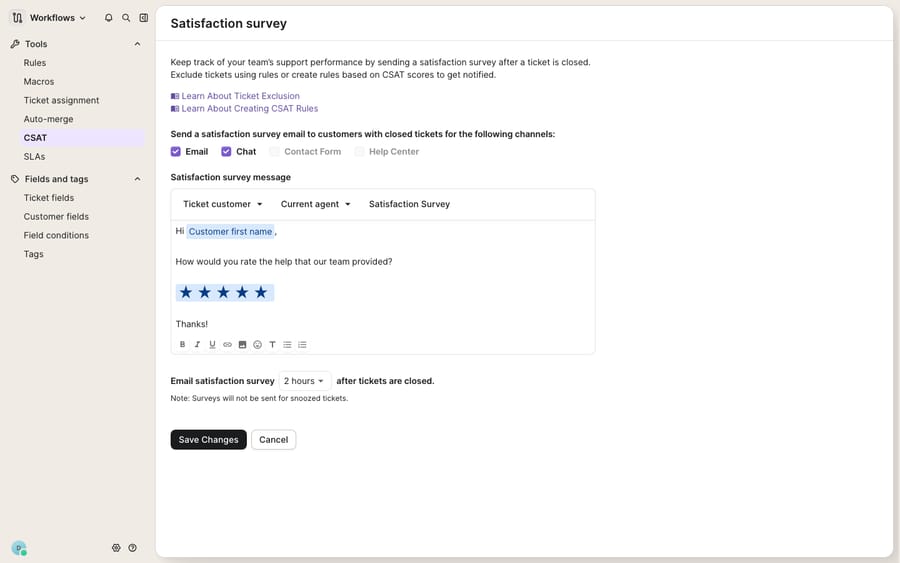
A good ecommerce message reads like a person: "Hi {{customer name}}, thanks for reaching out about your order. How would you rate the help you got from {{agent name}}?" (insert the real variables from the dropdown rather than typing these placeholders). That's friendlier than a generic "rate your experience."
When should the survey fire after a ticket closes?
This setting quietly makes or breaks your response rate. You choose how long after a ticket is closed the survey is sent, from a dropdown.
- On the CSAT screen, open the timing dropdown and select how long after close the survey should go out.
- If you leave it unset, Gorgias sends it 2 hours after the ticket is closed: long enough that the customer isn't mid-conversation, short enough that the experience is still fresh.
- Click Save Changes.
Why the delay matters: fire it instantly and you can catch a customer who's still typing a follow-up; wait too long and they've forgotten the interaction. Two hours is the documented default, but the right answer depends on your channel. A live chat about a checkout bug might warrant a shorter wait than a multi-day email thread about a return. The table below is our suggested starting point, not Gorgias guidance.
| Trigger timing | Good for | Watch out for |
|---|---|---|
| Shortest delay available | Live chat, quick WISMO answers | Customer may still reply and reopen |
| 2 hours (default) | Most email + chat tickets | Balanced; a safe starting point |
| Same day / several hours | Returns, subscription changes | Feedback still fresh, fewer reopens |
| Next day | Complex, multi-touch resolutions | Lower response rate the longer you wait |
Gorgias applies two guardrails on top of your timing. If a ticket is closed and then reopened before the delay passes, no survey goes out. And if the customer already received a survey for a ticket that reopens and closes again, Gorgias doesn't send a second one.
How do you stop specific tickets getting a survey?
Use a rule. Gorgias's exclusion guide walks through it: go to Workflows → Tools → Rules, create a custom rule, set the WHEN and IF conditions for the tickets you want to skip (a channel, language, tag or customer), and in the THEN section choose the action Exclude ticket from CSAT. The exclusion has to apply before the ticket closes; a survey that has already gone out can't be recalled. This is cleaner than switching off whole channels. See Gorgias rules explained for how the rule builder works.
Where do you read your CSAT results?
Gorgias shows CSAT under Statistics → Support Performance → Satisfaction, where the score rolls up by agent and over time. A few details from the docs:
- Survey links expire after 3 months, so old, unanswered surveys stop hanging around.
- Customers can re-score by reusing the original link within those 3 months, so a rating isn't necessarily final.
- If a ticket is reassigned, the rating moves to the new assignee, and the change takes around 10 to 15 minutes to show.
Treat the number as a trend line, not a verdict on a single ticket.
What can't Gorgias CSAT do on its own?
Gorgias's native CSAT is simple, well-timed and built into your help desk. For most Shopify and ecommerce teams it's all the satisfaction measurement they need. But CSAT measures the experience; it doesn't improve it. The score tells you Tuesday's chat queue frustrated shoppers. It can't go back and answer those tickets faster.
It's also only as representative as your volume allows. The 250-character floor and channel limits mean many quick, one-line resolutions never get rated, so your CSAT reflects your longer conversations more than your fast ones. And the survey can't tell a low score caused by a slow reply from one caused by a policy the customer didn't like. You get the number, not the why, unless you read the ticket.
That's where an AI agent layer fits, and it's worth thinking through the build-versus-buy tradeoff before you reach for one. The broader category of AI agents for customer service exists to do the work a survey can't: resolving the ticket. Macha is one such layer. It runs on top of the Gorgias you already use as a live connector and does not replace your help desk or its CSAT surveys. It reads and writes the same tickets your surveys rate: answering WISMO by looking up order status through a custom tool that turns your Shopify or shipping API into something the agent can call, handling routine returns and subscription changes, and drafting grounded replies so the experience a customer rates is faster and more consistent. Keep Gorgias CSAT as your source of truth for how customers feel, and add an agent to lift the thing they're rating. Macha fits teams on Zendesk, Freshdesk, Gorgias, Front, HubSpot or Intercom who want that work done inside the ticket.
One contrast on billing. Gorgias's own AI Agent is billed per resolution: $0.90 per resolved conversation on most plans, per Gorgias's pricing article, or $1.00 on monthly plans and $0.90 on annual, per its pricing FAQ in October 2026. Macha bills per ticket: one conversation, charged once however many messages it takes, starting at $299 a month for up to 750 tickets with setup and monitoring by the Macha team included. The details are on the pricing page. If you're mapping the Gorgias landscape more broadly, what is Gorgias is a good orientation, and Gorgias macros explained pairs well with CSAT, since a consistent macro-driven reply is exactly what shoppers end up rating.
FAQ
Where do I set up CSAT surveys in Gorgias? From your helpdesk, click the dropdown menu in the top-left corner, select Workflows, then find Tools and select CSAT. That one screen holds the channel toggles, the message editor and the timing control.
When is the survey sent after a ticket closes? You choose the delay from a dropdown on the CSAT screen. If you don't pick one, Gorgias sends the survey 2 hours after the ticket is closed by default.
Which channels support CSAT surveys? Surveys are only sent on Chat, Email, Contact Form and Help Center tickets. Social-media channels are excluded.
Why aren't my customers getting surveys? Gorgias only sends a survey when all conditions are met: at least one customer message and one agent reply, a conversation longer than 250 characters, an agent reply less than a week before close, and an eligible channel. Snoozed and deleted tickets are skipped, as are tickets reopened before the delay, tickets that already got a survey, and tickets a rule excluded.
Can I exclude certain tickets from CSAT? Yes. Create a rule under Workflows → Tools → Rules with the action Exclude ticket from CSAT. It must run before the ticket closes, because a survey that has been sent can't be recalled.
Which Gorgias plans include CSAT? Gorgias's documentation says CSAT surveys are available on all Helpdesk plans.
Can I add AI to Gorgias CSAT without replacing Gorgias? Yes. An AI agent layer like Macha connects to Gorgias as a live connector and runs on top of your existing help desk and its CSAT surveys. It helps raise the score by resolving WISMO, returns and subscription questions faster, while Gorgias stays the system of record for how customers feel.
Ready to lift the experience your customers actually rate? Start a free trial of Macha ($50 of usage, no credit card) and connect it to your Gorgias in minutes.






