Shopify
 Stripe
 Slack
Slack Notion
 Google Workspace
 Confluence

How Do You Set Up Email Signatures in Freshdesk? Agent, Global and Dynamic


Freshdesk signatures come from four places: the agent's own Profile settings, the admin-edited agent record, the global Agent Reply Template, and the free Dynamic Signature app. Choosing one layer for the name-and-title block is what stops customers seeing the sign-off twice.
Key takeaways
- A Freshdesk agent sets a personal email signature from the profile picture menu under Profile settings, in the Signature field, and it is added whenever the agent clicks Reply.
- Freshdesk admins set one footer for every agent under Admin, Workflows, Email Notifications, Templates, by editing the Agent Reply Template, which has an HTML code view.
- The Dynamic Signature app is free and published by Freshworks, with 1.2k installs, and inserts Agent name, Agent email, Agent number, Agent title and Ticket ID placeholders.
- Dynamic Signature applies a template only when all its conditions match, choosing by Email, Product or Group, so different teams can send different signatures automatically.
- If a Freshdesk agent has a personal signature and the Agent Reply Template also carries one, Freshdesk can append both and customers see the sign-off twice.

To set up a Freshdesk email signature, each agent opens Profile → Profile settings and fills in the Signature field; admins can set the same field under Admin → Agents, add one footer for everyone in the Agent Reply Template, or install the free Dynamic Signature app for placeholder-driven signatures. Pick one of those layers to hold the name-and-title block, or customers can see it twice.
| Method | Best for | HTML support | Where you set it |
|---|---|---|---|
| Personal agent signature | Individual name/title per agent | No (rich text only) | Profile → Profile settings → Signature |
| Admin-set agent signature | Standardising during onboarding | No (rich text only) | Admin → Agents → edit agent → Signature |
| Agent Reply Template | One global footer for everyone | Yes (code view) | Admin → Workflows → Email Notifications → Templates |
| Dynamic Signature app | Per-agent / per-group, automated | Yes (code view) | Marketplace Apps → Dynamic Signature |
Where can a Freshdesk signature come from?
Before touching any settings, know that a Freshdesk reply signature can come from three sources, and they stack in ways that surprise people.
The first is the personal agent signature, which an individual agent owns and edits. The second is the admin-set agent signature: the same field, filled in by an admin while creating or editing that agent. The third is the Agent Reply Template, a single global block at the bottom of every agent's outgoing reply regardless of who they are. The Dynamic Signature app is a fourth, optional layer that automates all of this with placeholders and conditions.
The trap to remember up front: if you fill in both a personal signature and the global Agent Reply Template, Freshdesk can append both, and customers get your sign-off twice. Pick one layer as the source of the actual signature and keep the other minimal.
How does an agent set their own signature?
This is the fastest path and the one most agents will use. Per Freshworks' article on adding and editing agents, an agent manages their own signature from their profile.
- Click your profile picture at the top-right corner of Freshdesk.
- Choose Profile settings.
- Scroll to the Signature field.
- Compose your signature in the rich-text editor: you can bold, italicise, underline, change text colour, add links and insert an image.
- Save.
From then on, the signature is appended automatically whenever the agent clicks Reply on a ticket. One limitation: agents cannot paste raw HTML into the signature from Profile settings. They get the rich-text toolbar, not a code view. Images have to be hosted at a public URL and inserted with the image button, not uploaded as an attachment.
How does an admin set an agent's signature?
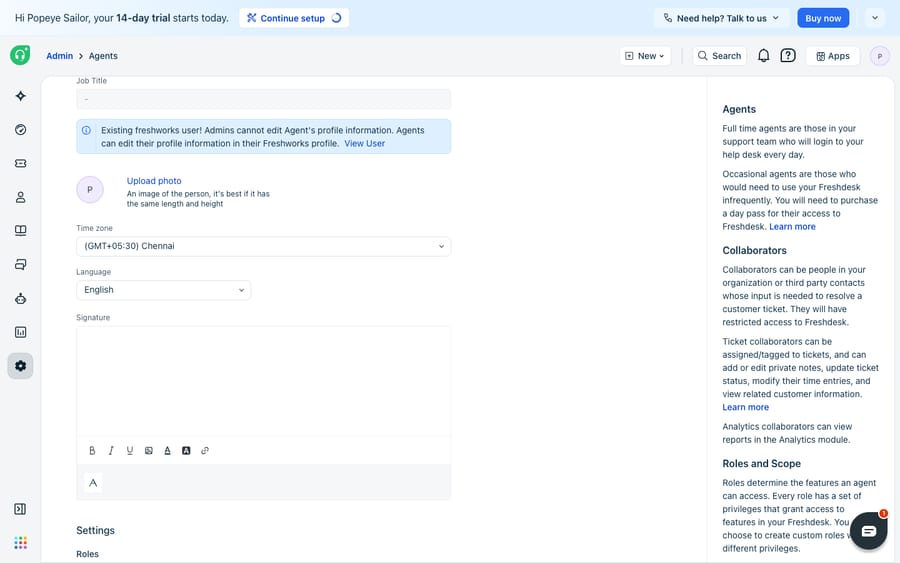
Admins can fill in the same signature field on an agent's behalf, which is useful when onboarding someone or standardising the format across a team. Freshworks' agent article says admins provide the agent's email signature in the Agent Details section while creating or editing the agent.
- Go to Admin → Agents.
- Click New Agent, or find the agent and click the pencil icon to edit.
- Find the Signature field in the agent's details.
- Compose or paste the signature and save.
If you're doing this at scale (provisioning many agents, assigning roles and setting signatures in the same flow), read our walkthrough on how to manage agents in Freshdesk so the signature step becomes part of a repeatable onboarding routine.
How do you add one signature for every agent?
If you want the same footer on every agent's replies (a company address, a legal disclaimer, a support-hours line), the personal-signature route means editing it person by person. The Agent Reply Template does it with one edit for the whole help desk, and it is the layer that does support HTML.
- Go to Admin → Workflows → Email Notifications.
- Open the Templates tab.
- Click Edit next to Agent Reply Template.
- Add your shared block. This editor exposes a code/HTML view, so you can drop in a formatted HTML signature here, which Profile settings won't let you do.
- Save.
This is the right home for anything that must be identical everywhere, and the wrong home for anything personal. Because it applies to every reply, remember the duplication warning: if agents also carry a personal signature, decide which layer holds the name-and-title block.
How do you make signatures dynamic with placeholders?
The three layers above are static. If you want signatures that change based on who is replying or which group the ticket belongs to, without editing anyone's profile, install Dynamic Signature. The marketplace listing shows it as free and published by Freshworks, for Freshdesk and Freshdesk Omni, with 1.2k installs. Per the Dynamic Signature integration docs, it pulls agent and ticket data into placeholders.
- Click the Freshworks Marketplace icon (top-right) and choose Marketplace Apps, or go to Admin → Apps.
- Search for Dynamic Signature and click Install.
- The app auto-fills your Freshdesk domain and API key; click Authenticate account.
- Name your template and build the signature in the editor.
- Insert placeholders: the app supports Agent name, Agent email, Agent number, Agent title and Ticket ID, plus a company logo via a public image URL, and a code view for HTML.
- Set the conditions that decide when this signature applies: by Email, Product or Group. The signature only fires when all selected conditions match.
Once installed, signatures auto-populate in replies based on your conditions, and a Dynamic Signature icon appears in the reply editor so agents can pick an alternative template when they need to.
Which signature method should you use?
The right layer depends on how personal or how uniform each part of the block needs to be; the table at the top of this page compares all four. A common, clean setup: a short personal signature per agent for the human touch, plus a minimal global Agent Reply Template for the legal disclaimer only, so nothing duplicates and the two layers do different jobs. Teams that lean on templated replies often pair this with canned responses in Freshdesk so the whole reply, signature included, is consistent.
What can't Freshdesk signatures do?
Freshdesk's native signature tooling is solid for what it is: three predictable layers plus a free app that covers placeholders and conditions. The edges are worth knowing.
The HTML gap is real. Agents editing their own signature in Profile settings get rich text, not a code view, so an HTML signature with a banner or button has to live in the Agent Reply Template or the Dynamic Signature app, and the two static layers can duplicate if you're not careful. The placeholder set is narrow: name, email, number, title and ticket ID cover the basics, but there's no native field for the agent's calendar link or a per-region disclaimer unless you build separate conditional templates. And a signature is cosmetic. It makes a reply look finished; it doesn't help write the reply or check that the answer above it is correct.
That last point is where an AI agent layer earns its place, and it's worth weighing the build-versus-buy tradeoff before adding one. The category of AI agents for customer service exists to do the part your signature can't: reading the ticket and drafting the answer. Macha is one such layer. It runs on top of the Freshdesk you already use as a native connector, so it never replaces your help desk or its signature settings. You connect Macha to Freshdesk with your subdomain and API key, and it drafts or posts grounded replies into the same tickets, which land under whatever signature you configured here. We cover the end-to-end setup in how to automate Freshdesk with AI, and Macha can pull live order or account details into a reply through a custom tool that wraps your own API. (Macha's connector is for Freshdesk specifically, not Freshchat, Freshservice or Freshcaller. Macha bills per ticket, from $299 a month for up to 750 tickets: one conversation, charged once however many messages it takes, never per resolution. The pricing page has the full table.)
Let Freshdesk own the signature, the branding and sign-off on every message, and put an agent on top for the part the signature can't do: producing the answer that sits above it.
FAQ
Where do I set my email signature in Freshdesk? As an agent, click your profile picture at the top-right, choose Profile settings, and edit the Signature field. It's appended automatically whenever you click Reply on a ticket.
Can I add a global signature for all agents at once? Yes. Go to Admin → Workflows → Email Notifications, open the Templates tab, and edit the Agent Reply Template. That block applies to every agent's replies and, unlike Profile settings, supports an HTML/code view.
Why does my signature appear twice? Because two layers are both active. If you set a personal signature and a signature in the Agent Reply Template, Freshdesk can append both. Keep the full name-and-title block in only one layer and use the other for something minimal, like a disclaimer.
What dynamic placeholders can I use in a Freshdesk signature? Through the free Dynamic Signature app, published by Freshworks, you can insert Agent name, Agent email, Agent number, Agent title and Ticket ID, plus a logo via public image URL, and apply signatures conditionally by Email, Product or Group.
Is the Dynamic Signature app free? Yes. Its Freshworks Marketplace listing shows it as free, published by Freshworks, and available for Freshdesk and Freshdesk Omni.
Can I use an AI tool without changing my Freshdesk signatures? Yes. An AI agent layer like Macha connects to Freshdesk as a native connector and drafts or sends replies into your existing tickets, which land under the signatures you already configured. It runs on top of Freshdesk and doesn't replace your help desk or its settings.
Ready to make every reply read as human as it looks? Start a free trial of Macha and connect it to your Freshdesk in minutes.