





 Shopify
 Stripe
 Slack
Slack Notion
 Google Workspace
 Confluence

How Do You Set Up a Knowledge Base in Front? 6 Steps (2026)


Front includes a knowledge base on all current plans: you enable it in the help center settings, build categories, publish articles, and then publish the help center itself. Only a custom domain needs the Professional plan or above.
Key takeaways
- Enabling a Front knowledge base means opening Help center, clicking Settings in the Site management sidebar, switching on Knowledge base under Features, and clicking Save.
- Front's knowledge base is included on all current plans, while a custom help center domain needs the Professional plan, which costs $65 a seat billed annually.
- Each Front help center holds one knowledge base, so a public customer KB and a private internal wiki need two separate help centers.
- Front articles stay invisible to the public until the help center portal itself is published, even when every article already shows Published status.
- Front's help center accepts up to two custom domains, one primary and one redirect, and provisioning after verification can take up to 30 minutes.

To set up a knowledge base in Front, open Help center → Settings, switch on Knowledge base under Features and click Save, then build categories, publish articles, and publish the help center itself so non-admins can see it. The knowledge base is included on all current Front plans; only a custom domain needs the Professional plan or above (Front help center, checked 24 September 2026).
| Step | Where in Front | Plan or permission |
|---|---|---|
| 1. Enable the knowledge base | Help center → Settings → Features | All current plans; help center admin |
| 2. Build categories and sections | Knowledge base → Content → Add | Admin or content editor |
| 3. Write and publish articles | Content → Add article | Admin or content editor |
| 4. Publish the help center | Help center settings | Help center admin |
| 5. Add a custom domain | Settings → Domains | Professional plan or above; company or help center admin |
| 6. Add languages (optional) | Knowledge base settings | All current plans |
What do you need before you start?
Front's knowledge base lives inside the help center, and per Front's getting-started guide it's available on all current plans. Legacy plans may need an upgrade. Two roles matter: a help center admin can edit both content and settings (full access), while a knowledge base content editor can only edit content. You need full admin access to enable the feature in the first place.
One structural rule shapes everything below: one knowledge base per help center. If you need more than one, say a public customer KB and a separate internal wiki, a company admin creates additional help centers. Inside a knowledge base, content nests in three layers: categories (folders that appear as cards on the homepage), optional sections (sub-groupings inside a category), and articles (the actual documents).
How do you enable the knowledge base in Front?
The feature is off until you switch it on.
- Select Help center from the navigation menu and pick the help center you want to use.
- Click Settings in the Site management sidebar.
- Under Features, enable the Knowledge base toggle and click Save.
A Knowledge base section now appears in the left panel. If you're on a legacy plan without access, Front's guide notes you can upgrade in Billing or contact your account manager.
How should you structure categories and sections?
Structure first, articles second: deciding your top-level categories before you write saves a painful reorganisation later. Per Front's guide to organizing with categories and sections, categories are the folders that show up as cards, and sections group articles within them.
To create a category:
- Open Help center → Knowledge base → Content tab.
- Click the Add arrow and choose Add category.
- Fill in the New category form:
- Icon: the symbol shown on the category card.
- File category under: where the category sits (under the Homepage or nested inside another category).
- Make private (optional): a private category is hidden from the public and reachable only via direct link.
- Name: the label on the card (e.g. Billing & Payments).
- Description (optional): supporting text shown on the card and category page.
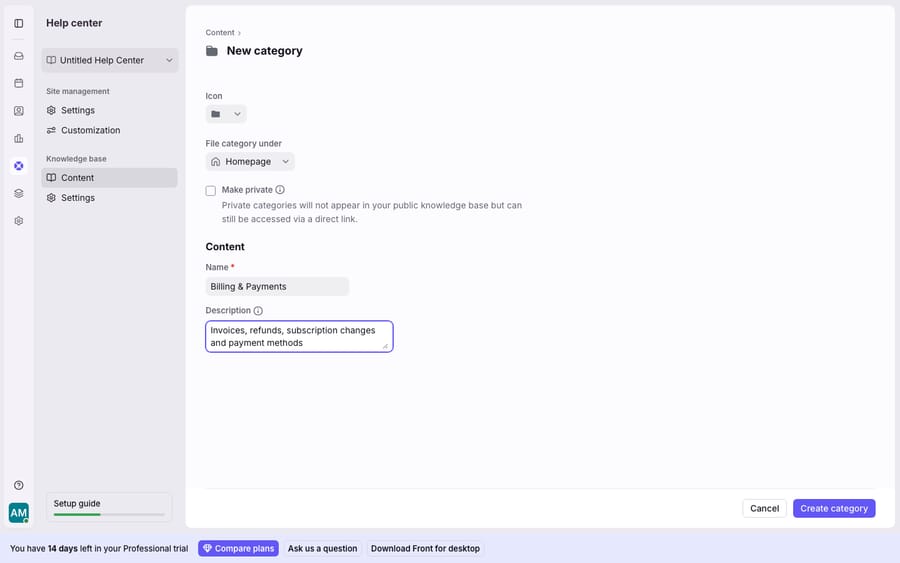
Two things to know before you commit to names. The category URL is generated automatically from the name and can't be edited afterward, so pick names you'll want in the URL. And Front lets you convert a category into a section, but not a section back into a category, so when in doubt, start something as a category. To add a section instead, use Add → Add section, which asks where to file it and what to name it.
A workable structure for a mixed support-and-sales team might look like this:
| Category | Sections | Public or private |
|---|---|---|
| Getting Started | Setup, First steps | Public |
| Billing & Payments | Invoices, Refunds, Plan changes | Public |
| Troubleshooting | Common errors, Account access | Public |
| Sales & Onboarding | Trials, Demos | Public |
| Internal Playbooks | Escalation, SLAs | Private |
How do you write and publish articles in Front?
To add an article, go to the Content tab and click Add article, then write in Front's editor. Per Front's guide to adding and editing articles, every article carries one of three statuses: Draft (visible only to admins), Published (live), or Published with pending changes (the live version stays up while your edits sit in a separate draft). Front creates that draft the moment you edit a published article, so you never overwrite what customers are reading.
To make an article live:
- Open the article and finish your content.
- Assign it to a category or section so it has a home.
- Add up to five keywords. These boost the article in your knowledge base's internal search.
- Click Publish. A green success message appears at the bottom left.
One detail that surprises people: article URLs show only the article ID, not a readable slug. Front says title slugs are "not supported at this time". It doesn't affect internal search, but know it before you plan an SEO strategy around clean URLs. Front's editor also offers AI Compose to draft a new article or refine an existing draft.
Why can't customers see your published articles?
Because publishing an article is not the same as publishing the site. Front requires both. Individually published articles stay invisible to the public until the help center portal itself is published. So after your articles have Published status, publish the help center from its settings. Only then can non-admins reach the site.
How do you put the help center on a custom domain?
By default your help center lives on a Front-hosted URL. To serve it from help.yourcompany.com instead, you need a custom domain. Per Front's custom domain guide, this is available on the latest Professional plan or above and requires company admin or help center admin permissions. It cannot be an apex domain: kb.acme.org works, acme.org does not. For current seat prices, Front Professional is $65 a seat billed annually ($85 monthly), against $25 for Starter (front.com/pricing, 24 September 2026).
Do the DNS part a day or two ahead of launch:
- In help center Settings → Domains, click Add custom domain and enter your domain.
- Copy the Host and Required values Front gives you.
- In your DNS provider, create a CNAME record: Name = the Host value, Value = the Required value, TTL 60.
- Click Verify in Front. Provisioning can take up to 30 minutes.
- When the status reads Redirect, add the second CNAME record Front provides, then Refresh status.
- Once the status shows Primary, click Go live.
Front requests the SSL/TLS certificate for you; if you already run CAA records on the domain, add certainly.com so the certificate can be issued. A help center supports up to two custom domains: one primary and one redirect.
Can a Front knowledge base serve more than one language?
Yes. If you support customers across regions, Front lets you add multiple languages to a knowledge base so content is served in a visitor's preferred language. You maintain the article set per language, and AI Compose can help translate existing articles to bootstrap a new language rather than rewriting from scratch. It's the right lever when a single English KB is quietly failing a chunk of your audience.
What can't a Front knowledge base do on its own?
Front's knowledge base is a solid self-service tool at no extra cost, and for a public help center or an internal wiki it does the job cleanly. But a knowledge base is passive: it only helps the customer who chooses to search it. Plenty don't. They open a conversation and ask anyway, and now a human has to find the article the customer didn't. Self-service deflection has a ceiling, and that ceiling is human behaviour.
The plan seams, stated plainly: the custom domain is Professional and above, article URLs are ID-based rather than slug-friendly, and search relies on the five keywords you remember to tag. Front's pricing tiers spell out what unlocks where, and our Front knowledge base explained piece goes deeper on the feature itself.
How can an AI agent answer from your Front articles?
This is the seam where an AI agent layer earns its place: not by replacing your knowledge base, but by putting it to work on the conversations customers actually send. The broader category of AI agents for customer service exists for this. Macha is one such layer, running on top of the Front you already use through the live Macha–Front connector. It does not replace Front, your help center, or your shared inboxes.
The Front connector handles conversations (read, reply, comment, tag, assign); it does not sync help center articles. To use your articles as knowledge, add the published help center to Macha as a website source: Macha crawls up to 200 pages, indexes them, and the agent searches them when it reads a customer's message in your Front inbox, then drafts or sends an answer sourced from your own content. When a question needs a real-time fact, like an order status or an account balance, a custom tool lets the agent call your REST API for it. Every published article does double duty: self-service for searchers, and grounding for the agent answering everyone else. Macha bills per ticket, from $299 a month for 750 tickets: one conversation, charged once however many articles it reads and replies it drafts, never per resolution. For the mechanics, connecting Front to Macha to route conversations to AI walks through the setup, and the wider Front shared inbox model shows where it all lands.
FAQ
Is Front's knowledge base free, or does it cost extra? The knowledge base is available on all current Front plans and isn't an add-on. A custom domain for your help center requires the Professional plan or above.
How do I publish an article in Front? Open the article, assign it to a category or section, add up to five search keywords, and click Publish. A green success message confirms it. Then publish the help center portal itself, or non-admins still won't see your live articles.
Can I have more than one knowledge base? You get one knowledge base per help center. To run separate ones, for example a public customer KB and a private internal wiki, a company admin creates additional help centers, each with its own knowledge base.
Can I use my own domain for the Front help center? Yes, on Professional or above. You add a custom domain (like kb.yourcompany.com, not an apex like yourcompany.com) under Settings → Domains, create the CNAME records Front supplies, verify, and go live once the status reads Primary. Front requests the SSL certificate for you.
Can Macha use my Front knowledge base to answer customers? Yes. Macha connects to Front for conversations, and you add your published help center as a website source. The agent then searches those articles to draft or send grounded replies to customers who write into your Front inbox, not only the ones who search the KB.
Want your help center answering live conversations? Start a free trial of Macha ($50 of usage, no credit card) and connect it to your Front.






