







 Shopify
 Stripe
 Slack
 Notion
 Google Workspace
 Confluence


HubSpot Ticket Pipelines and Statuses Explained (2026): Defaults, Plan Limits and Automation


A HubSpot ticket pipeline is the ordered list of statuses a ticket moves through, and a ticket status is one step in it. Every account gets a default Support Pipeline with four statuses: New, Waiting on contact, Waiting on us and Closed. Free accounts can only use that default pipeline. Starter allows 15 custom pipelines, Professional 100 and Enterprise 350, and that allowance is shared with deals and every other object. Each status you add is marked Open or Closed, and that one choice decides how HubSpot treats the ticket in reporting, SLAs and reopening. This guide covers the defaults, the plan limits, how to edit statuses, how statuses change on their own, and where an AI agent fits.
Key takeaways
- HubSpot's default Support Pipeline has four ticket statuses, New, Waiting on contact, Waiting on us and Closed, and HubSpot calls ticket pipeline stages statuses by default.
- HubSpot's custom pipeline allowance is 0 on free tools, 15 on Starter, 100 on Professional and 350 on Enterprise for seat-based accounts, shared across all objects.
- Every custom ticket status in HubSpot must be set as Open or Closed, and the Pipelines API stores that choice as a ticketState of OPEN or CLOSED.
- HubSpot's ticket status automation needs Service Hub Starter or higher and can change the status when an email is sent from the ticket or when the customer replies.
- When a contact replies to an existing thread on a closed HubSpot ticket, the status moves to the first Open status in the pipeline, such as New.

| Default status | Open or Closed | What usually moves a ticket here |
|---|---|---|
| New | Open | A new ticket from email, chat, a form or the portal; a reply that reopens a closed ticket |
| Waiting on contact | Open | Your team replies and needs something from the customer (ticket status automation can set it) |
| Waiting on us | Open | The customer replies (ticket status automation can set it) |
| Closed | Closed | An agent, a workflow or an integration closes it |
What is the difference between a pipeline and a status in HubSpot?
A pipeline is a container. A status is a stage inside it. HubSpot uses the same pipeline machinery for deals, tickets, leads and custom objects (and its Breeze customer agent works on the same ticket records), and its own knowledge base says ticket stages "are called statuses by default, but they are the same as other object stages." The Ticket status property records which stage a ticket sits in, and the pipeline property records which pipeline.
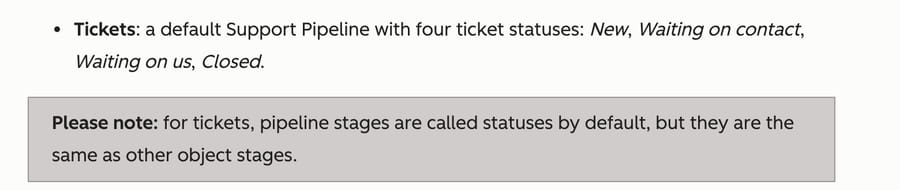
That design works differently from Zendesk or Freshdesk. In those desks, status is a fixed system field with a handful of values. In HubSpot, status is a pipeline stage you design, so two pipelines can have completely different statuses, and a ticket moved between pipelines has to land on a stage that exists in the new one. Our Zendesk ticket statuses explainer and Freshdesk statuses explainer cover the fixed-field model if you're comparing.
How many ticket pipelines can you have on each HubSpot plan?
HubSpot counts custom pipelines across every object together, and the default pipeline for each object doesn't count. Per the knowledge base article updated October 22, 2026:
| Subscription | Custom pipelines (seat-based accounts) | Custom pipelines (Flexible Seats and Credits accounts) |
|---|---|---|
| Free tools | 0 | 0 |
| Starter | 15 | 15 |
| Professional | 100 | 350 |
| Enterprise | 350 | 350 |
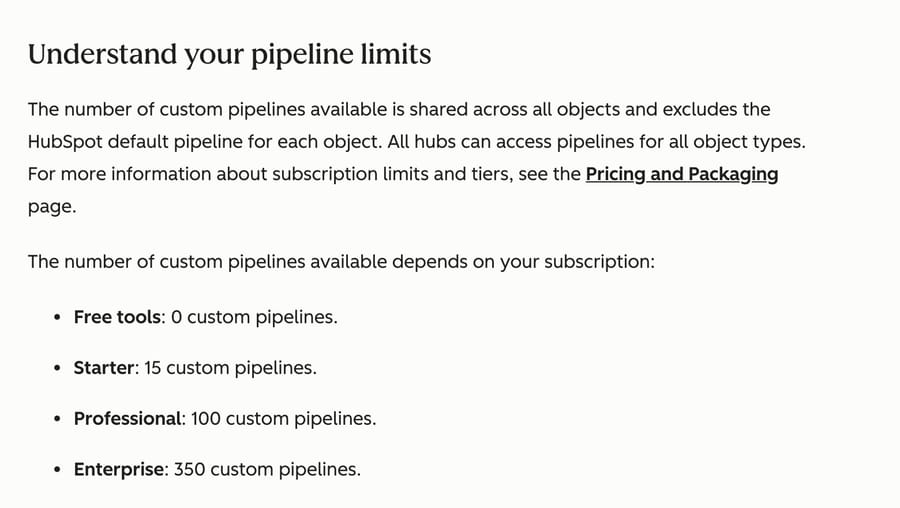
Do the arithmetic for a Starter account. Fifteen sounds like plenty until sales takes four deal pipelines, onboarding takes two project pipelines and support wants one per product line. The shared pool also tells you HubSpot's incentive. A cap that every team draws from runs out at the moment a company has started to depend on pipelines, which is exactly when an upgrade to Professional is easiest to sell. Plan for the pool, not for support's share of it. Our HubSpot Service Hub pricing guide has the seat prices for each tier.
A few other gates from the same article: cloning a pipeline and restricting a pipeline to a team need Professional or Enterprise, and creating or editing pipelines and statuses needs the "Edit property settings" permission.
How do you add or edit a ticket status?
The path is the same on every paid tier:
- Click the settings icon in the top navigation bar.
- Go to Data Management > Objects and choose Tickets from the object dropdown.
- Open the Pipelines tab and click the pipeline name.
- Add a status, rename one, drag to reorder, or delete one.
- For each new status, choose Open or Closed.
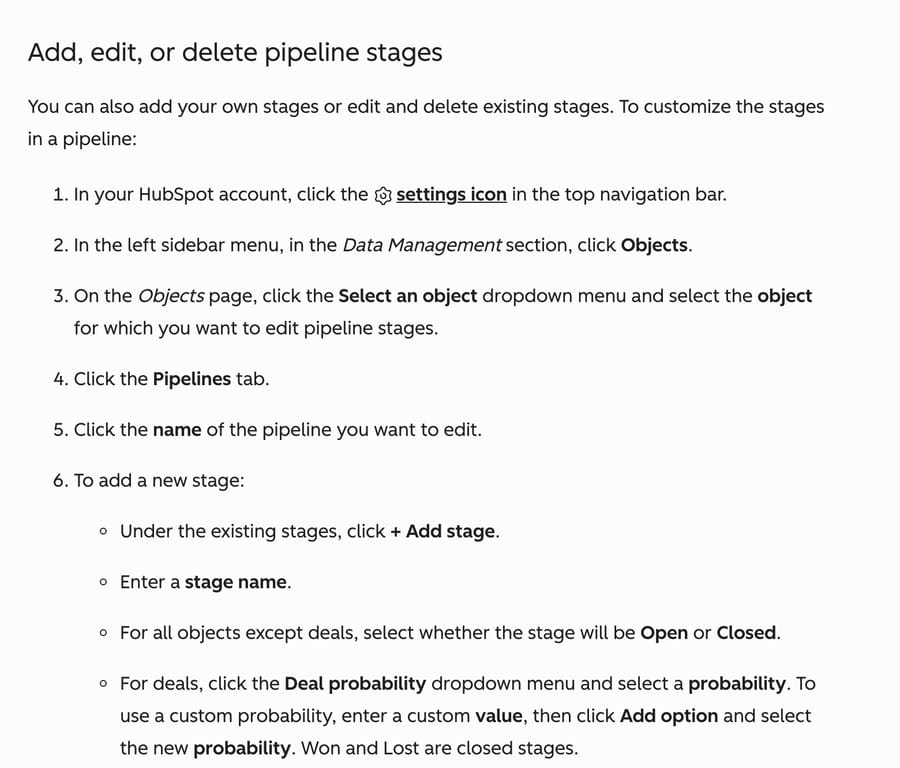
Open or Closed is the real setting. The name is a label for people. The Open or Closed state is what HubSpot acts on. HubSpot's developer documentation stores it on the stage as ticketState, with a value of OPEN or CLOSED, and the same guide says a ticket pipeline can hold up to 100 stages. A status called "Resolved, awaiting confirmation" set to Closed counts as closed everywhere, whatever its name implies.
You can't delete what's in use. HubSpot blocks deleting a status that still holds tickets or is referenced by conditional properties, and blocks deleting a pipeline that holds records or is used in other tools or integrations. Move the tickets first and check workflows and reports that filter on the status.
Conditional stage properties enforce data. On the same settings page you can show specific properties when a ticket enters a status, and make them required. A "Closed, refund issued" status that requires a Refund amount property is a cheap way to keep reports honest.
Should a support team use one pipeline or several?
An r/hubspot thread from October 2024 asked other teams how they set up ticket pipelines (thread). The poster's team had moved from Salesforce, built a pipeline per team, and was starting to doubt it. That doubt is usually right. Each pipeline has its own statuses, so cross-pipeline reports need care, routing and automations are set per pipeline, and every pipeline spends one slot from the shared allowance.
A workable rule: make a new pipeline only when the process is genuinely different, with different steps, owners or SLAs. Bug escalations to engineering, onboarding projects and returns handling often qualify. "Billing questions" versus "technical questions" usually doesn't. Use a ticket property (category, product, team) for those and filter views on it, which also keeps routing rules simpler.
How do ticket statuses change automatically?
HubSpot has three layers, and each one has its own plan gate.
1. Ticket status from associated emails (Service Hub Starter, Professional or Enterprise). In the pipeline's Automate tab, the Update ticket status section has two triggers. "An email is sent to a customer" changes the status when someone emails the contact from the ticket record. "A customer replies to an email" changes it when the contact replies on the thread the ticket was created on. Hover a row and click Edit action to choose the target status. The usual setup is agent reply sets Waiting on contact, customer reply sets Waiting on us.
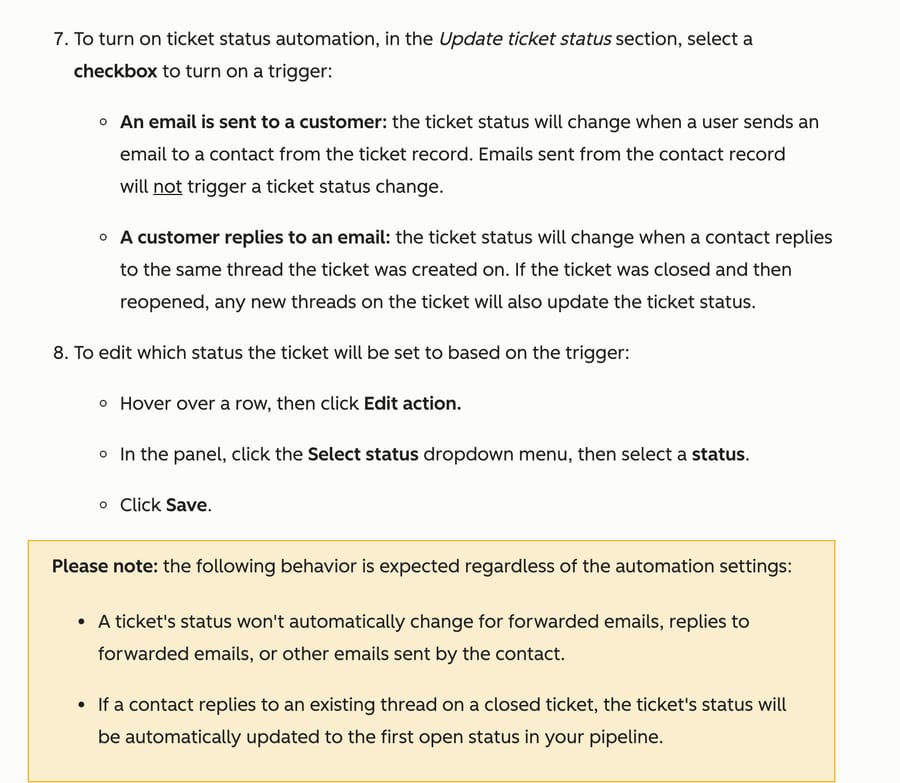
The exceptions are worth knowing before you trust the statuses. HubSpot says the status won't change for forwarded emails, replies to forwarded emails, other emails the contact sends, emails sent from the contact record rather than the ticket, or replies sent from a user's connected personal inbox.
2. Reopening (help desk, Service Hub Professional or Enterprise). When a customer replies to a closed ticket, the help desk's ticket reopening setting decides what happens: always reopen, reopen within a time frame, or never reopen and create a linked new ticket. A reopened ticket goes to the first Open status in its pipeline and gets a Ticket reopen date. Our closed-ticket guide covers this setting in detail.
3. Workflows (Professional or Enterprise). A ticket-based workflow can set Ticket status on any condition: close tickets left in Waiting on contact for seven days, move a ticket to an escalation status when priority goes to High, and so on. Workflows are where most of the custom logic lives, and they're also where loops start if two automations both write the status.
How do statuses affect SLAs and reporting?
SLA goals for help desk tickets (time to first reply, time to next reply, time to close) are Service Hub Professional or Enterprise, set under Settings > Inbox & Help Desk > Help Desk > SLAs. The same settings page has a Pausing section where you pick a pipeline and one or more statuses. The timer stops while a ticket sits in a chosen status and resumes when it leaves. That makes Waiting on contact the obvious status to pause on: you shouldn't miss an SLA while the customer hasn't answered.
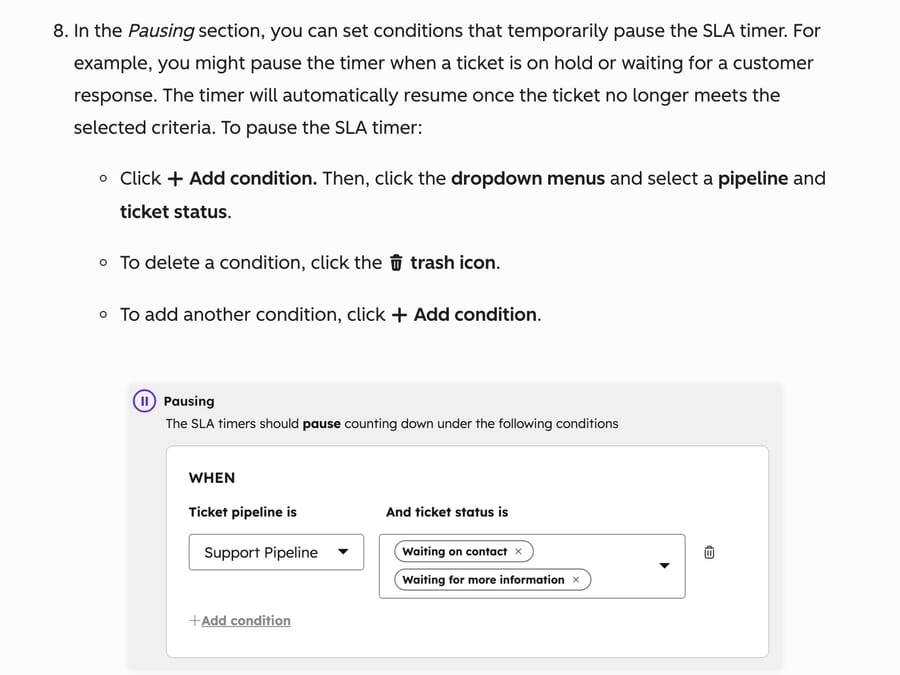
Statuses also drive time-in-status reporting. HubSpot's default ticket properties article (updated November 5, 2026) lists stage calculated properties for every status, including Date entered, Date exited, Cumulative time in and Latest time in, and says a Professional or Enterprise subscription is required to use them. Fewer, clearly named statuses make those reports readable.
This is also where badly designed statuses hurt. If your team uses a Closed-state status as a parking spot ("Waiting for customer confirmation" set to Closed), the ticket drops out of open queues and SLA timers, and HubSpot's reopen logic treats the next reply as a reopen. Keep anything that still needs a person in an Open status.
Where Macha fits
Native automation moves a status when an email event happens. It doesn't read what the email says. A customer who replies "thanks, all sorted" and one who replies "this still doesn't work" both land in Waiting on us.
Macha is an AI agent layer that runs inside the HubSpot account a team already uses, built and monitored by the Macha team. Its HubSpot connector includes List Pipelines, which returns every pipeline and its stage IDs, and Update Ticket, which sets status, owner, priority or any custom property. List Pipelines exists so the agent moves a ticket to a real stage ID instead of guessing a stage name, which matters when you run several pipelines with similar labels.
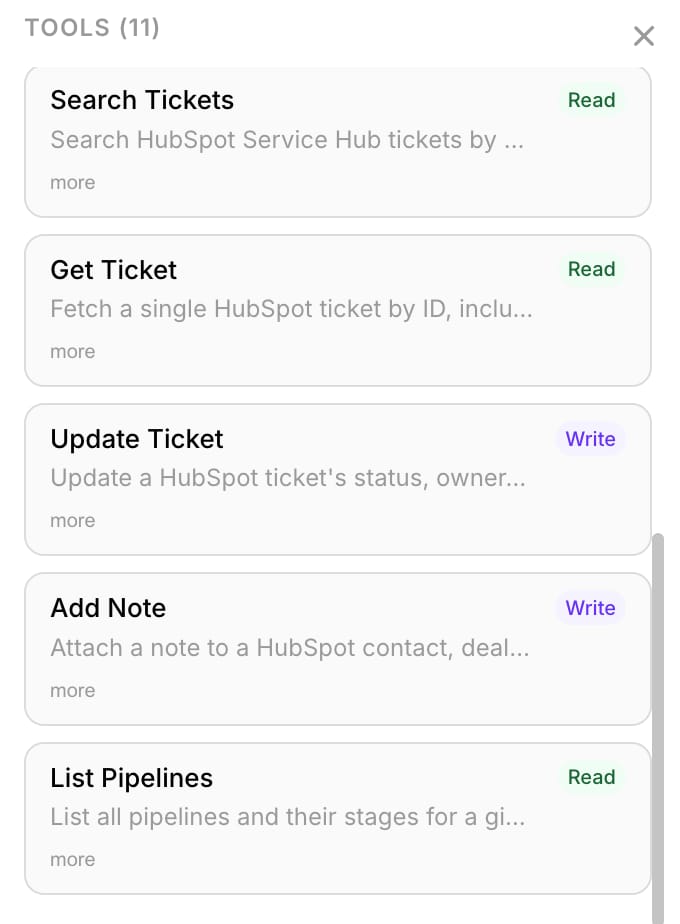
In practice an agent can start on a new ticket or a ticket update, read the thread, check the contact and their deals, reply to the customer or log a note for review, and set the status that matches what was said: Closed for "all sorted", Waiting on us with a High priority for "still broken". The Ticket Updated trigger takes a property filter, so you can scope it to properties the agent doesn't write and avoid the loop described above. The full list of HubSpot actions and triggers is on the Macha HubSpot integration page, and the Macha on HubSpot page shows the end-to-end flow.
Macha fits teams on Zendesk, Freshdesk, Gorgias, Front, Gladly, Crisp, HubSpot or Intercom who want the agent working inside their existing tickets and pipelines rather than in a separate tool. The Macha team analyzes your past tickets, builds the agent and its knowledge, and runs it in safe mode, with drafts as notes, until the drafts are right. That's included on the trial and every plan at about $0.40 per ticket, along with a dedicated success manager who handles your changes; see pricing and how the done-for-you setup works.
How we researched this
We read these HubSpot pages on November 21, 2026: Set up and manage object pipelines (updated October 22, 2026), Set up pipeline automations for objects (updated September 2, 2026), Manage reopened tickets in help desk (updated November 9, 2026), Set SLA goals in help desk (updated June 30, 2026) and the Pipelines API guide. We captured the screenshots of those pages the same day and checked every plan gate against the page's own subscription box. The pipeline-per-team discussion is paraphrased from the r/hubspot thread linked above. Everything about HubSpot's behavior comes from HubSpot's public documentation; we didn't test it in a HubSpot account for this post. The Macha tool panel is a capture of our own HubSpot connector in the Macha Demo workspace, and the tool and trigger descriptions come from Macha's integration data. The 15-pipeline arithmetic is ours.
Common questions
What are the default ticket statuses in HubSpot?
New, Waiting on contact, Waiting on us and Closed, in a pipeline called Support Pipeline. The first three are Open and Closed is Closed. You can rename, reorder or delete them, or add more.
Can I create a custom ticket status on HubSpot's free plan?
You can edit the statuses of the default Support Pipeline on any plan. Creating additional pipelines needs Starter or higher, because free tools get 0 custom pipelines.
Why did my closed HubSpot ticket go back to New?
A contact replied on the ticket's thread. HubSpot moves a reopened ticket to the first Open status in its pipeline, which is New in the default pipeline. In help desk, the ticket reopening setting (always, within 3, 7 or 30 days or a custom window, or never) controls whether that happens.
Do HubSpot ticket statuses pause SLAs?
They can. On Service Hub Professional or Enterprise, the SLA settings have a Pausing section where you choose a pipeline and statuses, and the timer stops while a ticket is in one of them.
How many statuses can one HubSpot ticket pipeline have?
HubSpot's Pipelines API guide says a ticket pipeline can have up to 100 stages. The knowledge base doesn't state a separate number.
Can an AI agent change a HubSpot ticket's status?
Yes, through HubSpot's API. Macha's HubSpot connector reads the pipeline's stage IDs with List Pipelines and sets the status with Update Ticket, after reading the conversation, so the status reflects what the customer actually said.