Intercom
 Shopify
 Stripe
 Slack
Slack Notion
 Google Workspace
 Confluence

Intercom Email Forwarding Not Working? 10 Causes and Fixes (2026)


Intercom only receives email forwarded to your workspace's inbound address, so when forwarding breaks the fault is almost always at your email provider or in Intercom's own Spam folder. The ten causes below run from most to least common, each with its check and its fix.
Key takeaways
- Intercom email forwarding usually stops because the forwarding rule was switched off or edited at the email provider, a change nothing inside Intercom announces.
- Intercom email forwarding only works from an individual mailbox: shared inboxes and Microsoft 365 shared mailboxes fail verification, and Google Groups are not supported at all.
- Messages caught by Intercom's own spam filter never become conversations and are deleted after 2 months, so check the Spam folder before theorizing about headers.
- A bounce reading '550 5.7.520 Access denied, Your organization does not allow external forwarding' comes from a Microsoft 365 policy, not from Intercom.
- Intercom verification requires forwarding the confirmation email within 60 seconds, and a workspace can hold up to 10 unverified addresses and a maximum of 250 in total.
Intercom email forwarding usually stops working because the forwarding rule was switched off or edited at your email provider, and the next most common reason is forwarding from a shared mailbox or Google Group, which Intercom does not support. The ten causes below run from most to least common.
| # | Cause | Where to check |
|---|---|---|
| 1 | Forwarding switched off or filtered at the provider | Your email provider's forwarding settings |
| 2 | Forwarding from a shared mailbox, group or mailing list | The type of the source address |
| 3 | Caught by Intercom's Spam folder | Inbox › Manage › Edit sidebar › Spam |
| 4 | Caught by your own mail client's spam filter | Junk folder of the forwarding mailbox |
| 5 | External forwarding blocked (550 5.7.520) | Microsoft 365 forwarding policy |
| 6 | Verification failed | Timing, Spam folder, stripped header |
| 7 | Gmail address verified but forwarding not switched on | Gmail › Forwarding and POP/IMAP |
| 8 | Default Routing moved mail away from Gmail | Google Workspace routing rules |
| 9 | Email too big, malformed or auto-generated | Size, sender address, headers |
| 10 | Mail attributed to the wrong person | Ignored addresses and forwarded-email detection |
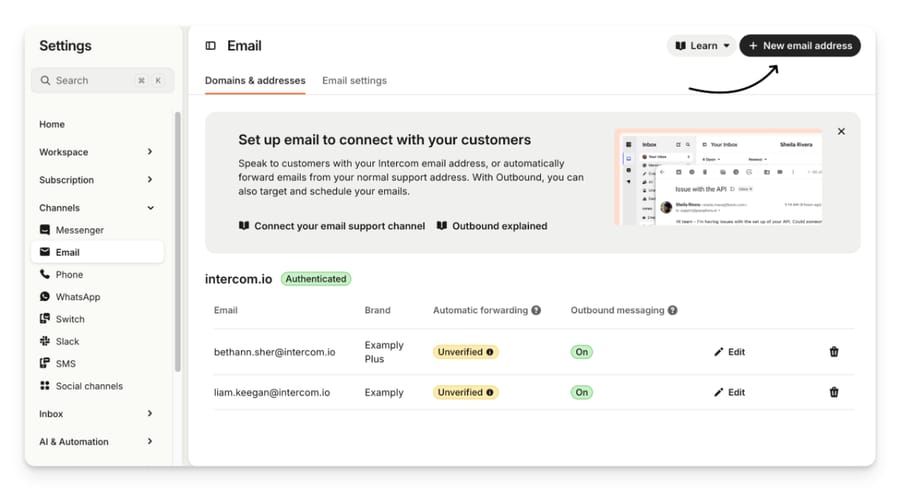
Then run the one-minute check: go to Settings > Channels > Email > Domains & addresses, click Edit next to the address, and use Check automatic forwarding. That tells you whether Intercom can see forwarding at all, which splits the list in half.
1. Did someone turn forwarding off at the provider?
This is Intercom's own first answer, and it is still the most common one. Forwarding rules get removed during mailbox migrations, security reviews and staff changes, and nothing in Intercom announces it.
Check. Log into the email provider for the forwarding address. Confirm that Intercom's default workspace email address is still in the forwarding settings and that forwarding is enabled. Find that address in Intercom at Settings > Channels > Email > Email settings, and compare it character by character; a typo looks identical to a disabled rule from Intercom's side.
Fix. Re-add the address and re-enable forwarding, then run Check automatic forwarding in Intercom.
Also check for filters. A rule that only forwards mail with a particular subject line or keyword will pass a spot check and silently drop most of your queue. Intercom names this explicitly as a cause. And review the provider's own routing rules, not just Intercom's address list: mail can be routed to Intercom from addresses that were never added in Intercom, through Google Workspace or Microsoft 365 routing.
2. Are you forwarding from a shared mailbox, group or mailing list?
Intercom's documentation states this four separate times across two articles, which tells you how often it comes up. Email forwarding can only be set up for individual email addresses. Shared inboxes and mailing groups will fail verification. Google Groups and similar mailing lists are not supported at all, for inbound forwarding or outbound sending.
Why. Mailing lists rewrite the From header under DMARC, so "John Doe" arrives as "John Doe via Support" with the original address pushed into Reply-To. Intercom then cannot attribute the email, so conversations arrive with no contact or the wrong one, and your team's replies go back to the group rather than the customer.
Check. Is the address you are forwarding from a distribution list, a Google Group, or a Microsoft 365 shared mailbox? A 2023 community thread runs exactly this course: an Office 365 customer set up forwarding, got "Delivery has failed to these recipients or groups" plus "Email forwarding is not set up", and discovered halfway through the thread that the mailbox was a Microsoft shared mailbox.
Fix. Forward from a direct, individual mailbox. If your support address has to stay a group for other reasons, route mail to Intercom at the provider level instead. In Google Workspace that is Default Routing or a redirect rule, not group membership.
Note on the personal-domain rule too: Intercom requires a work email. Addresses on @gmail.com or @outlook.com are not supported for forwarding.
3. Is the email in Intercom's own Spam folder?
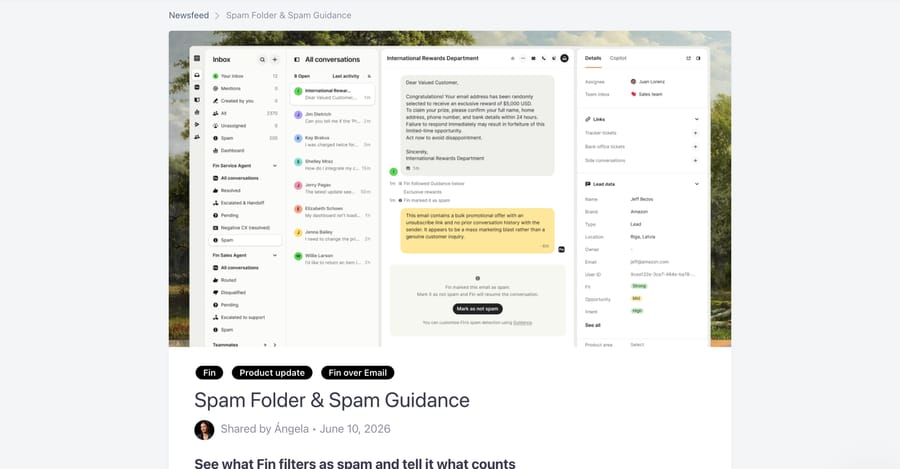
Intercom runs its own spam filtering on top of whatever your mail provider does: it scores inbound email for hidden links, malware, phishing and sender authentication, and filters anything over its threshold. If Fin over Email is enabled, a second AI filter runs after the infrastructure check and before a conversation is created, and that one makes a binary yes/no call with no score.
Messages caught by either never become conversations, so they are invisible unless you go looking.
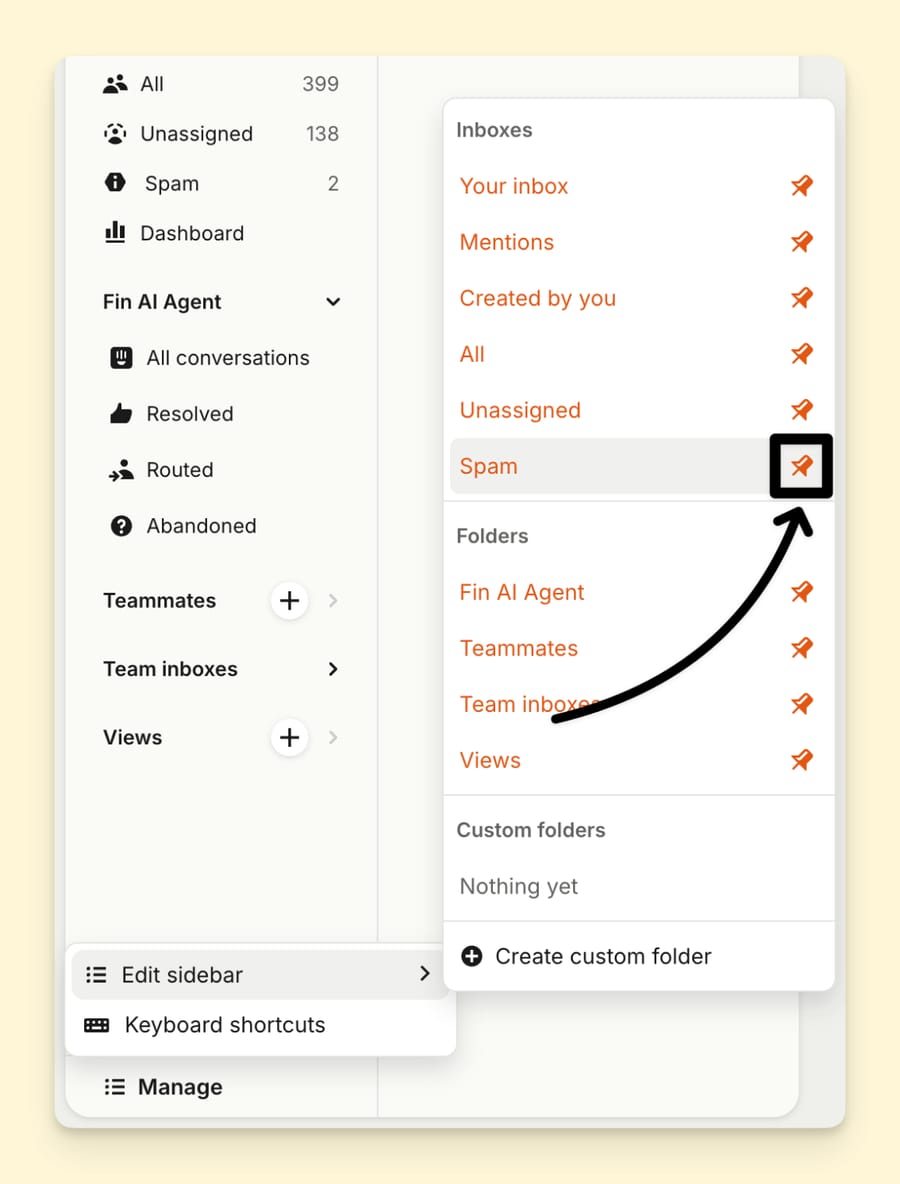
Check. Pin the Spam folder: go to the Inbox, click Manage at the bottom of the left sidebar, then Edit sidebar, and pin Spam.
Fix. Open the message and click Not spam to send it back to the inbox it was meant for. For senders that keep getting caught, add them to Trusted senders at Settings > Channels > Email > Email settings, which exempts them permanently. Add domains without the @ symbol.
This cause is worth taking seriously because it hides behind plausible theories. The most-read thread in this cluster is from January 2024, where a customer asked whether a deprecated X-BeenThere header was making Intercom treat forwarded mail as a loop. An Intercom support engineer answered publicly: it was not the header. Certain attachment filenames were pushing those messages into the workspace's Spam folder. Check the folder before you theorize about headers.
One more thing to know: emails in the Spam folder are deleted after 2 months. If you are investigating something from last quarter, it is gone.
4. Did the email go to spam in your own mail client before it was forwarded?
Different problem, same symptom. If your provider filed a message as spam, it does not get forwarded, and clicking "not spam" in Gmail or Outlook does not retroactively forward it.
Check. Look in the spam or junk folder of the forwarding mailbox for the missing message.
Fix. Forward it to Intercom manually. Then fix the underlying filtering at the provider, because Intercom cannot do anything about mail it never receives.
5. Does your organization block external forwarding (error 550 5.7.520)?
If forwarding never worked and you saw a bounce, look at its text. "550 5.7.520 Access denied, Your organization does not allow external forwarding" is Microsoft 365 policy, not an Intercom problem.
Fix. Your IT administrator needs to allow external forwarding for that mailbox, then give the change time to propagate. In Exchange, the Default rule under Mail flow > Remote domains also needs "Allow automatic forwarding" checked.
While you are in Outlook: use the redirect option rather than forwarding. Forwarding sends the mail as though you were the original sender, and redirect preserves the real one. The same applies to Amazon WorkMail, where Intercom specifically asks for a redirect rule because it keeps the original headers intact.
6. Why did verification fail?
Verification cannot be skipped. It proves you own the forwarding address, and it protects your domain reputation against bounces.
Three things break it:
- The verification email went to your Intercom Spam folder. Your provider's confirmation mail is sent to Intercom, so look in the unassigned inbox first and the Spam inbox second.
- The 60-second window. Intercom asks you to forward the verification email within 60 seconds of starting the process.
- A stripped header. Intercom adds
x-inbox-verification-codeto prove the address is yours. If your provider strips or rewrites it during forwarding, verification fails. This is the same mechanism mailing lists break.
A browser-level oddity worth knowing: Intercom documents a 502 error during verification that is a browser problem, not a mail problem. Clear the cache, use a private window, or try a different browser.
Two limits while you are here: you can hold up to 10 unverified email addresses at a time, and a maximum of 250 email addresses per workspace.
7. Did Gmail verify the address without switching forwarding on?
A specific, extremely common Gmail trap. Adding and verifying a forwarding address in Settings > Forwarding and POP/IMAP does nothing on its own. You also have to select Forward a copy of incoming mail to, pick the Intercom address, and click Save Changes at the bottom of the page.
Check. Open Gmail's Forwarding tab and look at which radio button is selected, not just whether the address is listed.
Fix. Select the forward option, save, then re-verify in Intercom. Also confirm that "disable forwarding" is not set in your Gmail settings, which blocks it outright.
8. Why is the Gmail inbox empty after Google Workspace Default Routing?
This one gets reported as a bug and is not one. When you configure Default Routing to send mail to Intercom, the original Google Workspace mailbox stops receiving a copy. Intercom documents this as expected behavior, and it surprises people who assumed forwarding meant duplication.
Fix, if you want both. Do not use Default Routing. Use a custom forwarding or redirect rule instead, following Google's "Redirect or forward one address at a time" process, which delivers to the original mailbox first and sends a copy onward.
Fix, if Default Routing is what you want. Nothing to fix. Just tell the team the Gmail mailbox is now a dead end.
Routing changes can take up to 24 hours to propagate, and when you create the rule, set the option under Options to "Perform this action on non-recognized and recognized addresses" or half your mail will miss it.
9. Was the email too big, malformed, or automated-looking?
Three narrower causes that account for most of the remaining "one specific email never arrived" reports.
Size. Intercom rejects inbound email over 20MB, attachments included.
Malformed sender. Intercom silently drops inbound email whose sender address is invalid, for example missing an @ or containing unsupported characters. Worth being precise about the boundary here, because Intercom is: a syntactically valid address on a domain that does not exist, like [email protected], is not rejected by Intercom. If that mail never arrives, the failure happened at the DNS or mail-delivery layer before Intercom saw anything.
Auto-responder filtering. If Mark autoresponder emails as spam is on at Settings > Channels > Email > Email settings, Intercom filters anything carrying auto-responder headers such as Auto-Submitted: auto-replied, marks it spam, and creates no conversation. Legitimate mail from ticketing systems and order confirmations often carries those headers.
Rate limiting. A single sender pushing an unusual volume in a short window gets their new conversations blocked and routed to Spam with a "Too many emails" label, which is distinct from content-based spam labels. Replies to existing threads are never blocked by this. Recover a sender by marking one message Not spam, or permanently by adding them to Trusted senders, which also bypasses the rate limit.
10. Why does forwarded mail show the wrong customer?
Forwarding works, conversations appear, and the customer on every one of them is [email protected]. This is a configuration gap, not a delivery failure.
When mail is forwarded, the forwarding address, the original sender and the recipients all become conversation participants, which lets the forwarding address surface as the customer. Two settings fix it:
- Ignored addresses, at Settings > Channels > Email > Email settings > Advanced > Ignored addresses. Add your forwarding address so it is never added as a participant. Intercom marks addresses you forward from as ignored automatically, but you can add them by hand.
- Detect customers in forwarded emails, at Settings > Channels > Email > Email settings. This parses the original sender out of a manually forwarded email. For it to work, the forwarder must be an admin in the workspace, the subject must start with "Fwd:" or a localized equivalent, and the forwarding metadata must carry the original sender in the
From:field.
A related symptom with the same root cause: CC'd replies opening new conversations instead of threading. Intercom matches replies using Message-ID, In-Reply-To and References. If forwarding modifies or drops those headers, there is nothing to match and a new conversation opens. A redirect rule preserves them; a standard forward rule may not.
How do you cut down the spam that is genuinely spam?
Once delivery is healthy, the remaining complaint is volume. Four things help, in rough order of effort:
- Trusted senders for the legitimate high-volume addresses that keep tripping the filter.
- Block the sender. From the top right of their profile, choose Block. That archives their messages and rejects future mail from that address. Intercom is honest about the limit: blocking is tied to the email address, and a determined user can re-enter through the JavaScript API with a different one. Securing the Messenger with JWTs closes that.
- Geographical targeting. Hide the Messenger from countries you do not serve, filtered by country, region, city or continent code.
Which of those you reach for depends on where the spam comes from. Blocking and geographical targeting suit teams whose noise arrives through the Messenger from a few repeat sources. They do nothing if you're already on the inbound email side, where a Workflow plus Trusted senders is the pair that holds up. Neither is worth building if you only see a handful of junk messages a week; the Spam folder already handles that.
- A Workflow that files it. A widely-read January 2025 community post from an Intercom Connector lays out a working pattern: tag the conversation and the contact as spam, route it to a dedicated Spam team inbox, and close it immediately, with a second workflow that auto-triggers whenever an incoming message comes from a contact already carrying the spam tag. The same post documents a custom action that deletes conversations through the API for teams that want them gone rather than filed. Workflows need the Advanced plan or higher.
Notice what the workflow approach buys you: it keeps the primary inbox clean without touching Intercom's own filter, so nothing legitimate gets hidden in a folder nobody checks. If you are wrestling with the same class of problem on another help desk, we have written up Gorgias not creating tickets from emails and Freshdesk emails going to spam, which share the forwarding and authentication causes but differ on the product-side filtering.
Why does domain authentication matter for forwarding?
If you skipped domain authentication during setup, do it now: without it, forwarded emails can fail verification in Intercom, and you and your customers see an Unauthenticated warning on outbound mail.
Go to Settings > Channels > Email > Domains & addresses, verify the email address, then select Authenticate your domain. You add three DNS records: a CNAME for DKIM, a CNAME for the custom return path (which gets you SPF alignment for DMARC), and a TXT record for the DMARC policy. Google and Yahoo require that last one above 5,000 emails a day.
You can add them through Entri, a third-party tool that logs into your DNS provider and writes them for you, or by hand. Intercom also offers free DMARC monitoring through Valimail during the flow.
One thing to fix while you are there: stop sending from @intercom-mail.com. Intercom uses that shared domain for initial setup and testing and says plainly it is not recommended long term, because providers treat generic domains as higher spam risk and Google has been known to rate-limit them. Warm your own domain up gradually.
Worth naming the incentive here, because it shapes the whole design. Intercom carries the reputational cost of mail sent through its infrastructure, so its filters are tuned to protect deliverability for everyone on the platform, not to maximize what lands in your inbox. That is why the spam folder is aggressive by default and why authentication is pushed so hard. It is a reasonable trade, but it means "missing email" and "spam folder" are the same investigation, and you should check the folder before you open a ticket.
What does Intercom support need if mail is still missing?
If you have proof that a forward happened and the email still is not in Intercom, Intercom asks for four things when you contact support: the subject line of the missing email, the timestamp it was received, the email address of the user, and the address it was sent to. Getting your email administrator to confirm the forwarding event actually fired is the step most people skip, and it is the one that resolves the ticket.
How we researched this
We checked every path, error string and limit above against Intercom's own help center at intercom.com/help on 21 September 2026 and re-checked the key limits on 24 September 2026, from the three articles listed in the sources. The cause ordering follows Intercom's own troubleshooting structure and the weight its documentation gives each cause, cross-checked against the 25 email and spam threads on community.intercom.com as of 19 September 2026. Three screenshots are Intercom documentation images; the fourth is Intercom's changelog entry for the Spam folder, dated 10 June 2026. We do not have an Intercom workspace, so nothing was clicked through first hand and no bounce or error code was reproduced.
Where does an AI agent layer fit?
Most of this post is configuration, and an agent layer solves none of it. Forwarding either works or it doesn't.
The one place it is relevant is what happens to the mail once it lands. Intercom's spam filter is binary, and the residue it leaves behind is the queue of real-but-low-value email that no filter should be deleting and no human enjoys reading. That triage suits an agent layer: Macha sits on top of the help desk a team already runs (Zendesk, Freshdesk, Gorgias, Front, HubSpot or Intercom), reads the incoming ticket and the history behind it, and either answers it or routes it with the context attached. It isn't a replacement for the help desk and it isn't a spam filter. If your problem is that forwarding is broken, fix forwarding first. Intercom shared inbox explained covers how the inbox is organized once mail is flowing, and Intercom tickets explained covers what to do with the mail that takes days to resolve.
Frequently asked questions
Why aren't emails sent to [email protected] showing in Intercom? Intercom only receives email forwarded to your workspace's inbound address. Mail sent to any other address won't appear unless that address is configured to forward there. Check the forwarding rule at your provider first.
Why does Intercom email forwarding verification keep failing? The three usual causes are a shared mailbox or mailing list (which isn't supported and will always fail), missing the 60-second window for forwarding the verification email, or a provider that strips the x-inbox-verification-code header Intercom adds.
Can I forward from a Google Group to Intercom? No. Intercom doesn't support forwarding from mailing lists, because they rewrite the From header under DMARC and Intercom can no longer attribute the email to the right contact. Use a direct mailbox or provider-level routing instead.
Why did my Google Workspace inbox stop receiving mail after setting up Intercom? Default Routing changes where mail is delivered rather than copying it, so the original Gmail mailbox gets nothing. To keep a copy, use a custom forwarding or redirect rule instead of Default Routing.
What does error 550 5.7.520 mean? Your Microsoft 365 organization blocks forwarding to external addresses. An IT administrator needs to permit external forwarding for that mailbox, and the change takes time to propagate.
Where is the Intercom spam folder? Pin it first: go to the Inbox, click Manage at the bottom of the sidebar, then Edit sidebar, and pin Spam. Messages there are deleted after 2 months.
How do I stop a legitimate sender being marked as spam? Add them to Trusted senders at Settings > Channels > Email > Email settings. Domains go in without the @ symbol. Trusted senders also bypass the per-sender rate limit that produces the "Too many emails" label.
Why is my own support address showing as the customer on forwarded emails? Forwarding adds the forwarding address as a conversation participant. Add it under Ignored addresses in the advanced email settings, and turn on Detect customers in forwarded emails so the original sender is picked up instead.
Is there a size limit on email into Intercom? Yes, 20MB per inbound email including attachments. Anything larger is rejected.
Why do CC'd replies start new conversations? Intercom threads replies using the Message-ID, In-Reply-To and References headers. If forwarding modifies or drops them, there's nothing to match and a new conversation opens. A redirect rule preserves headers more reliably than a standard forward.
If the inbox is clean and the real problem is the volume of mail nobody has time to read, start a Macha trial: $50 of free usage, no credit card, on the help desk you already run.
Sources:
- Automatically forward emails to the Inbox (Intercom help)
- Connect your email support channel (Intercom help)
- Inbox FAQs (Intercom help)
- Spam Folder & Spam Guidance (Intercom changelog, 10 June 2026)
- Community: Email forwarding doesn't work for certain users (X-BeenThere)
- Community: Email forwarding verification
- Community: Workflows for Managing Spam
Add AI agents to your Intercom
Macha reads the conversation, drafts the reply and takes the action, inside the Intercom you already run.