Intercom
 Shopify
 Stripe
 Slack
Slack Notion
 Google Workspace
 Confluence

What Are Intercom Tickets? Customer, Back-Office and Tracker Tickets, States and Plans (2026)


Intercom splits complex work into three ticket categories, and the real difference between them is who can see what is written in them. Customer tickets are shared with the customer, back-office tickets stay internal unless you share one, and tracker tickets are never shared at all.
Key takeaways
- Intercom has three ticket categories: customer tickets support replies the customer sees, back-office tickets stay internal unless shared, and tracker tickets are never shared with the customer.
- A conversation can be linked to only one tracker ticket at a time, so a customer reporting two live incidents in one thread means one of them gets tracked elsewhere.
- Intercom's own documentation disagrees on whether a customer reply reopens a Resolved ticket: How ticket states work says it does not, while the Tickets FAQs page says it does.
- Each Intercom ticket type allows up to 50 custom attributes, with names capped at 191 characters and descriptions at 255, and a workspace allows up to 200 custom ticket states.
- Intercom tickets are included on Essential at $29 a seat billed annually, but the Workflows builder needs Advanced at $85 a seat and SLAs need Expert at $132 a seat.

Intercom has three ticket categories: customer tickets, which the customer can see and reply on; back-office tickets, which stay internal unless you share one; and tracker tickets, which link many conversations to one issue and are never shared with the customer. Tickets are included from the Essential plan at $29 a seat billed annually, but the Workflows builder that automates ticket states needs Advanced ($85 a seat) and SLAs need Expert ($132 a seat).
What are the three Intercom ticket types?
| Customer ticket | Back-office ticket | Tracker ticket | |
|---|---|---|---|
| For | One customer's long-running query | One customer's issue that needs another internal team | One issue affecting many customers |
| Examples Intercom gives | Change my address, insurance claim, sign up for beta | Refund task for finance, question for tech support, escalation to R&D | Bug, outage, feature request, faulty delivery batch |
| Customer-facing replies | Yes | Internal only by default, optionally shared | No |
| Internal notes | Yes | Yes | Yes, and notes can be cross-posted |
| Customer sees it | Always | Only if you share it | Never |
| Created by | Customers in the Messenger, a bot flow, a form, a conversion from a conversation, or the API | A teammate, from inside a conversation or standalone | A teammate, or by linking an existing conversation |
The common mistake is treating back-office and tracker tickets as "a ticket with a different label". They are different collaboration shapes. A back-office ticket is one customer, two teams. A tracker ticket is one problem, many customers. If you reach for a tracker ticket to hand a single refund to finance, you have chosen an object that can never reply to that customer.
Customer tickets
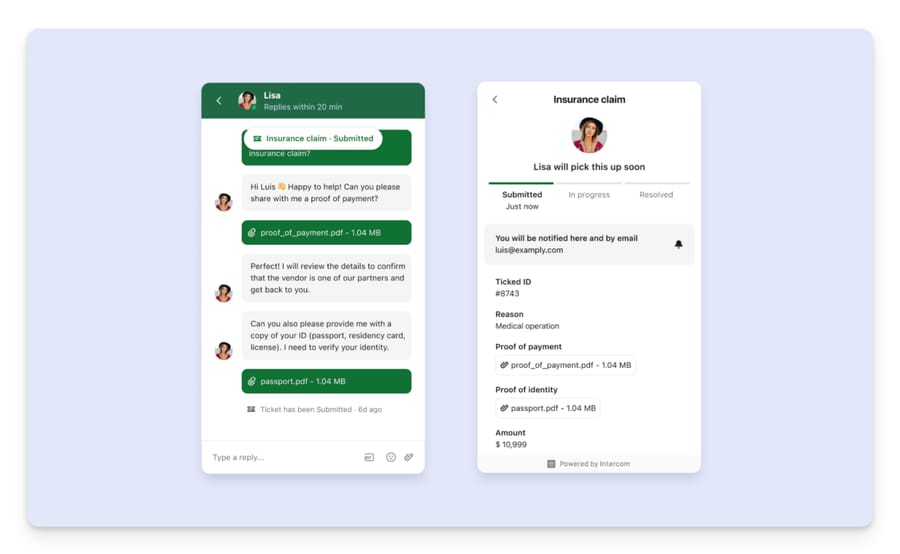
These exist so a customer can watch progress on something you cannot finish today. They support customer-facing replies and internal notes, and the customer gets status updates through the Messenger and by email. Intercom's marketing example is an insurance claim: the customer submits documents, the ticket shows Submitted, In progress and Resolved, and nobody has to email "any update?".
Back-office tickets
A back-office ticket is created from a conversation or a customer ticket and is linked to it. The back-office team works in their own object with their own assignment and their own state, and internal notes and state changes are cross-posted back into the customer conversation so the front-line teammate keeps context.
Three limits are worth knowing before you design around them:
- You can create several back-office tickets linked to one conversation, but you can only share one of them with the customer per conversation.
- You cannot share a back-office ticket that is linked to a customer ticket.
- Every back-office ticket must be linked to a contact. From a conversation it inherits the person who started it; standalone, you pick at least one contact.
Tracker tickets
A tracker ticket is the single source of truth for an issue that many people have reported. You link conversations and customer tickets to it, then broadcast one update to everyone affected. Notes are internal only, with two posting modes: Add note, which writes to the tracker, and Cross-post note, which writes to the tracker and drops an internal note into every linked conversation and customer ticket. The shortcut for cross-posting is ⌘ / Ctrl + Shift + Enter.
When you change a tracker's state and it has customer tickets linked, Intercom prompts you to change those linked tickets too, and posts an event into each linked conversation.
Duplicates are a known annoyance. A 2025 community thread describes the same issue spawning two or three tracker tickets on one conversation, and the answer that landed was to check whether a workflow or macro action is firing "create ticket" twice, then read the conversation's activity log, which records what created each tracker.
The limit people hit: a conversation can be linked to one tracker ticket at a time. If a customer reports two live incidents in one thread, one of them is going to be tracked somewhere else.
How do you set up an Intercom ticket type?
You cannot create a ticket in the Inbox until a ticket type exists, because the type defines both the category and the fields captured.
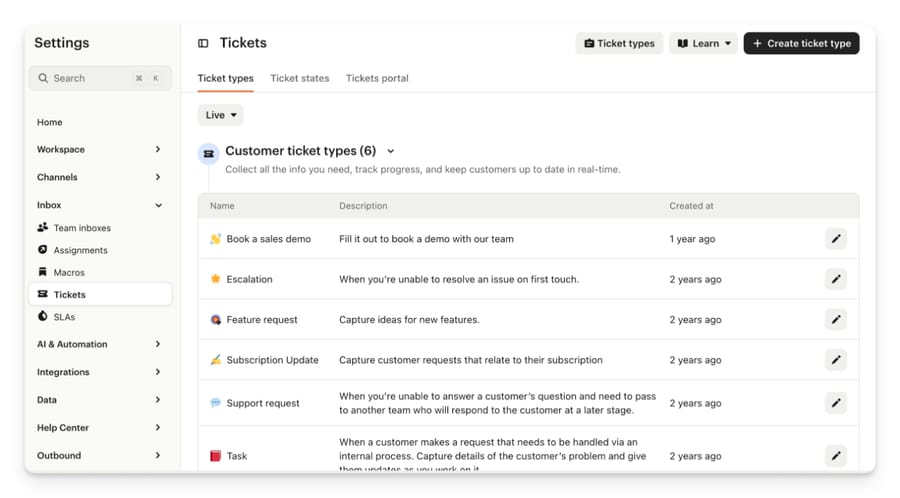
- Go to Settings > Inbox > Tickets and click Create ticket type. Only teammates with the Can manage workspace data permission see this.
- Choose the category: Customer, Back-office or Tracker. This is the decision that determines sharing behavior.
- Set an icon, name and description, plus the sharing setting for the category you picked.
- Decide whether to enable Fin AI Autofill, which generates the ticket title and description automatically.
- Add attributes. Title and description come by default; custom attributes can be text (optionally multiline), list, number, decimal, boolean, date and time, or file upload.
- Per attribute, set whether it is visible to customers, required for customer submission, required when a teammate creates the ticket, required to close the ticket, and any conditional display rules.
Limits: 50 attributes per ticket type, names capped at 191 characters, descriptions at 255.
Two things that bite later. Ticket types do not travel between workspaces, so a sandbox-to-production workflow means building each type twice by hand. And the default Title and Description attributes cannot be hidden or deleted, because they are what Inbox search and tracker linking match against. If you are used to Zendesk's model, our write-up of Zendesk custom fields is a reasonable point of comparison for how differently the two products treat this.
You can change a ticket's type after creation, but only to another type in the same category. If the dropdown looks empty, that is usually because every other type in that category has been archived; restore one or create a new one.
How do you create a ticket or convert a conversation?
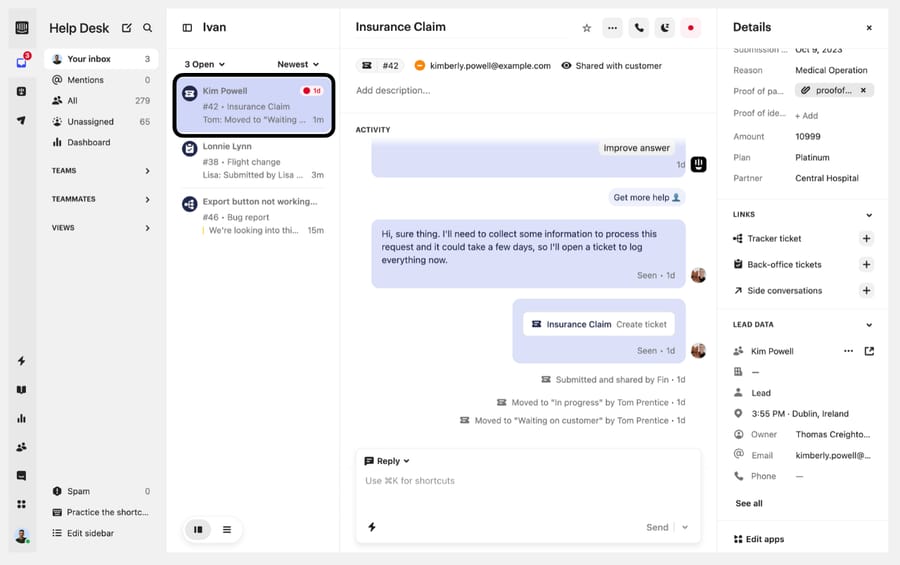
Convert a conversation to a customer ticket: click the ticket icon in the conversation header, pick a customer ticket type, fill in the attributes. The Status dropdown sets the initial state, pre-selected to the first state for that type, and it resets if you switch type.
Send a form instead of filling it in yourself: press ⌘ K / Ctrl K and search Send a ticket form. The customer completes it, which is usually better data than a teammate's summary.
Create a standalone ticket: the compose button top left, then Ticket. All three categories appear in this list, which is the one place they are not separated.
Create a back-office ticket from a conversation: open the right sidebar, go to Links, click the plus icon next to Back-office tickets. Or ⌘ K and search "Create a Back-office ticket". Switch to the Details tab if you want to copy conversation, user or company details into the form.
Three conversion side effects that catch people:
- A conversation converted into a ticket counts in both the conversation report and the ticket report. Any "tickets plus conversations" total you build will double-count it.
- Converted conversations are not automatically associated with the end user's company.
- For phone calls, conversion is only available after the call ends. The ticket icon activates when the call concludes.
How do Intercom ticket states work?
Every ticket state belongs to one of four categories, and the category is what drives behavior. The states themselves are renameable; the categories are not.
| Category | What it means | Behavior |
|---|---|---|
| Submitted | The ticket has been raised | Assigned on creation; visible to customers on shared tickets |
| In progress | Work is happening | Visible to customers on shared tickets |
| Waiting on customer | You need something from them | Can pause SLAs if configured; a customer reply moves the ticket back to the default In progress state |
| Resolved | Work is finished | Visible on shared tickets; stops the "Time to resolve" clock |
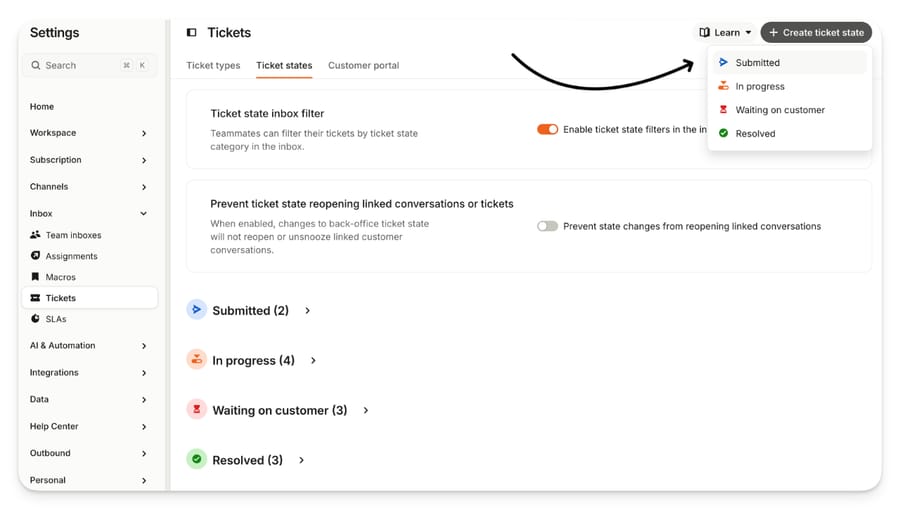
Every ticket type must carry at least one state from each of the four categories. States can be shared across ticket types, internal labels have to be unique across the workspace, and customer-facing labels do not. The cap is 200 custom states per workspace.
The Resolved reply behavior Intercom's docs disagree on
This is the single most common question about Intercom tickets, and the documentation gives two different answers.
- "How ticket states work" (updated 30 July 2026) says a customer reply to a Resolved ticket does not reopen it, and tells you to build a workflow with the Set ticket state action if you want that.
- "Tickets FAQs" (updated 29 July 2026) and the workflow guide both say a reply to a ticket in a Waiting on customer or Resolved state shifts it to In progress with no workflow needed.
An Intercom support engineer answering a 2024 community thread on exactly this gave the first answer, explaining that Resolved stops the Time to resolve clock and that Intercom does not inspect the reply's content to decide whether it is a new issue or a "thanks".
Build the workflow. If the built-in behavior already covers it, the workflow is a no-op, and if it does not, you have avoided the failure where a customer replies into a closed loop nobody is watching. The recipe is the one Intercom's own engineer gave: trigger on Customer sends any message, filter to tickets whose state is Resolved, add a Set ticket state action pointing at In progress. The Workflows builder is an Advanced plan feature, so on Essential this specific fix is not available to you.
Two related settings that people look for in the wrong place:
- Resolving a ticket does not close the linked conversation. They are separate objects with separate states. If your closed-conversation reporting looks wrong, this is usually why.
- Replies to closed tickets reopen them by default. To change that, go to Settings > Channels > Messenger > General > Control inbound volume and enable "Prevent visitors/users replying to closed conversations" with a day count, or for email, Settings > Channels > Email > Email settings and "Create new conversations when customers reply after [X] days". Both apply to tickets.
Customizing the states
To edit the states on one type: Settings > Inbox > Tickets > Ticket types, edit the type, scroll to States. Removing a state there removes it from that type only.
To manage them globally: Settings > Inbox > Tickets > Ticket states. Two things to be careful with here. Renaming a state changes it everywhere it is used, including on closed tickets, and shared customers see the new label without being notified. And adding a state to an existing ticket type applies it to all closed, open and future tickets of that type.
Each custom state has a Notify customer when a ticket moves to this state toggle, on by default. Turn it off and the transition still shows in the Messenger and the tickets portal, but no email, push or channel follow-up goes out. Two states in the same category can have different notification settings, which is how you get a chatty "we're looking into it" state and a silent internal one under the same In progress heading.
Archived states are removed from new tickets, stay in the history of old ones, cannot be deleted, and can be restored.
When should you use a conversation instead of a ticket?
Intercom's own line is the useful test: conversations are for simple queries handled quickly with minimal collaboration, tickets are for complex async queries that take time, investigation, multiple steps or collaboration. "How do I delete tags?" is a conversation. "My bill is incorrect, please issue a refund" is a ticket.
Customer tickets suit teams whose queue has genuinely multi-day work in it: claims, migrations, account changes that need another system. They are the wrong choice if you already close 80% of contacts on first touch, because you will add a state machine to work that never needed one. The failure mode worth avoiding is converting everything. Every conversion adds an object, a state machine and a reporting line, and it double-counts in reports. If a query is going to be answered in the next ten minutes, a ticket adds ceremony and takes away the thing tickets are for, which is a customer being able to see that something is still moving. Our Intercom shared inbox explained walkthrough covers how the conversation side of the Inbox is organized, and Intercom for customer support sets out where tickets sit in the wider product.
If you are arriving from another help desk, the mental model does not map cleanly. Freshdesk treats every inbound email as a ticket with a status, which we cover in Freshdesk ticket statuses explained. Intercom starts everything as a conversation and makes tickets the exception, which is why teams migrating in tend to over-convert for the first month.
Which Intercom plan do you need for tickets, and what does it cost?
| Item | Detail |
|---|---|
| Tickets and ticket types | "Shared inbox and ticketing system" is listed on Essential, the entry plan |
| Workflows automation builder (state automation, auto-assignment) | Advanced and up |
| SLAs on tickets | Expert plan; SLAs work with customer tickets |
| Attributes per ticket type | 50 |
| Custom ticket states per workspace | 200 |
| Tracker tickets linked to one conversation | 1 |
| Fin AI Agent answering on tickets | $0.99 per outcome on any plan; the 50-outcome monthly minimum applies only when Fin runs on a help desk other than Intercom |
Naming the incentive, since it explains the shape of that table: Intercom's seat prices are structured so that the ticketing object is free on every plan and the automation that makes ticketing survivable at volume is not. On 24 September 2026 Essential was $29 a seat billed annually ($39 monthly), Advanced $85 ($99 monthly) and Expert $132 ($139 monthly). Intercom has also shown $19 for Essential in a live pricing test, so check the page before you budget.
SLAs deserve their own warning: they sit on the Expert plan, and on back-office and tracker tickets only Time to Close and Time to Resolve apply, because there is no customer to respond to. First response and next response targets are available on conversations and customer tickets.
How we researched this
Every path, label, limit and behavior above comes from Intercom's own help center at intercom.com/help, read on 21 September 2026 and re-checked on 24 September 2026, with the article IDs listed in this post's sources. Plan gating and seat prices were cross-checked against intercom.com/pricing on 24 September 2026. The four screenshots are Intercom's documentation images for the exact screens described. We do not have an Intercom workspace, so nothing was clicked through first hand, and the contradiction flagged above was found by reading three articles against each other rather than by testing it.
Where does an AI agent fit with Intercom tickets?
Nothing in this post needs an AI agent, and a ticketing setup is a configuration job. The place it becomes one is upstream: tracker tickets only work if somebody notices that thirty separate conversations are the same incident, and back-office tickets only get created if a teammate recognizes a finance question as a finance question.
That recognition step is what an agent layer does well. Macha sits on top of the help desk a team already runs (Zendesk, Freshdesk, Gorgias, Front, HubSpot or Intercom), reads the incoming ticket and the history behind it, and either answers it or routes it with the context attached. It is not a replacement for the help desk and it does not replace ticket types. If you are on Intercom specifically, Intercom's own Fin is the native option and we have written it up honestly.
Frequently asked questions
What is the difference between a conversation and a ticket in Intercom? Conversations are for simple queries that are handled quickly with minimal collaboration. Tickets are for complex asynchronous queries that take time, need investigation, or need another team. Converting a conversation to a ticket makes it count in both the conversation report and the ticket report.
Can customers see back-office tickets? By default no, they are internal. You can optionally share one back-office ticket with the customer per conversation, and you cannot share a back-office ticket that is linked to a customer ticket.
Can customers see tracker tickets? No. Tracker tickets support internal notes only and are never shared with customers. What customers see is the broadcast update you send from the tracker into their own conversations.
Does a customer reply reopen a Resolved ticket? Intercom's documentation gives two answers. The "How ticket states work" article, updated 30 July 2026, says it does not and supplies a workflow recipe using the Set ticket state action. The Tickets FAQs page and the workflow guide say it does. Build the workflow either way; it costs nothing if the built-in behavior already handles it.
How many ticket attributes can one type have? Fifty. Attribute names are capped at 191 characters and descriptions at 255.
Can I change a ticket's type after it is created? Yes, but only to another type within the same category. If the dropdown is empty, every other type in that category has been archived.
Can one conversation link to more than one tracker ticket? No, one at a time. Intercom lists multi-tracker linking as an open feature request on its Product Wishlist.
Do SLAs work on tickets? On customer tickets, yes, and SLAs are an Expert plan feature. On back-office and tracker tickets only Time to Close and Time to Resolve are available, because those categories have no customer reply to measure.
Does resolving a ticket close the conversation? No. Intercom states plainly that setting a ticket to Resolved does not close the linked conversation. They are separate objects with separate states.
If the bottleneck is spotting which incoming tickets belong together before anyone opens a tracker, start a Macha trial: $50 of free usage, no credit card, running on top of the help desk you already have.
Sources:
- Tickets explained (Intercom help)
- How to set up ticket types (Intercom help)
- How to create a Customer ticket (Intercom help)
- How to create a Back-office ticket (Intercom help)
- How to manage Customer tickets (Intercom help)
- How to manage Tracker tickets (Intercom help)
- How ticket states work (Intercom help)
- Customize ticket states (Intercom help)
- Tickets FAQs (Intercom help)
- How to automatically update ticket states on replies using Workflows (Intercom help)
- Intercom pricing
- Community: Ticket status doesn't change when customer replies
- Community: Tracker tickets duplicating
Add AI agents to your Intercom
Macha reads the conversation, drafts the reply and takes the action, inside the Intercom you already run.