Intercom
 Shopify
 Stripe
 Slack
Slack Notion
 Google Workspace
 Confluence

Why Didn't My Intercom SLA Pause? SLA and Office Hours Setup (2026)


An Intercom SLA pauses only when its two time adjustment checkboxes are ticked, and a one-day target on 9am to 5pm weekday hours counts as 24 office hours, or three working days. That conversion is why a message sent late on a Friday shows as 5 days on the Inbox card.
Key takeaways
- An Intercom SLA only pauses when both SLA time adjustment checkboxes on the SLA itself are ticked: pause when waiting on customer and pause when snoozed.
- A one-day first response target in Intercom equals 24 office hours, so a message arriving at 4:55pm on Friday under 9am-to-5pm weekday hours shows as 5 days.
- Intercom supports only one active SLA per conversation, so when two workflows apply an SLA to the same conversation the later one removes the earlier one.
- Holiday Office Hours, phone SLAs and custom SLA reports in Intercom all require the Expert plan, which costs $132 a seat per month billed annually.
- Widening Intercom office hours does not update SLA targets already calculated; existing conversations keep the old due time unless the SLA is reapplied or overridden.

An Intercom SLA pauses only if you tick its two SLA time adjustment boxes (pause when "waiting on customer", pause when "snoozed"), and a one-day target on 9am to 5pm weekday hours equals 24 office hours, which is three working days. Pausing is a setting on each SLA, not a workspace switch, so an SLA created before you thought about it keeps counting.
| Question | Short answer |
|---|---|
| Where do SLAs live? | Settings > Inbox > SLAs, applied by a Workflow's Apply SLA step |
| What makes an SLA pause? | The two SLA time adjustment checkboxes on that SLA |
| How long is "one day"? | 24 office hours: three 8-hour working days |
| How many SLAs per conversation? | One active SLA; a later one replaces the earlier one |
| Which plan? | Expert ($132 a seat billed annually) for SLAs, Holiday Office Hours, phone SLAs and custom SLA reports |
Why do office hours have to come before the SLA?
SLAs are meaningless until Intercom knows when you work, and the default is that you always do.
- Go to Settings > Workspace > Office Hours.
- Under Default office hours, click + Add hours and set the days and times. Hours are in 30-minute increments, follow your workspace timezone, and adjust for daylight saving automatically. "Weekdays" means Monday to Friday and "weekends" means Saturday to Sunday.
- Leave Track team response metrics within office hours only on. Intercom marks it recommended, and it is the switch that keeps out-of-hours dead time out of your response metrics.
- Under Reply times, choose what customers see: in a few minutes, in a few hours, in a day, a custom time, or Dynamic reply time, which uses your team's median first reply time during office hours over the past seven days.
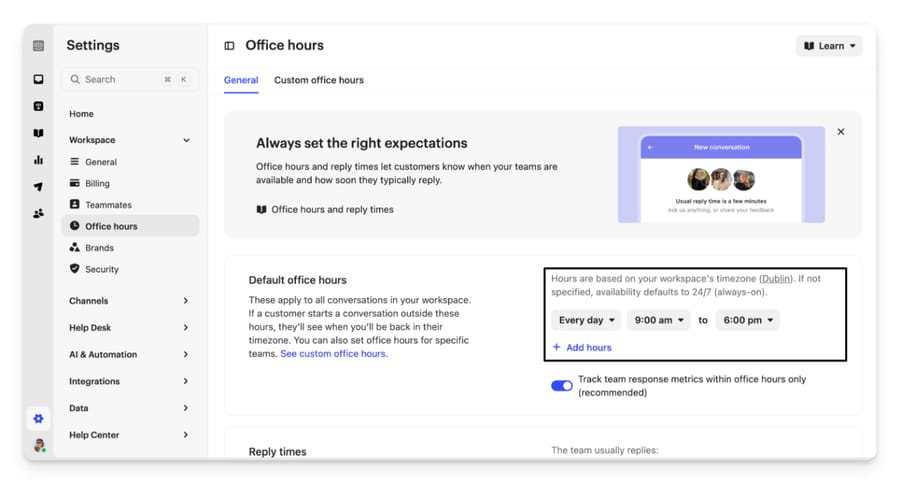
Office hours are not specified by default, and unspecified means 24/7. If you have never opened this page, every SLA you have ever set has been running through the night.
Teams in other timezones
Default office hours are a single workspace-level setting in your workspace's local timezone. For a team that works different hours, go to Settings > Inbox > Teams Inboxes, select the team, scroll to Set team office hours and use the Default dropdown to pick + New office hours. Name it, set the timezone, set the hours.
Intercom's own example is the clear one: a workspace on Los Angeles time with a support team in New York gets custom hours of 6am to 2pm Los Angeles time, which is 9am to 5pm where that team actually sits.
A set of hours can be attached to several teams. To check whether a set is actually in use, go to Settings > Workspace > Office Hours > Custom office hours and look at the team count. "0 teams" means the configuration is inactive, which is the most common reason a carefully built schedule does nothing.
Team-level hours override the workspace default. A team with no custom hours falls back to the default. Updating office hours needs both the Can manage Messenger settings and Can manage workspace data permissions.
Holidays
Editing your default hours every December is how SLA miscalculations happen. Instead, go to Settings > Workspace > Office Hours and find Holidays & Closures. You can add specific dates, set recurring annual holidays, mark a day fully closed or give it reduced hours.
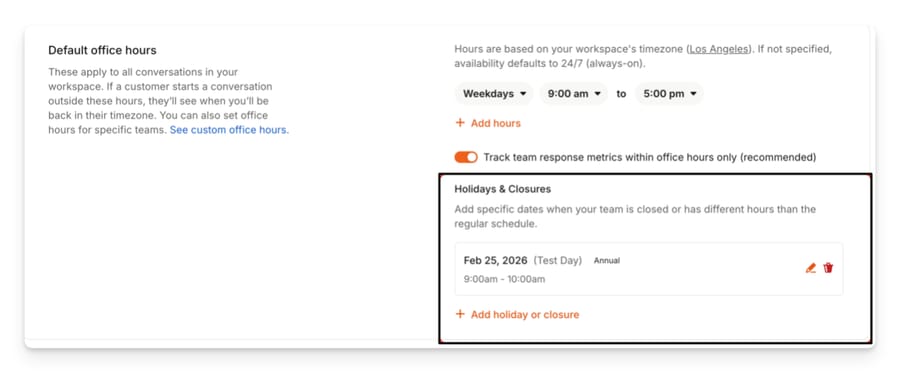
Holiday hours are set at workspace level and override both default and team-level hours on those dates. They feed SLA and reply-time calculations automatically. This feature requires the Expert plan.
How do you create an SLA in Intercom?
SLAs live at Settings > Inbox > SLAs, where you can create, edit, clone and see which workflows depend on each one. You can also create one inline from the Workflows builder.
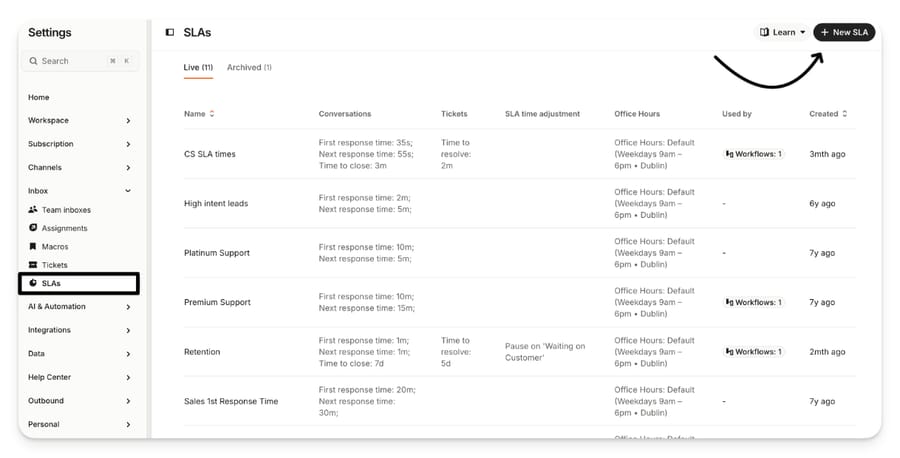
From the settings page:
- Go to Settings > Inbox > SLAs and click New SLA.
- Name it and set the targets in the side drawer.
- Click Save.
From the Workflows builder, which is where most people end up because that is what applies the SLA to anything:
- Create a Workflow on a trigger. For SLAs applied at creation, use Customer opens a new conversation in the Messenger or A ticket is created.
- Add conditional branching to apply a stricter SLA to the customers who warrant one.
- Add an Apply SLA step and configure the targets.
- Save and set live.
The four targets
| Target | What it measures | Available on |
|---|---|---|
| First response time (FRT) | Time to reply to the first message | Conversations, customer tickets |
| Next response time (NRT) | Time to reply to each subsequent customer message | Conversations, customer tickets |
| Time to close (TTC) | Total time to close | Everything |
| Time to resolve (TTR) | Total time to resolve a ticket | Customer, back-office and tracker tickets |
Back-office and tracker tickets only get TTC and TTR, because neither category has a customer to respond to. Conversations get everything except TTR. The three ticket categories and what each one is for are covered in Intercom tickets explained.
One rule that quietly breaks setups: Intercom supports only one active SLA per conversation. Two workflows with SLAs matching the same trigger and audience will override each other, with the later one removing the existing SLA. If your VIP SLA keeps disappearing, count how many workflows can apply an SLA to the same conversation.
Why didn't my Intercom SLA pause?
The SLA time adjustment setting on each SLA carries two checkboxes:
- Pause SLAs when 'waiting on customer'
- Pause SLAs when 'snoozed'
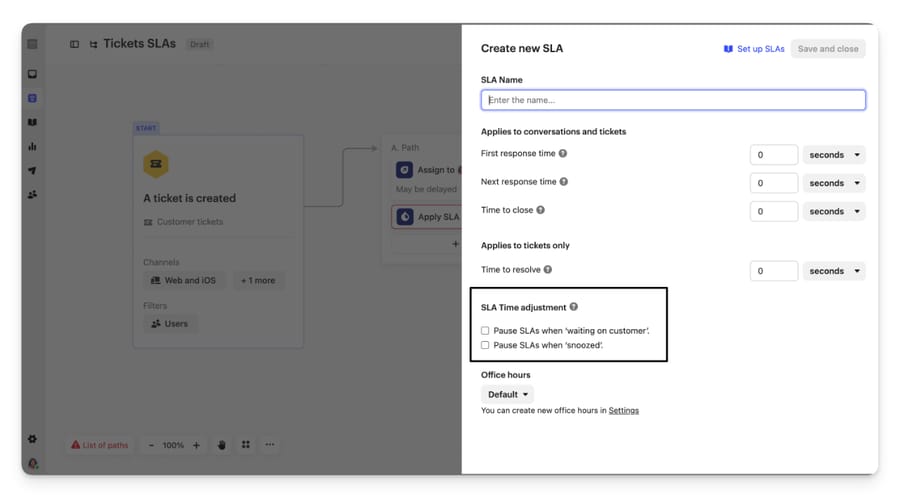
Intercom describes these as a setting that "will enable you to pause SLAs", so the clock keeps running until you tick them. An SLA saved without them accounts for most "my SLA didn't pause" threads. If you tick both, the SLA stays paused until neither state applies: a ticket that moves from waiting on customer to in progress while still snoozed stays paused.
What pausing actually does, in Intercom's own words: pauses stop the clock, they do not extend the breach deadline. When the timer resumes it continues from where it stopped. Time outside office hours is not counted either way, and if a pause overlaps non-office hours, only the in-hours portion of the active, unpaused time counts.
Three related behaviors worth knowing before they surprise you:
- A missed SLA unsnoozes the conversation. If an SLA is breached while the conversation is snoozed, Intercom unsnoozes and reopens it so the team sees it.
- Adding a participant can restart the clock. Intercom documents that an end user adding a participant moves the ticket out of Waiting on Customer and starts the SLA timer, even without a reply. Their docs call this expected behavior.
- Moving a ticket back to Submitted does not reset the timer. Coming from Waiting on customer, it un-pauses. Coming from Resolved, the timer is not reset.
Why does a one-day SLA show as 5 days?
This is the part that generates support tickets, so here are Intercom's three worked examples verbatim in substance.
Setup for all three: office hours 9am to 5pm, Monday to Friday.
One day means 24 office hours. A customer messages at 4:55pm on Friday with a one-day FRT target. The Inbox shows 5 days. One day is 24 office hours; Saturday and Sunday are calendar days with no office hours in them; Monday, Tuesday and Wednesday each contribute 8. The 24 office hours complete at the end of Wednesday, which is five calendar days away.
Fifteen minutes can also mean three days. A message arrives at 4:50pm on Friday against a 15-minute FRT. The expected response time is 9:05am Monday, and the Inbox shows 3 days, counting Saturday, Sunday and Monday.
Holidays are skipped, not absorbed. Office hours 9am to 5pm Monday to Friday, Tuesday configured as a closed holiday, 4-hour FRT, conversation starts 3pm Monday. Monday contributes its one remaining office hour, Tuesday contributes nothing, and the remaining three hours run from 9am Wednesday. The breach time is 12pm Wednesday.
By default, one calendar day is 24 hours. Set specific office hours and a calendar day is divided by the number of office hours in a day, so an 8-hour business day turns one 24-hour day into three 8-hour days. That is the whole mechanism, and once you have seen it the "5 days" card stops being alarming.
One change that does not apply retroactively
If you widen office hours to include a day that was previously excluded, existing SLA targets do not update. They keep counting toward the due time calculated under the old schedule unless the SLA is reapplied or overridden. New tickets use the new hours immediately. Previously recorded SLA metrics also stay unchanged when office hours are updated or deleted, which preserves historical reporting but means a mid-quarter schedule change leaves you with two populations in the same report.
What happens to SLA timers when you override or convert?
You can build workflows that replace the SLA on a conversation, which is how tiered support teams escalate. Converting a conversation to a ticket with a ticket-created SLA workflow live does the same thing.
The behavior of each timer when that happens:
| Scenario | FRT | NRT | TTC / TTR |
|---|---|---|---|
| SLA 1 overridden with SLA 2 | Restarts | Restarts | Resumes |
| Conversation with SLA 1 converted to a ticket, SLA 2 applied | Restarts | Restarts | Resumes |
The practical consequence: escalating restarts the response clocks but not the closure clocks, so a conversation that has already been open for two days does not get a fresh two days to close. That is usually what you want, and it is worth knowing before someone asks why the escalated ticket breached on arrival.
To remove an SLA by hand, click the three dots next to a conversation in the Inbox list and choose Remove SLA. Pausing or deleting an SLA workflow stops it applying to new conversations, but conversations that already matched keep theirs.
How do SLAs show up in the Inbox and in reports?
In the Inbox, the nearest SLA target appears on the conversation, with the color code doing the work: red for overdue, orange for under five minutes remaining, grey for more than five minutes. Sort by Next SLA target to work the queue by urgency. Hover the right sidebar Details to see the other metrics on that conversation. The organization of views and sorting is covered in Intercom shared inbox explained.
For reporting, go to Reports, create a new report and pick the SLAs template. It gives you conversation SLA miss rate, conversations and tickets with an SLA, conversations and tickets with a missed SLA, hit rate, SLAs missed, average time to response after an SLA miss, targets hit over time, and an hourly distribution of missed targets. That last chart is the one worth opening first, because it tells you whether your problem is staffing at 4pm or something structural.
Building your own SLA report from the metric library requires the Expert plan. One documented limit: the SLA performance report does not support filtering by company attributes.
When your arithmetic disagrees with Intercom's
Intercom's guidance here is specific and worth quoting in substance: the breach time in reports is calculated from the original SLA start time, adjusted for pauses and office hours, and that can differ from a manual calculation that adds up elapsed time across periods. If your figures disagree, look for a pause that overlapped an office-hours transition, such as a conversation snoozed across a weekend.
There is a public August 2026 community thread that reads exactly like this. A customer reported a ticket showing "1 day and 4 hours" against timestamps five calendar days apart, and worked out that 28 hours divided by an 8-hour day is 3.5 working days, which is correct, but not what the report displayed. Intercom's community team moved it to a support conversation, and the thread has no public resolution. We are flagging it rather than explaining it away: if your ticket-level office hours reporting looks wrong in this specific shape, you are not the first, and a support ticket is a reasonable next step.
How do phone SLAs work?
Phone calls use Speed of Answer, the time from a call connecting to a teammate answering, not first response time. Add an Apply SLA step to a phone workflow triggered by When customer calls; without that step no timer starts, because SLAs are not applied to phone calls automatically. The timer starts when the call connects, not when it enters the queue or the workflow runs. Speed of Answer data lands in the standard SLA report alongside chat and ticket metrics. This requires the Expert plan.
Which Intercom plan do you need for SLAs?
| Item | Plan |
|---|---|
| Service level agreements (SLAs) | Listed among the Expert plan's additions on intercom.com/pricing |
| Holiday Office Hours | Expert, per Intercom's own article |
| Phone SLAs (Speed of Answer) | Expert, per Intercom's own article |
| Custom SLA reports from the metric library | Expert |
| Office hours, team office hours, reply times | Available without SLAs |
| Workflows automation builder (to apply an SLA) | Advanced and up |
Naming the incentive, because it explains the table: SLAs are the feature enterprise buyers put in contracts, so they sit on the tier priced for enterprise buyers, next to SSO and HIPAA support. Expert is $132 a seat per month billed annually ($139 monthly) and Advanced $85 ($99 monthly), as checked on 24 September 2026. Essential is $29 a seat billed annually, though Intercom has also shown $19 in a live pricing test, so read it off the page before you budget.
Below Expert, office hours and reply times still work, and they cover most of what a small team actually needs: customers see accurate expectations, and response metrics are measured inside working hours. What you lose is the enforced target and the breach reporting. The honest workaround is a saved view sorted by oldest-first plus a daily habit, which is worse than an SLA and free. Formal SLAs suit teams with contractual response commitments or a tiered support model. They are the wrong purchase if what you actually want is a tidier queue.
If you are comparing across help desks before committing, we have the equivalent setup for Zendesk SLA policies and Freshdesk SLA policies, both of which gate SLAs differently.
How we researched this
We checked every path, label, target and worked example above against Intercom's own help center at intercom.com/help on 21 September 2026, from the articles listed in the sources. The three office-hours examples are Intercom's own, reproduced with their numbers. Plan gating was cross-checked against the plan cards on intercom.com/pricing the same day. The four screenshots are Intercom's documentation images for the screens described. We do not have an Intercom workspace, so nothing was clicked through first hand, and the August 2026 reporting discrepancy described above is reported as an open public thread rather than a diagnosed bug.
What should an Intercom SLA setup checklist cover?
- Set default office hours. Confirm they are not still 24/7.
- Leave "Track team response metrics within office hours only" on.
- Add team office hours for any team in another timezone, then check the team count is not 0.
- Add recurring holidays under Holidays & Closures if you are on Expert.
- Create the SLA and tick the pause checkboxes you actually want.
- Check that only one workflow can apply an SLA to a given conversation.
- Convert your target into office hours before you promise it to anyone. A "one day" SLA on an 8-hour day is three working days.
- Open the SLAs report's hourly distribution chart after two weeks and staff accordingly.
Frequently asked questions
Why does my Intercom SLA say 5 days when I set 1 day? Because one day is treated as 24 office hours. On 9am to 5pm weekday hours that is three working days, and if the clock starts late on a Friday the Inbox counts the weekend too, so the card reads 5 days. Intercom publishes this exact example.
How do I make an Intercom SLA pause? Tick the SLA time adjustment boxes on the SLA itself: pause when 'waiting on customer', pause when 'snoozed'. Until they are ticked the clock keeps running, which is why most SLAs don't pause.
Does a pause extend the deadline? No. Pauses stop the clock and the timer resumes from the same point. Time outside office hours isn't counted either way, and where a pause overlaps non-office hours, only the in-hours portion of active time counts.
Do SLAs work on Intercom tickets? Yes, on customer tickets, with all four targets. Back-office and tracker tickets only support Time to Close and Time to Resolve, because there is no customer reply to measure.
What plan do I need for Intercom SLAs? Intercom's pricing page lists Service level agreements among the Expert plan's additions, and Intercom's own articles state that Holiday Office Hours, phone SLAs and custom SLA reports need Expert. Office hours and reply times work without them.
Why did my SLA disappear from a conversation? Intercom supports only one active SLA per conversation. If two workflows match the same trigger and audience, the later one removes the earlier SLA. Make sure only one workflow can apply an SLA to a given conversation.
What happens to SLA timers when I convert a conversation to a ticket? First response and next response restart; time to close and time to resolve resume from the original start. The same applies when one SLA overrides another.
Why don't my office hours changes apply to existing conversations? Widening office hours doesn't update SLA targets that were already calculated. They keep their old due time unless the SLA is reapplied or overridden. New tickets use the new hours straight away.
How do I set different office hours per team? Settings > Inbox > Teams Inboxes, pick the team, Set team office hours, then + New office hours with its own name and timezone. Check the team count under Custom office hours afterwards, because "0 teams" means it isn't active.
If out-of-hours coverage is the real reason your SLAs breach, start a Macha trial: $50 of free usage, no credit card, and it answers on the help desk you already run so the first response lands before the clock starts costing you.
Sources:
- Set SLAs for conversations and tickets (Intercom help)
- SLAs and office hours (Intercom help)
- Set your default office hours (Intercom help)
- Set custom office hours and reply times for your teams (Intercom help)
- SLAs reporting (Intercom help)
- Intercom pricing
- Community: Office Hours for ticketing reporting
- Community: How to setup new inbox rules with SLAs?
- Community: Error when changing the SLA applied to a conversation/ticket
Add AI agents to your Intercom
Macha reads the conversation, drafts the reply and takes the action, inside the Intercom you already run.