Intercom
 Shopify
 Stripe
 Slack
Slack Notion
 Google Workspace
 Confluence

Intercom WhatsApp Setup (2026): Connecting a Number, Templates and Why Messages Fail


Connecting WhatsApp to Intercom takes minutes in Settings > Channels > WhatsApp, but Meta's business verification can take upwards of 48 hours and the account must be set to USD. Most send failures afterwards belong to Meta's 24-hour window and template rules, which Intercom cannot override.
Key takeaways
- Intercom connects WhatsApp from Settings > Channels > WhatsApp, and the WhatsApp Business Account must be set to USD because Meta does not allow a WABA's currency to change later.
- WhatsApp only allows free-form replies within 24 hours of a customer's last message, and outside that window only a pre-approved template can be sent.
- Before Meta verification completes, an Intercom WhatsApp number can start 250 business-initiated conversations per rolling 24 hours and test with up to 10 numbers.
- Intercom templates require numbered placeholders in double curly braces rather than descriptive names, and support only one static link per template with no rich media.
- From 1 October 2026 Meta charges for WhatsApp service replies after a free tier of 1,000 per business phone number per month, billed through Intercom's credit line.
To connect WhatsApp to Intercom, go to Settings > Channels > WhatsApp, click Connect WhatsApp business number and finish Meta's sign-up flow. The WhatsApp Business Account must be set to USD, Meta's business verification can take upwards of 48 hours, and most send failures after that come from Meta's 24-hour window and template rules rather than from Intercom.
| Question | Answer (checked 24 September 2026) |
|---|---|
| Plans | Paid channel on Essential, Advanced and Expert; legacy plans need the WhatsApp add-on |
| WABA currency | USD only, and Meta will not change it after creation |
| Verification | Upwards of 48 hours in Meta Business Manager |
| Before verification | 250 business-initiated conversations per rolling 24 hours, 2 numbers, testing with up to 10 numbers |
| Free-form replies | Only within 24 hours of the customer's last message; templates after that |
| Trial workspaces | Up to 100 outbound messages in a rolling 30-day window |
| Intercom charges | Inbox and Workflows conversations free; Outbound and Series sends billed |
| Meta charges from 1 October 2026 | Service messages billed after 1,000 free per business number per month |
Two rules govern everything below. WhatsApp only allows free-form replies within 24 hours of the customer's last message, and outside that window you can only send a pre-approved template. Both rules are Meta's. Intercom enforces them because it has to.
What do you need before connecting WhatsApp to Intercom?
- A verified Meta Business Account. You can connect a WhatsApp business profile without one, but the phone number will not be usable for sending or receiving. Creating a Meta business page is not the same as verifying a Business Manager account.
- A WhatsApp business profile.
- A phone number not linked to any existing WhatsApp account, with access to receive an SMS or call.
- Your legal business name, address and display name. The display name has to match the business name, and a mismatch is the documented cause of a declined connection.
- Two-factor authentication disabled, if you are migrating an existing profile.
- WhatsApp Business Platform (API) only. The integration does not work with the WhatsApp or WhatsApp Business mobile apps.
Two constraints that are easy to hit and expensive to undo:
Currency must be USD. Intercom currently requires every connected WhatsApp Business Account to be set to USD. Meta does not let you change a WABA's currency after creation, and generally wants it to match your business's region. So if your existing WABA is in euros, you cannot convert it: you create a new WABA in USD and migrate the phone numbers across. Intercom is explicit that the no-changing part is Meta's rule, not theirs.
The number becomes Intercom's, exclusively. Once connected, your number is registered to Intercom's WABA and message charges bill through Intercom's credit line. You cannot attach your own payment method while it is connected, and because Meta permits one active registration per number, you cannot use that number with the Meta API directly at the same time. If you also send order confirmations through Meta's API, that needs a different number. You also cannot use one number for both WhatsApp and Intercom Phone.
And you lose the mobile app on that number, permanently. If the number is currently on the WhatsApp or WhatsApp Business app, you have to delete that account first, which destroys the chat history, and you cannot reinstall it on that number later even if you stop using Intercom.
How do you connect a WhatsApp number to Intercom?
- Go to Settings > Channels > WhatsApp and click Connect WhatsApp business number.
- In the Meta window, select or create a Meta Business Account.
- Create a WhatsApp Business Account.
- Create a WhatsApp Business Profile with a description, industry and phone number.
- Grant Intercom the permissions it asks for, including WABA access and billing management.
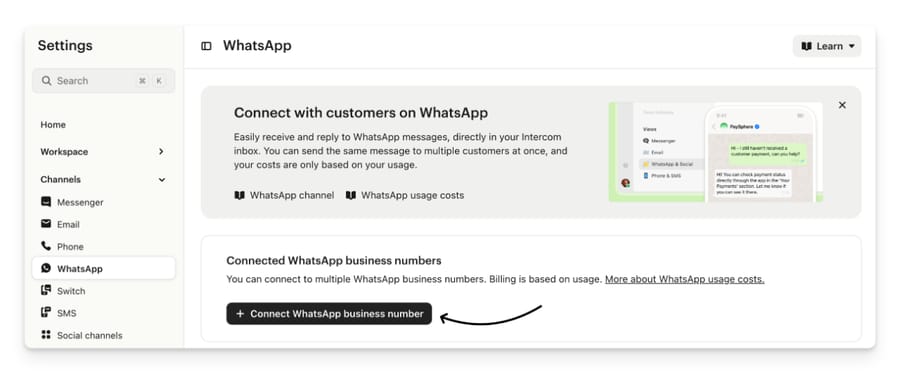
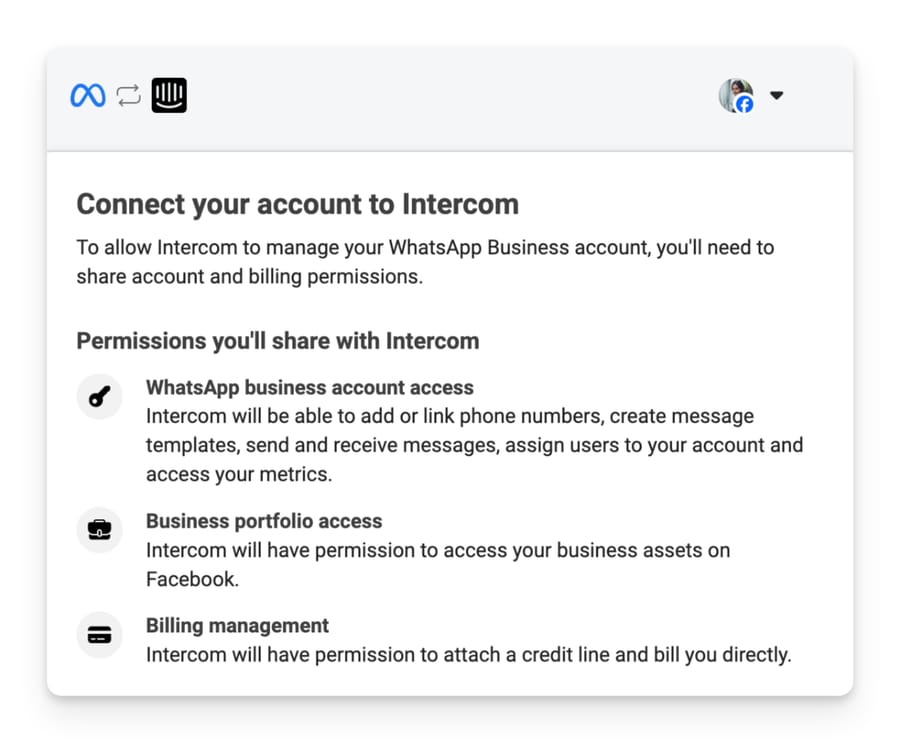
Your account status will read Pending after connecting. That is expected; it flips to Approved when Facebook finishes verification.
Then request business verification from Meta Business Manager. Intercom says this can take upwards of 48 hours, and that WhatsApp will not even look at the application until the Facebook Business Manager is verified.
What works while you wait
Not nothing, which is worth knowing because teams often stall here:
- Up to 250 business-initiated conversations in a rolling 24-hour period.
- Up to 2 phone numbers connected.
- Testing with up to 10 phone numbers: message one of your verified test numbers and watch it land in the Inbox, in rules and in reporting.
Use the time to create your message templates in WhatsApp Manager, because you will need them the first time a conversation goes past 24 hours. Intercom recommends exactly that.
To test end to end, go to Settings > Channels > WhatsApp, click Get a link or QR code, pick your number, and use the Message links tab to generate a link or a QR code. Messages to that number appear as conversations in the Inbox, and every WhatsApp contact gets a WhatsApp number attribute.
Finish by setting the business profile (profile picture, status, email, address, website) under Set your business profile in the same settings page, and by deciding under Identify existing users how WhatsApp contacts should map onto people you already have.
How do you create WhatsApp templates in Intercom?
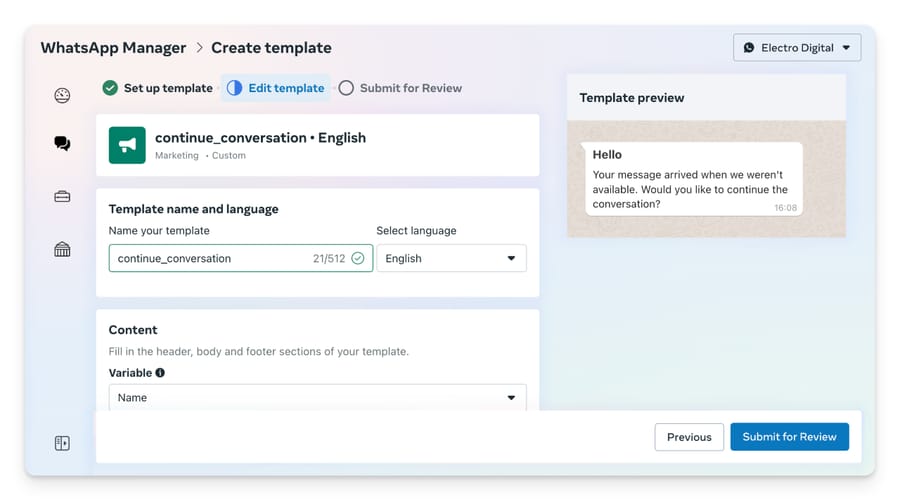
Outside the 24-hour window, a template is the only thing that will send. Create them at Settings > Channels > WhatsApp > Create and manage message templates, or in Meta's WhatsApp Manager; approved templates sync back to Intercom automatically.
- Click Create Template.
- Add an optional header and the body text, in one language.
- Add Variables to insert customer data, as a name or number parameter.
- Add quick reply buttons if you want them.
- Click Submit for Review. Intercom says review usually takes a few minutes.
Which categories Intercom actually supports
Here the documentation disagrees with itself, and the difference matters. Intercom's WhatsApp FAQs article says Intercom supports Utility and Authentication templates and does not support Marketing or media-rich templates. Intercom's Outbound WhatsApp messages article, which was updated more recently, says Intercom supports Utility, Authentication and Marketing, with Marketing requiring explicit enablement for your workspace and carrying extra constraints.
We are going with the newer article, because a reader who believes the FAQ will never ask for the enablement they need. If your Marketing templates are approved in Meta but missing from Intercom, Intercom's own advice is to confirm the category in Meta, confirm the template is fully approved, and confirm that Marketing templates are explicitly enabled for your workspace. That third step is the one nobody knows to take.
Marketing templates come with real strings attached, all of them Meta's: delivery can be capped or throttled by your messaging tier and the recipient's engagement history, marketing messages to US numbers are blocked, charges may apply even for failed sends, and recipients must have opted in.
The rules that get templates rejected or hidden
Intercom's documented limits on top of Meta's:
- No rich media. Images and video in templates are not supported. Link to the resource in the text instead.
- One static link per template. More than one static URL is not supported.
- No dynamic links. Only static ones, to keep variable rendering predictable. Unique per-recipient links can only go out as free-form text inside an open 24-hour window.
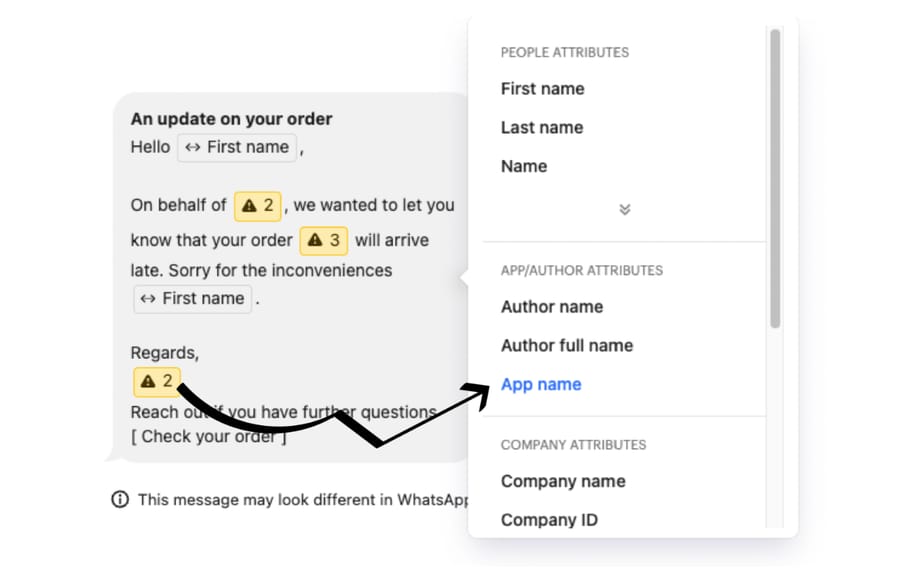
- Numerical placeholders only. WhatsApp wants numbered variables inside double curly braces, the
1and2form, not descriptive names such assf_full_name. Intercom maps them positionally to your attributes, so a descriptive placeholder fails. If a template with named variables is failing, edit it in Meta to use numbers. - Variables must match exactly. A template variable with no corresponding mapping in Intercom causes delivery failures. Remove it rather than leaving it unmapped.
- Special characters are escaped.
/,&,<and>are rewritten in the delivered message. - Variables in Inbox templates need enabling. By default, template variables only work in messages sent from Outbound > Messages. For variables in templates sent from the Inbox, you have to ask Intercom support to turn it on, then hard-refresh the dashboard.
Stopping Meta reclassifying your template as Marketing is a category of its own, and Intercom's guidance is concrete: avoid promotional language, avoid excessive personalization, do not include media unless required, and state the support or transactional purpose explicitly when you submit. A Utility template that reads like a promotion gets reclassified, and a reclassified template inherits every Marketing restriction above.
If a template you just approved is not showing up: templates are grouped by language in Intercom, so filter by language first. If it is genuinely missing, check that it is plain text or quick-reply buttons only, fully approved in Meta, in a language Intercom is set up for, and that you have refreshed. Intercom's last-resort fix is neat: make a minor edit to the template in Meta and re-submit it, which fires a status update Intercom picks up by webhook.
Why do WhatsApp messages fail to send from Intercom?
This is the part worth getting right, because the two sides have completely different remedies.
Meta owns these. You cannot fix them in Intercom.
| What you see | Error code | What it means |
|---|---|---|
| "This message can't be sent" | More than 24 hours since the recipient's last reply, so free-form text is blocked. Also fires if their phone number changed mid-conversation | |
| "Receiver is incapable of receiving this message" / "Message is undeliverable" | 131026 | Their number is not registered with WhatsApp, they have not accepted WhatsApp's current Terms or Privacy Policy, or their client is below the minimum version |
| "This message couldn't be delivered due to WhatsApp's messaging frequency limits" | 131049 | The recipient has hit Meta's per-user cap on marketing templates, based on their engagement history |
| Recipient is in a WhatsApp experiment | Meta has placed that number in a platform experiment restricting marketing template delivery | |
| Recipient opted out of marketing messages | Managed by WhatsApp on the recipient's behalf, applying to every business, not just yours | |
| "Media type is not supported by WhatsApp" | The file format or size does not meet WhatsApp's media requirements | |
| "WhatsApp Business Account has been locked" | Meta has restricted or disabled the WABA, usually for a policy violation or a failed verification detail such as a wrong two-step PIN | |
| "Your business doesn't meet WhatsApp's policy requirements" | OAuthException code 1, subcode 23881 | Certificate creation blocked on policy grounds. Intercom says to take this to Meta Business Suite Support |
| "We can't verify the Meta business account that you selected" | Intercom's own documentation says this must be resolved by Meta and cannot be fixed in Intercom |
The minimum WhatsApp client versions for that 131026 error, per Intercom's table: Android 2.21.15.15, iOS 2.21.170.4, KaiOS 2.2130.10, Web 2.2132.6. The practical fix is to reach the customer on another channel and ask them to accept pending Terms prompts under Settings > Help and update the app.
For a frequency-limit block, Intercom's advice is to wait at least 24 hours before resending, because sending sooner usually returns the same error. Or send a Utility template instead, since the marketing cap and the opt-out both apply only to marketing content.
Intercom or your configuration owns these
- "Your business account has a pending action, you must complete it before sending". There is an action waiting on your WABA in Meta Business Manager. Complete it, then retry.
- "Message not sent due to an incorrect number of parameters". The variable count in the send does not match the template.
- Invalid phone numbers. The contact's Phone attribute has to be in E.164 format,
+then country code then number. Contacts with no phone value are silently excluded from outbound audiences. - Monthly outbound limit exceeded. Intercom names this as one of the three most common causes of high error rates in outbound campaigns, alongside WhatsApp API errors and invalid numbers. Check the workspace's monthly limit.
- No WhatsApp integration, or no add-on on a legacy plan.
- (#100) referencing an image link. If the error names
Param image['link'] is not a valid URI, the image URL must be a fully-qualified public HTTPS URL. Intercom surfaces this error but does not pre-validate the URL before sending.
To see which you have got, open the message in Outbound in view mode, before clicking Edit, and read the Issues tab.
The failure that looks like Intercom and is not
A May 2026 community thread is the cleanest public example. A customer could not send anything to one specific client, template or free text, and kept getting "Something went wrong, please try again later". Intercom's Fin technical support lead answered on the thread after reviewing logs: Intercom handed the messages off successfully from its side, and the error happened after that, when delivery was not completed by WhatsApp/Meta.
The lesson is procedural. A generic "something went wrong" on a single recipient, when everything else is sending, is usually a Meta-side delivery failure on that number, not a broken integration. Check whether other recipients work before you tear up your configuration.
What can't Intercom's WhatsApp channel do?
Worth knowing before you design a flow around it:
- No group conversations, and no WhatsApp phone calls.
- No ticket forms from WhatsApp. You cannot send a ticket form or create a ticket directly from a WhatsApp conversation. The workaround is to create the ticket in the Inbox and link it to the conversation.
- No outbound to strangers. You cannot message a number that does not exist as a contact in Intercom.
- The REST API cannot start a WhatsApp conversation or send a template. It can reply to existing ones, and those replies go out over WhatsApp. Inside an open 24-hour window you can use the Reply to a Conversation API to send dynamic content such as a booking or payment link, and Intercom recommends webhooks to confirm delivery. There is an open community feature request for template sending over the API.
- Macros degrade. Images are removed, links are wrapped in parentheses, bullets become dashes or numbers, and headers, bold and italics are stripped.
- No CSAT remarks. Customers can rate, but cannot leave written feedback.
- The composer cannot be disabled. WhatsApp always allows free text, so you cannot force button-only replies.
- Display name changes need a reconnect. Change it in Meta and the change will not appear in Intercom until you disconnect and reconnect the number.
Fin does work on WhatsApp, inside the same rules: within the 24-hour window it replies freely, and outside it, it can only re-engage with an approved template. We have written up what Fin does and does not do in Intercom Fin explained.
How much does WhatsApp in Intercom cost?
WhatsApp is a paid channel available on the Essential, Advanced and Expert plans. Intercom's pricing page lists WhatsApp as usage-based, charged per conversation and varying by volume and direction.
The split that decides your bill: Intercom's pricing page states that WhatsApp conversations in the Inbox and sent from Workflows are free of charge, and that Intercom bills for teammate-initiated WhatsApp conversations sent via the Outbound section or Series, regardless of audience size. Each of those counts as one unit of Bulk WhatsApp Sent, on tiered pricing, and messages inside a Series count the same as ones sent directly. Track it at Settings > Subscription > Usage.
Free trial workspaces can send up to 100 messages in a rolling 30-day window. On legacy plans, outbound WhatsApp needs the WhatsApp add-on.
Separately, Meta charges per delivered template message by category and destination country, billed through Intercom's credit line since your number sits on Intercom's WABA. From 1 October 2026 that changes in a way that reaches support teams. Meta starts charging per delivered service message, the free-form replies you send inside the 24-hour window, at the same rate as utility messages in that market, after a free tier of 1,000 service messages per business phone number per month that does not roll over. Utility templates sent inside an open window, free since 1 July 2025, become chargeable on the same date. Rates vary by country, so check Meta's pricing updates page rather than any figure in a guide, this one included.
Naming the incentive, since it shapes the design: Intercom makes WhatsApp free in the Inbox and charged in Outbound because inbound support is what the seat price covers and proactive messaging is a campaign product. That is a defensible line, and it also means the cheapest way to use WhatsApp in Intercom is reactively. WhatsApp in Intercom suits teams whose customers already message them there and who want those conversations in the same queue as email. It is the wrong purchase if you mainly wanted a marketing broadcast channel, because Marketing templates need extra enablement, are blocked to US numbers, and can be throttled per recipient by Meta at any time.
If you are weighing this against another help desk, we have the equivalent setups for connecting WhatsApp to Zendesk and integrating Freshdesk with WhatsApp. The Meta-side rules are identical in all three; only the wrapper changes. Intercom shared inbox explained covers how the channel sits alongside everything else once it is live.
How we researched this
We checked every path, limit, error code and behavior above against Intercom's own help center at intercom.com/help on 21 September 2026, from the six articles listed in the sources. The ownership split between Intercom-side and Meta-side failures follows Intercom's own error documentation, which names the responsible party for each error, plus the public community thread cited above. The four screenshots are Intercom documentation images. We do not have an Intercom workspace or a WhatsApp Business Account, so no number was connected, no template was submitted, and no error was reproduced first hand. Per-country rates are deliberately not quoted here because Meta's rate card changes on 1 October 2026; the service-message change and its 1,000-message free tier come from Meta's pricing updates page, read on 24 September 2026.
Where does an AI agent layer fit?
The 24-hour window is the constraint that makes WhatsApp different from email, and it is a coverage problem before it is a technology problem. A customer messages at 9pm, nobody answers until 10am the next day, the clock is still fine, then they reply at 2pm the day after and the window has closed on the thread you needed. Every hour of delay makes the next reply more likely to need a template.
That is a fair case for an agent layer, because the thing that fixes it is answering sooner, not answering better. Macha sits on top of the help desk a team already runs (Zendesk, Freshdesk, Gorgias, Front, HubSpot or Intercom), reads the incoming message and the history behind it, and answers or routes it with context attached. It isn't a replacement for the help desk, and on Intercom specifically, Fin is the native option that works inside the same window rules.
Frequently asked questions
What plan do I need for WhatsApp in Intercom? WhatsApp is a paid channel available on the Essential, Advanced and Expert plans. Charges are usage-based, per conversation, and vary by volume and direction.
Why can't I reply to a WhatsApp conversation in Intercom? Almost certainly the 24-hour customer care window. WhatsApp only allows free-form replies within 24 hours of the customer's last message. After that, only a pre-approved template will send, until the customer messages you again and reopens the window.
Can I use my existing WhatsApp Business app number with Intercom? Yes, but you must delete the account in the app first, which permanently destroys that chat history, and you cannot reinstall the number in the app later, even if you stop using Intercom.
Does Intercom support Marketing templates? Intercom's documentation currently disagrees with itself. The more recently updated article says Utility, Authentication and Marketing are all supported, with Marketing requiring explicit enablement for your workspace plus Meta's constraints, including a block on marketing messages to US numbers. The older FAQ says Marketing isn't supported. If your Marketing templates are approved in Meta but missing in Intercom, ask about the enablement.
Why is my approved template not showing up in Intercom? Filter by language first, since templates are grouped that way. Then check that it's plain text or quick-reply buttons only, fully approved in Meta, and that you've refreshed. A minor edit and re-submission in Meta fires a webhook that forces Intercom to re-sync.
What does error 131026 mean? WhatsApp couldn't deliver because the recipient's account can't currently receive messages: the number isn't registered with WhatsApp, they haven't accepted the current Terms or Privacy Policy, or their app is below the minimum version. It's a Meta-side failure.
Can I send WhatsApp templates through the Intercom API? No. Intercom's REST API can reply to existing WhatsApp conversations but cannot start one or send a template, so API messages to a conversation outside the 24-hour window won't be delivered.
Why does my WABA have to be in USD? Intercom's integration currently requires it. Meta doesn't allow a WABA's currency to change after creation, so an existing non-USD account means creating a new WABA in USD and migrating the numbers.
Are inbound WhatsApp conversations charged? Intercom's pricing page says WhatsApp conversations in the Inbox and sent from Workflows are free of charge, and that it bills for teammate-initiated conversations sent through Outbound or Series. Meta's own per-message charges are separate and bill through Intercom's credit line, and from 1 October 2026 they include service replies beyond 1,000 a month per business number.
Can Fin answer on WhatsApp? Yes, within the same rules. Inside the 24-hour window Fin replies normally; outside it, Fin can only re-engage with an approved template.
If the real problem is that nobody is free to answer before the window closes, start a Macha trial: $50 of free usage, no credit card, running on the help desk you already have.
Sources:
- Connect your WhatsApp channel (Intercom help)
- WhatsApp FAQs (Intercom help)
- Create WhatsApp message templates (Intercom help)
- Outbound WhatsApp messages (Intercom help)
- Troubleshooting WhatsApp errors (Intercom help)
- WhatsApp message failure troubleshooting (Intercom help)
- Intercom pricing
- Community: Unable to send WhatsApp messages to a client
- Community: Send WhatsApp templates via REST API (feature request)
- Community: Issue sending voice notes via WhatsApp channel
Add AI agents to your Intercom
Macha reads the conversation, drafts the reply and takes the action, inside the Intercom you already run.