Intercom
 Shopify
 Stripe
 Slack
Slack Notion
 Google Workspace
 Confluence

Why Are Zendesk Emails Going to Spam? Causes and Fixes (2026)


Zendesk replies land in spam when the sending domain doesn't authenticate Zendesk through SPF, DKIM and DMARC, and they never arrive at all when no trigger fired. Check the ticket for an outbound email first, then work through the six causes below in order.
Key takeaways
- Zendesk emails usually land in spam because the sending domain lacks SPF, DKIM or DMARC; Zendesk's recommended SPF record is v=spf1 include:mail.zendesk.com -all, verified within 48 hours.
- Zendesk DKIM needs two CNAME records, zendesk1._domainkey and zendesk2._domainkey, added before digital signatures are enabled in Admin Center, or delivery failures result.
- Since 1 February 2024, Google requires senders of more than 5,000 messages a day to Gmail to use SPF, DKIM and DMARC, and every sender to keep Postmaster Tools spam rates below 0.3%.
- A Failed to deliver notice under a Zendesk comment means the receiving server refused the message, and Zendesk may retry a temporary error for up to five days.
- Zendesk requires the email notification body to contain at least one placeholder, so a trigger edited down with no placeholder silently sends nothing.

Zendesk replies land in spam mostly because the sending domain does not authenticate Zendesk: publish v=spf1 include:mail.zendesk.com -all as your SPF record, add the zendesk1 and zendesk2 DKIM CNAMEs, then add a DMARC record. If the ticket shows no outbound email at all, nothing was sent, and the fault is a trigger rather than DNS.
Did Zendesk send the email, or did the receiving server filter it?
Open the ticket in the Agent Workspace and look under the comment in the conversation log. Per Zendesk's documentation on delivery failures, a failed send shows as "Failed to deliver", or "Failed to deliver to some recipients" with a warning icon beside the affected addresses.
That gives you a clean fork:
| What you see | What happened | Start at |
|---|---|---|
| A failure notice under the comment | Zendesk tried and the receiving server refused it | Causes 1 to 3, then 5 |
| No failure notice, customer never got it | The receiving server accepted it and filed it as spam | Causes 1 to 3, then 4 |
| No outbound email in the ticket at all | No trigger fired, so nothing was sent | Cause 6 |
One more detail from the same article: when the receiving server returns a temporary error, "Zendesk may retry sending the email periodically up to five days". So a message that has not arrived yet is not necessarily a message that failed.
Cause 1: does your SPF record authorize Zendesk?
This is the most common cause and the easiest to confirm, which is why Zendesk's own troubleshooting sequence reaches it before DKIM or DMARC. It is also the one with a visible tell inside the product.
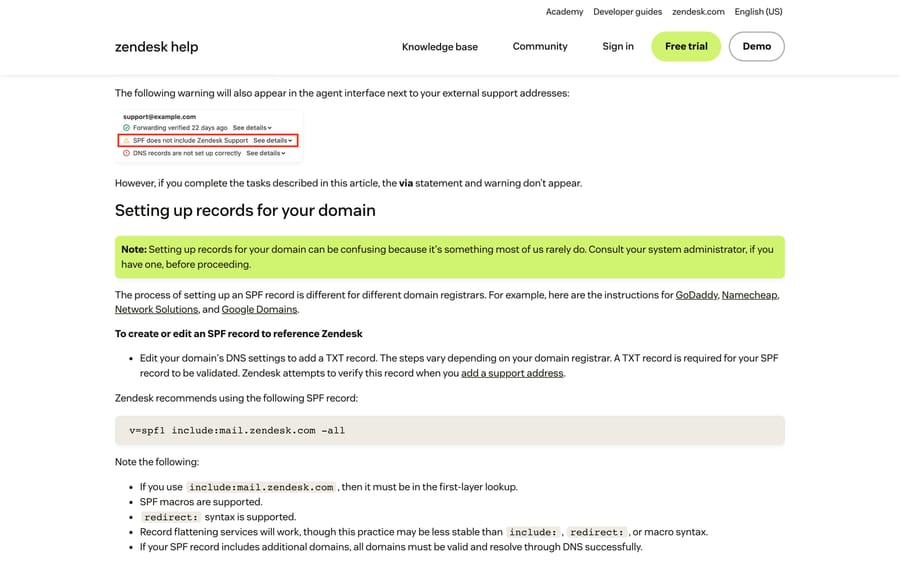
The check. Open your support address in Zendesk. If SPF is wrong, the agent interface shows a warning next to your external support addresses reading "SPF does not include Zendesk Support", and sometimes a second one reading "DNS records are not set up correctly". Customers see the other half of the same problem: Gmail and Outlook print a "via zendesk.com" line under your sender name, because, in Zendesk's words, "Zendesk avoids this by sending email using our own domain when we're not authorized to use your domain".
The fix. Add a TXT record on the domain you send from. Zendesk recommends:
v=spf1 include:mail.zendesk.com -allThree things go wrong here more often than the record itself. You can only publish one SPF record per domain, so if you already have one for Google Workspace or Microsoft 365 you merge the include into it instead of adding a second TXT record. The include:mail.zendesk.com has to sit in the first-layer lookup, so burying it behind another include breaks it. And Zendesk allows up to 48 hours for the record to verify, so a warning that is still showing ten minutes after you saved the record is expected.
Cause 2: is DKIM set up, and was it switched on in the right order?
SPF says a server is allowed to send for your domain. DKIM signs the message so the receiving server can verify it wasn't altered in transit. Gmail and Yahoo both want to see it, and a Zendesk account sending from a custom domain without it is running on one authentication signal out of two.
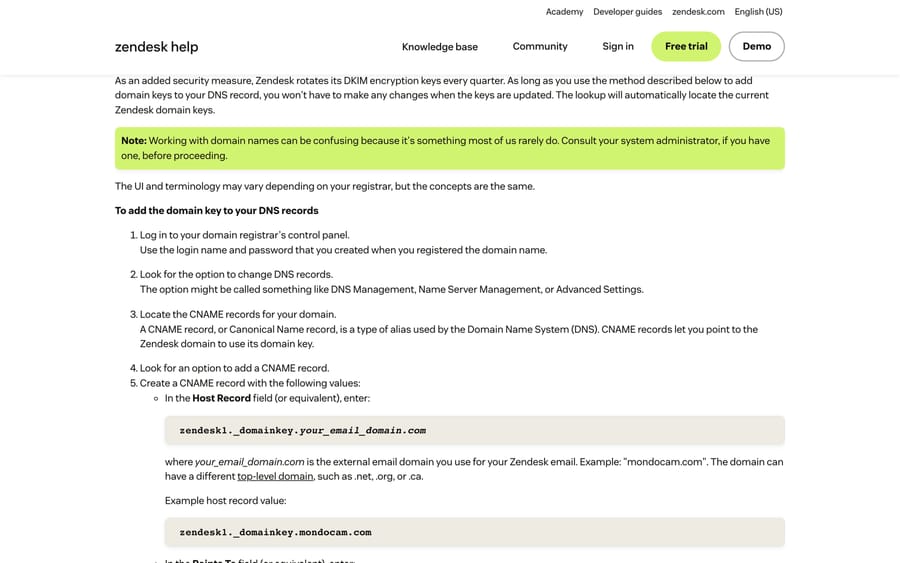
The check. Look up the two selectors in DNS. Zendesk uses zendesk1 and zendesk2, so on a domain called example.com you are checking zendesk1._domainkey.example.com and zendesk2._domainkey.example.com. Both should resolve as CNAMEs.
The fix. Per Zendesk's DKIM documentation, create two CNAME records:
zendesk1._domainkey.your_email_domain.com  ->  zendesk1._domainkey.zendesk.com
zendesk2._domainkey.your_email_domain.com  ->  zendesk2._domainkey.zendesk.com
Then turn on signing at Admin Center › Channels › Talk and email › Email, select the custom domain option for DKIM, and save.
The order matters more than anything else in this section, and Zendesk says so in bold on its own page: "Enabling digital signatures must be the final step in the configuration process. Enabling this feature before adding the CNAME records for your domain will cause delivery failures." Teams that flip the switch first and add DNS afterwards make deliverability worse for as long as the gap lasts.
Two things this design buys you. Zendesk rotates its DKIM keys quarterly, and because you published a CNAME instead of a raw key, you never touch DNS again. And DKIM is available on every Suite plan (Team, Growth, Professional, Enterprise and Enterprise Plus) and on Support Team, Professional and Enterprise, so there is no upgrade to argue for.
Cause 3: do you have a DMARC policy, and does your From domain align?
DMARC is the instruction you publish telling receiving servers what to do when SPF or DKIM fails, and it is the record most support teams have never touched because it lives with whoever owns the domain, not with whoever owns the help desk.
The check. Look up _dmarc.yourdomain.com as a TXT record. If nothing resolves, you have no policy.
The fix. Zendesk's guidance is the conventional rollout: start at p=none, watch the aggregate reports for a few weeks, then move to p=quarantine and eventually p=reject. Its own troubleshooting article puts the consequence plainly: "Without DMARC, strict email providers may filter or reject your outbound messages."
The reason this stopped being optional is worth knowing, because it explains why a setup that worked for years suddenly started failing. Since 1 February 2024, Google requires every sender to authenticate with SPF or DKIM and to keep the spam rate reported in Postmaster Tools below 0.3%. Senders of more than 5,000 messages a day to Gmail accounts must also have all three of SPF, DKIM and DMARC, plus a From header that aligns with the SPF or DKIM domain. Google recommends staying below 0.10%, and a rate of 0.30% or higher gets more of your mail classified as spam.
Name the incentive here, because it makes the rest of the work make sense: the thresholds are set by mailbox providers, and what they optimize for is their own users' inboxes. Your ticket volume is not their problem, and a help desk sending thousands of transactional notifications a day looks structurally similar to a bulk sender. Authentication is how you tell the two apart.
Cause 4: did inbound relay spam damage your sending reputation?
This is the cause that catches teams who did everything above correctly, and the mechanism is not obvious.
During the relay-spam wave that BleepingComputer reported on 21 January 2026, attackers abused anonymous ticket submission on Zendesk instances: each fake ticket made the instance send an automatic confirmation email to an address the attacker chose. If your subdomain was one of the ones used, the damage isn't confined to the junk arriving in your queue. Outbound reputation for the sending domain degrades, and the same replies that were delivering fine last month start getting filed as spam.
The check. Compare your Postmaster Tools spam rate before and after the spike in suspended tickets. If your own configuration hasn't changed and delivery got worse across several receiving domains at once, reputation is the likelier explanation than DNS.
The fix. Close the inbound hole first, because reputation won't recover while the abuse continues. We cover that side in full in how to stop Zendesk spam emails, which deals with the inbound relay problem: locking down anonymous ticket submission, the suspended-ticket view, and the settings that stop your instance being used as a relay. Come back here for the outbound recovery once that is done.
Cause 5: is the recipient's server blocking you?
Sometimes the fault genuinely is on the other side, and it is worth knowing when to stop tuning your own DNS.
The check. Does the failure follow one recipient domain? If every bounce is from the same corporate domain and everything else delivers, you are looking at their filter, not yours.
The fix. Zendesk is direct about the limit of its own control here: "Email delivery depends on the recipient relay server. Each organization uses filters and security settings that are outside the control of Zendesk." The practical move is to send the recipient the blocked message details, ask them to check their junk folder, and ask their IT team why their server rejected it. Corporate mail gateways routinely block on content, attachment type or link reputation, and none of that is fixable from Admin Center.
Cause 6: did a trigger fire at all?
If the ticket carries no outbound email at all, stop debugging DNS. Nothing was sent, so nothing could be filtered.
The check. Go to Admin Center › Objects and rules › Business rules › Triggers and filter for active triggers. Zendesk's deliverability article tells you to confirm a trigger exists with "Notify requester" in the title and that it is active, and that its conditions still match the defaults: Ticket > Ticket | Is | Updated and Ticket > Comment | Is | Public.
The fix. Reactivate or repair the trigger. Then check the one thing people miss: Zendesk states that you must "ensure the email notification body contains at least one placeholder. Without a placeholder, the email does not send." A trigger whose body was edited down to a plain sentence with the placeholders deleted looks perfectly healthy in the rule builder and silently sends nothing.
Zendesk triggers explained covers the run order and conditions in detail, and Zendesk triggers not firing is the dedicated diagnostic if the trigger looks right and still does nothing. If the problem is the other direction, customer emails never becoming tickets, that is Zendesk email not creating tickets, and the forwarding setup itself is in how to send email into Zendesk.
In what order should you check these causes?
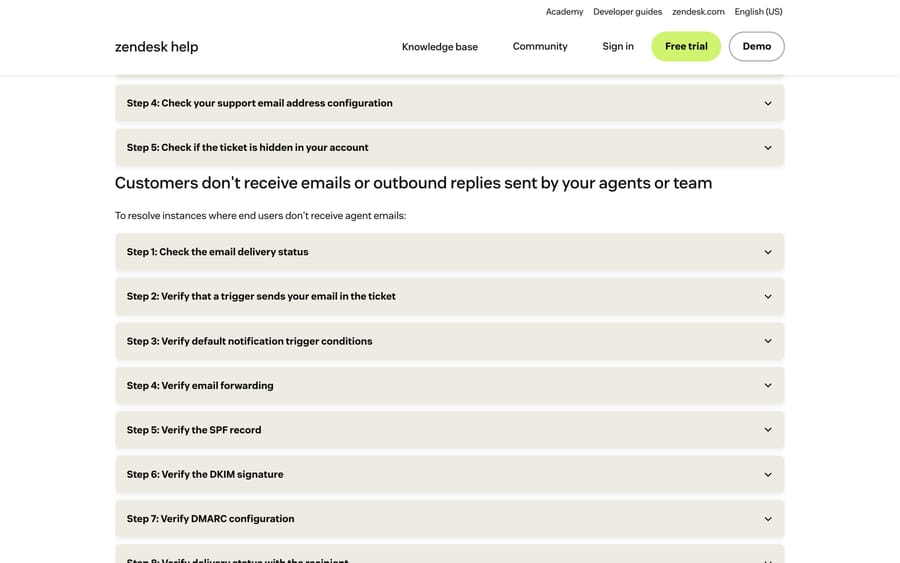
Zendesk's own article sequences the outbound checks in eight steps, and the order is sensible because each step is cheaper than the one after it. Ours differs in one place: we put the trigger check first when there is no outbound email in the ticket at all, because DNS work on a message that was never sent is wasted.
- Look at the ticket. Is there an outbound email, and does it carry a failure notice?
- If there is no outbound email, check the trigger and its placeholders.
- Check SPF. Fix the record, wait up to 48 hours, confirm the in-product warning clears.
- Check DKIM. Add both CNAMEs, then enable signing, in that order.
- Check DMARC. Publish
p=none, read the reports, tighten later. - Check reputation if configuration is clean and delivery got worse anyway.
- Check the recipient domain if the failures cluster on one.
Can an AI agent layer help with deliverability?
Nothing in an AI layer fixes a DNS record, and it is worth saying that plainly before the rest of this paragraph. Authentication is a domain-owner job and stays one.
Where it does help is the volume that makes deliverability matter in the first place. Macha is an AI agent layer that runs on top of your existing Zendesk, resolving repetitive tickets inside the ticket itself instead of adding a separate chat widget. Fewer round trips per ticket means fewer outbound notifications per ticket, which is a smaller sending footprint against the same Postmaster Tools spam-rate threshold. It fits teams already running Zendesk, Freshdesk, Gorgias, Front, HubSpot or Intercom who want agents acting on tickets, and it is the wrong fit if what you need is a mail-routing tool. Setup and monitoring are done by the Macha team on every plan, and the pricing page has the numbers.
How we researched this
We checked every Zendesk page cited here on 20 September 2026 and rechecked the DKIM article and Google's sender guidelines on 24 September 2026, and we captured three of them as the screenshots above: the troubleshooting sequence, the SPF article with its in-product warnings, and the DKIM article with its CNAME values and its order-of-operations warning. Plan availability for DKIM was read off the plan table at the top of that article. The Gmail requirements and the 0.30% spam-rate threshold come from Google's own sender guidelines. We did not test a deliberately broken SPF record against a live customer domain, so the symptom descriptions are Zendesk's and the community's rather than ours.
Six public r/Zendesk threads describe these failures from the admin side, including "Zendesk support emails landing in Spam", "Zendesk emails are not being delivered" and "Leaving ZenDesk: our emails never reach our customers". The recurring pattern across them is a team that set up a custom support address, skipped the DNS work because mail appeared to send, and found out months later from a customer.
Frequently asked questions
Why are my Zendesk emails going to spam? The usual cause is authentication. If your domain's SPF record doesn't include mail.zendesk.com, receiving servers can't confirm Zendesk is allowed to send for you, and Gmail shows a "via zendesk.com" line under your sender name. Add v=spf1 include:mail.zendesk.com -all as a TXT record, add the two DKIM CNAMEs, then publish a DMARC policy. Reputation damage and recipient-side filters are the next two causes to check.
What SPF record does Zendesk need? Zendesk recommends v=spf1 include:mail.zendesk.com -all. You can only have one SPF record per domain, so merge the include into an existing record instead of publishing a second one, and keep include:mail.zendesk.com in the first-layer lookup. Allow up to 48 hours for Zendesk to verify it.
How do I set up DKIM for Zendesk? Add two CNAME records, zendesk1._domainkey.yourdomain.com pointing at zendesk1._domainkey.zendesk.com and zendesk2._domainkey.yourdomain.com pointing at zendesk2._domainkey.zendesk.com. Only then turn on digital signatures at Admin Center › Channels › Talk and email › Email. Zendesk warns that enabling signing before the CNAMEs exist will cause delivery failures.
Does Zendesk support DMARC? Yes, and since Google's February 2024 sender requirements it is mandatory for anyone sending more than 5,000 messages a day to Gmail. Publish _dmarc.yourdomain.com starting at p=none, read the aggregate reports, then tighten to p=quarantine and p=reject. Zendesk's own guidance is that strict providers may filter or reject outbound mail from a domain with no DMARC policy.
My Zendesk email shows "Failed to deliver". What does that mean? The receiving server refused the message. Zendesk surfaces this under the comment in the Agent Workspace, with a per-recipient warning when only some addresses failed. Common reasons are an invalid address, a full mailbox, or the recipient's filter classifying it as spam. On a temporary error Zendesk may keep retrying for up to five days, so check the address for typos before you escalate.
Zendesk isn't sending any email at all. Where do I start? With triggers, not DNS. Go to Admin Center › Objects and rules › Business rules › Triggers, confirm a trigger with "Notify requester" in the title is active, and confirm its conditions are still Ticket Is Updated and Comment Is Public. Then check that the email body contains at least one placeholder, because Zendesk won't send a notification whose body has none.
Is this the same as the Zendesk spam emails problem? No, and they're worth keeping separate. Inbound relay spam is junk arriving in your queue because your instance is being used to send it, and that is covered in our guide to stopping Zendesk spam emails. This page is the outbound side: your replies failing to reach customers. The two connect at one point, which is that a relay-spam incident can damage the sending reputation this page is about.
Which three records clear most spam-folder problems?
Separate the two failures before you touch anything: a ticket with no outbound email is a trigger problem, and a ticket with an outbound email the customer never saw is an authentication or reputation problem. Publish v=spf1 include:mail.zendesk.com -all in the first-layer lookup, add both zendesk1 and zendesk2 DKIM CNAMEs before you enable signing, and get a DMARC record in place at p=none even if you never tighten it. Those three records clear most of what gets reported as "Zendesk emails going to spam". What's left is reputation, which takes weeks to recover and starts with closing the inbound hole, and recipient-side blocking, which is a conversation with their IT team rather than a change in Admin Center. If your notifications are firing but nobody is seeing them in-product either, Zendesk notifications not sending covers that path.
Sources:
- Zendesk: Troubleshooting email deliverability
- Zendesk: Allowing Zendesk to send email on behalf of your email domain
- Zendesk: Digitally signing your email with DKIM
- Zendesk: Understanding email delivery failures in the Zendesk Agent Workspace
- Zendesk: Creating ticket triggers for automatic ticket updates and notifications
- Google: Email sender guidelines
- BleepingComputer: Zendesk ticket systems hijacked in massive global spam wave (21 January 2026)
- r/Zendesk threads: emails landing in spam, emails not being delivered, emails never reaching customers
Add AI agents to your Zendesk
Macha reads the ticket, drafts the reply and takes the action, inside the Zendesk you already run.