





 Shopify
 Stripe
 Slack
Slack Notion
 Google Workspace
 Confluence

How Do You Integrate Aircall or Dialpad with Front? (2026 Setup Guide)


Connecting Aircall or Dialpad to Front turns phone calls and texts into Front conversations your team can assign, search and answer next to email and chat. Setup takes two steps in Front, and the details that trip teams up are plan requirements, contact matching and how calls thread.
Key takeaways
- Aircall connects to Front by enabling the Aircall app in Company settings, then adding each number as a Voice by Aircall or SMS by Aircall channel in Workspace settings.
- The Aircall integration in Front requires Front's latest Professional plan or above, and Aircall SMS also requires Aircall's own Professional plan.
- Front creates a new conversation for every Aircall call because call threading is not supported, while SMS messages from the same customer thread into one conversation.
- Front's legacy Dialpad integration stopped working on April 9, 2026, and conversations from the new Dialpad channels cannot thread or merge with legacy ones.
- Status sync between Front and Aircall runs one way, so Busy set in Front and any status changed inside Aircall are not copied across.

To integrate Aircall with Front, enable the Aircall app under Company settings → App store, then add each number as a Voice by Aircall or SMS by Aircall channel under Workspace settings → Inboxes → Channels. The integration needs Front's latest Professional plan or above, and Aircall SMS also needs Aircall's own Professional plan, per Front's Aircall integration guide (checked 24 September 2026). Dialpad users follow a similar channel flow, but Front's legacy Dialpad integration stopped working on April 9, 2026.
| Question | Aircall + Front | Dialpad + Front |
|---|---|---|
| Front plan | Latest Professional or above | Latest Professional or above |
| Phone-side plan | Aircall Professional for SMS | Check with Dialpad |
| Where calls land | The Front inbox the channel is routed to; one new conversation per call | Each phone number is its own Dialpad voice or SMS channel |
| Legacy cutoff | None | Legacy integration stopped on April 9, 2026 |
What does the Front–Aircall integration actually do?
Front is a shared-inbox and collaboration platform, not a phone system, so a voice integration's job is to feed calls into Front as conversations your team can assign and search. When an Aircall number is connected as a channel, calls show up in the Front inbox that channel is routed to, and a voice conversation is assigned to the agent who picked up. Front's guide is explicit on one point older write-ups get wrong: each call to or from a customer creates a new conversation, and call threading is not supported. SMS behaves differently: messages from the same customer thread into the same conversation.
Three capabilities are what teams feel day to day:
- Calls become conversations. Voicemails, call recordings and transcripts appear in Front, where teammates can listen, comment and tag each other. Transcriptions, summaries and action items need an Aircall AI Assist Standard license before they import into Front.
- Place calls without leaving Front. Agents place and receive calls from the Aircall call widget inside Front, which helps when a sales rep is reading an email and wants to call the person back.
- SMS in Front. Connect an Aircall number as an SMS channel and texts arrive in Front, with messages from the same customer threaded together. Use Split conversation to break out a new topic.
One prerequisite makes or breaks the experience: contact matching. An inbound caller only maps to the right Front contact if their number matches one in Front's Contact Manager or one synced from a CRM plugin such as Salesforce, HubSpot or Zoho. Front says the format must match exactly, including parentheses, spaces and the leading country code. If there's no match, Front creates a new contact for the number, and names don't sync from Aircall to Front.
How do I enable the Aircall app and connect a channel?
Setup happens in two places in Front: you enable the app at the company level, then connect phone numbers at the workspace level. You need admin permissions in both Aircall and Front, and every agent must sign in to Front with the same email address they use in Aircall. Phone numbers, call distribution and voicemail are set up in Aircall first.
- Click the gear icon in Front and open Company settings.
- Go to the App store, find Aircall, and open it. If it's already connected, you'll see an Enabled badge and an extra Settings tab.
- Open Workspace settings → Inboxes, pick or create the inbox, then Channels → Connect channel, and choose Voice by Aircall or SMS by Aircall. Voice and SMS for the same number are set up separately.
- Click Connect to Aircall. A pop-up asks you to sign in to Aircall; make sure the email matches your Front login, click Login, then Authorize.
- Select the numbers to add, then choose whether each channel routes to one inbox or several. For SMS channels, set when conversations close automatically; Front advises against Never if you plan to use AI features on that inbox.
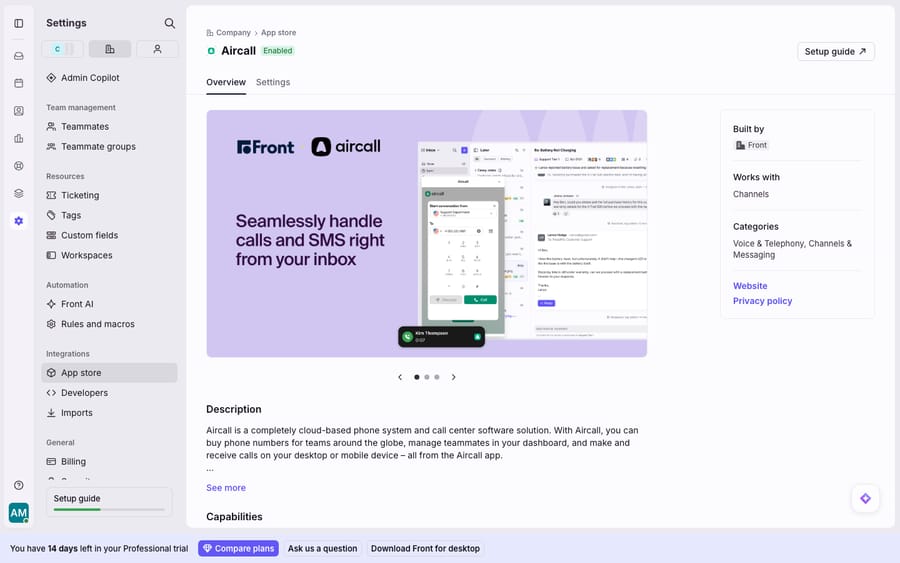
The screenshot above is the App Store page where you enable the app and see its status, not a populated call feed. The company-wide toggles sit under that Settings tab, and the channel wizard is where numbers get routed. In this account Aircall is already Enabled, which is the state you want before connecting a channel. Agents also need microphone access for Front, and anyone using Front in a browser must allow third-party cookies or the call widget won't work.
How do status sync and calling from Front work?
Once the channel is live, two company-wide toggles decide how the connection fits the way your team works.
Set status to Busy during calls switches an agent to Busy in Front while they're on a call and back to Available afterward, so a rule doesn't route a new conversation to someone mid-call. Sync Front status to Aircall pushes Available and Out of office from Front to Aircall (Out of office shows as Unavailable in Aircall). The sync runs one way. Setting yourself to Busy in Front isn't synced to Aircall, and changing your status inside Aircall doesn't change it in Front.
Calling from Front works through the Aircall widget: agents place and receive calls without switching tools, and the call is logged in Front. For a support agent triaging a team inbox or a salesperson following up on a lead, it removes the copy-paste-into-a-dialer step. If a caller is transferred to another number that's also connected to Front, the new activity threads into the existing conversation, which then shows in both inboxes.
Should I use Aircall or Dialpad with Front?
Both Aircall and Dialpad are natively supported by Front, and both put voice and SMS into your inboxes. The differences are in how numbers become channels and in Dialpad's migration history.
| Aircall + Front | Dialpad + Front | |
|---|---|---|
| How it connects | App Store enable + Connect channel (sign in with matching email) | Connect channel per number; the new integration replaced the legacy one |
| Channel model | Voice and SMS set up separately per number | Each phone number is its own channel; several channels can share one inbox |
| Voice + SMS | Yes (SMS needs Aircall Professional) | Yes, as Dialpad voice and SMS channels |
| Conversations | One new conversation per call; SMS threads by customer | New-channel messages don't thread into legacy conversations |
| Migration gotcha | None | Legacy Dialpad integration stopped on April 9, 2026; legacy and new conversations can't be merged |
| Front plan | Latest Professional or above | Latest Professional or above |
The practical read: if you're already on Aircall, the Front-built connector is the cleanest path and the steps above are your setup. If you're on Dialpad, Front rebuilt the integration. Per Front's guide to switching from the legacy Dialpad integration, each phone number now has to exist as its own channel, messages from the new channel won't thread into legacy conversations, and the two can't be merged. The legacy integration's cutoff was April 9, 2026, so any team still relying on it needs to reconnect numbers through the new channel. Either way the shape in Front is the same: calls become conversations. For how Front models phone alongside email and chat, see Front channels explained.
Where does the native integration stop, and where does an AI layer fit?
The native Aircall connector is good at the mechanical part: it turns calls into logged, searchable, assignable conversations, and that alone is worth doing. Its edges are worth knowing before you roll it out.
It's a channel, not a brain. The integration logs the call; it doesn't understand it. A recording, and with AI Assist a summary, land in Front, but nothing reads the customer's account, checks their last order and drafts the follow-up. That reasoning is still human work.
Every call is a separate conversation. Because call threading isn't supported, a customer who calls three times produces three conversations. Teams that want one timeline per customer rely on contact records and search rather than a single thread.
SMS becomes Front-only. Front's FAQ is explicit: once an Aircall number is connected to Front, you can only send and receive SMS through Front. Calls still ring in Aircall. That's usually what you want, but decide deliberately for each number.
Contact matching is brittle. Because mapping needs an exact phone-number format, a caller whose number is stored differently (spacing, parentheses, a missing country code) becomes a new contact instead of matching the one you expected.
Feature gates and plan floors. The integration needs Front's latest Professional tier or above; transcripts and AI summaries need an Aircall AI Assist Standard license; user extensions aren't supported; and browsers must allow third-party cookies. Front's own pricing tiers show what unlocks where.
This is where an AI agent layer fits: not to replace the phone integration, but to do the reasoning it can't. The broader category of AI agents for customer service exists for the work a call log can't do. Macha is one such layer. It runs on top of the Front you already use through the live Macha–Front connector, and it doesn't replace Front, your Aircall channel or your inboxes. Aircall logs the call as a conversation; Macha's agent then reads it, along with the customer's prior emails and SMS, works out intent, and pulls the customer's real order or account status through a custom tool that turns your REST API into something the agent can call. A logged call becomes a drafted or sent reply. Connecting Front to Macha to route conversations to AI walks through the mechanics. Macha bills per ticket, from $299 a month for 750 tickets: one conversation is charged once however many messages it takes, never per resolution, so the bill tracks the volume you handle. For the full landscape, see the best Front integrations.
FAQ
How do I connect Aircall to Front? Enable the Aircall app under gear → Company settings → App store → Aircall, then go to Workspace settings → Inboxes → Channels → Connect channel, choose Voice by Aircall (or SMS by Aircall), click Connect to Aircall, and sign in with the Aircall account that matches your Front login. Then select the numbers and the inbox each should route to.
Where do Aircall calls show up in Front? In the Front inbox the Aircall channel is routed to. Each call creates a new conversation, because Front doesn't support call threading, and the conversation is assigned to the agent who answered. SMS from the same customer does thread into one conversation.
Can I make calls from inside Front? Yes. Agents place and receive calls through the Aircall widget in Front, provided they're signed in to Aircall with the same email as Front and, in a browser, have third-party cookies enabled.
Should I use Aircall or Dialpad with Front? Both are natively supported, so use the phone system you already run. On Dialpad, Front rebuilt the integration so each number is its own channel, and the legacy Dialpad integration stopped working on April 9, 2026. Legacy and new conversations don't thread or merge.
Do Aircall call transcripts and summaries appear in Front? Yes, if you hold an Aircall AI Assist Standard license. Without it, calls, recordings and voicemails still appear, but transcriptions, summaries and action items don't import.
Can I add AI to Front's phone conversations without replacing Front? Yes. An AI agent layer like Macha connects to Front as a live connector and runs on top of your existing inboxes and Aircall channel. Aircall keeps logging calls as conversations; the agent reads them, works out intent, and drafts or sends a grounded reply.
Ready to turn logged calls into resolved conversations? Start a free trial of Macha and connect it to your Front in minutes.






