





 Shopify
 Stripe
 Slack
Slack Notion
 Google Workspace
 Confluence

How Do You Integrate Asana with Front? Setup Steps and Plan Limits (2026)


A Front admin enables Asana from the App store on any Front plan, then each teammate signs into Asana from the conversation sidebar to create or link tasks. Automatic task creation from rules and macros needs Front's prebuilt Connectors, which start on the Professional plan.
Key takeaways
- Front admins enable the Asana integration from Company settings, then App store, by selecting Asana and clicking Enable app, and the integration works on Starter, Professional and Enterprise plans.
- Front reopens a conversation when its linked Asana task is completed only if an admin finishes the optional Sign in to Asana step during setup.
- Creating an Asana task from a Front conversation writes a link back to the related Front conversations into the Asana task description automatically.
- Front's prebuilt Connectors, which let rules, macros and chatbots create Asana tasks without a click, are limited to the Professional plan at $65 a seat a month billed annually or above.
- Macha's own Asana connector lets an agent working on top of Front search tasks, create tasks with an assignee and due date, add comments and complete work.

To integrate Asana with Front, a Front admin goes to Company settings → App store, selects Asana, clicks Enable app, and optionally clicks Sign in to Asana so conversations reopen when their linked task is completed; each teammate then pins the Asana plugin in the conversation sidebar and signs in with their own Asana account. The integration works on every Front plan (Starter, Professional and Enterprise), while the prebuilt Connectors that let rules and macros create Asana tasks automatically need Professional or above, per Front's Asana integration help article (checked 24 September 2026).
| What you want | Who does it | Front plan |
|---|---|---|
| Turn the integration on | Admin: Company settings → App store → Asana → Enable app | All plans |
| Reopen conversations when a task is completed | Admin: the optional Sign in to Asana step | All plans |
| Create a task or attach an existing one | Any teammate, from the Asana plugin in the right sidebar | All plans |
| Create tasks from rules, macros or chatbots | Admin builds the rule with a prebuilt Connector | Professional and above |
What does the Front and Asana integration actually do?
Front is a shared-inbox and collaboration platform, so this integration is built around one job: getting a conversation out of the inbox and into your project tracker without copy-paste. Per Front's Asana integration help article, once enabled the integration lets any teammate create a new Asana task from a conversation, attach a conversation to an existing task, and, if the admin connects the workspace, have related Front conversations automatically reopen when the linked task is completed.
That last part is the quiet win. A support agent files a bug as an Asana task, engineering ships the fix and marks the task done, and the original customer conversation pops back into the Front inbox so someone can close the loop with the customer. Front's Asana integration page frames it as "manage projects from their inbox," and lists task ownership, sub-tasks, due dates, and comments as the information kept coordinated across the two tools.
How do you enable Asana in Front as an admin?
Enabling the integration is an admin action from the App Store. Per Front's documentation:
- Click the gear icon, then go to Company settings → App store.
- Find and select Asana, then click See details.
- Click Enable app.
- (Optional but recommended) Click Sign in to Asana to enable auto-reopening of conversations when their linked tasks are completed.
- Click Save.
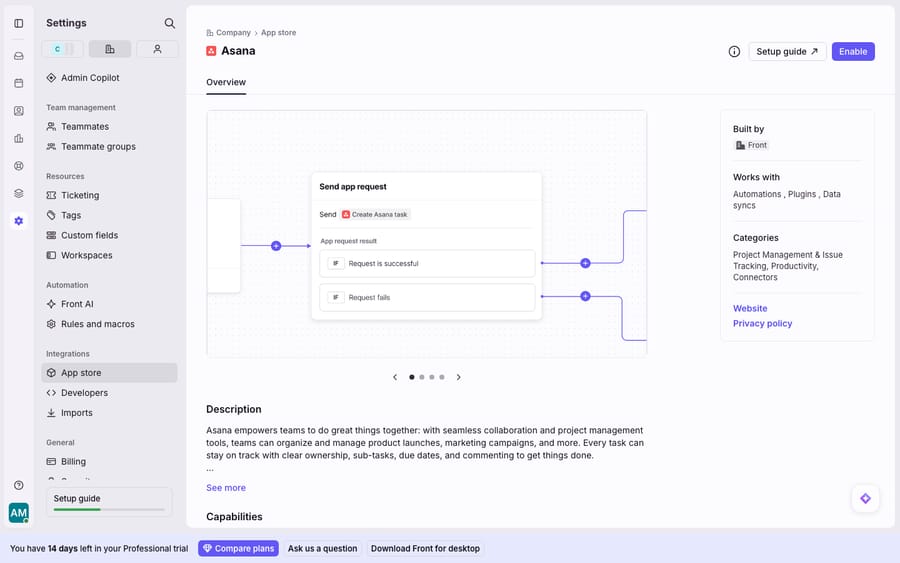
The screen above is the App Store overview page, where the Enable step switches the integration on for your workspace. It doesn't create anything in Asana by itself. Tasks get created later from the plugin, by teammates who have signed into their own Asana accounts, and the default workspace, project and assignee are set per person inside the plugin, not on this page.
How does each teammate connect the Asana plugin?
The integration is enabled once, but each teammate connects their own Asana login:
- Open a conversation and look for the Asana icon in the right sidebar. If it isn't there, click the Manage icon at the bottom of the sidebar and pin Asana.
- On first use, enter your Asana credentials to authenticate.
- Click the gear icon in the plugin to set your default workspace, project, and assignee so new tasks land in the right place without repeating yourself.
This per-user auth is why the integration respects Asana's own permissions: teammates only see and act on the workspaces and projects their Asana account already has access to.
How do you turn a Front conversation into an Asana task?
This is the core move. From an open conversation:
- Open the This conversation tab in the Asana plugin.
- Click Add task.
- Fill out the task attributes: name, project, assignee, due date.
- Click Create.
The task is created in Asana, and Front adds a link back to the related Front conversations in the Asana task's description, per Front's documentation. So the engineer or ops teammate who picks up the task can jump straight to the original customer thread for context.
How do you link a conversation to an existing Asana task?
Often the work already exists as a task and you just need to attach the customer's report to it (say, five customers hit the same bug):
- Open the Search tab in the Asana plugin.
- Select the workspace and enter the task name.
- From the results, open the three-dot menu and attach the task to the current conversation.
Attached tasks then appear in the This conversation tab alongside any you created. Because the conversation link is written into the Asana task description, your product team sees how many customer conversations, and which ones, are riding on that task.
What syncs between Front and Asana, and what doesn't?
Here's the honest picture of the sync, which matters before you rely on it:
| Capability | Direction | Notes |
|---|---|---|
| Create Asana task from a conversation | Front → Asana | Task attributes (name, project, assignee, due date) set at creation |
| Link back to the Front conversation | Front → Asana | Added to the Asana task description automatically |
| Task completed → conversation reopens | Asana → Front | Requires the admin Sign in to Asana step; otherwise it won't fire |
| Ownership, sub-tasks, due dates, comments | Coordinated | Kept "in sync" per Front's integration page; surfaced in the plugin, not mirrored as Front fields |
| Other Asana field changes | Not written back | Front's help article documents no field-level write-back onto conversations |
The takeaway: the day-to-day experience is two-way in spirit, since you create tasks from Front and get conversations reopened from Asana. But the reopen behavior depends on the optional admin sign-in, and task details are surfaced through the plugin rather than written onto native Front conversation fields. Don't assume every Asana field change flows into Front automatically.
Can Front create Asana tasks automatically?
Yes, on the right plan. If you want Asana actions to happen without a human clicking Add task, that's what Front's Connectors are for. Per Front's Asana integration help article, the integration is available on all plans, but the prebuilt Connectors are limited to the Professional plan or above. Connectors are the pieces you drop into rules, macros, or chatbots so an Asana action fires without code.
Practically, that means you could build a Front rule that, when a conversation is tagged bug, automatically creates an Asana task in your Engineering project. The basic manual integration is available on all plans (Starter, Professional, Enterprise), but this rules-driven automation is the plan-gated part. Front's pricing page lists Professional at $65 a seat a month billed annually, with up to 20 automation rules, against $25 and up to 10 rules on Starter.
| Manual integration | Connectors automation | |
|---|---|---|
| Plan | All plans | Professional and above |
| How tasks are created | A teammate clicks Add task | A rule / macro / chatbot fires the Asana action |
| Best for | Ad-hoc, judgment-call task creation | High-volume, predictable "always file this" flows |
| Setup effort | Minutes, no config | Requires building the rule and choosing the Connector |
Where does the native integration fall short, and where does an AI agent fit?
The native integration is well built for what it is: a fast, reliable bridge for a human who has already decided a conversation deserves a task. The reopen-on-completion behavior and the automatic conversation link in the task description are exactly the small touches that keep support and project work from drifting apart.
But it has real edges. First, it's human-triggered by default: someone has to read the conversation and click Add task, and nothing decides whether a conversation warrants a task. Second, hands-off automation via Connectors is plan-gated to Professional and above. Third, even a Connector-driven rule fires on patterns (a tag, a keyword, an inbox), not on meaning. A rule can't tell "the app crashed on checkout" from "I'd love a dark mode someday," so your Asana board fills with noise as readily as signal.
That seam, reading a conversation and deciding what to do with it, is where an AI agent layer fits. The broader category of AI agents for customer service exists for exactly this reasoning work. Macha is one such layer: it runs on top of the Front you already use through the live Macha–Front connector, and it doesn't replace Front, your inboxes, or this Asana integration. Macha's agent reads each incoming conversation for intent: it resolves the routine questions itself, and for the genuine bugs, escalations, and feature requests it files the task through Macha's own Asana connector, which can search tasks, create a task with name, notes, due date and assignee, add comments and mark work complete. For any other system you can wire in a REST API as a custom tool. A rule creates a task whenever a keyword matches; the agent creates one only when the situation calls for it, and answers the customer in the meantime. If you want the mechanics, connecting Front to Macha to route conversations to AI walks through it, and Macha bills per ticket, starting at $299 a month for up to 750 tickets: one conversation, charged once however many messages it takes, never per resolution. For how integrations fit the wider inbox, see the Front shared inbox model and how Front channels feed it.
FAQ
Is the Front Asana integration free? The basic integration (creating tasks from conversations and linking existing tasks) is available on all Front plans: Starter, Professional and Enterprise. The prebuilt Connectors that let rules, macros, and chatbots trigger Asana actions automatically require the Professional plan or above, per Front's documentation.
Does the Asana integration sync two ways? Partly. You create Asana tasks from Front, and Front writes a link back into the Asana task's description. If an admin completes the optional Sign in to Asana step, completing a linked task will automatically reopen the related Front conversations. Other Asana field changes are shown in the plugin, not written onto native Front fields.
How do I turn a Front conversation into an Asana task? In an open conversation, open the This conversation tab in the Asana plugin, click Add task, fill in the name, project, assignee, and due date, then click Create. The new task includes a link back to the Front conversation.
Can I attach a conversation to a task that already exists? Yes. Use the Search tab in the plugin, select the workspace and enter the task name, then use the three-dot menu to attach the task to the current conversation. It appears under This conversation.
Can AI decide which conversations become Asana tasks? Not with the native integration alone, which is human-triggered or rule-triggered on keywords. An AI agent layer like Macha, connected on top of Front, reads each conversation for intent, resolves the routine ones, and files an Asana task through its Asana connector only for the reports that warrant one.
Ready to turn "someone has to file this" into "the agent already handled it"? Start a free trial of Macha and connect it to your Front in minutes.






