Intercom
 Shopify
 Stripe
 Slack
Slack Notion
 Google Workspace
 Confluence

Intercom Custom Attributes vs Tags: Which Should You Use for People, Company and Conversation Data?


In Intercom, custom attributes are structured data you filter, report and automate on, while tags are free-form labels on a single reply inside a conversation. People, company and conversation attributes, topics, tags and custom objects each do a different job, and attribute names can never be changed once created.
Key takeaways
- Intercom custom attributes are structured data used for filtering, reporting and automation, while Intercom tags are free-form labels applied to an individual reply inside a conversation, not the whole conversation.
- Intercom custom attribute names can't be changed after creation, and people and company attributes share one namespace, so a name used on one can never be reused on the other.
- Intercom custom attributes can be archived but never deleted through the interface, and Intercom support won't delete them either, so every attribute created stays on the list.
- Intercom names a soft limit of 250 active custom data attributes, caps text values at 255 characters, and limits a workspace to 5,000 conversation data attributes.
- Intercom's Required attribute toggle only binds teammates in the Inbox and Conversations app, so Fin, Workflows and the API can still close a conversation without the value.

In Intercom, custom attributes are structured data you filter, report and automate on, and tags are free-form labels that attach to a single reply inside a conversation, not to the conversation as a whole. Intercom actually offers five places to put this kind of data, and the table below shows which one does which job. The naming and permanence traps come after it, because a wrong attribute name can't be undone later.
What are the five ways to store data in Intercom?
| Lives on | Set by | Can be required | Typical use | |
|---|---|---|---|---|
| People attribute (CDA) | A person | Your app, the API, CSV import, an app-store app | No | Plan, signup date, lifetime value |
| Company attribute | A company | Same as above | No | Industry, seat count, contract tier |
| Conversation attribute (CvDA) | One conversation | Teammates, Workflows, customers | Yes | Product area, type, urgency |
| Conversation topic | One conversation | Keyword matching, automatically | No | Trend reporting, retroactive analysis |
| Conversation tag | An individual reply in a conversation | Teammates, Workflows | No | Bookmarking, beta candidates, one-off campaigns |
Intercom's own framing is that all three conversation methods are worth using together, and that is right, but only if you are clear about which job each is doing. Topics are automatic and retroactive. Attributes are structured and enforceable. Tags are granular and personal.
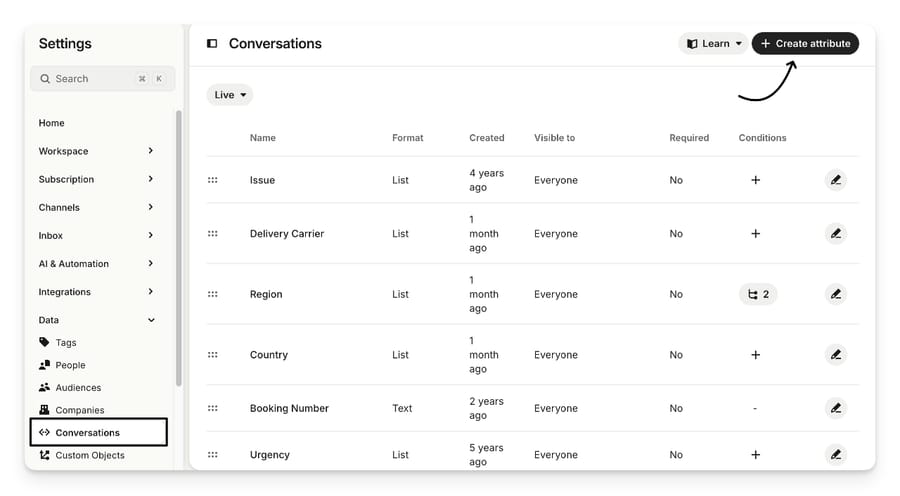
If you came from a traditional ticketing system, Intercom's own comparison is the useful one: conversation data attributes are the equivalent of custom ticket fields. That's also the mapping that trips people up, because Intercom's tags aren't Zendesk's tags. Intercom tags attach to a single message inside a conversation, not to the conversation as a whole.
How do people and company attributes work?
These track facts, not actions. Intercom's distinction is worth holding onto: an attribute records that someone is on the Pro plan; an event records that they exported a report on Tuesday.
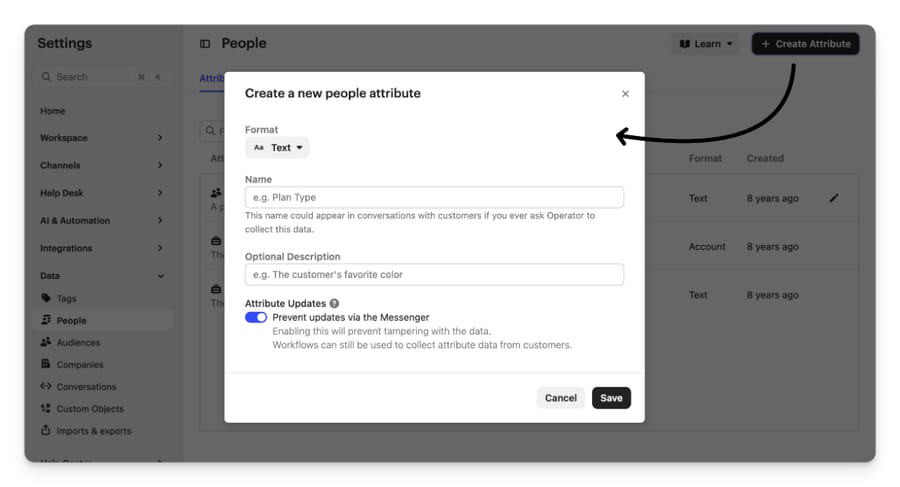
To create one: Settings > Data > People, then + Create attribute. Give it a name, an optional description, and a format.
The three traps nobody warns you about
1. Names are permanent, and People and Company share one namespace. A custom attribute name used in People can't be reused in Company, or the other way round, even after you archive the original. Create "Plan" on People when you meant Company and that name is gone for good; you archive the mistake and create "Plan Tier" or similar. Conversation attributes sit in a separate namespace and can reuse a People or Company name without conflict. The name of a CDA also can't be changed after creation, so a typo means archive and recreate.
2. Attributes can be archived but not deleted. Not through the UI, and Intercom support won't delete them for you either. Whatever you create is in that list forever, so it's worth being conservative at the start.
3. The Messenger will silently drop nested attributes. When passing custom data attributes through window.intercomSettings or window.Intercom("boot", ...), they must be top-level keys. The custom_attributes: {} nested object is REST API syntax only; pass it via the Messenger and the values vanish with no error. The attribute must also already exist in Intercom before any value is accepted.
Formats and limits
Four formats go in from the Messenger: string, number, boolean and timestamp. Intercom names a soft limit of 250 active CDAs, and describes it as soft, so treat it as a design signal rather than a wall.
The fiddly ones:
- Text values cap at 255 characters. This applies to custom attributes, not conversation data attributes.
- Dates are Unix timestamps in seconds, not milliseconds. A key name ending
_atis treated as a date automatically. - Numbers can't start with a zero. A zip code like
01234has to be a string attribute, or it becomes1234. - Key names are case sensitive and can't contain periods, dollar signs or a set of punctuation characters; an unsupported character is replaced with an underscore rather than rejected.
- Nested objects and arrays aren't accepted as values. Strings, numbers and booleans only.
- Send an empty string to clear a value.
One security setting worth turning on before you have data worth protecting: the Attribute Updates toggle, labeled "Prevent updates via the Messenger" in the create dialog. With it on, updates to that attribute are only accepted from authenticated requests, meaning the REST API or the Messenger secured with JSON Web Tokens. It is per-attribute, so an attribute without it is open to insecure updates. The legacy user-hash identity verification method does not satisfy it; JWTs do.
What can conversation attributes do that tags can't?
Conversation data attributes are the structured way to categorize the conversation itself. Create them at Settings > Data > Conversations with + Create attribute. Formats: text, list, number, decimal number, boolean, date and time, reference, and file upload.
Three things conversation attributes can do that tags cannot:
They can be collected from the customer. A Workflow can ask "is this a bug report or a feature request?" and write the answer straight into the attribute. Tags can be applied by Workflows, but never defined by the customer.
They can be required before closing. Toggle Required attribute and a teammate who tries to close without a value sees "The following attributes are required before closing the conversation". The catch: this only binds teammates in the Inbox and the Conversations app. Fin, Workflows and the API will close a conversation without it. If your reporting assumes 100% coverage, that assumption breaks the moment Fin starts closing conversations.
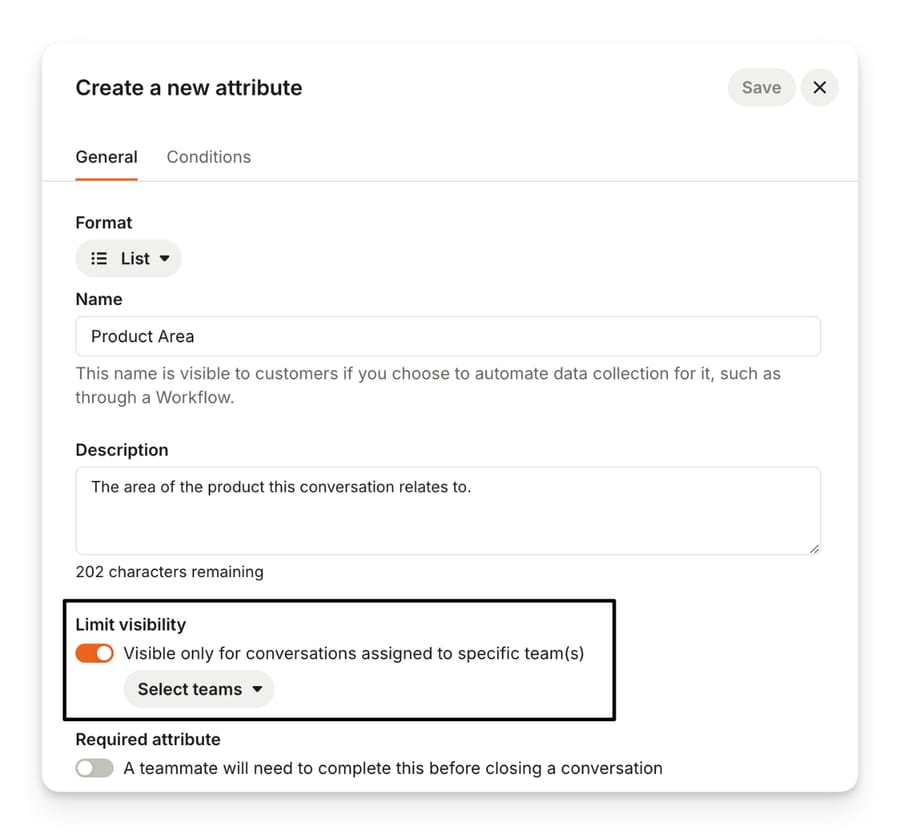
They can be scoped to teams. Limit visibility restricts an attribute to conversations assigned to specific teams, so Sales can capture intended use case without cluttering Support's sidebar. Scoping is by team, not by individual teammate. If you set an attribute as both required and team-limited, only conversations assigned to those teams require it.
Two more that save real time:
- List options can be bulk-imported from CSV, up to 1,000 at once, with an optional Description column that feeds AI category detection. Duplicate option names are rejected and the check is case sensitive, so "Option 1" and "option 1" both survive as separate options. A later import adds options; it does not update or replace the existing ones.
- Conversation attributes have their own ceilings. Intercom caps a workspace at 5,000 conversation data attributes, counting conversations and every ticket type together. Text attributes have a tighter limit: 250 for conversations and another 250 for each ticket type.
- Conversation attributes only populate once the conversation exists. While a teammate is drafting a new conversation, there isn't a conversation yet. The attributes appear after Send.
The Required attribute toggle isn't available on company attributes. Intercom's documented workaround is a Workflow: make a conversation attribute required, then use a Collect/Set data action to copy its value into the company attribute when the conversation closes.
How are conversation topics different from tags?
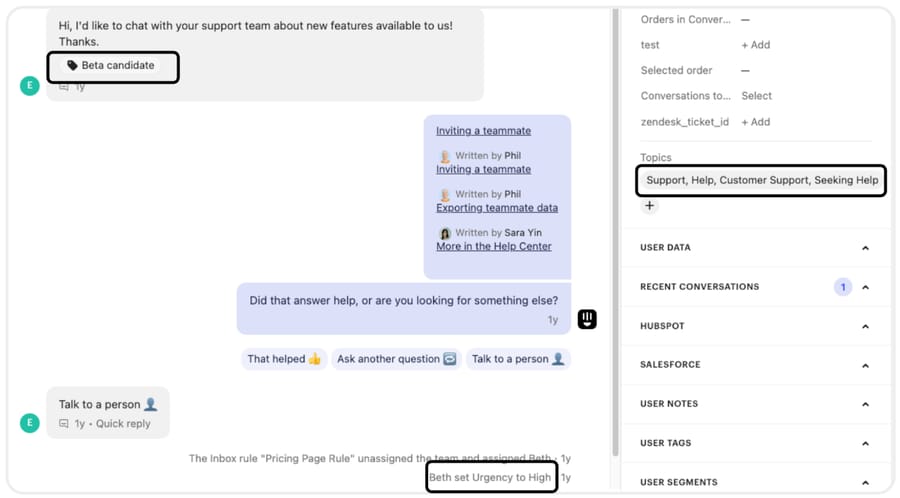
Topics are keyword-matched. You define the keywords and phrases to include or exclude, and any conversation whose customer message matches gets the topic, automatically, including historically. Intercom's machine learning also suggests new topics from trends. They need no input from teammates or customers, which makes them the best of the three for "what are people actually contacting us about" and the worst for anything that depends on a human judgment call.
Tags attach to individual replies inside a conversation, not to the conversation as a whole. That's the detail most people get wrong when they arrive from another help desk. Tags are for bookmarking a specific message: this is the one where the customer described the bug, this is the beta candidate, this is the quote for the case study. They can be applied by Workflows, but never set by a customer.
All three appear in CSV exports.
Moving from tags to attributes
This is the most common migration in this part of Intercom, and there is a public thread worth reading before you start. In December 2025 a team asked the Intercom community how to move from tags as the main classification system to a small set of conversation attributes. The answer that was accepted, from an Intercom Expert User, was blunt and practical:
- Use as few conversation attributes as you can get away with. Sentiment and product area are the strongest two.
- Don't go past about four, especially if you can pull user attributes into Intercom instead.
- Let Fin set the attributes, and combine that with requiring them on close.
- Don't bother backfilling historical conversations.
- Expect to revise the attribute names and descriptions a few times based on how well they are actually being applied.
That last point matters more than it looks. Attribute descriptions are what AI category detection reads, so a vague description produces vague classification, and you don't find out until six weeks later when the report is useless.
One limitation to plan around: Fin attribute detection is not supported in Workflows using the trigger "When customer sends any message".
When should you use a custom object instead of an attribute?
If the data you want is a record rather than a fact about a person, an attribute is the wrong shape. An order has a status, a date, a total and a shipping state; squeezing that into five people attributes gets ugly fast.
Custom objects live at Settings > Data > Custom Objects. Create an object, name it (Order, Subscription, Policy), and it arrives with external_id, external_created_at and external_updated_at as default attributes. You then add your own in text, number, decimal, list, boolean, date or reference format.
Reference is the interesting one: it links a custom object to People, to Conversation, or to another custom object, which is how a bot flow can show a customer their three most recent orders and let them pick one.
The permanence rule repeats here, so read it twice: the object name can't be renamed once saved, and neither can an attribute name. If you have worked with Zendesk's equivalent, our Zendesk custom objects vs custom fields comparison covers the same decision in that product, and the reasoning transfers.
Can you merge leads and users in Intercom?
People ask about attributes and end up asking about duplicates, because the two problems arrive together: attributes look wrong when the same human has two profiles.
Intercom's model is that a lead is an unidentified contact who has used the Messenger without authenticating, and a user is an identified, logged-in contact. What can be merged:
- A lead can be merged into a user. Yes.
- Two leads. No.
- Two users. No.
- A user back into a lead. No.
Three ways to merge a lead into a user. Change the lead's email to match the user's, and the merge happens the next time that user visits or refreshes (if two users share the email, the most recently active one wins). Import via CSV, which only merges a brand-new lead, not one that already exists in Intercom. Or, from the Inbox, click Merge Lead into User when the potential-duplicates warning appears, with a preview of exactly what will change before you confirm. After the merge the lead profile is deleted and the user survives.
Automatic merging works through the Intercom cookie: a logged-out visitor gets a cookie, becomes a lead when they start a conversation, and merges into their user profile when they log in on the same device. For merging on email alone, without a shared device or cookie, there is a Merging of unverified Leads into Users setting in Security Settings, and Intercom's advice is to secure the Messenger with JWTs before you turn it on.
Because two users cannot be merged, consolidating two identified profiles means the API: list the source user's conversations, recreate them under the destination user, then archive or delete the duplicate.
Should you use an attribute or a tag?
Ask one question: will you filter, report or automate on it?
- Yes, and it is about the person or company → people or company attribute.
- Yes, and it is about this conversation → conversation attribute, list format, required if the report depends on it.
- Yes, and it is about what people are asking → topic, because it is automatic and retroactive.
- Yes, and it is an external record with its own fields → custom object.
- No, you just want to find these again later → tag.
Conversation attributes suit teams that run a queue with real process behind it: routing rules, team-specific views, a weekly report somebody actually reads. They're the wrong choice if you're still figuring out what your categories are, because the temptation is to create fifteen of them and require all fifteen, and the result is teammates picking whatever closes the conversation fastest. Start with two, make them required, and add a third only when someone asks for it twice. Intercom for customer support sets out where this sits in the wider product, and Intercom shared inbox explained covers views, which is where attributes earn their keep day to day.
Worth naming the incentive behind the shape of this feature set, too. Attributes and topics are the data Intercom's own reporting and Fin are built on, so the product pushes you toward structured fields. That's genuinely in your interest as well, but it means "use tags less" is advice that happens to suit the vendor, and you should still check it against your own team's habits rather than taking it on faith. If your teammates already tag consistently and never fill in a dropdown, a tag-based system that is used beats an attribute-based system that is not. Teams coming from Freshdesk in particular tend to have deep tag habits, which we cover in Freshdesk tags explained.
How we researched this
We checked every path, label, format and limit above against Intercom's own help center at intercom.com/help on 21 September 2026, and re-checked the limits, the permanence rules and the Required attribute behavior on 24 September 2026, from the articles listed in the sources below. The four screenshots are Intercom's documentation images for the exact screens described. We do not have an Intercom workspace, so nothing was clicked through first hand, and we didn't test the 250-CDA soft limit or the 255-character text cap; Intercom calls the first one soft and doesn't say what happens past it, so neither do we. Community evidence comes from public threads on community.intercom.com.
Can an AI agent fill in conversation attributes for you?
Required attributes solve the compliance half of classification. They don't solve the accuracy half, because a teammate under queue pressure picks the first option in the dropdown, and six weeks later the report says 60% of your volume is "Other".
That is the gap an agent layer closes: reading the actual conversation and setting the attribute from what the customer said, not from what fitted. Fin does this natively on Intercom, and we have written it up in Intercom Fin explained. Macha does the same job on the help desk a team already runs (Zendesk, Freshdesk, Gorgias, Front, HubSpot or Intercom), reading ticket history to classify and route as well as reply. Neither replaces the help desk, and neither decides what your categories should be. That part is still yours.
Frequently asked questions
What is the difference between a tag and a custom attribute in Intercom? A tag is a flexible label applied to an individual reply inside a conversation, useful for finding that message again. An attribute is structured data with a defined format that you filter, report and automate on. Only attributes can be collected from customers directly or required before a conversation closes.
Can I delete a custom attribute in Intercom? No. Custom attributes can be archived but not permanently deleted through the interface, and Intercom support cannot delete them on your behalf.
Can I rename a custom data attribute? No. The name of a CDA is fixed once it's created. To change it you archive the existing attribute and create a new one, which is also why the shared People and Company namespace matters.
Why can't I reuse an attribute name I archived? People and company attributes share one namespace. A name used in People can't be reused in Company, or the reverse, even after archiving. Conversation attributes are in a separate namespace and can reuse those names.
How do I make a field mandatory before closing a conversation? Turn on the Required attribute toggle on a conversation or ticket attribute. It binds teammates in the Inbox and the Conversations app only. Fin, Workflows and the API will still close a conversation without the value.
Can I require a company attribute before closing? Not directly. Intercom's documented workaround is to make a conversation attribute required, then use a Workflow with a Collect/Set data action to copy its value into the company attribute.
How many conversation attributes should I use? An Intercom Expert User answering a December 2025 community thread suggested no more than about four, with sentiment and product area as the strongest candidates. The failure mode of more is teammates picking whatever closes the conversation fastest.
Can I merge two Intercom users? No. A lead can be merged into a user, but two users can't be merged, two leads can't be merged, and a user can't be merged back into a lead. Consolidating two users means recreating conversations via the API.
Why are my custom attributes not updating from the Messenger? The most common cause is passing them inside a custom_attributes: {} object. That syntax is REST API only. Through window.intercomSettings they must be top-level keys, and the attribute has to already exist in Intercom.
If the real problem is that your classification data is only as good as a rushed dropdown choice, start a Macha trial: $50 of free usage, no credit card, running on the help desk you already have.
Sources:
- Create and track custom data attributes (CDAs) (Intercom help)
- Create and use conversation data attributes (CvDAs) in the Inbox (Intercom help)
- How and when to use conversation topics, attributes, and tags (Intercom help)
- Setting up a Custom Object (Intercom help)
- Merge lead and user profiles (Intercom help)
- Community: Moving from Tags to Conversation Attributes
- Community: When should I use conversation tags and conversation attributes?
- Community: Same custom attribute on people and companies
Add AI agents to your Intercom
Macha reads the conversation, drafts the reply and takes the action, inside the Intercom you already run.