





 Shopify
 Stripe
 Slack
Slack Notion
 Google Workspace
 Confluence

How Do You Migrate a Shared Gmail or Outlook Mailbox to Front? (2026)


A shared support@ mailbox in Gmail or Outlook stops working once three or more people collide on replies. Front keeps email feeling like email and adds assignment, comments and shared visibility, but only a directly connected mailbox brings its history with it.
Key takeaways
- Migrating a shared Gmail or Outlook mailbox to Front works best by connecting it via OAuth, which lets Front import up to 50,000 messages, newest first.
- Front says a history import may take up to 72 hours, so teams should start it before cutover and keep the old mailbox running in parallel.
- Office 365 folders import into Front as tags, up to 500 with nesting preserved, while Gmail labels become tags once with no sync afterward.
- Google Groups and distribution lists are forwarding-only in Front, so their conversation history is not imported and sent mail does not sync.
- A full Front export requires a Support request and excludes individual inboxes, contacts, message templates and tags, so keep the source mailbox after migrating.
To migrate a shared Gmail or Outlook mailbox to Front, connect the real mailbox to Front with OAuth (not by forwarding), let Front import up to the 50,000 most recent messages, rebuild your filters, templates and signatures while the import runs, and switch your team and MX records over last. Front says an import can take up to 72 hours, and the old mailbox keeps working throughout, so real downtime is close to zero.
| Step | What happens | Time |
|---|---|---|
| 1. Connect the mailbox (OAuth) | Enables history import and sync of new and sent mail | Minutes |
| 2. History import | Up to 50,000 messages, newest first; auto-archived in shared inboxes | Up to 72 hours |
| 3. Rebuild automation | Filters become rules; templates and signatures re-added | An afternoon |
| 4. Cut over | Team works in Front; update MX or forwarding last | Same day |
Should you connect the mailbox or forward it to Front?
The single most important choice happens before you touch a setting. In Front, a mailbox becomes a channel one of two ways, and they behave very differently.
Connecting means authenticating the account directly: you sign in with Gmail or Office 365 via OAuth, and Front reads and sends on that account's behalf. This is the path that unlocks history import and a live sync, so a reply sent from Front shows up in the Gmail "Sent" folder. The sync is narrower than it sounds: per Front's Gmail history import and sync article, only new messages, sent mail and spam status sync; read/unread, archive status, tag changes, trash and snooze do not. Per Front's guide on choosing between a Google Group and a Gmail user account, a connected Gmail user account supports email-history import, two-way sync, and sent-mail sync; a Google Group or distribution list does not — those are forwarding-only.
Forwarding means you leave the mailbox where it is and forward incoming mail into a Front address (an SMTP channel or a group alias). It's simpler and free, but Front only ever sees mail that arrives after you set it up. There is no historical import, no two-way sync, and your sent history stays behind in the old system.
The practical rule: if the shared mailbox is a real Gmail or O365 inbox and you care about keeping its history, connect it directly. If it's a support@ Google Group or a distribution list, you're on the forwarding path whether you like it or not, and you should plan to start Front from a clean slate.
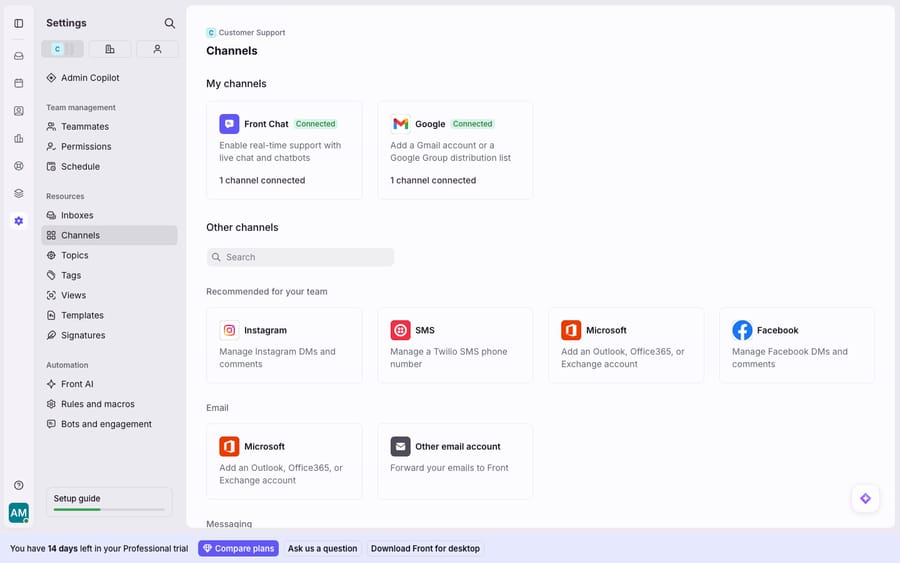
What imports when you connect Gmail or Office 365 to Front?
When you connect a full Gmail or Office 365 inbox as a shared inbox, Front offers a one-time history import. Per Front's article on importing your Gmail/Office 365 inbox email history, the import can pull up to 50,000 messages, brought in newest to oldest, with a progress bar shown at the bottom of the conversation list while it runs. Depending on inbox size and content, Front says an import may take up to 72 hours to finish, so it's not an instant switch.
A few behaviours are worth knowing before you flip it on:
- Shared-inbox conversations are auto-archived on import. They land in the Archived tab rather than your live inbox, so you don't wake up to 50,000 "open" conversations. You start clean, with history searchable behind you.
- Read/unread status carries over for individual inboxes at import: an unread message in Gmail stays unread in Front. After the import, those statuses no longer sync.
- Office 365 folders become Front tags. Front imports up to 500 folders as tags and preserves their nesting structure. Past 500, you curate which tags show in the sidebar.
- Messages import as conversations, threaded as they were, with sent replies appearing inside the thread rather than a separate Sent view.
What moves automatically and what do you rebuild?
Migrating isn't a one-to-one copy. Some things transfer with the connection, and some you set up fresh in Front.
| From shared Gmail / Outlook | Moves automatically? | What happens in Front |
|---|---|---|
| Email threads / conversation history | ✅ Yes (connected full inbox) | One-time import, up to 50,000 messages, newest-first, up to 72 hours; auto-archived for shared inboxes |
| Read / unread status | ✅ Yes (individual inbox) | Preserved on import |
| Attachments in imported mail | ✅ Yes | Come in with the messages they belong to |
| Outlook / O365 folders | ✅ Yes | Imported as tags (up to 500, nesting kept) |
| Gmail labels | ✅ Yes | Imported as Front tags on connection (incl. nested labels): private tags in individual inboxes, shared tags in shared inboxes; no label/tag sync after the import (Front) |
| Google Group / distribution-list history | ❌ No | Forwarding-only; Front sees new mail only, no back-history |
| Sent-mail history (non-connected) | ❌ No | Stays in the old system unless the account is connected directly |
| Filters / Gmail routing rules | ❌ No | Rebuilt as Front rules |
| Canned responses / templates | ❌ No | Recreated as Front message templates |
| Signatures | ❌ No | Re-added per teammate/inbox |
| Contacts / address book | ❌ No | Rebuilt or synced via a separate integration |
The pattern is clear: conversations and their metadata travel; the automation and boilerplate around them don't. Budget an afternoon to rebuild filters as rules, re-add templates and signatures, and set up assignment logic. That's the real work of the move, not the import itself.
How much downtime does a move to Front need?
A shared-mailbox migration doesn't require a maintenance window the way a database migration would, but it does need sequencing so no email falls between the two systems.
- Connect the mailbox to Front first, and let the import finish. Because the history import runs in the background and can take up to 72 hours, start it well before you plan to route your team into Front.
- Keep the old shared mailbox open in parallel during the import. Front's sync (on a connected account) means replies sent from Front land in the Gmail/O365 Sent folder, so agents can start working in Front while the back-history is still filling in.
- Rebuild rules, templates, and signatures while the import runs — this is the part that takes human time.
- Move your team's daily workflow into Front only once the import completes and routing is set up. For a full walkthrough of the account connection itself, see how to connect Gmail to Front.
- Update your MX or forwarding last, if you're changing where mail is delivered, so you're not pointing addresses at Front before it's ready to receive them.
Done in that order, the real "downtime" is near zero: the old mailbox keeps working until the moment you decide Front is live.
How hard is it to get your data back out of Front?
Harder than getting in. Before you commit a support operation to Front, look at the exit as well as the entrance.
Front's full account export is Support-gated and partial. Per Front's export article, a company admin has to ask Front Support, which acknowledges requests within 72 hours and delivers CSV files (EML on request). The export covers shared-inbox conversations, messages, discussions, comments and attachments (EML format only). It excludes individual inboxes, contact data, message templates and tags. More on the mechanics in how to export data from Front. Your rules and analytics are Front-specific configuration and don't carry to another platform. In other words, the canonical copy of your support history increasingly lives inside Front, in Front's shape.
That's not a reason to avoid Front. Plenty of teams are happy there, and every collaborative inbox has some gravity. It's a reason to go in with eyes open: keep the source Gmail/O365 mailbox intact for a while rather than deleting it the day the import finishes, and understand that the automation you build inside Front is an investment you can't easily lift back out. The full Front pricing picture is worth weighing against that lock-in when you choose a plan.
Where does an AI agent fit after you move to Front?
Migrating to Front upgrades how your team collaborates on email: assignment, comments, shared visibility. What it doesn't change is that every conversation still needs a human to read it and write the answer.
That's the seam an AI agent layer fills. The broader category of AI agents for customer service exists to do the reasoning-heavy part a shared inbox can't. Macha is one such layer, and it runs on Zendesk, Freshdesk, Gorgias, Front, HubSpot or Intercom. Here it sits on top of Front through the live Macha–Front connector and is not a replacement for Front, your shared inbox, or your team. Once your mail is flowing into Front, Macha's agent reads each conversation, understands intent rather than keywords, and drafts or sends a grounded reply — pulling a real order or account status through a custom tool that turns your existing REST API into something the agent can call. Macha bills per ticket, from $299 a month for 750 tickets: one conversation, charged once however many messages it takes, never per resolution. Per-resolution pricing pays the vendor more the looser its definition of "resolved"; per-ticket pricing doesn't depend on that definition. The clean division of labour: Front owns collaboration, and an agent on top owns the part where the conversation actually gets answered.
FAQ
Can I import my full Gmail or Outlook history into Front? Yes, if you connect a full Gmail or Office 365 inbox directly (via OAuth) as a channel. Front runs a one-time history import of up to 50,000 messages, newest to oldest. Google Groups and distribution lists are forwarding-only and import no history at all.
Will my old folders and labels come across? Office 365 folders import as Front tags, up to 500, with nesting preserved. Gmail labels work the same way: they import as Front tags on connection, nested labels included. The one caveat is that this is a one-time import. After it, adding or removing a label in Gmail versus a tag in Front does not sync bidirectionally, so keep your tagging in Front once you have moved.
How long does the migration take, and is there downtime? The import itself runs in the background and can take up to 72 hours depending on inbox size. There's effectively no downtime if you connect Front and let the import finish while the old mailbox stays open in parallel, then move your team over once routing is ready.
What won't transfer from my shared mailbox? Filters, canned responses, signatures, and contacts don't move automatically — you rebuild those as Front rules, templates, and signatures. Google Group history and (for non-connected accounts) sent history stay behind.
Is it hard to get my data back out of Front later? Harder than getting in. A full export goes through Front Support and arrives as CSV. It includes shared-inbox conversations, comments and attachments (EML only) but excludes individual inboxes, contacts, message templates and tags, and rules don't port to other platforms. Keep your source mailbox intact rather than deleting it right after import.
Landed on Front and want it to actually answer conversations, not just organise them? Start a free trial of Macha and connect it to your Front in minutes.






