Shopify
 Stripe
 Slack
Slack Notion
 Google Workspace
 Confluence

How to Set Up the Front Chat Widget on Your Website (2026)


Front Chat turns your website into another lane of your shared inbox: a visitor types a question in the widget, and it lands next to your email, SMS, and social conversations for whoever is on duty to answer. Because it lives inside Front, a chat isn't a separate silo — it becomes a real Front conversation you can tag, route, assign, and report on with the same rules you already use for email. This guide walks through creating the chat channel, pasting the embed snippet onto your site, tuning appearance and online hours, routing chats to the right inbox, and making sure every chat becomes an assigned conversation instead of a message that gets lost. It ends honestly about where the widget's native behaviour stops and where an AI layer picks up.
Create the Front Chat channel
Front Chat is a channel type, so you create it the same way you'd connect an email address or an SMS number — inside a workspace, pointed at an inbox. Per Front's guide to setting up a Front Chat inbox, the flow is:
- Click the gear icon and select your workspace.
- Go to Inboxes in the left menu and create (or pick) the shared or individual inbox chats should land in.
- Click Channels, then Connect channel.
- Choose Front Chat from the channels menu.
- Enter a channel name, select the destination inbox, and click Continue.
Point chats at a shared inbox rather than a personal one unless a single person truly owns every chat — a shared inbox is what lets your whole team see, claim, and answer incoming chats without stepping on each other. If you haven't set one up, the Front shared inbox model covers why it's the right home for chat.
Set the appearance and pick where it installs
Before Front hands you the code, it asks two things. First, the theme color — Front's help center describes this as "the theme color that visitors will see when they view your chat widget," so match it to your brand. Second, the chatbot: click Edit to configure a bot flow that greets visitors and collects details, or select Continue with default flow to launch a plain "leave us a message" widget you can enrich later.
Front also asks where the widget lives. You get two install targets: External websites (copy the code snippet, covered next) or a Front knowledge base (attach the widget to a Front-hosted help center with no code at all). Most teams pick external websites for their marketing site or app and, optionally, also switch it on inside their knowledge base.
Paste the embed snippet before </body>
This is the actual install. Open the Installation tab of the chat channel and copy the widget code snippet. Front's instruction is specific: insert it before the </body> tag on your webpage. The snippet loads Front's chat bundle and then initializes the widget:
<script src="https://chat-assets.frontapp.com/v1/chat.bundle.js"></script>
<script>
  window.FrontChat('init', {chatId: 'YOUR_CHAT_ID', useDefaultLauncher: true});
</script>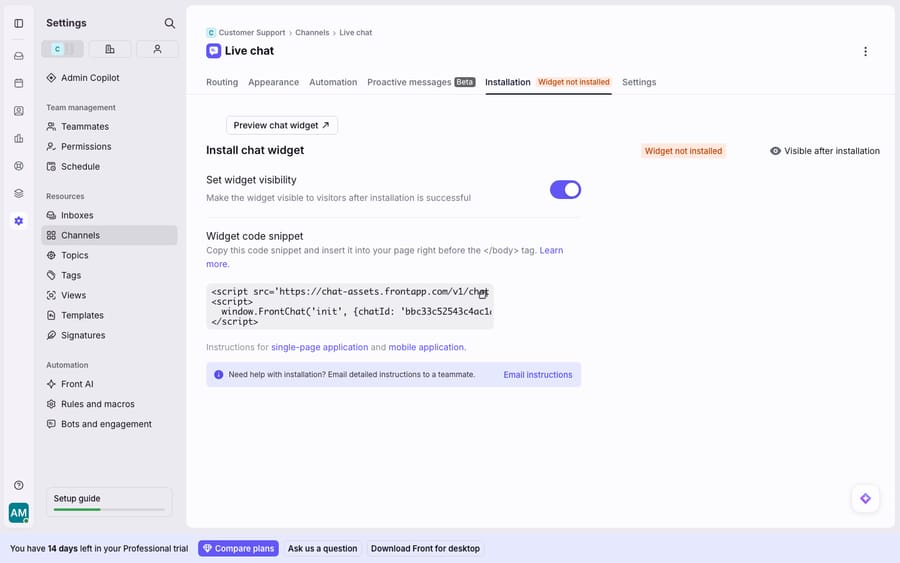
A word on the chatId you'll see in that snippet: it's a public front-end embed identifier — a random alphanumeric string that Front's own install guide shows in plain text — not a secret API key. It has to ship in your page source for the widget to load, which is exactly why the Installation tab gives it to you ready to copy. Don't treat it like a credential; treat it like the account number a script tag needs.
useDefaultLauncher: true tells Front to render its built-in chat bubble in the corner. Set it to false and hook up your own button if you'd rather trigger the widget from an existing "Chat with us" element.
Handle single-page apps and mobile
If your site is a single-page application (React, Vue, and the like), the raw snippet won't re-initialise cleanly as users navigate between views. Front's guidance is to use the official front-chat-sdk npm package instead, which gives you initialize, show, and shutdown methods to manage the widget's lifecycle across route changes. For native apps, Front publishes iOS and Android SDKs through its developer docs so the same conversations flow into the same inbox from mobile.
Set online hours and offline behaviour
By default the widget is always visible. If you don't staff chat around the clock, set your online hours and enable Hide chat widget outside of online hours — Front notes this hides the launcher visually, though it won't force-close the widget for a visitor who already has it open. To catch after-hours messages gracefully, pair it with a rule that auto-replies during offline hours (see routing below).
While you're in channel settings, a few toggles are worth knowing, per Front's Using Front Chat guide:
- Prompt visitors to optionally provide their email address — so a dropped chat can continue over email.
- Display knowledge base in the chat widget — surfaces self-serve articles before a visitor even types.
- End and refresh chats automatically — resets stale sessions.
- Play notification sound for new messages — for the visitor's side.
Route and assign chats with rules
Here's the payoff of chat living inside Front: chat conversations use the same rules engine as email and SMS. A message appears instantly as a Front conversation, and from there rules can tag it, route it, and assign it automatically. A few patterns Front's help center calls out:
| Goal | Rule pattern |
|---|---|
| Send product chats to the right team | Route chats based on the visitor's URL (e.g. /pricing → Sales inbox) |
| Even distribution | Assign incoming chats to a teammate group using round robin |
| Continue over email | Assign the email follow-up to the user who replied to the chat |
| Segment known customers | If a chatbot collects contact details, route/tag/assign by those custom fields |
| After-hours cover | On an inbound chat outside online hours, auto-reply with a template |
The URL-based routing is the one people underuse: because Front knows which page the visitor started the chat from, a rule can quietly send billing-page chats to Billing and pricing-page chats to Sales without anyone triaging. If a chatbot gathers an email or account ID up front, your rules get even sharper — they can match that visitor to an existing contact and assign to their account owner.
The honest limits — and where an AI layer picks up
Front Chat is a solid, native live-chat channel: it's on all plans, it reuses your inbox and rules instead of bolting on a separate tool, and it turns website visitors into trackable conversations. That's genuinely valuable and, for many teams, enough.
But be clear about what the widget and its rules can and can't do. Rules match on patterns, not meaning — a URL or a keyword, never the actual question. The default flow is a message collector: it drops the chat into your inbox and waits for a human. A chatbot flow can branch through pre-set questions, but it can't read a free-text question, check this customer's order, and write the answer. And some depth is gated: richer chat analytics and custom reporting sit on higher plans (Front's pricing tiers lay out what unlocks where), and a genuinely conversational bot is more than the default flow gives you. For a fuller tour of the native feature, see Front Chat explained.
This is the seam where an AI agent layer fits — not to replace Front Chat, but to do the reasoning the widget structurally can't. The category of AI agents for customer service exists for exactly the work a keyword or URL match can't do. Macha is one such layer: it runs on top of the Front you already use through the live Macha–Front connector — it does not replace Front, your chat channel, or your rules. Your channel keeps collecting chats; your rules keep routing them. Then Macha's agent reads the chat, understands intent rather than a URL, and drafts or sends a grounded reply — pulling a real order or account status through a custom tool that turns your REST API into something the agent can call. A rule sends a /pricing chat to Sales in milliseconds; an agent then actually answers the visitor's question. If you want the mechanics, connecting Front to Macha to route conversations to AI walks through it, and Macha's credits are consumed per AI action — never per resolution, because automation and reasoning have different costs and it's honest to price them that way.
The clean division of labour: let Front Chat be the channel and let Front rules be the deterministic dispatcher, then layer an agent on top for the part a pattern-match can't do — reading the chat and answering it well.
FAQ
Where do I find the Front Chat embed code? Open the chat channel and select the Installation tab. Copy the widget code snippet and paste it before the </body> tag on every page you want the widget to appear. The snippet loads chat.bundle.js and calls window.FrontChat('init', {chatId: ...}).
Is the chatId in the snippet a secret? No. The chatId is a public front-end embed identifier — a random alphanumeric string that must ship in your page's HTML for the widget to load. Front's own install guide shows it in plain text. It's not an API key or a credential, so it's safe to have in client-side source.
How do I install Front Chat on a React or single-page app? Use the official front-chat-sdk npm package rather than the raw snippet. It exposes lifecycle methods so the widget initialises and shuts down cleanly as users navigate between views. Front also publishes iOS and Android SDKs for native apps.
Can I hide the chat widget when my team is offline? Yes. Set your online hours and enable Hide chat widget outside of online hours. It hides the launcher visually; it won't force-close the widget for a visitor who already has it open, so pair it with an offline auto-reply rule.
Do Front Chat conversations work with rules like email does? Yes — chats become Front conversations and use the same rules engine. You can route by the visitor's URL, assign via round robin, tag by chatbot-collected fields, and assign email follow-up to the user who replied.
Ready to turn "a chat landed in the inbox" into "the visitor got an answer"? Start a free trial of Macha and connect it to your Front in minutes.
Add AI agents to your Front
Macha reads the conversation, drafts the reply and takes the action, inside the Front you already run.