Intercom
 Shopify
 Stripe
 Slack
Slack Notion
 Google Workspace
 Confluence

How Do You Set Up an Intercom Help Center in 2026? Custom Domain, Multiple Help Centers, Search and Zendesk Redirects


An Intercom Help Center is the public knowledge base attached to your workspace: you write articles in Knowledge, group them into collections, set it live and point your own domain at it. The custom domain, multibrand limits, search ranking and Zendesk redirects are where most builds get stuck.
Key takeaways
- An Intercom Help Center goes live only once at least one published article sits inside a collection; articles outside a collection stay unlisted and invisible on the site.
- Intercom custom domains most often fail with Cloudflare Error 1014, caused by a proxied CNAME instead of DNS-only or a Security protocol setting that does not match the CNAME.
- Multiple Help Centers need Intercom's Expert plan at $132 a seat a month billed annually, and one workspace can hold up to 100 Help Centers.
- Intercom Help Center search weights the title above the description and the description above the body, and always returns the 10 most relevant articles.
- Importing from Zendesk Guide creates 301 redirects automatically, but Intercom redirects work only inside the workspace that owns the domain, so cross-workspace redirects fail.

An Intercom Help Center goes live once at least one published article sits in a collection and you set it Live under Settings > Help Center; a custom domain then needs a CNAME to Intercom's regional host plus a matching Security protocol setting. A public Help Center is included from Essential ($29 a seat billed annually), while multiple Help Centers need Expert ($132) and top out at 100 per workspace.
| Task | Where in Intercom | Plan |
|---|---|---|
| Write and group articles | Knowledge › New content › Public article, then collections | Essential and up |
| Custom domain | Settings › Help Center › Configure & Style › General › Domains | Essential and up |
| Private or multilingual Help Center | Configure & Style › General | Advanced and up |
| More Help Centers (up to 100) | Settings › Help Center › All Help Centers | Expert (or legacy Scale) |
Everything below was checked against Intercom's own help center on 21 September 2026, with plan gates and prices re-checked on 24 September. Where a feature needs a particular plan, the plan is named. One piece of context that trips people up on older guides: the company renamed itself from Intercom to Fin on 12 May 2026, and Salesforce completed its acquisition on 10 September 2026, but the help desk is still called Intercom and the settings paths below are unchanged.
How do I set up an Intercom Help Center from scratch?
- Go to Knowledge and click New content, then select Public article to open the editor.
- Write your first few articles. Images, videos and tables go in from the toolbar at the bottom of the editor.
- Group them into collections. This step is not optional: an article is only visible on your Help Center if it sits in a collection. Unlisted articles (published, but in no collection) stay reachable by direct link and are not indexed.
- Go to Settings > Help Center, click the Help Center you want, then Configure and style in the top right.
- On the General tab, open Supported languages and pick a default language. That setting drives the Help Center's own interface text: the search prompt, the article count and author line, and the reactions prompt.
- Still under General, open Domains to see the default URL. It is
intercom.help/<your app name>, and you can edit the app name part to whatever you like. - Open the Styling tab and use Import your brand, then enter your top-level domain and Intercom pulls your logo and colors across. Use
example.com, notsubdomain.example.com; some domains won't resolve and you'll get an error. - Set the Help Center Live. Until at least one article is published, the Help Center is inactive and visitors get a
Not foundpage.
That last point catches people who have configured a domain perfectly and still see nothing. If the Help Center has no published article in it, there is nothing to serve.
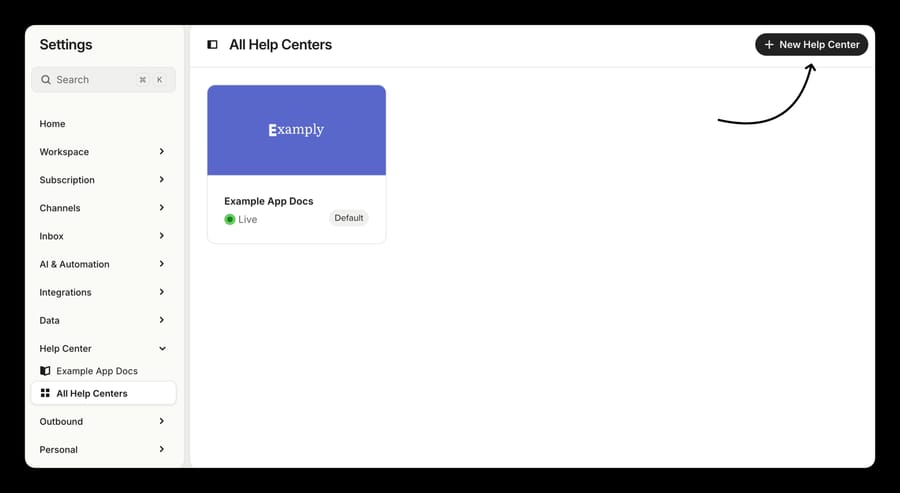
If this is a fresh workspace and you are still deciding how the inbox side fits together, our Intercom for customer support overview and the Intercom shared inbox explained walkthrough cover the pieces this sits next to.
How do I point my own domain at the Help Center?
This is the step with the most support threads behind it, and almost all of them come down to the same mismatch: the CNAME target and the security protocol setting have to agree with each other.
- Go to Settings > Help Center > Configure & Style and open General > Domains.
- Enter your custom domain under Custom Help Center domain. Both subdomains (
help.exampleapp.io) and subpaths (exampleapp.io/help) work. Each custom domain supports one subpath. - At your DNS provider, create a CNAME record pointing at the right target for your workspace region and your chosen setup method:
- HTTPS (Quick Setup) →
us.intercomhelpcenter.com,eu.intercomhelpcenter.comorau.intercomhelpcenter.com - HTTPS (Manual Setup) or HTTP →
custom.intercom.help,custom.eu.intercom.helporcustom.au.intercom.help
- Back in Intercom, under the Domain section, set Security protocol to the option that matches the CNAME you just created. Save.
- Under Privacy, add a link to your login page if you plan to restrict any articles to signed-in users.
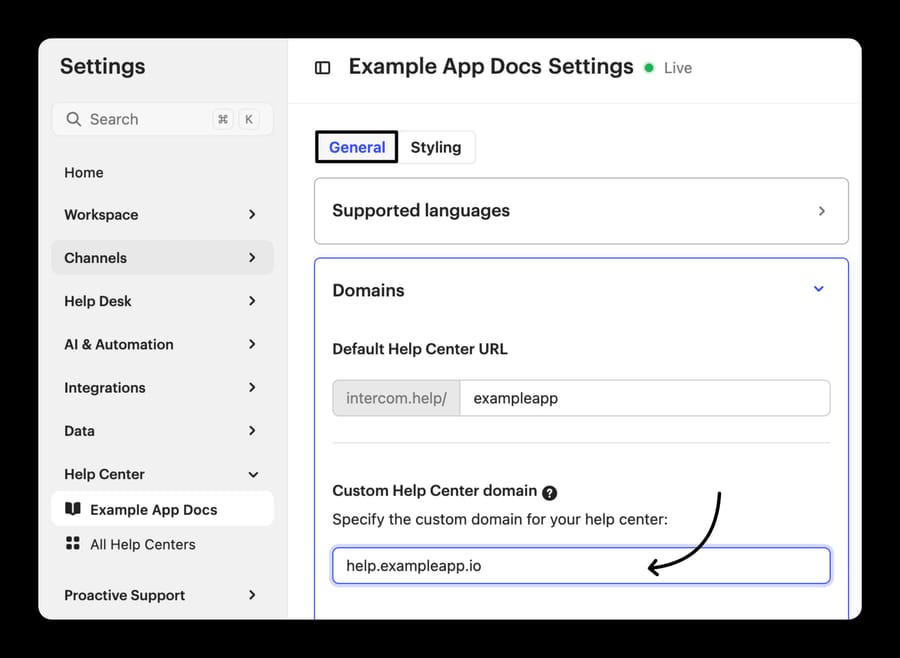
Not sure which region you are on? Look at the URL bar while you're in Intercom: app.intercom.com is US, app.eu.intercom.com is Europe, app.au.intercom.com is Australia.
Why does Cloudflare show Error 1014?
Intercom's troubleshooting article names this one explicitly, and it accounts for a large share of "my domain won't validate" threads. Error 1014 is Cloudflare's cross-user CNAME ban, and it has two common causes:
- The CNAME is proxied. In Cloudflare, the cloud icon next to the record must be grey (DNS-only), not orange.
- The security protocol was never selected in Intercom. Even with DNS set correctly, the custom domain is not validated until you pick HTTPS (Quick Setup) or HTTPS (Manual Setup) to match, and save.
On a Cloudflare Enterprise account, also check that Zone Hold is turned off for the domain. Zone Hold validates that hostnames resolve to IPs on the same Cloudflare account, which breaks Quick Setup and returns the same 1014.
Two more things worth knowing before you file a ticket. Intercom's docs warn against Cloudflare's Full (Strict) SSL mode for this setup. Flexible or Full are the supported options. And DNS propagation is allowed up to 72 hours, though it is usually much faster; whatsmydns.net or an MXToolbox CNAME lookup will tell you whether the record has actually landed.
A 2025 community thread shows how these compound. A customer moved their marketing site to a new domain and their Help Center links broke, and assumed it was a cookie problem. It wasn't: the custom domain in Help Center settings still named the old host, and no CNAME existed for the new one. Two settings, one symptom.
When do I need more than one Help Center, and what does it cost?
Multiple Help Centers is Intercom's multi-brand knowledge base feature, and it is gated: Intercom's documentation says it is available on the Expert plan (or the legacy Scale plan). The Expert plan card on intercom.com/pricing lists "Multibrand Messenger / Help Center" as one of its headline additions, at $132 a seat per month billed annually.
To add one: Settings > Help Center > All Help Centers, then + New Help Center. Name it (the name must be unique across your workspace), choose the default URL, and save. Custom domains are added afterwards, per Help Center. You can create up to 100 per workspace.
What surprises people is how articles and collections behave across them:
- Collections belong to exactly one Help Center. Articles can belong to several.
- An article cannot sit in more than one collection inside the same Help Center.
- A published article that belongs to more than one Help Center gets a unique URL in each.
- Links inside a shared article resolve to whichever Help Center the reader is currently in, as long as the linked article is also live in that Help Center. If it isn't, the link leaks the reader into a different brand.
- Unlisted articles use the default Help Center's styling and domain, whichever Help Center you thought you were publishing into.
- Your first Help Center is the default. You can't change that or delete it.
Two limits to plan around rather than discover. Intercom states plainly that there is no way to clone settings and styling from one Help Center to another, and no easy way to move articles between Help Centers once they are in place. Decide your brand split before you build, not after.
A 2023 community thread asked exactly the questions above: what happens to cross-links in a shared article, and whether audiences can be pinned to a specific Help Center. That is a fair signal that the model is not obvious from the settings screen alone.
One thing that is genuinely easy to get backwards: the Help Center linked to a brand controls what customers can browse in the Messenger. It does not control what Fin can use to answer. Fin's knowledge is scoped by Audiences, at the Fin level or the Help Center level, for both Messenger and email. If Fin is answering with content from the wrong brand, the fix is in Audiences, not in the brand's Help Center link.
How does Intercom Help Center search rank articles?
Intercom documents the ranking rule, and it is simpler than most people assume. Search counts how often a term appears in the article's title, description and body, weighted in that order, title highest, then description, then body. Search returns the ten most relevant results.
That has three practical consequences:
- The description field is doing real work. It is weighted above the body, and most teams leave it blank or write a throwaway line. Put the words customers actually type into it.
- Titles should match search language, not internal language. "Changing your billing cycle" beats "Subscription lifecycle management".
- Ten results is the whole surface. If five near-duplicate articles cover one topic, they crowd each other out. Merge them.
To find out what to fix, use the Articles report, which shows what customers searched for and which results came back, including the searches that returned nothing useful. That list is the most honest backlog a knowledge base ever gets.
Search localization is not uniform. Intercom publishes a list of languages with full localized search support, and notes that other languages may return unexpected results, which is worth checking before you commit to a multilingual build.
Indexing and SEO
By default your articles are crawlable. The control lives at Settings > Help Center > Configure & Style > General > Privacy, where you can switch off indexing to keep the Help Center out of search results. If you're migrating content in, Intercom recommends turning Search engine indexing on before the import, so articles don't sit unindexed while you wait.
Article-level privacy is separate. Set an article's audience to Users in the Details panel and it becomes visible only to people logged into your product. Visitors and leads won't see it in the Help Center or in search results, and they'll be bounced to the login URL you set under Privacy, but only if you set one. Without that URL, no redirect happens. The Help Center itself can't be made private; customers can still reach it, they just won't see restricted articles until they log in.
For favicons and social cards, both live under General > Social media images: favicon at 1:1, maximum 588 x 588px and 150KB; social image at 1200 x 630px, maximum 2MB.
How do I move from Zendesk Guide without losing my URLs?
If you're arriving from Zendesk, the importer does more than copy text. Redirects are generated automatically during a Migrate from Zendesk import, as 301s, and they are editable and deletable afterwards.
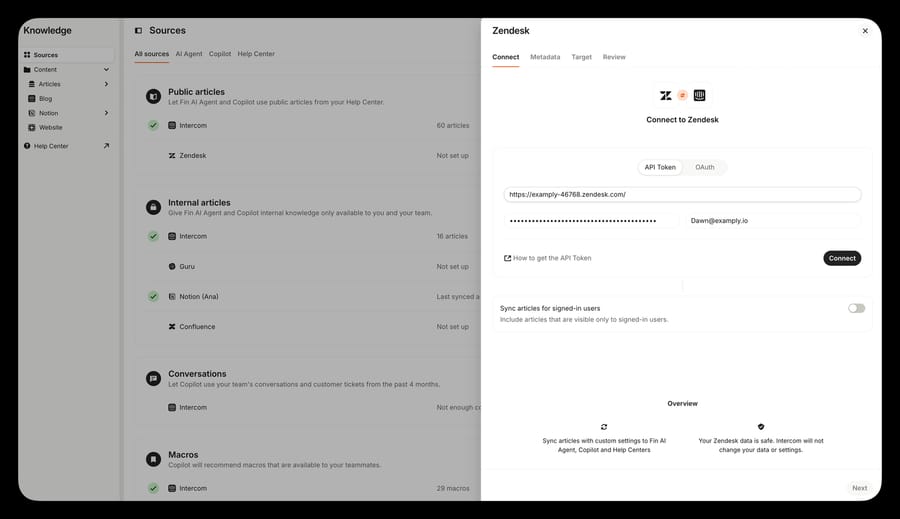
The import itself:
- Go to Knowledge > Sources. Under Public articles, find Zendesk and click Sync or Import.
- Enter your Zendesk subdomain (
mydomain.zendesk.com) and choose API Token or OAuth. For the token route, generate one in Zendesk under Admin Center > Apps and integrations > APIs > Zendesk API > API token. - Decide between Import content, a one-time migration after which the connection is severed and articles become editable in Intercom, and Sync content, which keeps Zendesk as the source of truth and gives Intercom a view-only, continuously updated copy.
- Use the Metadata tab to filter what comes across by category, label or timestamp. Skip it and everything eligible comes in.
- Use the Target tab to decide where the content is used: Fin AI Agent, Copilot, the Help Center, or a combination, plus audience control.
- Review the summary, name the import, and click Sync and set live.
Two details that catch teams out. The import brings all published articles. Intercom's own advice for a partial migration is to copy the ones you want into the Knowledge Hub by hand. And imported articles are not placed in collections automatically, so until you organize them, they're unlisted and invisible on the Help Center.
Managing the redirects afterwards
Redirects live at Settings > Help Center > Configure & style > Domains > Manage redirects, under "Domain Redirects". You can add, edit and delete them, and you can point several old URLs at one article.
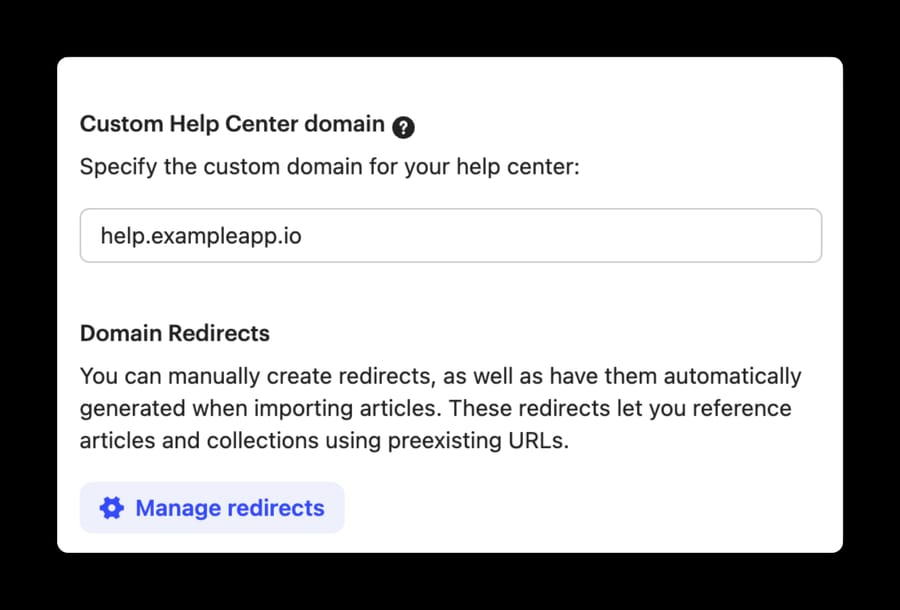
The constraint that breaks migrations: a redirect works inside one workspace only. Intercom stores redirects against the workspace that owns the domain, and the destination article has to live in that same workspace. So a domain handover works: build in workspace B, disconnect the domain in A, connect it in B, add the redirects in B. Keeping workspace A live and bouncing visitors across to B does not. Attempts to do that fail on Intercom's cross-app data access guardrails, usually surfacing as a 404 when you save the redirect.
The other limit is cross-domain. If you're moving help.old-domain.com to help.new-domain.com, Intercom won't create those redirects for you; that's a 301 you configure at your DNS, CDN or edge layer. Intercom's Manage redirects feature handles path changes inside a domain it owns.
A 2023 community thread about Zendesk redirects not firing traced back to something mundane and easy to repeat. The customer had duplicate articles after import, deleted the wrong copies, and took the attached redirects with them. If you clean up duplicates post-migration, check Manage redirects afterwards, because deleting a target article silently removes its redirect.
Once you're satisfied, Zendesk's own documentation covers deactivating the old help center from Guide admin. If you're going the other direction, we've written up migrating to Zendesk from Intercom separately, and how Zendesk splits knowledge base, help center and Guide if the terminology is the confusing part.
Which Intercom plan does each Help Center feature need?
| Capability | Plan it needs |
|---|---|
| Public Help Center, articles, collections, custom domain | Essential and up |
| Private and multilingual Help Center | Advanced and up |
| Multiple Help Centers (multibrand) | Expert (or legacy Scale) |
| Multibrand Messenger / Help Center | Expert |
| Fin AI Agent answering from your articles | Any plan, billed separately at $0.99 per outcome (no monthly minimum when Fin runs on Intercom itself) |
Worth naming the incentive here. Multibrand is not technically hard, and the price of Expert is not set by the cost of running a second Help Center. It is set by the fact that a company with several brands is a company with a procurement budget, so multibrand lands on the tier priced for that buyer alongside SSO, HIPAA support and SLAs. That is normal software pricing, not a scandal, but it does mean the question to ask is whether you need the whole Expert bundle, not whether you need a second Help Center.
The workaround below Expert is the honest one: one Help Center, collections per brand, and an article set that is clear about which product it covers. It is worse than multibrand and it costs nothing. Multibrand suits teams whose brands have genuinely separate audiences, separate domains and separate visual identities. It is the wrong choice if what you actually have is one product with two names, because you will spend the rest of the year keeping two article sets in step.
Seat prices on 24 September 2026 were $29 (Essential), $85 (Advanced) and $132 (Expert) per seat per month billed annually, or $39, $99 and $139 billed monthly. Intercom has also shown Essential at $19 in a pricing test, so check the page before you budget. Fin's 50-outcome monthly minimum applies only when Fin runs on a help desk other than Intercom. Our Intercom Fin pricing breakdown goes into the outcome-based side.
How did we research this?
Everything here comes from Intercom's own help center at intercom.com/help, read on 21 September 2026, with plan gating cross-checked against the plan cards on intercom.com/pricing the same day and re-checked on 24 September 2026, when we also re-read the multiple Help Centers and search articles. The four screenshots are Intercom's documentation images for the exact screens described. We do not have an Intercom workspace, so nothing was clicked through first hand and button wording may have moved since each article was last updated. Community evidence comes from public threads on community.intercom.com, linked below.
Where does an AI agent layer fit on top of a Help Center?
A Help Center is only as good as the gap between what customers search for and what you have written. The Articles report gives you that gap as a list, and most teams never work through it, because writing twenty articles is a quarter of work nobody has.
This is the one place in a Help Center build where an AI agent layer earns its keep rather than duplicating what the help desk already does. Macha sits on top of the help desk a team already runs (Zendesk, Freshdesk, Gorgias, Front, HubSpot or Intercom), reads the ticket history, and answers from it, which means the questions your articles don't cover yet still get answered while you write them. It is not a replacement for a knowledge base and not a replacement for the help desk. If you're still shortlisting knowledge base tools rather than configuring one, our best knowledge base software roundup is the better starting point.
Frequently asked questions
Do I need a paid plan to publish an Intercom Help Center? No. A public Help Center is listed among the Essential plan's key features on Intercom's pricing page, so it is available on every current plan. Private and multilingual Help Centers need Advanced, and multiple Help Centers need Expert.
Why is my custom domain showing Cloudflare Error 1014? Most often because the CNAME is proxied in Cloudflare rather than DNS-only, or because the Security protocol setting in Settings > Help Center > Configure & Style > Domain doesn't match the CNAME target you used. On Cloudflare Enterprise, also check that Zone Hold is disabled for that domain.
How many Help Centers can one Intercom workspace have? Up to 100, on the Expert plan (or the legacy Scale plan), at $132 a seat a month billed annually. Your first one is the default and cannot be deleted or demoted.
Can I move articles between two Help Centers? Not easily. Intercom's documentation says there is no simple path for migrating articles from one Help Center to another, within a workspace or between workspaces, and no way to clone styling either. Plan the split before you build.
Does the Zendesk importer keep my old article URLs working? Yes, for a straight migration. Importing with the Migrate from Zendesk tool generates 301 redirects automatically, and you can edit or delete them afterwards under Domains > Manage redirects. Redirects only work within the workspace that owns the domain, so a cross-workspace arrangement won't validate.
How does Help Center search decide what to show? It counts how often the search term appears in the title, description and body, weighted in that order, and returns the ten most relevant articles. The description field is the most under-used lever most teams have.
Can I stop Google indexing my Help Center? Yes. Settings > Help Center > Configure & Style > General > Privacy has the toggle. Individual articles can also be restricted to logged-in users by setting their audience to Users, in which case they disappear from Help Center search for everyone else.
Does my Help Center control what Fin answers with? No. The Help Center linked to a brand decides what customers can browse in the Messenger. Fin's knowledge is scoped by Audiences, for Messenger and email alike, so that's where to look if Fin is quoting the wrong brand's content.
If you'd rather have the questions your articles don't cover answered while you write them, start a Macha trial: it's $50 of free usage, no credit card, and it runs on top of the help desk you already have.
Sources:
- Help Center explained (Intercom help)
- Customize your Help Center (Intercom help)
- Set up a custom domain for your Help Center (Intercom help)
- Troubleshooting custom domain set up and HTTPS/SSL (Intercom help)
- Create and manage multiple Help Centers (Intercom help)
- Manage article redirects from another Help Center (Intercom help)
- Import public articles from Zendesk (Intercom help)
- Optimize your Help Center search (Intercom help)
- Intercom pricing
- Fin pricing
- Deactivating your help center (Zendesk help)
- Community: Not able to access Help Center article on new domain
- Community: Multi Help center functionality
- Community: Zendesk redirect not working
Add AI agents to your Zendesk
Macha reads the ticket, drafts the reply and takes the action, inside the Zendesk you already run.