Intercom
 Shopify
 Stripe
 Slack
Slack Notion
 Google Workspace
 Confluence

How Do You Import Users and Companies into Intercom by CSV? (2026)


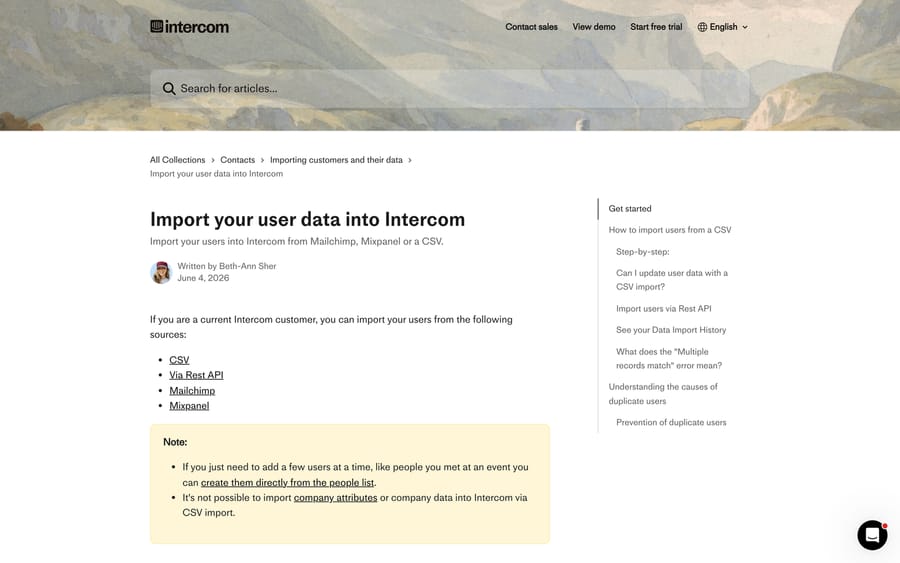
Intercom's CSV import tool takes users and leads, up to 20 MB per file, but it cannot import companies. Company data goes in through the REST API or the Messenger snippet, and nothing in the import UI says so before you build the spreadsheet.
Key takeaways
- Intercom's CSV import tool can import users and leads, but company data cannot be imported by CSV and must go through the REST API or Messenger snippet instead.
- Intercom CSV imports are capped at 20 MB per file, so larger lists must be split into several files before upload.
- Intercom matches contacts in the order Intercom ID, then user_id, then email, and a CSV with both email and user_id against a profile with no user_id creates a duplicate contact.
- A company created through Intercom's POST /companies endpoint stays invisible in Intercom until at least one user is attached to it, and its company_id cannot be changed later.
- Intercom warns that users imported by CSV who immediately match a live message's criteria receive that message right away, so a 10,000-row import can trigger 10,000 sends.

You import users and leads into Intercom with the CSV import tool at Settings › Data › Imports & exports, up to 20 MB per file, but you cannot import companies that way. Intercom's own article says: "It's not possible to import company attributes or company data into Intercom via CSV import." Companies go in through the REST API (POST /companies) or the Messenger snippet.
The other thing to settle before you upload anything is the identifier. Intercom matches contacts in the order Intercom ID → user_id → email, and a CSV carrying both an email and a user_id against a profile that has no user_id creates a duplicate rather than matching. That single rule is behind most messy Intercom imports.
What should you decide before a CSV import?
| Decision | Options | Why it matters |
|---|---|---|
| Users or leads? | Import users, or Import leads | They are different objects; the same email in both makes duplicates |
| Identifier | user_id, email, or both | user_id wins when both are present |
| File size | Up to 20 MB | Split anything larger |
| Company data | Not in this file | Needs the API; see below |
How do you import users from a CSV?
Getting to the tool. Two routes: from the people list, click New users or leads, then Import people. Or go to Settings › Data › Imports & exports. Then open the CSV import tool.
The steps:
- Choose Import users for logged-in customers, or Import leads for a prospect list.
- Drag in the CSV and click Upload. The limit is 20 MB, so split a bigger file.
- Map the columns. Intercom asks you to identify the columns holding email addresses, IDs, full names and signup dates, with a Select this column button for each, then Confirm.
- Name any custom attributes. Every extra column becomes a custom user attribute, and Intercom prompts for a name.
- Tag the import with something memorable, such as "New Sign-Ups Q3", so you can find the batch afterwards with
tag: New Sign-Ups Q3, message it, or turn it into a segment. Tags can take a few minutes to finish applying.
Format rules that cause silent failures:
- The user ID column header must be exactly
user_id: lowercase, with an underscore. - Signup dates accept
DD/MM/YYYY, ISO 8601 or a Unix timestamp. If you useDD/MM/YYYYyou cannot include a time. - Phone numbers need the country calling code, e.g.
+1or001for the US. - If the contacts are for WhatsApp messaging, a phone number alone is not enough: every row also needs an email or a
user_id, or outbound WhatsApp will not work.
Why does an Intercom import create duplicate contacts?
This is the part worth reading twice, because it is easier to prevent than to clean up.
Intercom resolves a contact in this order: Intercom ID, then user_id, then email. Two consequences fall out of that.
A CSV with both email and user_id creates duplicates when the existing profile has no user_id. Intercom's own wording: "If a user profile does not have a user_id set, and your CSV includes both an email and a user_id, Intercom will not match on the email, it will treat the user_id as a new identifier and create a duplicate contact." The fix is to backfill user_id on those contacts through the API before the import. That is the same backfill you would need for Intercom's JWT Messenger security, so do them together if both are on your list.
Leads and users with the same email are still two objects. Importing a lead list that overlaps your user list duplicates people by design. Reconcile the two lists before you upload.
Intercom's own recommendation is to include both user_id and email on every row, and to make sure every existing contact already has a user_id. Its list of other duplicate sources is worth checking your own setup against: inconsistent identifier use between your backend and your imports, app integrations such as Shopify that match on email rather than reconciling IDs, anonymous-to-logged-in transitions where a random user_id is assigned for anonymous browsing, and WhatsApp profiles generated from a phone number alone.
"Multiple records match" means more than one contact shares the email in your file, so Intercom cannot tell which to update. The fix is unique identifiers, backfilled through the API.
What can a CSV import update, and what can it not?
You can re-import to update existing contacts and add new attributes. Three rules:
- Every CSV import needs an email column, even when you are matching on
user_id. - You can change a user's email by sending the same
user_idwith the new address. - You cannot change a
user_id. Sending a newuser_idagainst an existing email creates a new record instead of renaming the old one.
If both user_id and email exist in Intercom already, sending email alone is enough to match.
One consequence nobody expects: Intercom warns that "if you import users into Intercom and they immediately match the criteria for a message that you have live, they will get that message right away." A 10,000-row import against a live onboarding series is a 10,000-message send. Pause or re-scope live messages before a bulk import, or import into a tag you have excluded from every live audience first.
How do you get companies into Intercom?
The most common version of this question in Intercom's community is someone importing users with a company ID column and finding no companies appear. A January 2024 thread describes exactly that: 50 users imported with the same company ID, filterable by it, but no company created. An Intercom teammate confirmed it is expected: "Company data cannot be imported via CSV at the moment", and a senior support engineer pointed at two alternatives: the REST API, or including company information in the Intercom JavaScript snippet.
An earlier 2021 thread with about 1,490 views got the same answer from an Intercom employee: company data cannot be imported by CSV, use the API or file a feature request.
So the working options are:
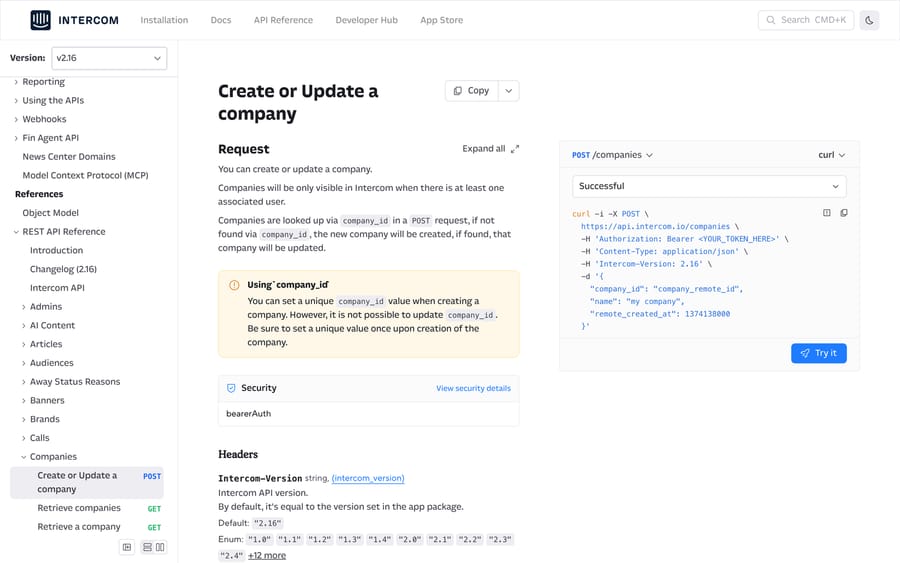
1. The Companies API. POST /companies creates or updates. Intercom looks the company up by company_id; if it finds one it updates, if not it creates.
curl -i -X POST https://api.intercom.io/companies \
  -H 'Authorization: Bearer <YOUR_TOKEN_HERE>' \
  -H 'Content-Type: application/json' \
  -H 'Intercom-Version: 2.16' \
  -d '{
    "company_id": "company_remote_id",
    "name": "my company",
    "remote_created_at": 1374138000
  }'
Then attach people with POST /contacts/{contact_id}/companies.
Two warnings from the reference itself. First: "it is not possible to update company_id. Be sure to set a unique value once upon creation of the company." Pick that key from your own system (a billing account ID, a CRM ID) and never a name. Second: "Companies will be only visible in Intercom when there is at least one associated user." So a company created before its people are attached simply does not appear, which looks like a failed call and is not. Create the contacts first, then the companies, then attach.
2. The Messenger snippet. Pass company data in the JavaScript boot payload and Intercom creates and updates the company as real users browse. Zero backfill code, but it only covers people who visit while logged in: useless for a migration, good as the ongoing mechanism once the backfill is done.
3. A third-party migration tool. Both community threads end with people recommending purpose-built migration services to carry contacts and companies across from another help desk with the relationships intact. That is the pragmatic answer for a one-off Zendesk or Freshdesk move, and it is where most teams land rather than writing the backfill script. Our comparison of Zendesk and Intercom covers the data-model differences that make those migrations awkward, and how to migrate from Intercom covers the reverse direction.
Should you import contacts through the API instead?
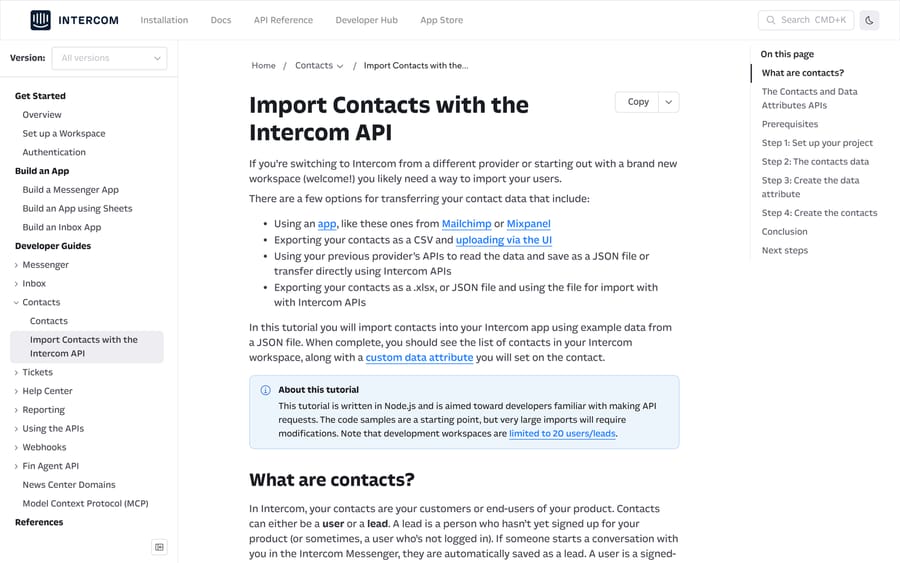
If you are already writing the company backfill, importing the contacts the same way is usually less work than the CSV round-trip, and it removes the mapping step and the 20 MB ceiling. Intercom's developer platform has a dedicated guide to importing contacts, and historical event data goes in through the Events API afterwards.
The practical split most teams end up with:
| Data | Route |
|---|---|
| A few people | Create them from the people list |
| A one-off list of users or leads | CSV import |
| Companies, at any scale | REST API, or the Messenger snippet going forward |
| A full migration with relationships | API, or a migration tool |
| Historical events | Events API, after the contacts exist |
Our guide to building custom Intercom integrations covers authentication and versioning for these calls. Note the Intercom-Version header in the sample above: 2.16 is the current stable version (released 15 July 2026, per Intercom's API changelog), and if you omit the header, calls use the version set in your app package rather than the newest.
What should you check before running the import?
- Decide the identifier, and make sure every existing contact already has a
user_id. Backfill through the API first. - Reconcile leads against users so the same person is not in both files.
- Check the header row:
user_idlowercase with an underscore, an email column present, phone numbers with country codes. - Split anything over 20 MB.
- Pause live messages, or import into an excluded tag, so the batch does not trigger an onboarding series.
- Tag the import so you can find, segment or undo the batch.
- Do companies separately, through the API, after the contacts exist, and set
company_idcorrectly the first time, because you cannot change it. - Check the import history at Settings › Data, and spot-check a handful of records for duplicates before you run the next batch.
How we researched this
Every path, limit, error string and rule in this post was read off Intercom's own help center and developer documentation on 21 September 2026 (the user-import article (dated 4 June 2026), the Create or Update a company reference and the Attach a Contact to a Company reference), and the company limitation is quoted from Intercom's article and from two public community threads in which Intercom staff confirm it. We do not have an Intercom workspace, so no CSV was uploaded and no API call was run. One figure conflicts across Intercom-hosted help centers: a different Intercom help site gives a 30 MB CSV limit for a different product, and this post uses the 20 MB its own user-import article states. For the wider product, see what Intercom is, Intercom for customer support and Intercom's shared inbox.
Frequently asked questions
How do I import users into Intercom from a CSV? From the people list click New users or leads, then Import people, or go to Settings › Data › Imports & exports. Choose Import users or Import leads, upload a CSV under 20 MB, map the email, ID, name and signup-date columns, name any custom attributes, and tag the import so you can find the batch afterwards.
Can I import companies into Intercom by CSV? No. Intercom's own article states that it is not possible to import company attributes or company data by CSV, and Intercom staff have confirmed the same in its community. Use the REST API's Create or Update a company endpoint, or pass company data in the Messenger JavaScript snippet.
I imported users with a company ID column but no companies were created. Why? Because the CSV importer ignores company data entirely. The users get an attribute you can filter on, but no company object is created and no association is made. Create the companies with POST /companies, then attach people with POST /contacts/{contact_id}/companies.
Why did my Intercom CSV import create duplicate contacts? Almost always the identifier. Intercom matches on Intercom ID, then user_id, then email. If the existing profile has no user_id and your CSV supplies both an email and a user_id, Intercom treats the user_id as new and creates a second contact. Backfill user_id on existing contacts through the API before importing.
What is the maximum CSV size for an Intercom import? 20 MB, per Intercom's user-import article. Split anything larger into several files.
What does "Multiple records match" mean in an Intercom import? More than one contact in your workspace shares the email address in that row, so Intercom cannot decide which one to update. Give each person a unique identifier. Backfilling user_id through the API is the usual fix.
Can I update existing users with a CSV import? Yes, including adding new attributes. Every import still needs an email column. You can change a user's email by sending the same user_id with a new address, but you cannot change a user_id: sending a new one against an existing email creates a new record.
Will an Intercom import trigger my live messages? Yes, and this catches people out. Intercom warns that imported users who immediately match the criteria of a live message will receive it right away. Pause or re-scope live messages before a bulk import, or import into a tag your audiences exclude.
Can I change a company_id in Intercom after creating the company? No. The API reference says company_id cannot be updated, so set a unique, stable value from your own system when you first create the company. Also note that a company stays invisible in Intercom until at least one user is attached to it.
Sources:
- Import your user data into Intercom, Intercom Help, 4 Jun 2026
- Create or Update a company, Intercom REST API reference
- Attach a Contact to a Company, Intercom REST API reference
- Import Contacts with the Intercom API, Intercom developer guides
- Importing Users Not Creating Companies?, Intercom community, Jan 2024
- How to import company's, Intercom community, Oct 2021
Add AI agents to your Intercom
Macha reads the conversation, drafts the reply and takes the action, inside the Intercom you already run.