Intercom
 Shopify
 Stripe
 Slack
Slack Notion
 Google Workspace
 Confluence

How Do Front Custom Fields Work? Categories, Types, Plan Limits and When to Use a Tag (2026)


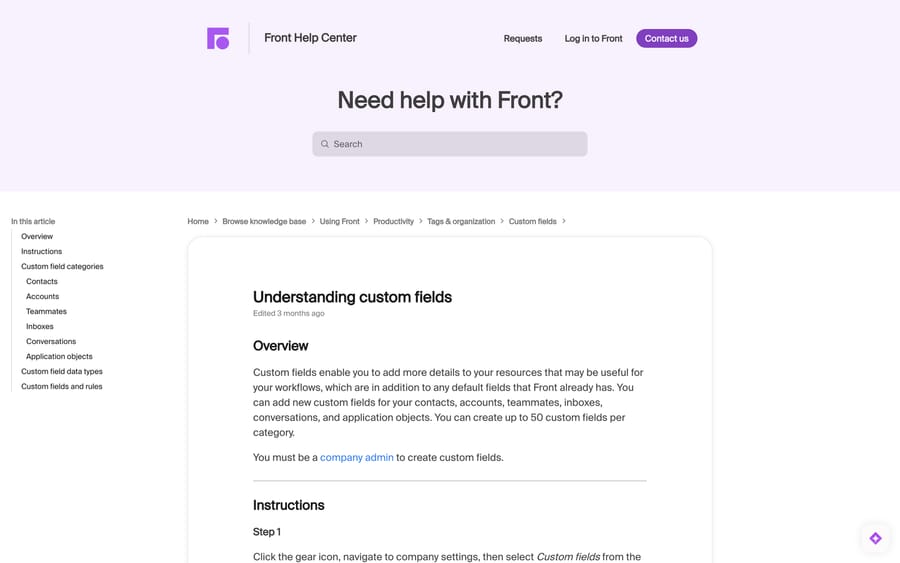
Front has custom fields on six objects (contacts, accounts, teammates, inboxes, conversations and application objects), with up to 50 per category, and only company admins can create them. The harder call is whether an attribute belongs in a field or a tag, because Front reports on the two very differently.
Key takeaways
- Front supports custom fields on six categories, contacts, accounts, teammates, inboxes, conversations and application objects, with up to 50 fields allowed per category.
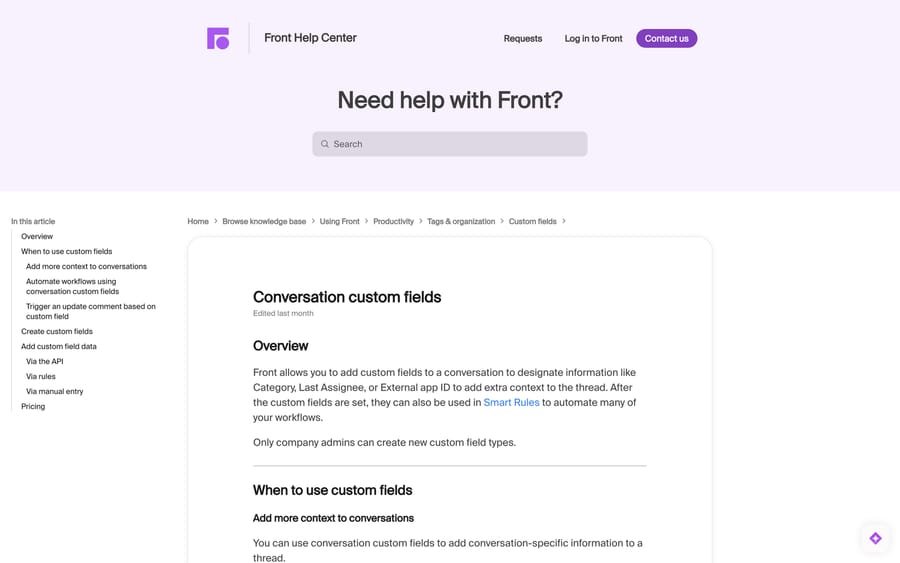
- Reading a conversation custom field in a Front rule condition requires the Professional plan, but writing a value from a rule requires Enterprise or the Autopilot add-on.
- Front recommends a tag for attributes that are fluid, visual or plural, and a custom field for strict, singular or structured values, because tags get their own Tags report.
- Front's seven custom field data types include Text fields capped at 2,000 characters, Dropdown, Number, Date and time, Yes or no, Teammate and Inbox.
- Front treats a null custom field as false in rules, so a condition like Category is not Billing also fires on every conversation where the field was never set.
Front lets you add custom fields to six categories (contacts, accounts, teammates, inboxes, conversations and application objects), up to 50 per category, and only a company admin can create them. Every plan can create and fill conversation fields, but reading one in a rule needs Professional and writing one from a rule needs Enterprise or the Autopilot add-on.
The decision that actually matters is not how to create one. It is whether the thing you are about to model belongs in a field or a tag, because Front reports on those two very differently, and moving later is painful.
Which Front objects can have custom fields?
| Category | Holds | Typical fields |
|---|---|---|
| Contacts | Facts about a person | Job title, NPS score |
| Accounts | Facts about a company | Revenue, Account Manager, Account Tier |
| Teammates | Facts about your own staff | Manager, Role, Workspace |
| Inboxes | Facts about an inbox | Inbox manager, triager |
| Conversations | Facts about one thread | Category, Last Assignee, External app ID |
| Application objects | Facts on objects attached to a conversation | Company, Priority, Arrival date |
The split is about what the fact is attached to and how long it lives. "This customer is on the Enterprise tier" is true until they change plan, so it is an account field. "This thread is a billing dispute" is true of one conversation forever, so it is a conversation field. "Roberta triages this inbox" is an inbox field. Putting a long-lived fact on a conversation means re-entering it on every new thread, which is the single most common way a Front taxonomy rots.
Teammate and inbox fields are the two people forget exist, and they are the ones that make routing rules readable: a rule that reads "assign to the teammate in the inbox's Triager field" survives a re-org, where a rule naming Roberta does not.
How do you create a custom field in Front?
- Click the gear icon and go to company settings.
- Select Custom fields from the left sidebar.
- Click the tab for the category you want: Contacts, Accounts, Teammates, Inboxes, Conversations or Application objects.
- Click Create custom field (on the Conversations tab it reads Create conversation custom field).
- Enter a Name and Description, choose a Type, and click Create.
Two things to get right at step 5, because both are awkward to undo.
Name capitalisation is load-bearing on accounts. Front's account article warns that "Custom fields names are case-sensitive, so a field named Revenue would be distinct from a field named revenue," and that the capitalisation has to match what you use when importing accounts by CSV or through the API. Pick a convention (Title Case for everything is fine) and write it down.
The type is effectively permanent. Front's API reference says only listing fields and updating a field's name or value is allowed: "If you need a custom field to change its type, you need to create a new one with the correct type in UI, as the API validates the value of a custom field based on its type." So a Text field you later wish were a Dropdown means a new field and a migration.
What data types do Front custom fields support?
Front supports seven, and the choice affects search and rules more than it looks.
- Text: up to 2,000 characters. If you store several values separated by semicolons, each one is findable individually in search as well as in the full string, via the
custom_fieldsearch parameter. This is the closest Front gets to a multi-select. - Dropdown: a list of predetermined values. Use it wherever a human types the value, because free text will not aggregate.
- Number: NPS score, user ID, ZIP code, revenue.
- Date and time: renewal date, deal closed, start date.
- Yes or no: is paying, churn risk, onboarded, active.
- Teammate: links to a Front teammate; the value is that teammate's login address.
- Inbox: the name of a Front shared inbox.
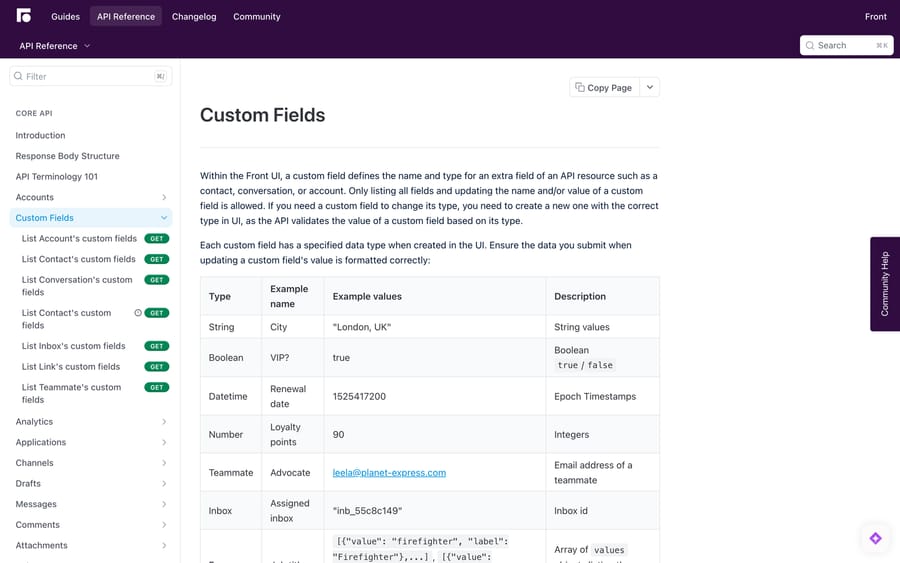
The API uses its own names for the same types: String, Boolean, Datetime (epoch timestamps), Number, Teammate (email address), Inbox (an inbox id like inb_55c8c149), so if you are writing values in from a script, format against the API table rather than the UI labels.
Which Front plan do you need for custom fields in rules?
This is the part worth reading twice, because Front gates automation, not creation.
| Capability | Starter | Professional | Enterprise |
|---|---|---|---|
| Create and use conversation custom fields | Yes | Yes | Yes |
| "Conversation custom field is" rule condition | No | Yes | Yes |
| "Update custom field value" action and Smart Rules | No | No | Yes |
Front's article adds that the "Conversation custom field contains" condition needs Professional or above, and that the "Conversation custom field is updated" rule trigger needs Enterprise or the Autopilot add-on.
So on Starter you can create fields and fill them in by hand or through the API, and you cannot read them in a rule. On Professional you can branch on them. Only on Enterprise, or with Autopilot bought as an add-on, can a rule write a field value, which is what makes fields self-maintaining rather than something agents must remember. On Front's pricing, that is $25 (Starter), $65 (Professional) and $105 (Enterprise) a seat a month billed annually, or $35 and $85 billed monthly for the first two; Enterprise is annual only (checked 24 September 2026). Our Front pricing breakdown has the rest.
One rule-engine behaviour to design around: when rules evaluate custom field values, a null (a conversation where the field was never set) is treated as false. A rule written as "if Category is not Billing" will therefore fire on every untagged conversation as well as the genuinely non-billing ones. Add an explicit "custom field is set" condition, or give the field a default. Our Front rules guide covers condition ordering.
How do you get data into a custom field?
Three routes, in order of how much work they save you:
Via rules (Enterprise or Autopilot). The Update custom field value action sets a field automatically when something happens, such as stamping Last Assignee when the assignee changes, or writing a Category when a rule already classified the conversation. This is the only route that stays accurate without human effort.
Via the API. Fields can be created in the UI and populated programmatically, which is how most teams sync account tier, renewal date or an external ticket ID from their CRM or billing system. See our Front API guide for authentication and rate limits.
Via manual entry. Open the conversation's three-dot menu, click View conversation details, expand Custom fields, click Add, choose the field and type the value; it saves as you go. Hovering a value lets you copy, edit or delete it. Fine for a handful of high-value threads, unreliable at volume.
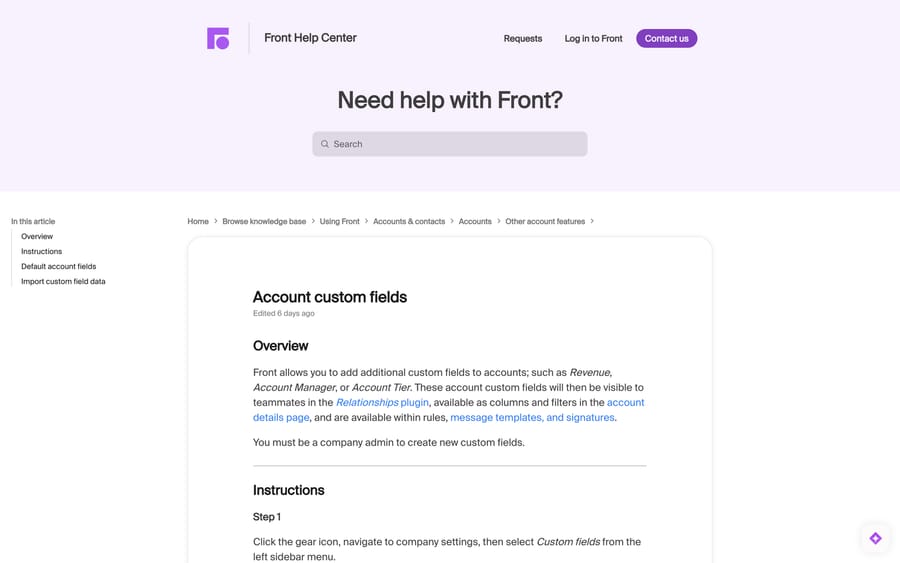
Account and contact fields show up in the Relationships plugin (what Front used to call Contacts) as columns and filters on the account details page, and both are available as custom variables in message templates and signatures. That last one is underused: a signature or template that pulls the customer's Account Manager from a field beats a macro library with one version per account manager. Our guide to Front contacts and CRM covers the Relationships side.
When should you use a tag instead of a custom field?
This is what the community actually argues about. A January 2026 thread from a team migrating off Freshdesk (312 views, three replies) asks exactly this, and the answers converge on a usable rule: tags for things that are fluid, visual or plural; fields for things that are strict, singular or structured.
The concrete reason is reporting, and it is not a matter of taste.
Tags get a report of their own. Front's Tags report shows tagged conversation volume over time and reply time per tag, and tags are a first-class filter in analytics reports alongside inboxes, channels and teammates. (Private tags are excluded from that filter; only shared tags report.) Our Front tags guide and how to set up tags in Front cover the hierarchy, and Front analytics explained covers what each report measures.
Custom fields reach analytics as export columns. Each conversation custom field gets its own column in the Analytics messages export, which is on the latest Professional plan or above, and Front's own footnote says the data "is not available for conversation segments closed before early Feb 2026." So a field you create today gives you a spreadsheet column and no historical depth, where a tag gives you a chart. If the answer you want is "how many of these did we get last quarter", that is a tag. If it is "what is this specific thread's external ID", that is a field.
A practical split for a support desk:
| Attribute | Tag or field | Why |
|---|---|---|
| Request type (refund, bug, how-to) | Tag | You want the trend line and the per-topic reply time |
| Workflow stage (waiting on vendor) | Tag | Fluid, changes several times per thread |
| Account tier, renewal date, ARR | Account field | Long-lived, belongs to the company not the thread |
| External ticket ID in Jira or Shopify | Conversation field | Strict, singular, machine-written |
| Escalation owner | Teammate field on the inbox | Survives a re-org |
| Language, region | Contact field | A property of the person |
The advice that recurs in that thread and is worth repeating: start with about ten tags, not fifty. Agents disengage from a tag list they have to scroll, and an unused tag is worse than a missing one because it makes the report look complete. Our comparison of Front tags vs statuses covers the third axis people confuse with both.
How we researched this
We read Front's help-centre articles on custom fields, conversation, contact and account fields, and the analytics messages export in a browser on 21 September 2026 (the plan table and limits were re-checked on 24 September 2026), plus the Front API reference for custom fields, and quoted the plan tables and data-type descriptions from those pages directly. Front stamps its help pages with relative edit times rather than dates, so the freshness notes here are relative to that date: the account fields article had been edited six days earlier, the analytics export sixteen. We do not have a Front workspace, so no field was created and no rule was run; the tag-versus-field guidance draws on Front's own reporting docs and a public community thread rather than a test.
Frequently asked questions
What objects can have custom fields in Front? Six: contacts, accounts, teammates, inboxes, conversations and application objects. Each is a separate tab under company settings › Custom fields, and each allows up to 50 fields.
Who can create custom fields in Front? Company admins only. Other teammates can fill in values on a conversation, but creating a new field type is an admin action.
How many custom fields can I have? Up to 50 per category, so 50 conversation fields, 50 account fields and so on rather than 50 in total.
Which Front plan do I need for custom fields? Creating and using conversation custom fields is on every plan including Starter. Reading a field in a rule needs Professional; writing a field from a rule, through the Update custom field value action and Smart Rules, needs Enterprise or the Autopilot add-on.
What data types do Front custom fields support? Seven: text (2,000 characters), dropdown, number, date and time, yes or no, teammate and inbox. The API expects the same types under different names, including epoch timestamps for dates and an inbox id for inbox fields.
Can I change a custom field's type after creating it? Not in place. Front's API reference says a type change means creating a new field with the correct type in the UI, because the API validates values against the field's type. Plan the type before you roll the field out.
Should I use a tag or a custom field in Front? Tags for attributes that are fluid, visual or can apply several at once, and that you want to chart, because Front gives tags their own report and an analytics filter. Custom fields for strict, singular, structured values, especially machine-written ones; those reach analytics as columns in the messages export rather than as a report.
Can I report on custom fields in Front analytics? Indirectly. Each conversation custom field becomes its own column in the Analytics messages export, which needs the latest Professional plan or above, and Front notes the data is missing for conversation segments closed before early February 2026. For a chart rather than a spreadsheet, use tags.
Why is my Front rule firing on conversations that have no value in the field? Because Front treats a null custom field as false when a rule evaluates it. A negative condition such as "custom field is not X" matches every conversation where the field was never set. Add a condition checking the field is set, or default it.
Sources:
- Understanding custom fields, Front Help Center
- Conversation custom fields, Front Help Center
- Contact custom fields, Front Help Center
- Account custom fields, Front Help Center
- Analytics messages export, Front Help Center
- Tags report, Front Help Center
- Custom Fields API reference, Front developer docs
- Front pricing
- Tags vs custom fields in Front for scalable reporting, Front community, Jan 2026
Add AI agents to your Front
Macha reads the conversation, drafts the reply and takes the action, inside the Front you already run.