Intercom
 Shopify
 Stripe
 Slack
Slack Notion
 Google Workspace
 Confluence

What Are Front Connectors? No-Code Integrations Explained (2026)


Front Connectors pull data from an external system into a conversation through application objects and push actions back out through application requests. Prebuilt Connectors come with Professional and Enterprise, while building your own needs Enterprise or the Autopilot add-on.
Key takeaways
- Front Connectors combine application objects, which display external data such as Jira issues or Pipedrive deals inside a conversation, with application requests, which trigger actions in that system.
- Prebuilt Front Connectors are available on the Professional and Enterprise plans, while building a Connector from scratch requires Enterprise or the Autopilot add-on.
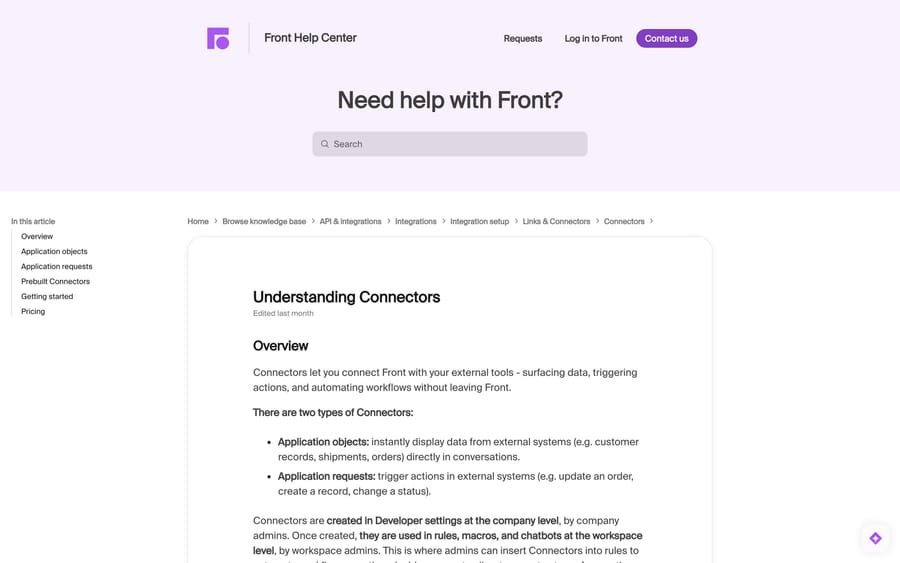
- Front Connectors are created in Developer settings by company admins, then used in rules, macros and chatbots at the workspace level by workspace admins.
- Front's Professional plan costs $65 a seat a month billed annually against $105 for Enterprise, a gap worth $14,400 a year on a 30-seat team.
- Up to 30 application objects can attach to one Front conversation, and a message with more than 30 distinct references attaches none of them, not just the first 30.

Front Connectors are Front's no-code integrations: application objects show external data such as an order or a Jira issue inside a conversation, and application requests push an action back to that system. Prebuilt Connectors are on the Professional plan ($65 a seat a month billed annually) and Enterprise ($105). Building one from scratch needs Enterprise or the Autopilot add-on. That split decides whether your integration is a five-minute job or a project.
| Question | Answer |
|---|---|
| Prebuilt Connectors | Professional and Enterprise, from the App store |
| Custom Connectors and application requests | Enterprise, or any plan with the Autopilot add-on |
| Who creates them | Company admins, in Developer settings |
| Who uses them | Workspace admins, in rules, macros and chatbots |
| Objects per conversation | Up to 30 |
| Prebuilt Stripe Connector | None |
Who configures a Front Connector, and where?
Front deliberately splits this across two admin levels, and getting it wrong is why a Connector goes missing from the rule builder.
- Connectors are created in Developer settings at the company level, by company admins.
- They are then used in rules, macros and chatbots at the workspace level, by workspace admins.
So if a workspace admin can't see the Connector in the rule builder, the question is whether a company admin has created it yet — not whether the rule is wrong. And Front is blunt about the second half: until you enable a workflow, "your Connector is simply a configuration in your developer settings that doesn't take any effect."
Three surfaces can fire a Connector:
Rules — a trigger does it automatically. A conversation moves to an inbox, and a request updates a record in the external system. See how to set up rules in Front.
Macros — an agent does it on purpose, with one click. This is the highest-value pattern for a support desk: a "Cancel order" macro that calls the commerce API rather than making the agent open another tab. Front rules vs sequences vs templates covers where macros sit among the rest.
Chatbots — a customer's input does it. A chat flow looks up an order status mid-conversation. See Front chat explained.
How do you set up a prebuilt Connector?
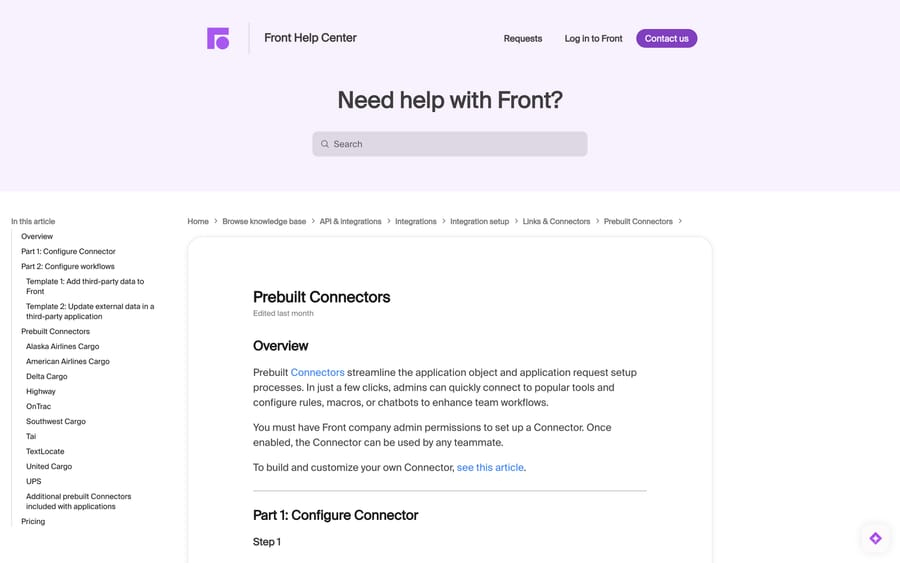
If one exists for your tool, use it. Setup is:
- Click the gear icon, go to company settings, and open App store.
- Pick the prebuilt Connector and click Enable app.
- On the Authentication tab, paste the credentials from the third-party tool. (If there is no Authentication tab, Front prompts for credentials as you enable the app.)
Then wire it to a workflow. At workspace settings › Rules and macros › Create rule, the rule library has a Connect category with two templates: Display external data, which uses the Add app objects action to bring third-party data in, and Update external data, which uses the Send app request action to push a change out. Pick the template, set the inbox, choose your Connector in the action, and click Create.
What is actually prebuilt. The standalone list is heavily logistics-weighted: Alaska Airlines Cargo, American Airlines Cargo, Delta Cargo, Southwest Cargo, United Cargo, OnTrac and UPS for tracking; Highway for carrier risk assessment; Tai for TMS data; TextLocate for driver location. The cargo ones need no authentication at all — they turn an AWB number into a tracking link. UPS wants an API Client ID and Secret; Highway, Tai and TextLocate want API keys.
Separately, five Connectors ship inside Front's existing applications rather than as standalone entries: Salesforce (CRM data in the conversation, and updates back), HubSpot (contacts, companies, deals), Jira (create, update and reference issues), Asana (sync tasks and projects both ways) and Pipedrive (deal and contact data). If you already run one of those apps, the Connector comes with it — our guides to Salesforce, Jira and Asana with Front cover the app side, and best Front integrations is the wider map.
One correction to expectations: there is no prebuilt Stripe Connector. Stripe is absent from Front's prebuilt list and from front.com/integrations as we read them on 21 September 2026. A billing lookup against Stripe's API is a custom build, which is the next section — and a good worked example, because Stripe's API is exactly the shape Connectors handle well.
How do you build your own Connector?
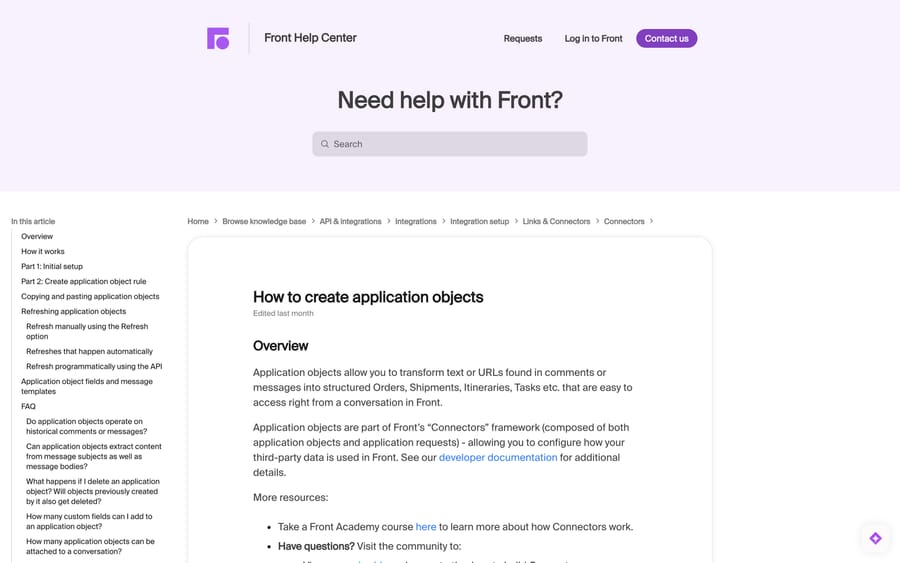
You need to be a Front company admin, and you need Enterprise or the Autopilot add-on to build from scratch.
Step 0 — create an app. Gear icon › company settings › Developers tab › Create app. On the Settings tab give it a name, a short description and an icon (the icon is what shows on every object it creates, so pick something recognisable). On the Features tab, click Add feature and choose App Object.
Step 1 — name the object. A name and short description, then Next.
Step 2 — define the pattern. In the Flow builder, click Add reference in the Collect reference node and choose whether to match a text pattern or a URL pattern. Text patterns look like ORD-[Digits] matching ORD-12, ORD-201, ORD-9023, or #[Digits] matching #123 and #4930. URL patterns must include both the protocol and the domain — https://example.com/orders/123.
This is the step that decides whether the Connector is useful. If your order IDs have no consistent shape, there is nothing for Front to match on, and you would be better off with a macro that takes the ID as input.
Step 3 — connect the API. This is where application requests come in, and it is the part people assume needs a server. It does not: Front's Application Servers feature hosts the call.
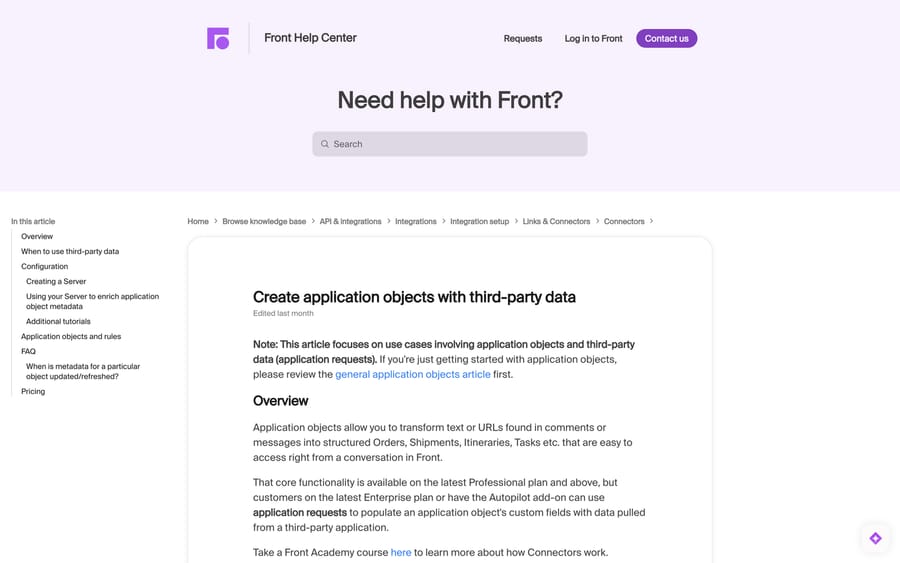
- In your app, open the Servers tab and click Create server.
- Set Origin to just the API's origin — for
https://api.stripe.com/v1/charges/{id}, that ishttps://api.stripe.com, not the full path. - Choose the Authentication strategy. Front supports API Key, Basic, Bearer and OAuth2.
- Reopen the server and set Local credentials — the actual token for the third-party API.
Then on the application object's flow builder, click Add request in the Send request node, pick the server, and enter the endpoint path with the dynamic part filled from a variable captured in your text pattern. Front makes you run a test with a real reference before you can continue, which is a good design: you see the JSON response and click the properties you want to keep as extracted variables. Those extracted properties are what the Return data node can display on the object.
You can chain requests. Front lets you "string multiple application requests together… like retrieving data with one request and using it as input for another — without needing separate Connectors or custom code." Click the blue plus in the flow builder, and use Manage variables to feed the first response into the second call. A lookup that resolves a customer ID and then fetches their subscriptions is two nodes, not a middleware service.
There is a Save as draft button, so a half-built Connector survives a meeting.
If your integration genuinely needs your own code — a handler you host, a webhook consumer — that is a different route; see building custom Front integrations and the Front API guide.
What are the limits on Front Connectors?
Front publishes these in the application objects FAQ, and they are worth reading before you design around Connectors.
| Limit | Value |
|---|---|
| Custom fields per application object | 50 |
| Application objects attached to one conversation | 30 |
| Historical messages | Not processed |
| Deleting an application object | Past objects stay; no new ones are created |
| Subjects as well as bodies | Matched by default |
| Manual refresh of an object | No more than once every 30 seconds |
Not retroactive. Objects "only operate on new comments or new messages created after the application object rule is configured." So a Connector you switch on today enriches nothing in your backlog, and a test on an old thread will look broken when it is working correctly. Test on a new message.
The 30-object ceiling trips on bulk. Up to 30 application objects attach to a conversation, and Front warns that "if a single comment or message that has more than 30 distinct references, this will trigger the limit and no objects will be attached" — not the first 30, none. A pasted list of 40 order numbers therefore produces zero objects, which reads exactly like a broken Connector.
And one real bug-shaped gotcha: if your objects all show the same data, the cause is almost certainly a static target URL. Front uses the target URL as the object's unique internal reference, so a fixed URL means every match points at the same object and only the name changes. The fix is a dynamic variable in the URL; if the external tool genuinely has no per-record URL, Front's own suggestion is to append a throwaway query string, e.g. https://example.com/all-active-orders?foo={Custom Field}.
Which Front plan do you need for Connectors?
| Capability | Starter | Professional | Enterprise |
|---|---|---|---|
| Prebuilt Connectors from the App store | — | Yes | Yes |
| Turn text or URL patterns into application objects | — | Yes | Yes |
| Application requests: enrich objects with third-party data | — | — | Yes |
| Build a Connector from scratch | — | — | Yes |
The Enterprise-only rows are also available with the Autopilot add-on, which is Front's route to selling the capability without the Enterprise seat price. On Front's pricing, checked 24 September 2026, Professional is $65 and Enterprise $105 a seat a month billed annually, a $40 gap worth $14,400 a year on a 30-seat team. Autopilot is not a seat add-on: it is priced per conversation, starting at $0.05. On a mid-size desk that makes the add-on question worth asking your account manager before you assume Enterprise. Our Front pricing breakdown has the full table.
The practical read: Professional buys you display, Enterprise buys you action. On Professional you can turn ORD-1234 into a clickable object with a link to your admin panel. You cannot pull that order's status in, and you cannot cancel it from a macro.
How we researched this
We read Front's four help-centre articles on Connectors, prebuilt Connectors, application objects and third-party data in a browser on 21 September 2026, and re-checked the plan gates, the prebuilt list, the limits and front.com/pricing on 24 September 2026, quoting the paths, limits and pricing lines from those pages. Front's help pages carry relative edit stamps rather than dates; all four read "edited last month" at that point. We do not have a Front workspace, so no Connector was built, enabled or run here. The brief for this post named Stripe as an example, so we checked both Front's prebuilt list and its public integrations directory for a Stripe entry and found none; Stripe therefore appears here as the shape of a custom build rather than as a prebuilt option.
Frequently asked questions
What are Front Connectors? Front's no-code integration framework, made of two pieces: application objects, which display data from an external system inside a conversation, and application requests, which trigger an action in that system. Together they cover reading from and writing to a third-party tool without leaving Front.
Which Front plan do I need for Connectors? Prebuilt Connectors from the App store are on the Professional plan or above. Building a Connector from scratch, and using application requests to pull third-party data onto an object, needs the Enterprise plan or the Autopilot add-on.
Who can create a Connector in Front? A company admin, in Developer settings at the company level. Workspace admins then use the Connector inside rules, macros and chatbots at the workspace level — which is why a Connector nobody has created yet is invisible in the rule builder.
Is there a prebuilt Stripe Connector for Front? Not as of 21 September 2026. Front's prebuilt list covers cargo and freight tools (Alaska, American, Delta, Southwest and United Cargo, OnTrac, UPS, Highway, Tai, TextLocate), plus Salesforce, HubSpot, Jira, Asana and Pipedrive bundled with their apps. A Stripe integration would be a custom Connector, which needs Enterprise or Autopilot.
Do I need to host a server to build a Front Connector? No. Front's Application Servers feature makes the API call for you: set the origin, pick one of the four supported authentication strategies — API Key, Basic, Bearer or OAuth2 — and store the credentials in Local credentials.
Can one Connector make more than one API call? Yes. Front lets you chain application requests in the flow builder, using variables extracted from the first response as inputs to the second, which removes the need for glue code between two endpoints.
Why doesn't my Connector fire on old conversations? Because application objects only run on comments and messages created after the rule was configured. Nothing in your backlog is processed. Test on a fresh message rather than an archived thread.
Why are all my application objects showing the same data? Almost certainly a static target URL. Front uses that URL as the object's unique reference, so without a dynamic variable in it every match resolves to the same object. Add a variable, or append a unique query string such as ?foo={Custom Field}.
How many application objects can attach to one conversation in Front? Thirty. And if a single message or comment contains more than thirty distinct references, Front attaches none of them rather than the first thirty — which looks like a failed Connector but is the documented limit.
Sources:
- Understanding Connectors — Front Help Center
- Prebuilt Connectors — Front Help Center
- How to create application objects — Front Help Center
- Create application objects with third-party data — Front Help Center
- Front's API documentation — Front developer docs
- Front integrations directory
- Front pricing
Add AI agents to your Front
Macha reads the conversation, drafts the reply and takes the action, inside the Front you already run.