Intercom
 Shopify
 Stripe
 Slack
Slack Notion
 Google Workspace
 Confluence

How to Set Up Zendesk in 2026: 10 Steps for New Admins


A new Zendesk admin can get a usable setup running in an afternoon by working through ten steps in order, starting with groups and email and ending with a test ticket on every channel. Business hours go in before SLAs, AI goes in after the Help Center, and CSAT goes on at launch so the baseline starts on day one.
Key takeaways
- Setting up Zendesk takes ten steps in order, from groups and channels to CSAT and a test run, and a basic setup with team, email, triggers, views and macros takes about an afternoon.
- Zendesk's Launch guide says to keep administrators to approximately 1 to 5 people, and new admins should build groups under People > Team before adding agents.
- Zendesk AI agents are included in every Suite and Support plan and billed per automated resolution, while Copilot costs $50 an agent a month on Professional plans and above.
- Zendesk CSAT surveys need Suite Growth or above, and the email survey goes out one day after a ticket is solved while messaging surveys go out immediately.
- New Zendesk admins should configure business hours before SLAs, because SLA clocks otherwise run against a 24/7 schedule the team does not staff.

Setting up Zendesk as a new admin comes down to ten steps in a fixed order: groups and team members, channels, the Help Center, ticket fields, business rules, views, macros, AI, CSAT and a test run. A basic version (team, email, two or three triggers, a few views and five to ten macros) takes about an afternoon. The order follows Zendesk's own Launch guide, checked 24 September 2026. Nearly everything in Zendesk exists to create, organize or act on one object, the ticket; if that's new, skim the Zendesk ticketing system explained first.
| Step | Where it lives | Launch minimum |
|---|---|---|
| 1. Groups and team members | Admin Center > People > Team | Groups first; 1 to 5 admins |
| 2. Channels | Admin Center > Channels | Email plus one real-time channel |
| 3. Help Center | Guide, from the product tray | The top ten repeat questions |
| 4. Ticket fields and forms | Objects and rules > Tickets | A few custom fields you'll route or report on |
| 5. Business rules | Objects and rules > Business rules | Schedule, then two or three triggers, then SLAs |
| 6. Views | Workspaces > Agent tools > Views | Unassigned, My open, Pending |
| 7. Macros | Workspaces > Agent tools > Macros | Five to ten |
| 8. AI agents and Copilot | Admin Center > AI | AI agents included; Copilot $50 an agent a month |
| 9. CSAT | Business rules > Customer satisfaction | Suite Growth or above |
| 10. Test and go live | Every channel | One test ticket per channel |
Step 1: How do you add team members and groups?
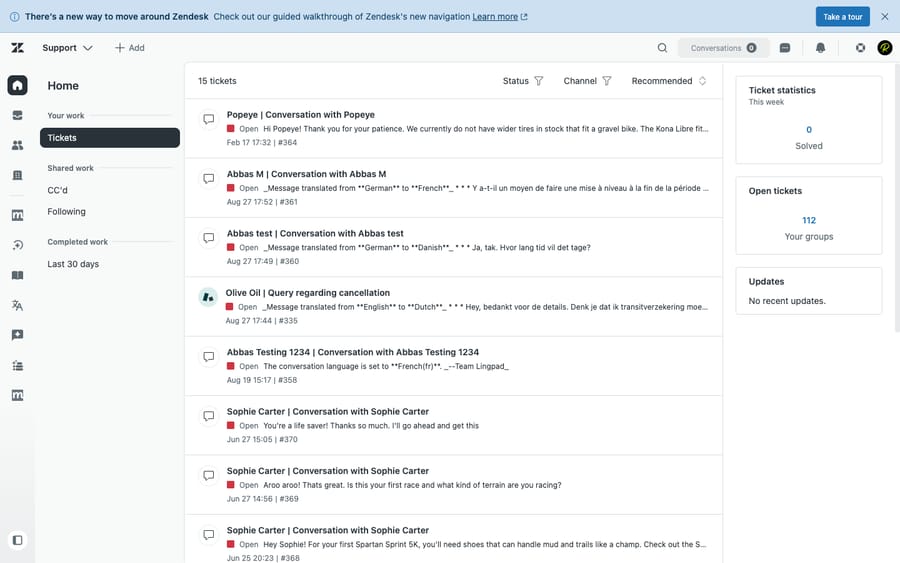
What to do: Once your plan is active, head to Admin Center > People > Team. First create your groups under Admin Center > People > Team > Groups > Add group — these are the teams tickets get routed to, like Tier 1, Billing, or Technical. Then add people under Admin Center > People > Team > Team members > Create team member, entering each person's name and email and assigning a role: agent (works tickets) or admin (works tickets and configures the account). Build the groups first so you can drop each new agent straight into the right one.
Why it matters: Groups are the backbone of routing — you assign work, views, and macros to groups, not just individuals, so a clean group structure now saves you re-work later. On roles, Zendesk's Launch guide says to keep administrators to "approximately 1-5"; too many people with config access is how settings quietly drift. If you're on a plan with custom roles, you can also create a read-only light agent for stakeholders who need visibility but won't be solving tickets.
Go deeper: Zendesk roles and permissions explained · what is a Zendesk light agent
Step 2: Which channels should you connect first?
What to do: Decide how customers will reach you, then wire up each channel in Admin Center > Channels.
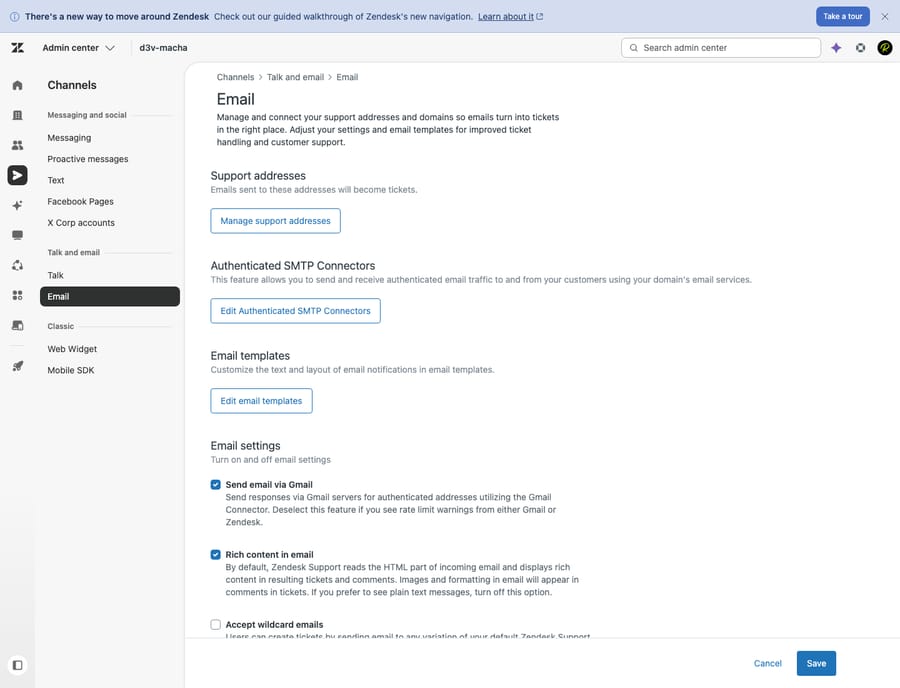
- Email is almost always first. Add your support address under Admin Center > Channels > Talk and email > Email. You can use Zendesk's default
[email protected], but most teams forward their existing[email protected]into Zendesk and verify the domain so replies come from their own brand. - Messaging / Web Widget puts live chat and a persistent message thread on your site or app. Turn it on under Admin Center > Channels > Messaging and social > Messaging, then embed the Web Widget snippet on your site.
- Talk (voice) is optional — enable it only if you'll actually staff a phone queue. It lives alongside email under Admin Center > Channels > Talk and email > Talk.
Why it matters: Every channel funnels into the same ticketing backbone, so you get one queue regardless of where the customer started. Don't boil the ocean: launch with email plus one real-time channel, and add the rest once the team has its footing.
Go deeper: the Zendesk Web Widget explained · Zendesk messaging vs. live chat · Zendesk Talk explained
Step 3: What does the Help Center need on day one?
What to do: Activate Guide and stand up a Help Center with a handful of articles answering your most common questions — billing, account access, returns, "how do I…". Open Guide from the product tray (the grid icon in the top bar) > Guide, then activate it and start adding articles; you manage Help Center settings and themes from inside Guide admin. You don't need fifty articles to launch; you need the top ten that your team answers over and over.
Why it matters: A knowledge base is the cheapest support you'll ever offer — customers self-serve, ticket volume drops, and (crucially) it becomes the source of truth that AI agents draw on later. Skipping this step is the single most common reason an AI rollout underwhelms: no knowledge in, no good answers out. Even a thin Help Center on day one pays for itself.
Go deeper: the Zendesk Guide knowledge base explained
Step 4: Which ticket fields and forms do you need?
What to do: Look at the standard ticket fields (subject, description, priority, type, status) under Admin Center > Objects and rules > Tickets > Fields and add custom fields for data your business needs to capture — order number, product line, plan tier, a dropdown of issue categories. If you handle very different request types (a refund vs. a bug report), build separate forms under Admin Center > Objects and rules > Tickets > Forms that show the right fields for each.
Why it matters: Fields are what every downstream feature reads from. A trigger can only route on priority = Urgent if priority is being set; a report can only break down by product if there's a product field. Capturing the right structured data at intake is what makes automation and reporting work — so think a step ahead here. Resist over-collecting, though: every required field is friction for the customer.
Go deeper: Zendesk ticket fields vs. forms · Zendesk custom fields explained
Step 5: Which business rules should you build first?
What to do: This is where Zendesk starts working for you. All four pieces live under Admin Center > Objects and rules > Business rules, and you only need a few of each to launch:
- Triggers (Admin Center > Objects and rules > Business rules > Triggers) run the instant a ticket is created or updated — auto-acknowledge new tickets, route by tag or channel, set priority. Start with two or three.
- Automations (Admin Center > Objects and rules > Business rules > Automations) run on a schedule (e.g. "if Pending for 4 days with no reply, send a reminder"). Add these once you see where tickets stall.
- SLAs (Admin Center > Objects and rules > Business rules > Service level agreements) set timed targets — first reply within an hour, resolution within a day — measured against fields like priority.
- Business hours / schedules (Admin Center > Objects and rules > Business rules > Schedules) tell your SLAs and automations when your team is actually working, so the clock doesn't run overnight. Note that schedules live with the other business rules under Objects and rules — not under Workspaces.
Why it matters: Business rules are the difference between a shared inbox and a support system. They enforce consistency no human has to remember, and they surface at-risk tickets before they slip. Set up business hours before SLAs, or your targets will be measured against a 24/7 clock you don't staff.
Go deeper: Zendesk business rules explained (the overview), then the hands-on guides — how to create a Zendesk trigger and how to set up Zendesk SLA policies. For the schedule itself, see Zendesk business hours and schedules.
Step 6: Which views should agents start with?
What to do: Build a few views — saved, filtered lists of tickets — so agents always know what to work on next. Start with the essentials: Unassigned tickets, My open tickets, Pending, and one per group (e.g. Billing — unsolved). You'll find these under Admin Center > Workspaces > Agent tools > Views.
Why it matters: Views are where agents actually live all day. Without them, everyone stares at one giant pile and the urgent stuff drowns. Good views turn an undifferentiated queue into a clear, prioritized to-do list — and they cost nothing but a few conditions.
Go deeper: Zendesk views explained
Step 7: Which macros should you create first?
What to do: Create macros — saved bundles of pre-written text and field changes an agent applies in one click — for the replies your team sends most: "we've received your request," password-reset steps, refund confirmations. Build them under Admin Center > Workspaces > Agent tools > Macros; start with five to ten and refine them as patterns emerge.
Why it matters: Macros keep tone and accuracy consistent and cut handling time dramatically, without removing the human's judgment about when to use them. They're also the lowest-risk automation you can ship on day one — nothing fires on its own, an agent stays in control.
Go deeper: Zendesk macros explained · the step-by-step how to create a macro in Zendesk
Step 8: When should you turn on AI agents and Copilot?
What to do: With knowledge (Step 3) and a clean ticket structure (Steps 4–5) in place, you can switch on Zendesk's AI from Admin Center > AI. AI agents (the chatbot formerly known as Answer Bot) handle conversations and deflect repetitive questions using your Help Center; Copilot assists human agents inside the ticket, suggesting replies, summarizing threads and drafting from your knowledge.
What it costs: Zendesk's pricing page says AI agents are included in every Suite and Support plan and billed per automated resolution, and lists the rate: $1.50 committed and $2.00 pay-as-you-go. Its plan table includes 5 automated resolutions per agent a month on Support Team and Suite Team and 10 on Suite Professional, and Zendesk's help center describes that allowance as a monthly dollar amount per seat since 18 May 2026 ($2, $5 or $10 by plan, capped at $5,000 a year). Copilot is a separate add-on at $50 an agent a month, paid yearly, on Professional plans and above. Per-resolution billing means Zendesk earns more as the bot closes more conversations, so check the resolution report before you widen its scope.
Why it matters: AI is the step most dependent on the previous seven. It's only as good as the knowledge and rules you feed it — which is exactly why it comes after the Help Center and business rules, not before. Start narrow: point it at a couple of well-documented topics, watch the results, then expand.
Go deeper: Zendesk AI explained
A note on going further with AI. Zendesk's native AI is a solid start. If you later hit its limits — narrow control over how the bot behaves, per-resolution pricing, or you want one AI layer across more than just Zendesk — there's a category worth knowing about: an AI agent layer like Macha that runs on top of your existing Zendesk. It's not a help desk and not a Zendesk replacement; it connects to your tickets and knowledge to auto-triage, draft replies, and resolve routine tickets, while anything it can't handle stays a normal ticket for a human. Worth a look once your manual setup is solid and the repetitive volume is the bottleneck — you can try it free.
Step 9: How do you turn on CSAT surveys?
What to do: Turn on CSAT (customer satisfaction) surveys so a short rating request goes out after tickets are solved. Set it up under Admin Center > Objects and rules > Business rules > Customer satisfaction, click Get started, edit the survey, then activate the channels you want surveyed. Activating a channel turns on the business rule that sends the survey: email surveys go out one day after a ticket is set to solved, messaging surveys immediately. Per Zendesk's CSAT article, this needs Suite Growth or above, or Support Professional or above.
Why it matters: CSAT is your earliest, cheapest signal of whether support is actually landing — long before churn or escalations tell you. Switch it on at launch even if volume is low; you want the baseline from day one, not three months in.
Go deeper: Zendesk CSAT explained · for the metrics that pair with it, Zendesk metrics to track
Step 10: How do you test before going live?
What to do: Before you point real customers at it, send yourself a few test tickets from each channel. Confirm: the ticket lands in the right group, your acknowledgment trigger fires, the SLA clock starts, a macro inserts cleanly, AI suggests something sensible, and the CSAT survey arrives after you solve. Walk one agent through the Agent Workspace — the screen they'll live in — so the first real ticket isn't their first time seeing it. Then flip the channels live.
Why it matters: Most launch-day embarrassments (replies from the wrong address, internal notes sent to customers, SLAs that never started) are caught by ten minutes of testing. Going live is a decision, not an accident — make it deliberately.
Go deeper: the Zendesk Agent Workspace explained
Frequently asked questions
How long does it take to set up Zendesk? A basic, usable setup — team, email channel, a few triggers, views, and macros — is genuinely an afternoon's work. A polished launch with a Help Center, custom forms, SLAs, AI, and CSAT typically spans one to two weeks, mostly spent writing knowledge-base content and tuning business rules rather than clicking through configuration.
What should I set up first in Zendesk? Your team and groups, then your email channel. You can't route work without somewhere to route it to, and email is where most volume arrives. Everything else — Help Center, fields, automation, AI — layers on top of that foundation.
Do I need to set up everything before going live? No. Launch with team, channels, a couple of triggers, views, and macros, then add the Help Center, SLAs, AI, and CSAT iteratively. Trying to perfect every setting before day one is the most common way setups stall for months.
What's the difference between an agent and an admin in Zendesk? Agents solve tickets; admins solve tickets and configure the account (channels, business rules, fields, roles). Zendesk recommends keeping admins to a small group — roughly one to five — so configuration stays consistent.
Can I automate Zendesk after I've set it up? Yes, and that's the natural progression. Triggers, automations, and SLAs handle rule-based work; Zendesk's native AI handles repetitive conversations; and an AI agent layer such as Macha can sit on top to triage, draft, and resolve routine tickets while humans handle the rest. Macha bills per ticket — one conversation, charged once, however many steps it takes along the way (summarize, tag, route, draft, resolve) — never per "resolution," and the model the agent runs on doesn't change the price. It starts at $299 a month for 750 tickets, about $0.40 each.
How long is the Zendesk free trial? 14 days. Per Zendesk's pricing page, the trial gives you the Professional plan's features with Copilot included, which is enough time to run all ten steps above on a test account before you pick a plan.
Where do I add channels and business rules in Zendesk? Both live in Admin Center. Channels are under Channels — email and voice under Talk and email (Email, Talk), live chat under Messaging and social (Messaging). Business rules are all under Objects and rules > Business rules — Triggers, Automations, Service level agreements, and Schedules (business hours). Views and macros sit under Workspaces > Agent tools, and people and groups under People > Team.
What does the whole setup order look like?
Setting up Zendesk isn't hard, it's sequential. Get your team and groups in place, connect email plus one real-time channel, stand up a thin Help Center, capture the right fields, add a handful of business rules, organize the queue with views, save your common replies as macros, switch on AI, enable CSAT, and test before you go live. Do it in that order and each step builds on the last, instead of fighting it. Then, once the manual machine is running and the repetitive volume is obvious, that's the moment to consider automating the routine work with an AI layer — you can start a free trial when you're ready.
Setup flow, CSAT path and AI pricing checked against Zendesk's Launch guide, CSAT documentation and pricing page on 24 September 2026. Zendesk updates its product and admin paths periodically — confirm specifics in your own account before relying on them.
Add AI agents to your Zendesk
Macha reads the ticket, drafts the reply and takes the action, inside the Zendesk you already run.